When I switched to a Mac about a decade ago, I immediately fell in love with my MacBook’s menu bar, and especially the various icons in its top-right corner. I’ve always enjoyed keeping useful menu bar apps there, such as clipboard managers, app launchers, or apps that update other apps. But unfortunately, if you’ve installed more than a few third-party apps on your MacBook, your menu bar might be pretty cluttered. It’s nothing a quick clean-up can’t fix, though, and now macOS ships with a few ways to help fix your messy menu bar.
Remove apps from the menu bar

Credit: Pranay Parab
Just as you’d remove unwanted items from your desk, you should periodically declutter the menu bar by removing apps that don’t need to be there. This doesn’t uninstall those apps, but it does free up some space in your menu bar. I do this for menu bar icons I never end up clicking. macOS 26 Tahoe has an easy way to remove apps from the menu bar. Follow these steps to do it:
-
Click the Apple logo in the top-left corner of your Mac’s screen.
-
Go to System Settings > Menu Bar.
-
In the right pane, navigate to the section called Allow in the Menu Bar.
-
You’ll see a list of apps that have a menu bar icon. You can uncheck any app you want to remove.
Some apps also offer a way to remove their icons from the menu bar. Try checking your apps’ settings to see if they let you remove their menu bar icons.
Note that removing a menu bar icon for an app can sometimes cause the app to become “headless,” which means that it’ll be running in the background but its icon won’t show up in either the menu bar or the dock. This is fine for apps that you only need to configure once, but it can become a problem if you want to use the app regularly. In such cases, you can use a Spotlight search (Cmd + Space, or the magnifying glass icon in the menu bar) or alternatives such as Alfred or Raycast to search for the app’s name and open it.
Remove system controls from the menu bar

Credit: Pranay Parab
I’m sure you’ve noticed that the menu bar has more than just app icons. It’s also home to the clock, wifi, volume controls, and more. You can easily add or remove these controls from the menu bar, as long as you’re running macOS Tahoe. Here’s how:
-
Go to System Settings > Menu Bar.
-
Head over to the Menu Bar Controls section.
-
Uncheck any control you want to remove from the menu bar.
-
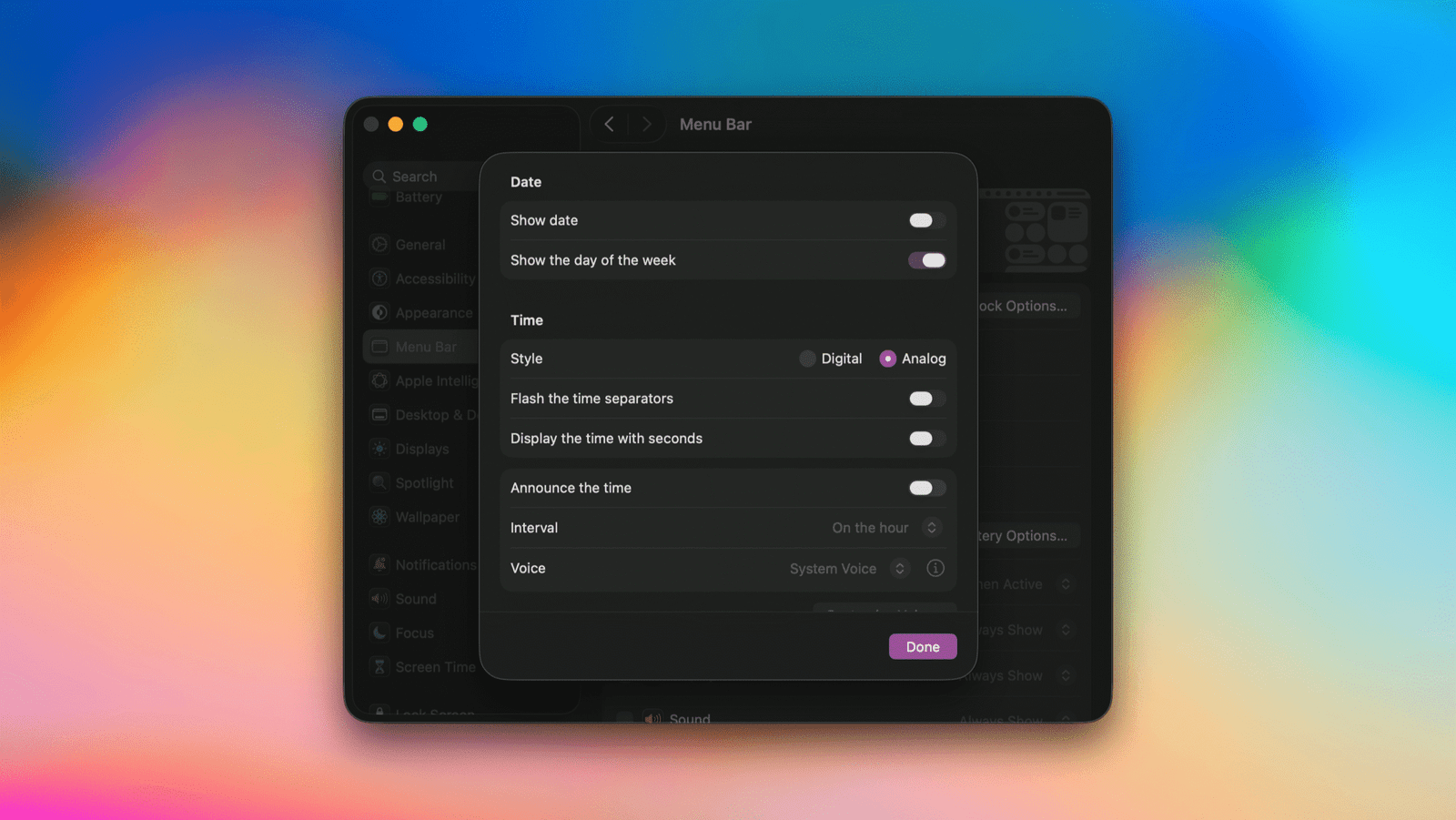
You cannot entirely remove the clock from the menu bar, but you can click Clock Options… and switch to Analog to make its icon a lot smaller.
Drag and drop icons to rearrange the menu bar

Credit: Pranay Parab
You also have the option of dragging and dropping your app icons around the menu bar, or using drag-and-drop to remove them from the menu bar. Just hold the Command key and drag any menu bar icon to a different position within the menu bar to rearrange it. To remove icons from the menu bar using drag-and-drop, hold Command and drag-and-drop them outside the menu bar.
Use a menu bar manager app

Credit: Pranay Parab
To tame the chaos at the top of your Mac’s screen, I strongly recommend using a menu bar manager app. These apps will automatically show or hide menu bar icons based on triggers (eg: the battery icon will only show up when your MacBook’s charge is below 25%), or add a second row of icons that’s visible only when you click the menu bar. You’ll need to try a couple of menu bar managers to decide which one works best for you. I’ve been using Barbee for some time, and its my current favorite.
This articles is written by : Nermeen Nabil Khear Abdelmalak
All rights reserved to : USAGOLDMIES . www.usagoldmines.com
You can Enjoy surfing our website categories and read more content in many fields you may like .
Why USAGoldMines ?
USAGoldMines is a comprehensive website offering the latest in financial, crypto, and technical news. With specialized sections for each category, it provides readers with up-to-date market insights, investment trends, and technological advancements, making it a valuable resource for investors and enthusiasts in the fast-paced financial world.