
There are a few important options that you should check and configure correctly in the settings in order to run Windows 11 effectively. Here are some helpful tips for additional Windows 11 features that should remain permanently active in everyday use — or be deliberately deactivated to avoid unnecessary data collection, performance slowdowns, and distractions.
Remove recommendations and account notifications from the Start menu
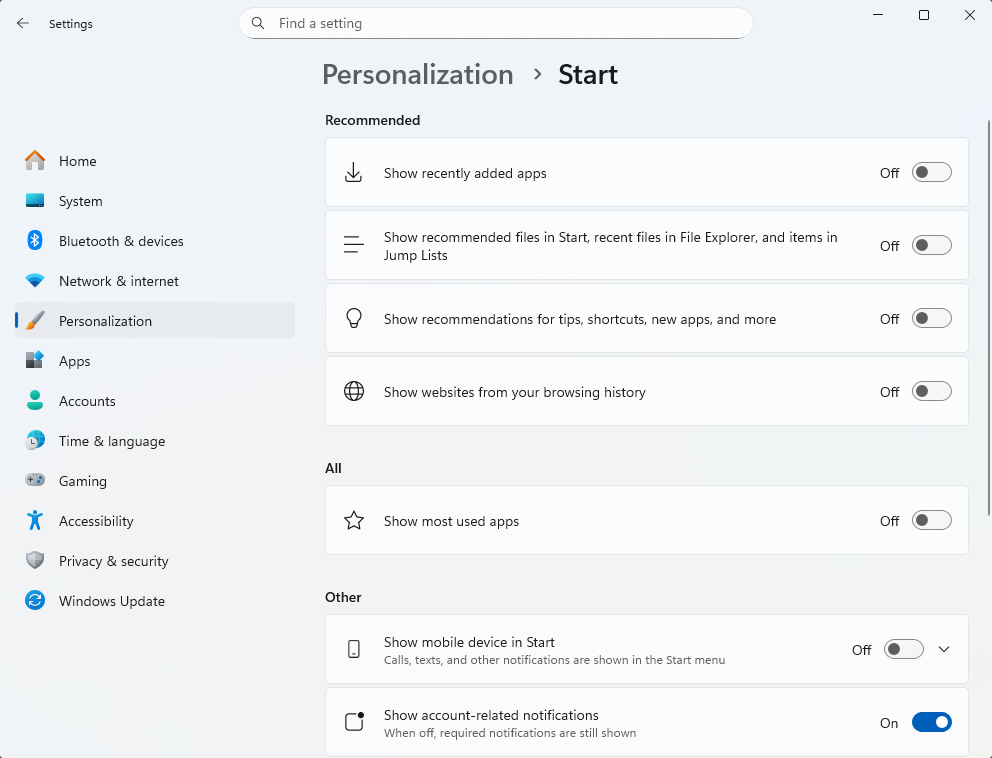
By default, Windows 11 displays recently used files, app recommendations and account-related notifications in the Start menu. This content creates distraction and requires additional usage data. Open the settings with Windows key + I, switch to Personalization and then to Start.
Deactivate “Show recently added apps”, “Show most used apps” and all switches in the “Recommended” area. In Windows 11, you can also select the “Show most used apps” layout to completely suppress the recommendation area.
Sam Singleton
Control system-wide notifications and app pop-ups
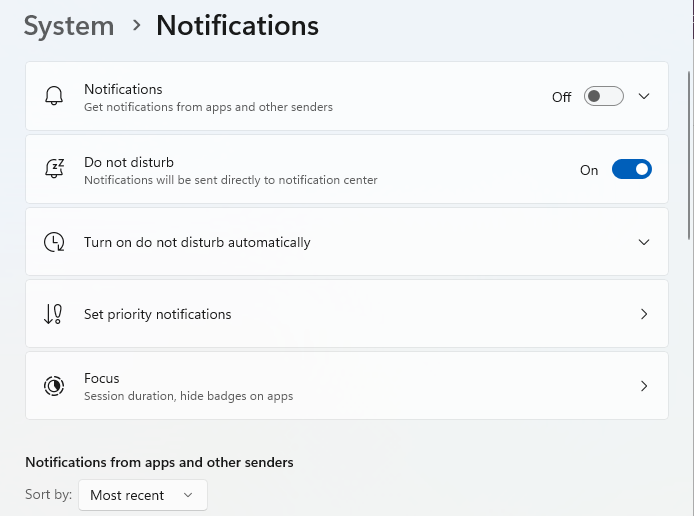
Notifications are one of the biggest distractions. Open Settings, go to System and Notifications. First, disable the global “Notifications” option.
If you want individual applications to continue sending messages, activate “Do Not Disturb” instead and configure individual apps specifically under this option. In the same menu, scroll down to “Additional settings” and deactivate “Receive tips and suggestions when using Windows”.
This will permanently remove setup pop-ups and advertising notices. Microsoft regularly expands this area and sometimes changes the names of the menu items. However, this does not change the fact that it is worth taking a look here.
Sam Singleton
Protect your lock screen from data leaks
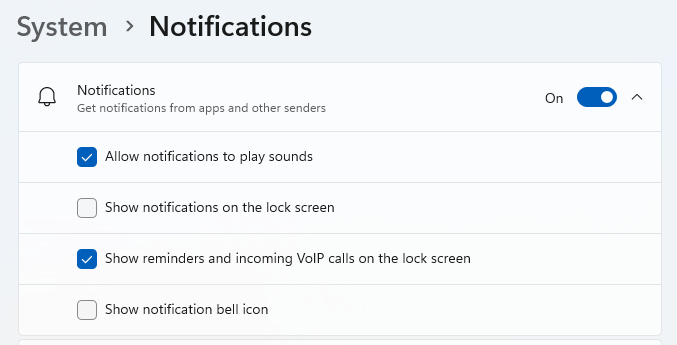
Notifications on the lock screen can display content in plain text. Open Settings, go to System and Notifications and deactivate “Show notifications on the lock screen”. This will keep content hidden as long as the device is locked.
Sam Singleton
Disable advertising ID, language list and app tracking
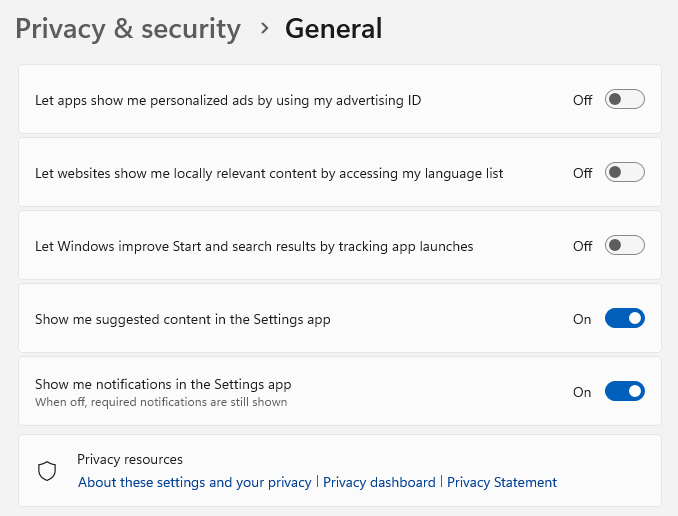
By default, Windows creates usage profiles for personalized advertising and app statistics. Open Settings, go to Privacy and security and General. Disable “Let apps show me personalized ads by using my advertising ID”, “Let websites show me locally relevant content by accessing my language list” and “Let Windows improve Start and search results by tracking app launches”.
The system will continue to function as before, but will not create profiles. Microsoft also changes the names of the settings at regular intervals.
Sam Singleton
Keep Inking & typing personalization local
The “Inking & typing personalization” function analyzes keyboard and pen inputs. Open Settings, go to Privacy and security and Inking & typing personalization. Deactivate the “Custom inking and typing dictionary”. Input remains fully usable without text entries being evaluated.
Strictly limit diagnostic data and turn off feedback
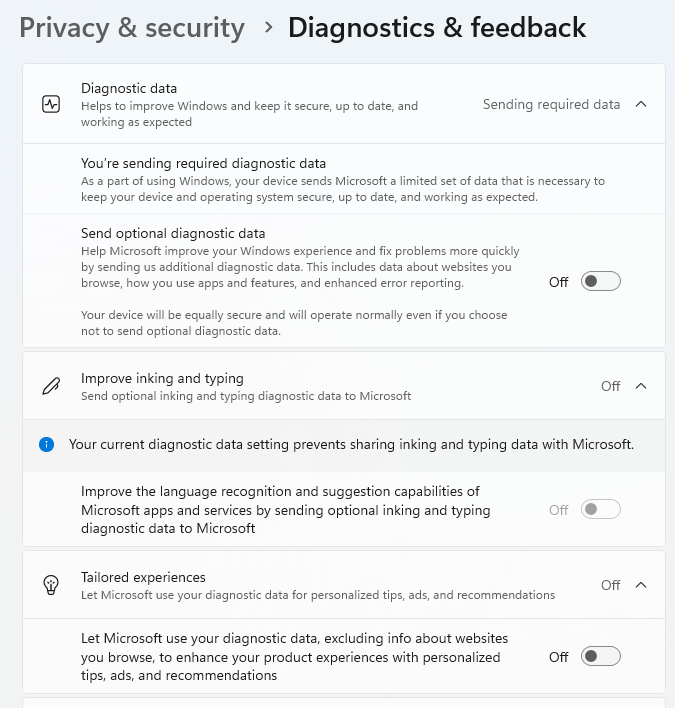
Open Settings, go to Privacy and security and Diagnostics & feedback. Leave only “Send required diagnostic data” enabled.
Deactivate “Send optional diagnostic data”. Expand all other areas and set “Feedback frequency” to “Never”. Use “Delete diagnostic data” to remove any information that has already been stored.
Sam Singleton
Disable or restrict location services
Open Settings, go to Privacy and Security and Location. Disable location access completely or restrict it to individual applications. Weather apps will continue to work with a manually set location.
Under Privacy and security, you will find the areas “Camera”, “Microphone”, “Contacts” and other sensors. Open each category and revoke access for applications if it’s not absolutely necessary. It is important to check apps from the Microsoft Store, which often request more permissions than necessary.
Limit background activities of apps
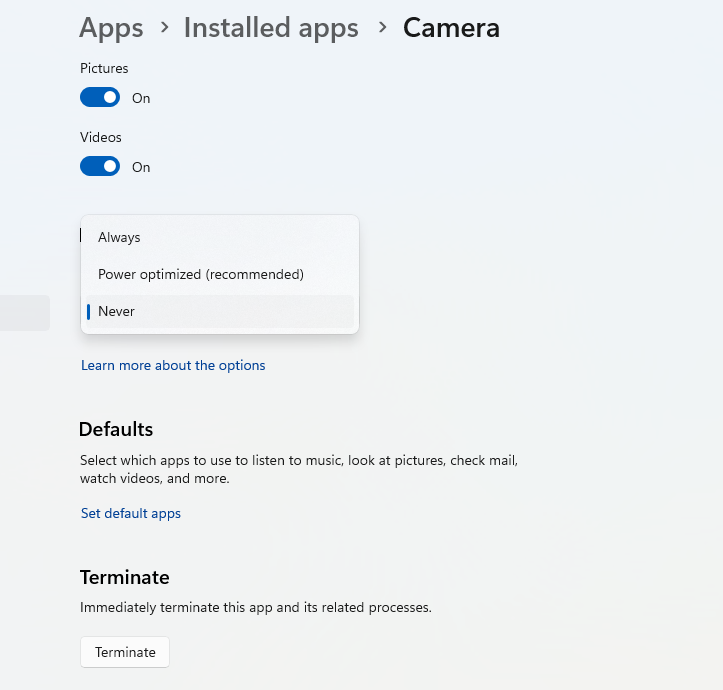
Many applications continue to run in the background. Open Settings, go to Apps and Installed apps. Open the Advanced options for individual programs and set “Background app permissions” to “Never”. This noticeably reduces memory and CPU load. However, these options are not available for all apps.
Sam Singleton
Restrict app installation to verified sources
For systems used by less experienced users, it’s advisable to restrict app sources. Open Settings, go to Apps and Advanced app settings. Under “Choose where to get apps from”, set the option to “Microsoft Store only”. This will allow only verified applications to be installed.
Consistently clean up autostart
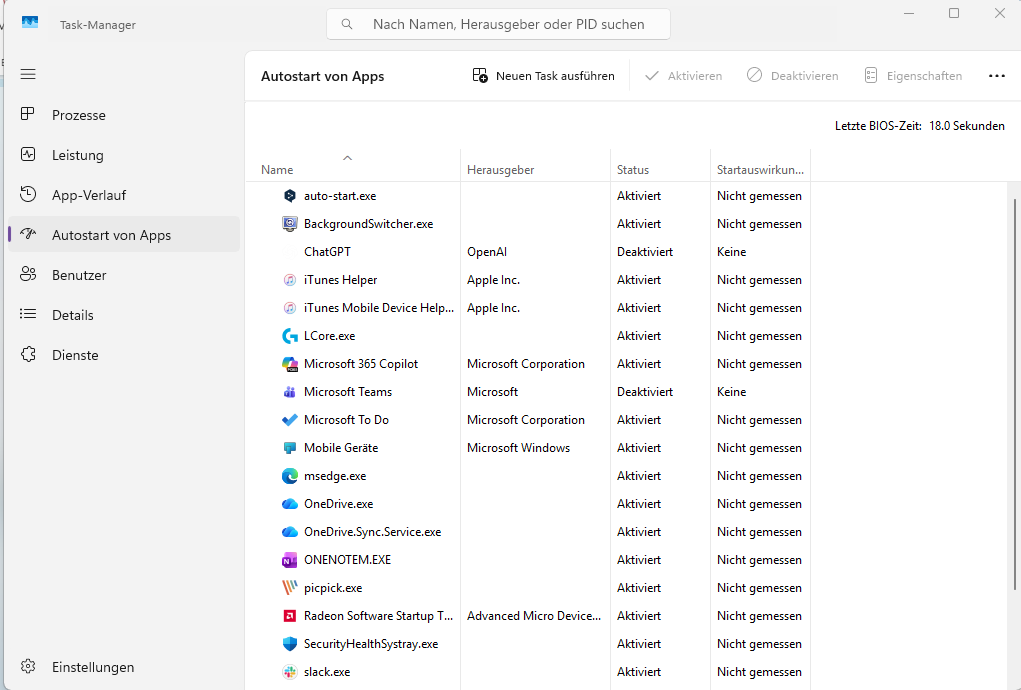
Right-click on the taskbar and open the Task Manager. Go to Startup apps and disable all programs that are not absolutely necessary for system startup. Manufacturer tools and update utilities in particular slow down the startup process.
Thomas Joos
Open Settings, go to Apps and Installed apps. Go through the entire list and uninstall any software that is not used. This reduces background services, autostart entries and security risks.
Permanently display file extensions
To immediately recognize dangerous file types, open File Explorer, click on the three dots and select Options. Go to View and deactivate “Hide extensions for known file types”. Confirm with “Apply”.
Restrict delivery optimization for updates
By default, Windows also distributes updates to other computers. Open Settings, go to Windows Update, then to Advanced options and Delivery optimization. Disable “Allow downloads from other devices” or restrict the function to the local network.
Consciously control update restarts
Under “Windows Update” and “Advanced options”, you can specify whether Windows automatically restarts after updates. Enabling automatic restarts increases security, but can interrupt ongoing work. Set the behavior to suit your own working style.
Optimize power settings
Open the Control Panel, go to System and Power and battery. Click on “Lid, on/off, and standby mode button controls” and adjust the settings to your requirements.
Here, Windows also shows the power consumption of individual applications in detail. Identify conspicuous apps and limit their background activity. On notebooks, this significantly extends the runtime.
Configure user account control sensibly
Enter “User Account Control” in the search field and open Change User Account Control settings. Select a level that allows queries for app installations but not for internal Windows actions. This reduces queries without completely removing protection mechanisms.
Disable game background recording
Open Settings, go to Gaming and Captures. Disable background recording. This reduces GPU and CPU load, even when no games are actively being used.
Use night mode permanently
Open Settings, go to System and Display and enable “Night light”. Configure the schedule so that the mode is activated automatically. Alternatively, it can be switched on directly via Windows key + A.
Enable advanced clipboard
Open Settings, go to System and Clipboard. Activate “Clipboard history”. You can then paste multiple copied items using Windows key + V.
This articles is written by : Nermeen Nabil Khear Abdelmalak
All rights reserved to : USAGOLDMIES . www.usagoldmines.com
You can Enjoy surfing our website categories and read more content in many fields you may like .
Why USAGoldMines ?
USAGoldMines is a comprehensive website offering the latest in financial, crypto, and technical news. With specialized sections for each category, it provides readers with up-to-date market insights, investment trends, and technological advancements, making it a valuable resource for investors and enthusiasts in the fast-paced financial world.