The new Google Health app has not arrived without controversy. Not only did the app kill off the Fitbit app, it brought with it a major UI overhaul to an app that so many had grown familiar and comfortable with after years of use. Thankfully, enough users have shared their feedback with Google that they already felt the need to publicly commit to making dozens and dozens of major changes, many of which have already rolled out.
Still, the app and its new look are here to stay, as Google has (so far) only committed to fixing bugs, tweaking data, and adding features that are missing out of the gate.
In our Fitbit Air review, I talked a bit about getting the Google Health app setup properly in order to more easily consume the data it provides. Since I didn’t want to spend another 1,000 words talking through that, I wanted to put together a separate post to show everyone the areas I was talking about and walk you through how I’ve made the app a more pleasant experience.
Setup the New Google Health App
The first area I think most people should look to is at the top of the Today page. This is where you’ll find a set of tiles that highlight important pieces of health and fitness data you might want to see each time you open the app.
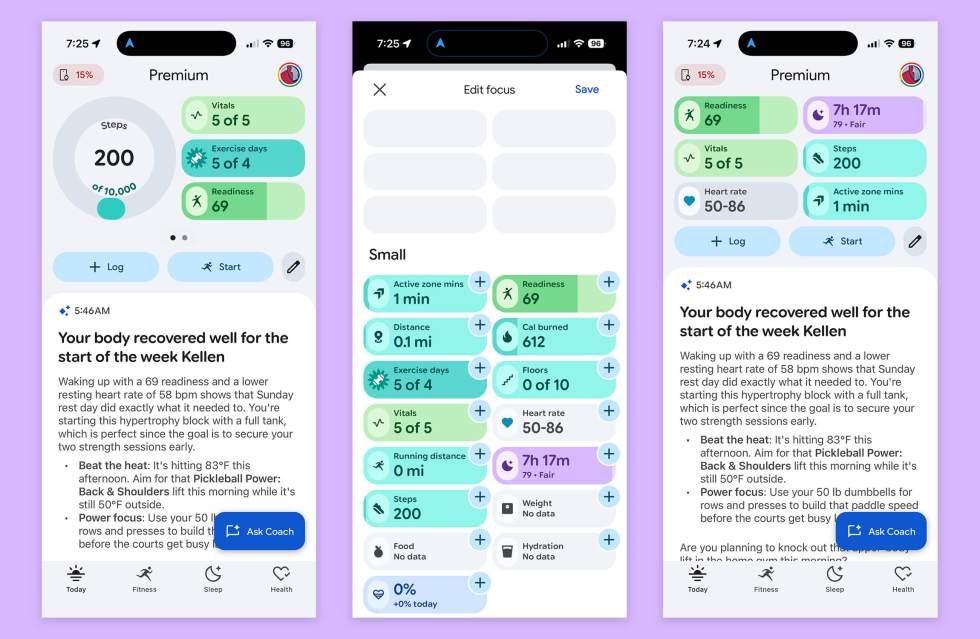
Above, you’ll see the process I’ve gone through from an out-of-the-box setup that Google provides to one that makes more sense for me. This area starts with a big circular item set next to 3 smaller tiles. There is a good chance you also have a secondary page up there that you can swipe through, although you might not have realized this.
You can and should customize this area.
To do so, there is a little pencil icon just under it on the right side, next to the “Start” activity button. Hit this and you’ll be taken to a page that you are seeing in the middle.
This page will have all of your tiles up top in the setup that Google provided. Unfortunately, you can’t just long-press on an item and then drag it where you want it. Google will force you to remove items and then replace them.
My suggestion is to hit the “-” button next to each and wipe out the entire setup from Google. This gets you a clean page that you can then add to one-by-one. Since there is no way to re-arrange at this time, this process will at least get you the items you want in the order you want.
Once you have everything organized, there is a “Save” button at the top that will lock it in.
Setup the Health tab in the same way
OK, with your Today tab setup, I would then move on and complete a very similar process in the Health tab. Again, in our review, I mentioned that I spend most of my time in the new Google Health app in the Health tab because this is where you get all of the data in one place with the ability to tap on each card to see even more data.
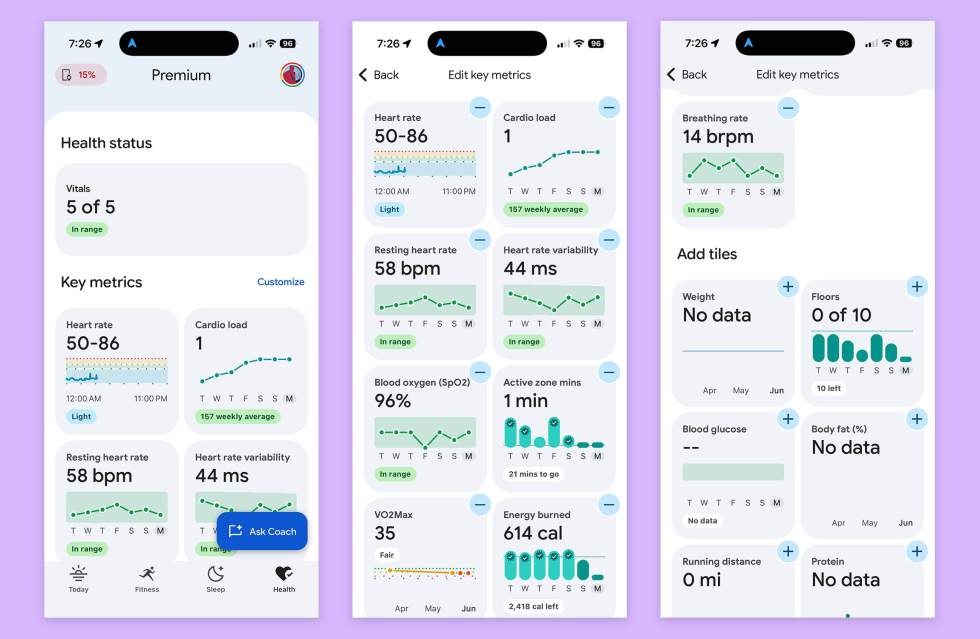
This Health page also has an edit or “Customize” option that takes you to a page where you can hit “-” buttons in order to clean house and start over. Like that Today tile setup, Google hasn’t allowed us to re-arrange, so you once again need to delete it all and then add things back in the order that works for you.
So yeah, do the same thing on this page to give yourself a customized setup of all of your health metrics.
Add the Google Health Widget on Android
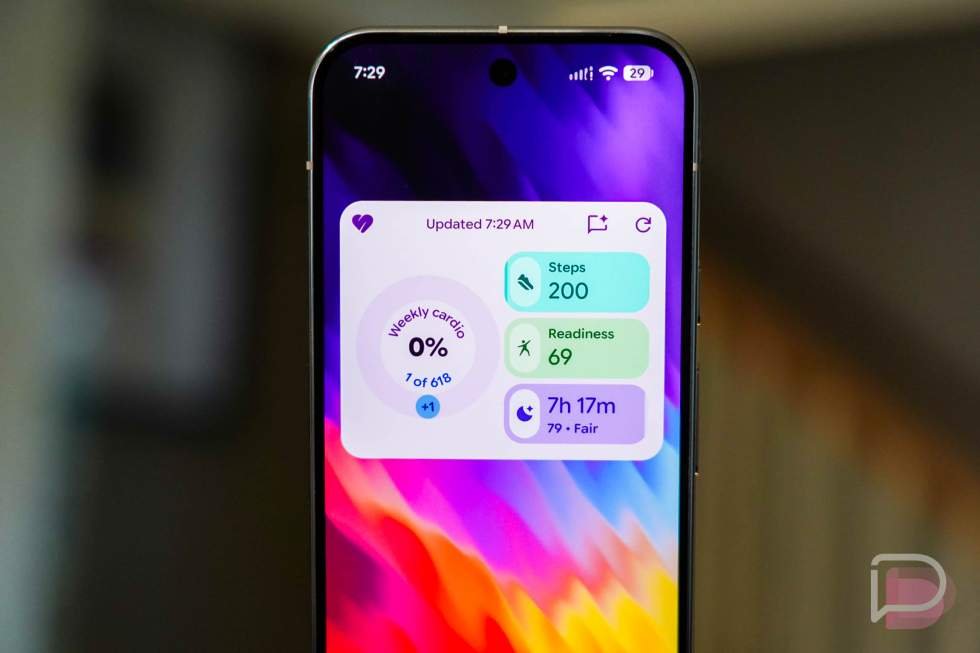
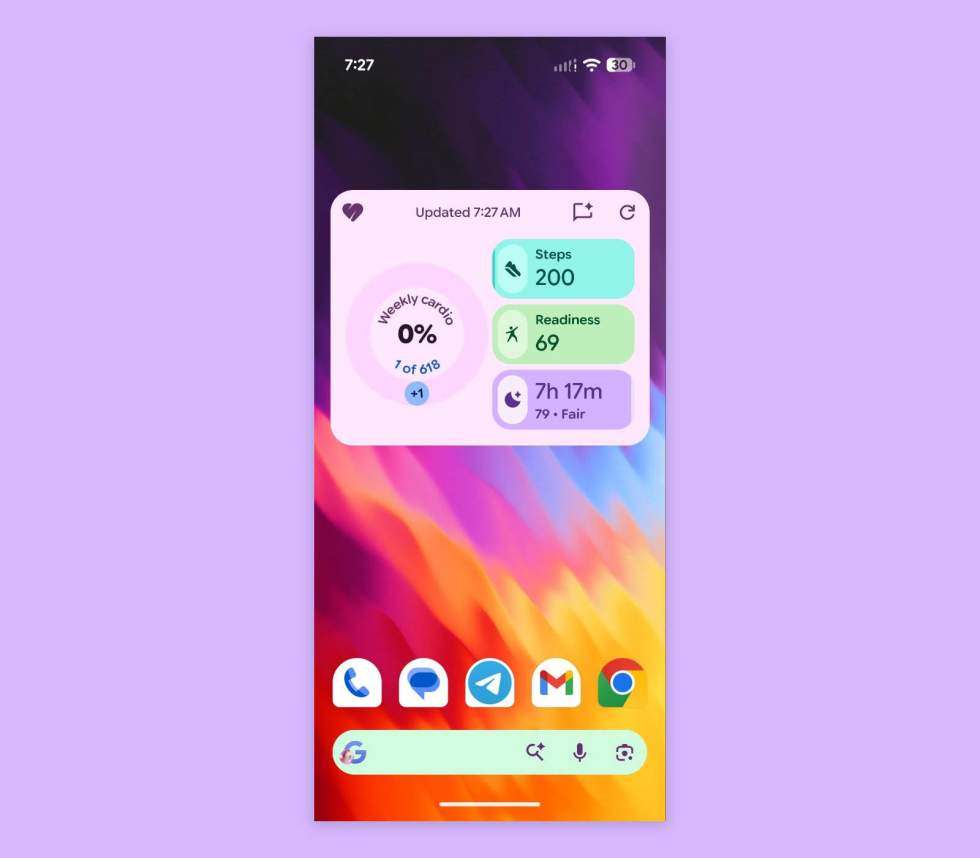
Finally, if you are on Android, you get a cute little Google Health widget that can be added to home screens for a quick look at some of your major metrics. This widget cannot be customized at this time, so it currently only shows weekly cardio, steps, readiness, and your most recent sleep. However, I’d imagine that at some point, Google will let us adjust this or at least pull from the top section of the Today page.
To add a widget on Android, long-press on your home screen, choose “Widgets,” and then find the Google Health widget. You can then long-press on it to drag it into place.
If the widget doesn’t look as big as the one below, that’s because it starts out quite small. You can long-press to then resize if you’d like.
The widget is nice because it has a shortcut to the Google Health Coach (if you subscribe to premium) and also a refresh button to get updated data.
That’s how I have setup my Google Health app to get a lot of data without having to go looking for it. This setup definitely feels like it’s built more for me and not just whatever Google prioritized out-of-the-box.
Let me know if this helps or if you’ve found a different setup.
Read the original post: Here’s the Best Way to Setup the New Google Health App
This articles is written by : Nermeen Nabil Khear Abdelmalak
All rights reserved to : USAGOLDMIES . www.usagoldmines.com
You can Enjoy surfing our website categories and read more content in many fields you may like .
Why USAGoldMines ?
USAGoldMines is a comprehensive website offering the latest in financial, crypto, and technical news. With specialized sections for each category, it provides readers with up-to-date market insights, investment trends, and technological advancements, making it a valuable resource for investors and enthusiasts in the fast-paced financial world.