While lots of free streaming services offer lineups of live TV channels to flip through, they all have the same problem: You’re not in control of the content, and you’re constantly interrupted by ads.
A new app called Bunny Ears TV aims to solve those problems with help from Plex Media Server. If you have an Apple TV box and your own collection of movie or TV files in Plex, Bunny Ears TV can spin them into dozens of round-the-clock streaming channels with practically no effort.
It’s a neat app that mimics the channel surfing of cable using your own content, but unlike with cable, there are no commercial breaks.
A better way to watch free streaming channels
A quick refresher on Plex Media Server: This is a program you can run on a desktop computer or NAS device, and it will stream media files from that computer to your phone, TV, and other devices. Plex Media Server is free to use, though some features require a Plex Pass subscription.
Where do those media files come from? Plex itself offers an over-the-air DVR feature (Plex Pass required) that can record local channels from antenna. Beyond that, you can rip a DVD collection, record from streaming services with PlayOn, or use a tool like YT-DLP to download YouTube videos. (I won’t be naive and pretend that people aren’t putting pirated videos on their Plex servers as well.)
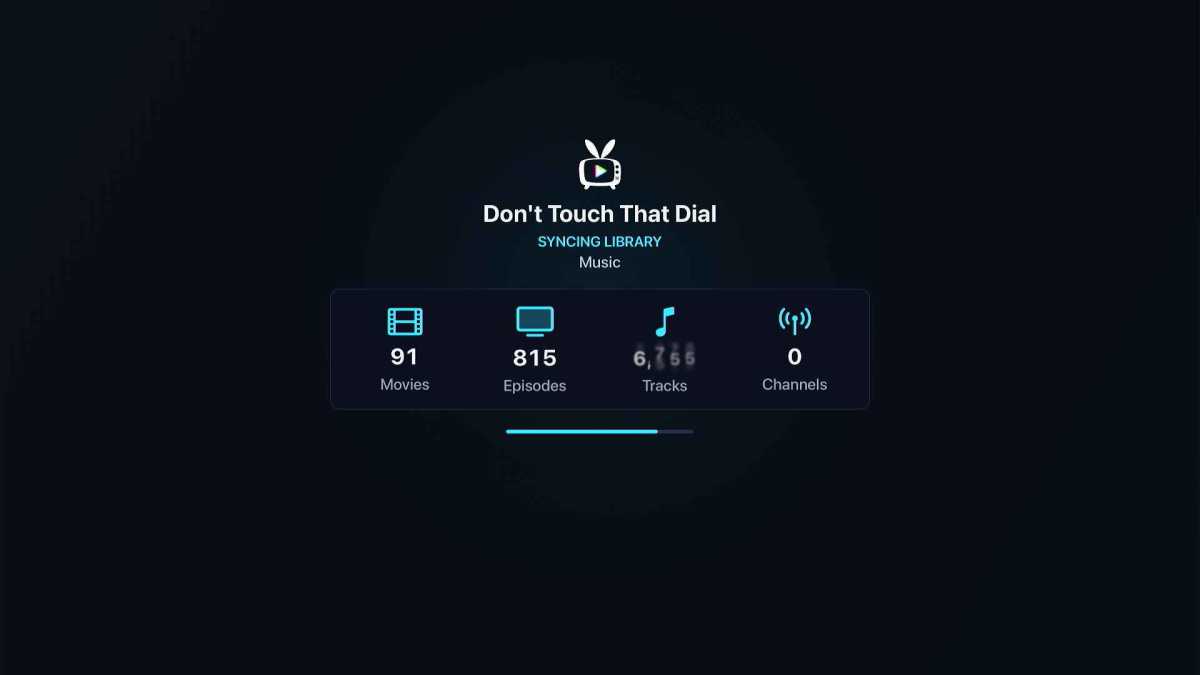
Regardless of where the content comes from, Bunny Ears TV provides an alternative way to watch it, separate from Plex’s own apps. Once installed on your Apple TV, it connects to your Plex account and organizes all your server’s video files into a collection of live streaming channels.
Jared Newman / Foundry
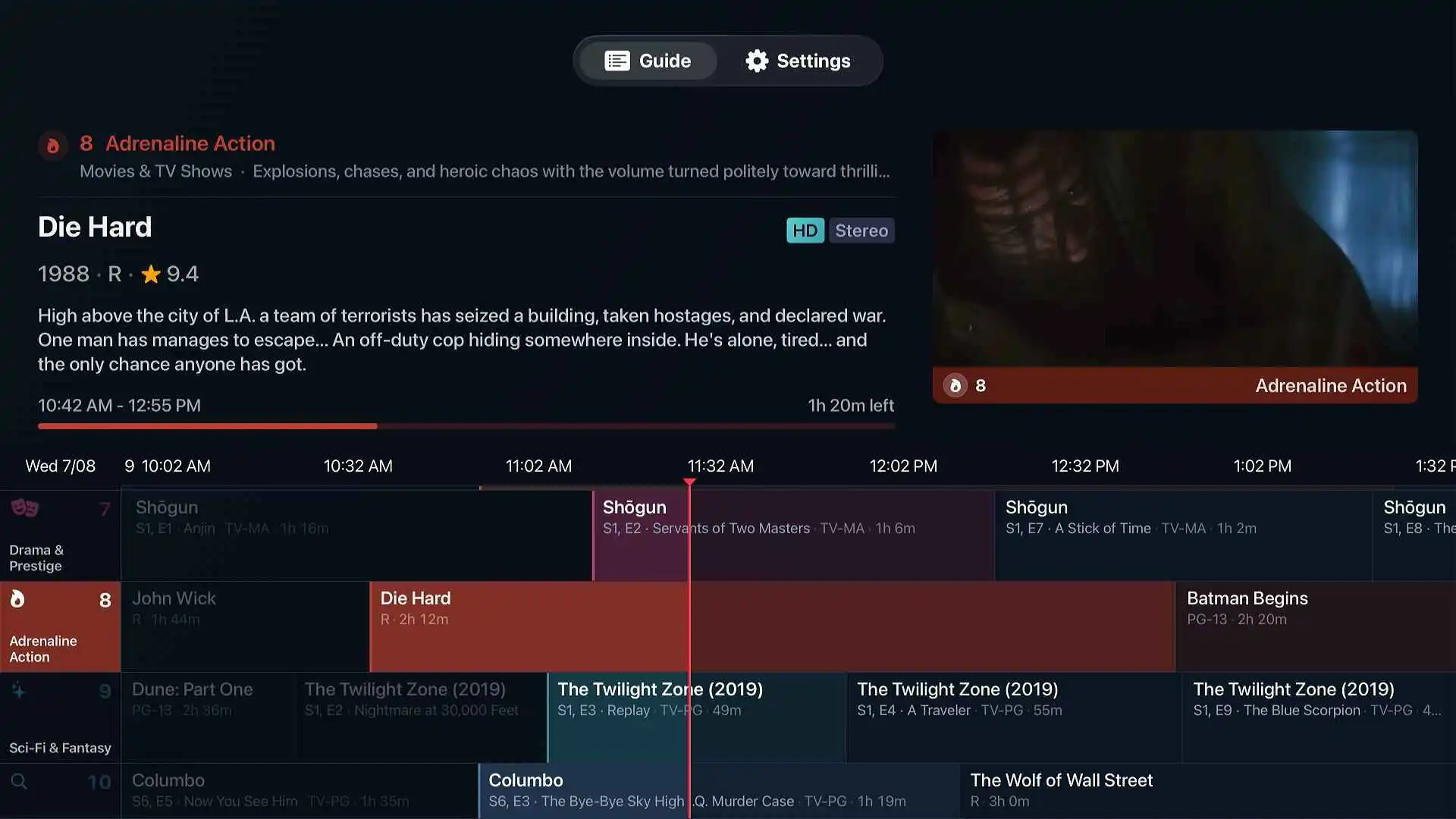
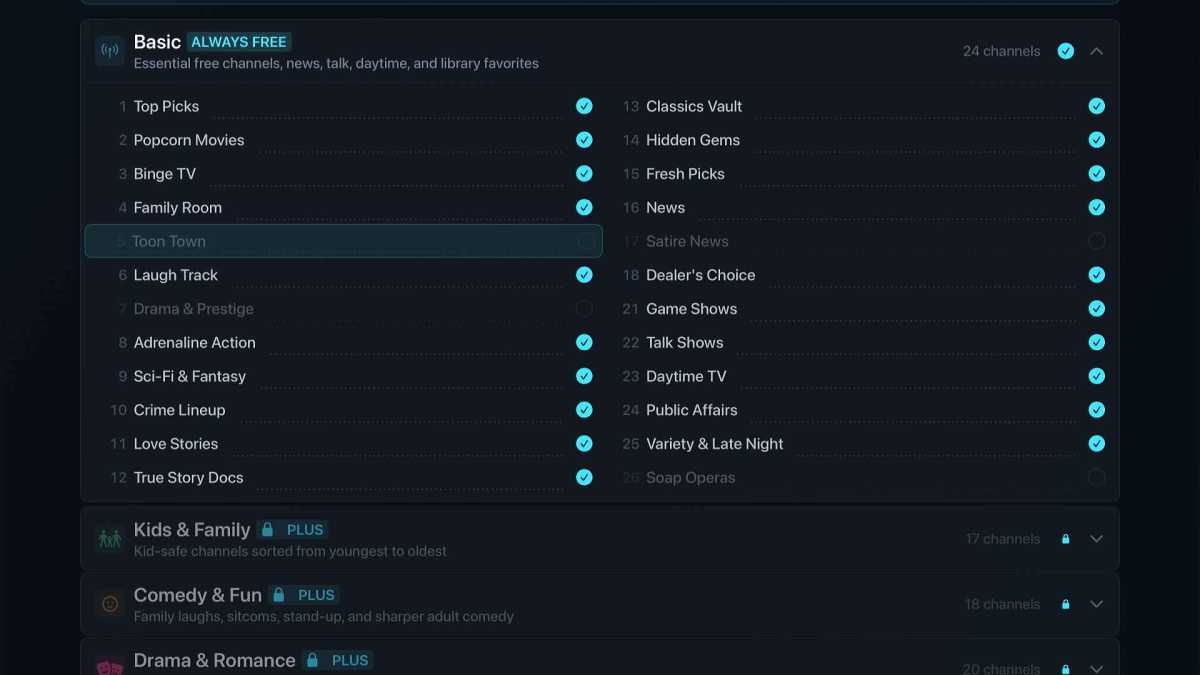
To start with, Bunny Ears TV creates up to 26 live channels around themes like “popcorn movies,” “game shows,” and “laugh track,” though the exact number depends on how much compatible content is in your Plex library. Once the channels are ready, you’ll see them all in a big cable-style grid guide, with a video preview in the top-right corner.
Jared Newman / Foundry
Clicking a channel takes you into a full-screen view. Flicking up or down on the Apple TV remote’s directional pad from here will bring up a mini guide, so you can see what’s on other channels and quickly switch to them without going back to the full grid.

Jared Newman / Foundry
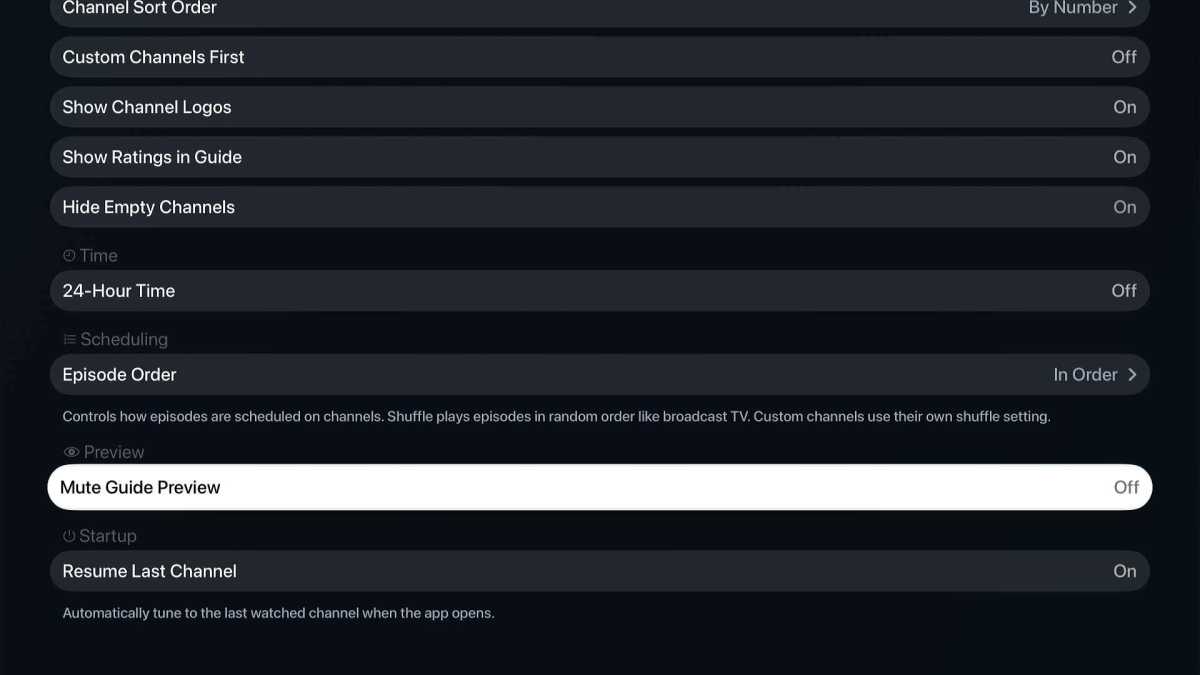
Note that by default, videos will play silently in the main Bunny Ears TV guide, and you’ll only hear audio after clicking into the full screen view. To change this, head to the Settings menu at the top of the screen, head to the Guide section, and set “Mute Guide Preview” to “Off.”
Jared Newman / Foundry
The Settings menu also lets you disable specific channels, adjust video playback settings, and decide whether to play TV episodes randomly or in order.
Yes, there’s an (optional) subscription

Jared Newman / Foundry
The free version of Bunny Ears TV provides 26 live channels with no ads or time limits. For $3 per month or $18 per year, an optional Bunny Ears TV+ subscription unlocks extra features and includes a 14-day trial. (There’s also a $30 “Lifetime” option, without the trial.)
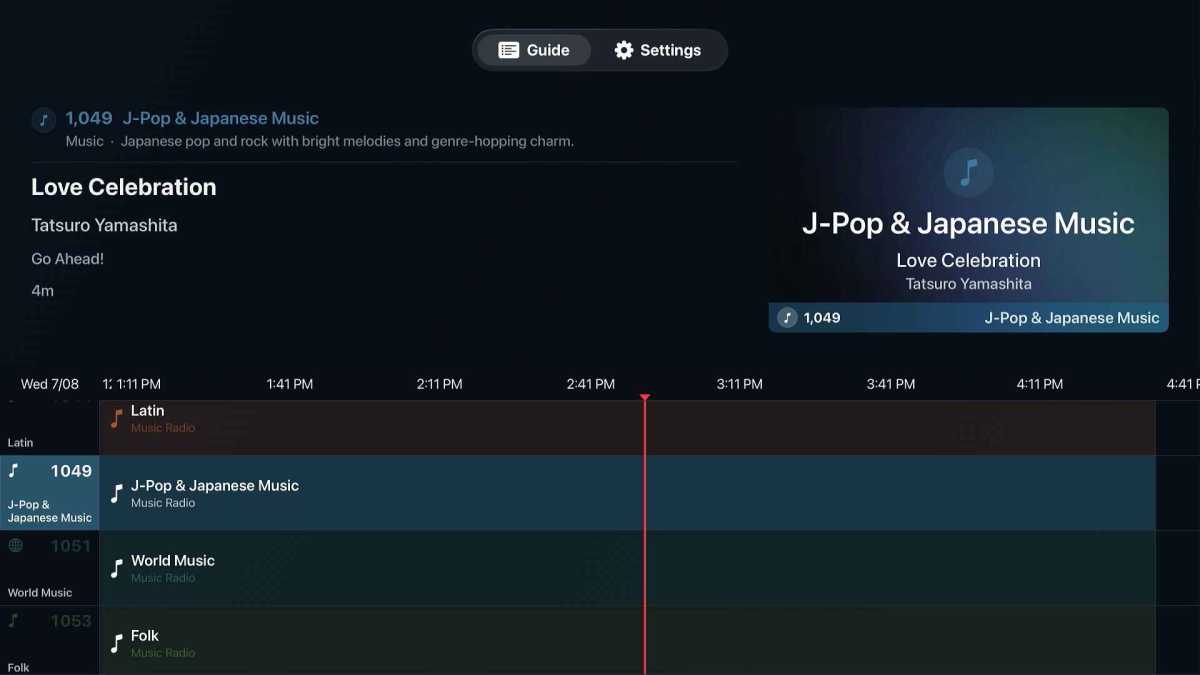
Most notably, the subscription provides hundreds of additional channels around categories like comedy, kids programming, and classics, giving you many more ways to slice and dice your Plex library. There’s even a package of music channels based on the audio files in your Plex server, which is great if you miss the Music Choice channels on cable.
Jared Newman / Foundry
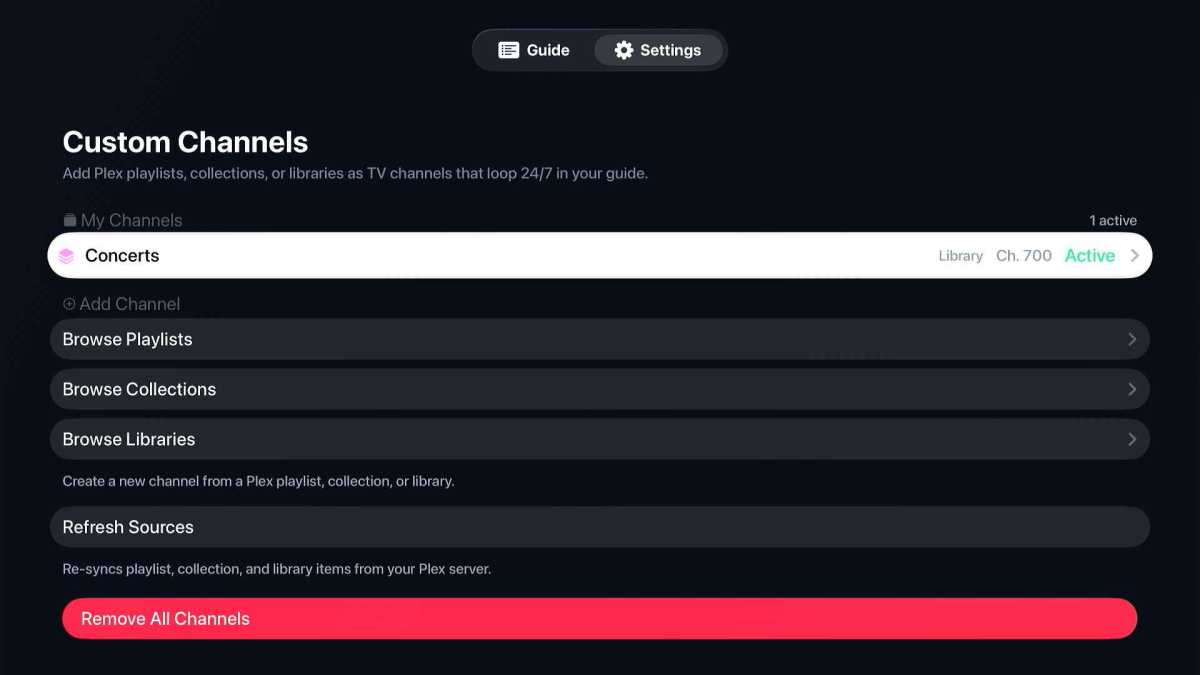
The subscription allows you to create custom channels as well. These are based on whatever libraries, playlists, or collections you’ve set up within Plex, so you’ll have to use Plex’s web dashboard to set them up, then add them through the Bunny Ears TV app.
Jared Newman / Foundry
The subscription also enables an “Ad Bumpers” feature that inserts short video clips between programs. This mimics the feel of cable’s commercial breaks, but with your own content instead of an endless barrage of Skyrizi ads. (To use this feature, you’ll need a playlist of short videos in Plex, such as a collection of downloaded YouTube videos.)
Lastly, a subscription is required for “DVR Mode,” which lets you fast forward, rewind, and jump back to earlier programs in the guide. (The VHS effect when you pause is a nice touch.)

Jared Newman / Foundry
A cable experience without the cruft
Bunny Ears TV just launched in the App Store after months of beta testing, but it still has some rough edges.
The biggest nuisance is that you have to scroll all the way to the top of the guide to reach the Settings menu. This becomes especially annoying if you’re using the paid version and have hundreds of channels to scroll through. Being able to jump to the top menu bar with the back button would make more sense and is how most streaming guides work today, but in Bunny Ears TV this just toggles the full-screen video player instead.
Speaking of the Settings button, I’ve found that it sometimes jumps straight to the subscription menu when you click on it. This happens even if you’re already paying, so I suspect it’s a bug rather than an intentional dark pattern.
Overall, though, the channel surfing experience works well and is easy to use. While Bunny Ears TV isn’t the first attempt at creating live channels from your video collection, other projects such as DizqueTV and ErsatzTV are much more complicated to set up. The developer also plans to release iPhone and iPad versions in the future.
Free streaming services such as The Roku Channel and Pluto TV have re-popularized cable’s channel surfing format because they take the hassle out of deciding what to watch. Bunny Ears TV does the same for rediscovering forgotten corners of your Plex catalog, and it’s got me thinking about how to stock my own collection with more content.
Sign up for Jared’s Cord Cutter Weekly newsletter for more streaming TV advice.
This articles is written by : Nermeen Nabil Khear Abdelmalak
All rights reserved to : USAGOLDMIES . www.usagoldmines.com
You can Enjoy surfing our website categories and read more content in many fields you may like .
Why USAGoldMines ?
USAGoldMines is a comprehensive website offering the latest in financial, crypto, and technical news. With specialized sections for each category, it provides readers with up-to-date market insights, investment trends, and technological advancements, making it a valuable resource for investors and enthusiasts in the fast-paced financial world.