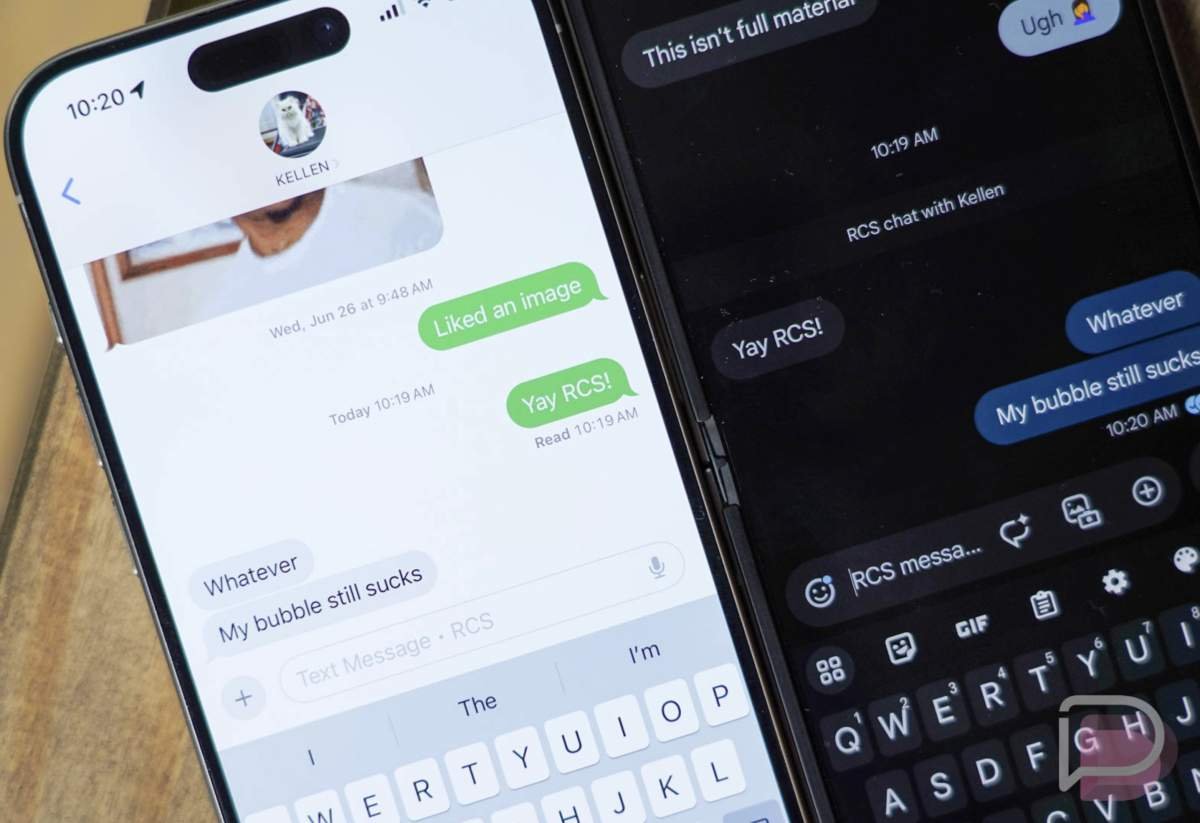
RCS messaging between Android and iPhones had a major moment earlier this year when both Google and Apple confirmed that they were rolling out end-to-end encryption (E2EE) support for messages sent between their two mobile platforms.
We all know how important encryption is for messaging and this was one of the remaining features that made messaging between Android and iOS a little shaky. While Android-to-Android and iPhone-to-iPhone messages had been encrypted for some time, messaging between the two platforms certainly felt less secure.
Google and Apple made a rare combined announcement for RCS encryption, stating that they had led a cross-industry effort in order to bring E2EE to the space. They also laid out how you’ll get RCS encryption between Android and iPhones.
How to setup RCS encryption on Android and iPhone
For those of you who happen to message from your Android phone to an iPhone or join group chats with a mixture of phones, you’ll want to enable encryption when possible.
Thankfully, Google and Apple haven’t exactly left you much choice in those conversations receiving E2EE. Instead, they are enabling much of it on the backend, without you needing to do a thing, other than make sure RCS is turned on.
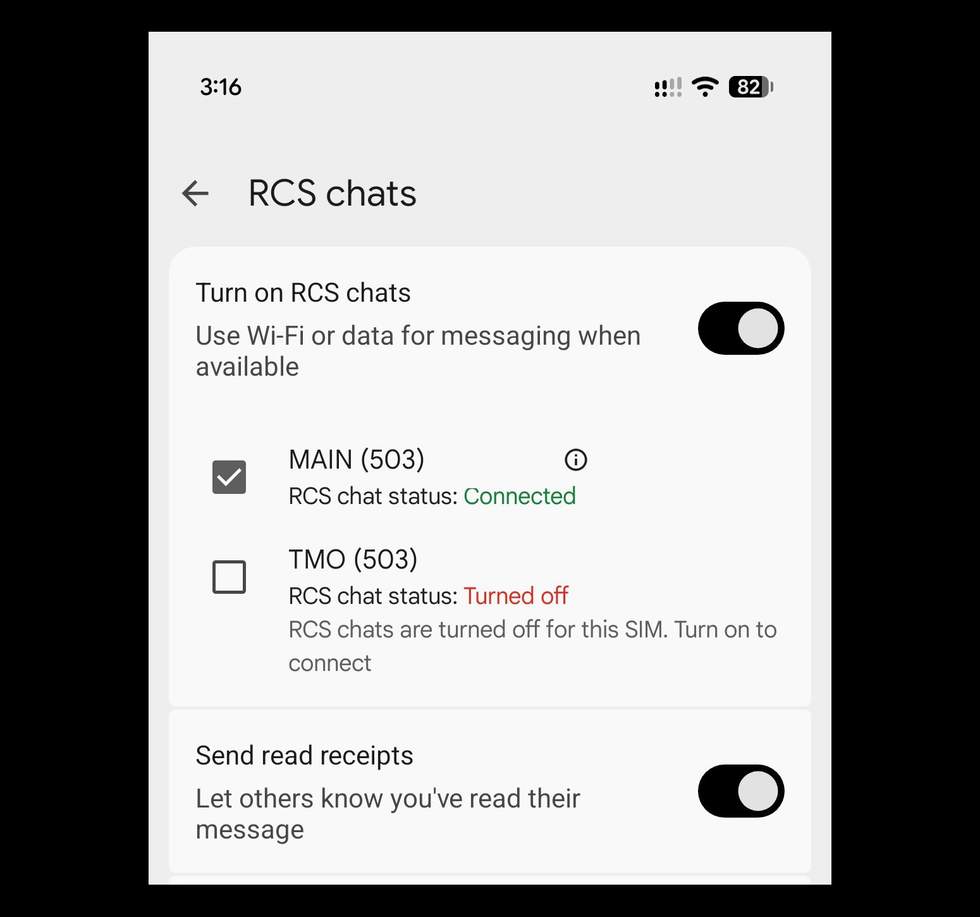
How to turn on RCS in Google Messages (Android):
- Open Google Messages
- Tap on your profile (top right) and then “Messages settings”
- Tap “RCS chats”
- Make sure “Turn on RCS chats” is toggled ON
- Your phone number should show and the status will say “Connected” once RCS is active and ready to be used on your device
- Encryption is on by default in RCS; there is no setting to enable or disable in Google Messages
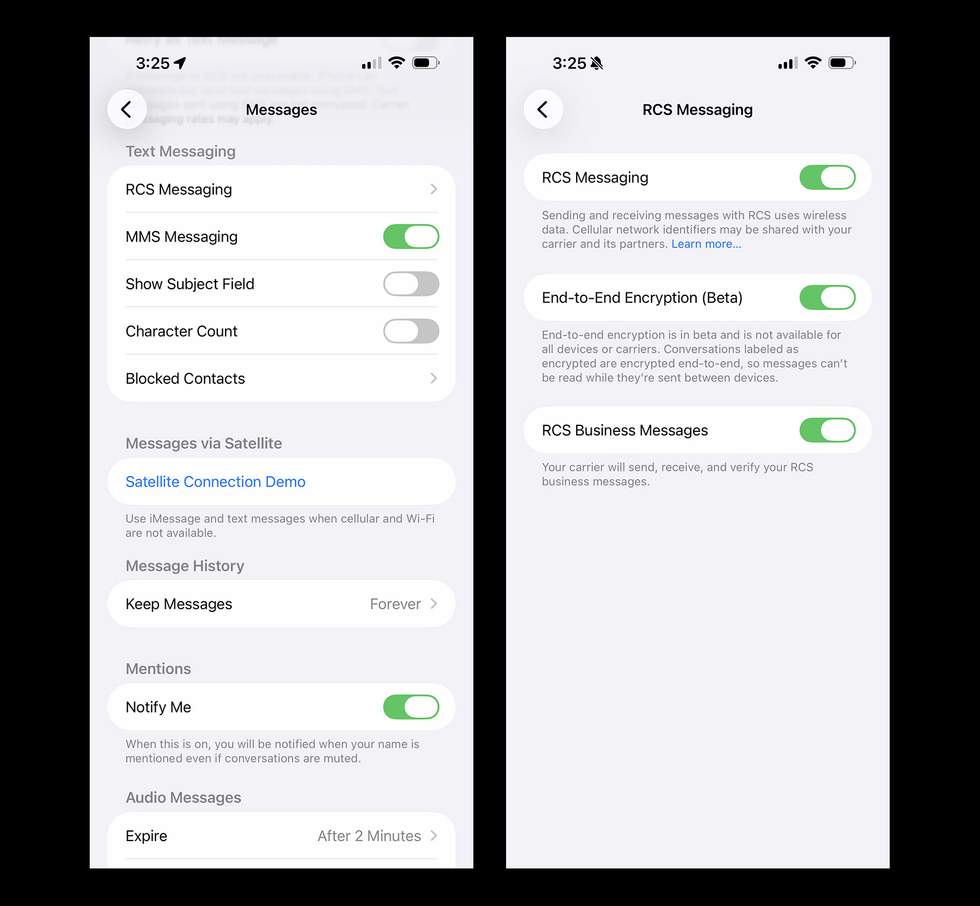
How to turn on RCS in Apple Messages (iMessage):
- Open the Settings app
- Either search for “Messages” or scroll down and tap on “Apps” and then find “Messages” in the list
- Scroll until you see “RCS Messaging” as an option and tap it
- On this next screen, toggle RCS Messaging to ON
- On this screen you should also toggle “End-to-End Encryption (Beta)” to ON
If you are not seeing the End-to-End Encryption (Beta) option, you will need to update your iPhone to at least iOS 26.5.
Extra notes on E2EE RCS between Android and iPhone:
Now that you have RCS turned on for Android (Google Messages) and iPhone (Apple Messages), the encryption part is pretty easy. There are a few things to note here.
For Android, there is no setting in Google Messages to enable E2EE. Google turns this on by default and leaves it on. If you are using Google Messages, encryption is active and used when the messages can be encrypted.
For the iPhone, we just walked through how to enable RCS encryption above, so you should now have that single setting enabled that allows messages sent via RCS to be E2EE.
On the carrier side, both Apple and Google are putting a lot of this encryption feature onto your wireless provider. While both have encryption ready in their messaging apps, they also want to be clear that the carriers play a part in activating RCS encryption between platforms.
Apple is keeping a list of carriers (here) that support end-to-end encrypted RCS messaging (beta). For the US, all of the major carriers and many of the popular prepaid (MVNO) carriers have support. AT&T, T-Mobile, and Verizon are all included, as are prepaid options like Mint Mobile, Cricket, Metro, Straight Talk, TracFone, and Visible.
How to tell if your RCS messages are encrypted
Since you are setup and can confirm that everything should work, you might want to know that your messages between Android and iPhone are actually encrypted. The tell is straight-forward.
If you send a message via RCS to another user, you’ll know it is encrypted if you see the little lock icon under your messages on Android or with a lock icon and the word “Encrypted” on iOS. The image below shows examples of each.
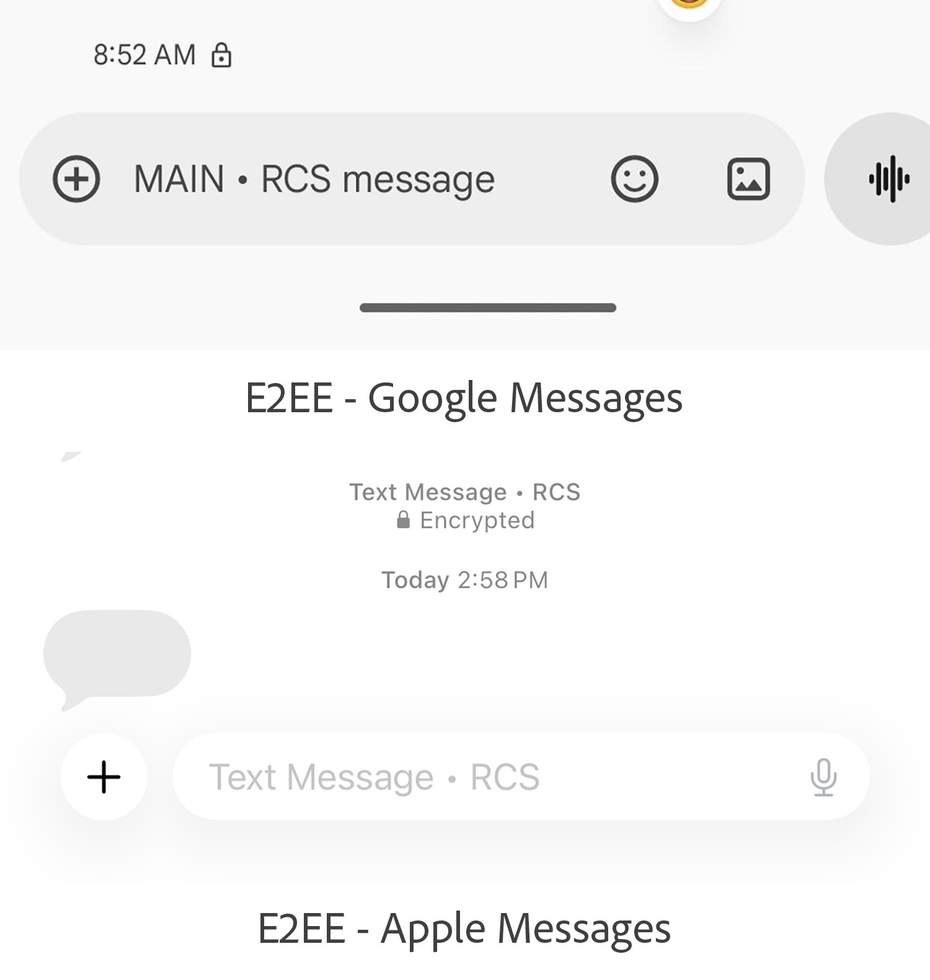
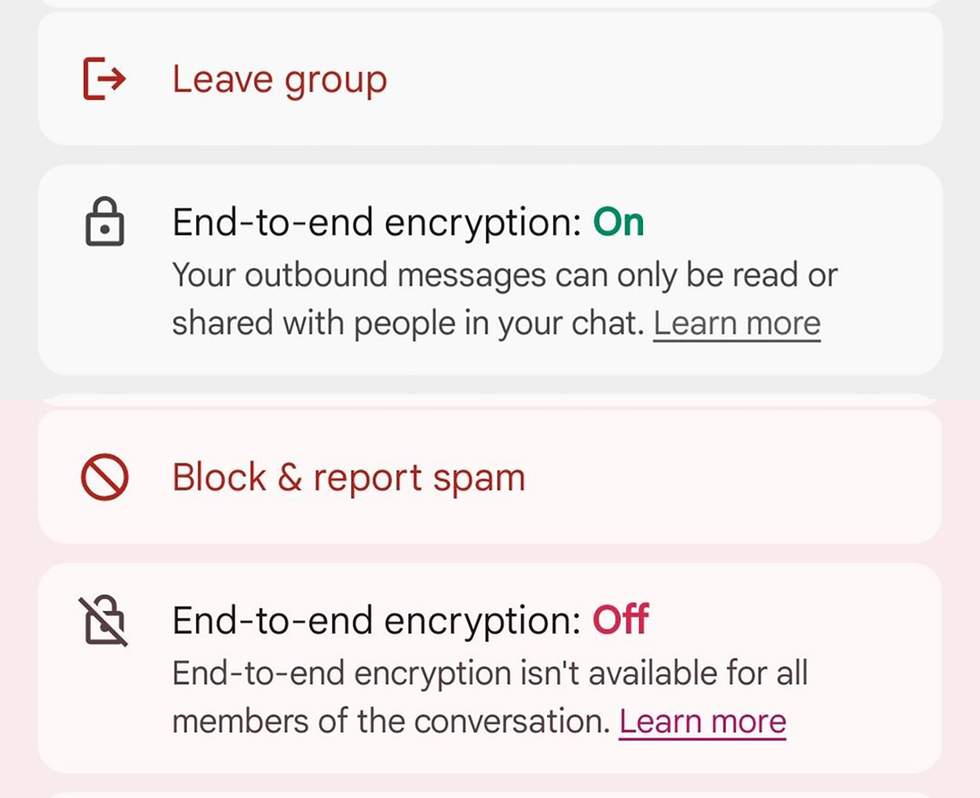
Within Google Messages, you can also confirm that end-to-end encryption is active by tapping the 3-dot menu within a conversation (both solo and group), tapping on “Details” or “Group details,” and then scrolling until you see the “End-to-end encryption” section. It will say “On” or “Off” – obviously, you want it to say “On.”
And that’s it! If you walked through all of that, you should have RCS enabled on Android and iPhone, plus encryption should be working, assuming you are in the US.
Read the original post: How to Encrypt RCS Messages Between Android and iPhone
This articles is written by : Nermeen Nabil Khear Abdelmalak
All rights reserved to : USAGOLDMIES . www.usagoldmines.com
You can Enjoy surfing our website categories and read more content in many fields you may like .
Why USAGoldMines ?
USAGoldMines is a comprehensive website offering the latest in financial, crypto, and technical news. With specialized sections for each category, it provides readers with up-to-date market insights, investment trends, and technological advancements, making it a valuable resource for investors and enthusiasts in the fast-paced financial world.