
This isn’t the best time to be thinking about buying a computer. High memory prices have driven up the cost of almost everything. But if you need a new computer, then go for it — whether it’s to install Windows 11, play modern games that don’t run on your old machine, or simply because you don’t have a computer at all.
Ready-built computers, including laptops, haven’t become as inflated price-wise as individual components for building your own PC, and it’s still possible to find the odd bargain at relatively reasonable prices — not least during clearance sales of discontinued models.
With prices on the rise, it’s more important than ever to think carefully about what you actually need and which factors are important to you personally. Will 16GB of RAM suffice, or do you really need 32GB? Is ample internal storage important, or can you make do with a little less and supplement it with external storage that you might already own?
Screen size makes a big difference
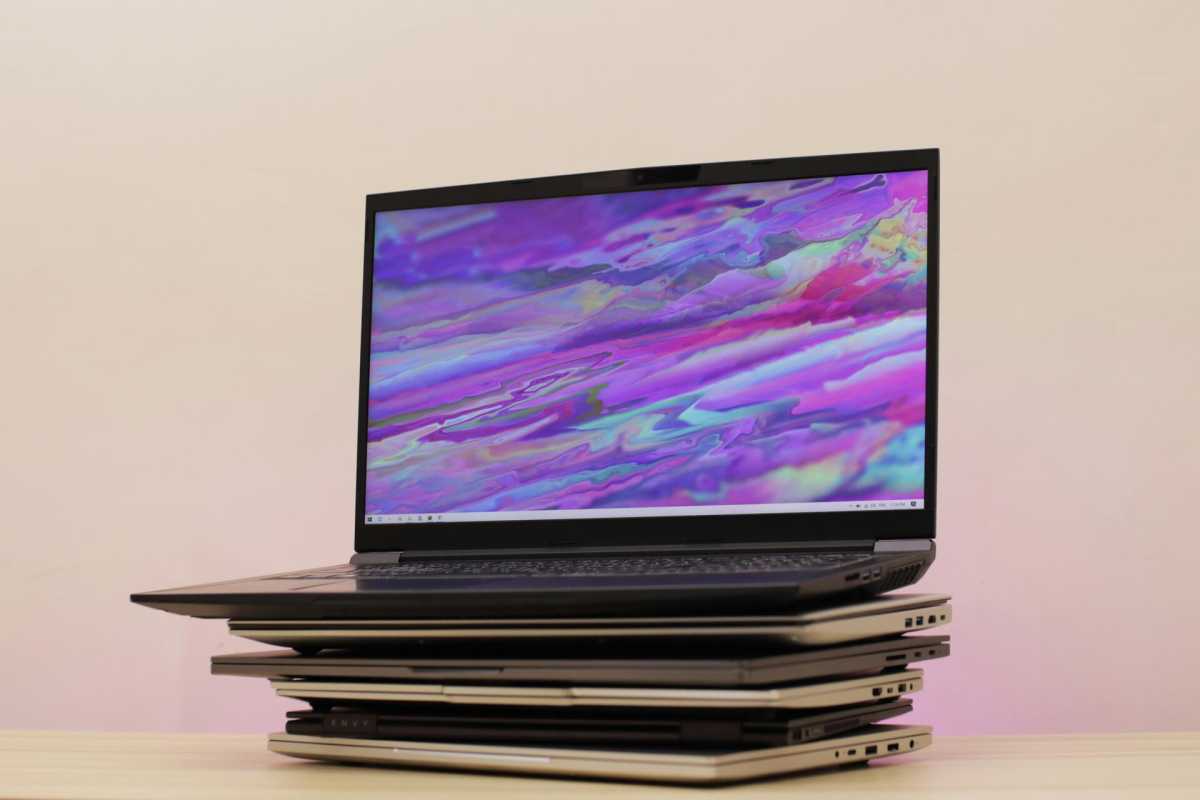
There are many specifications to bear in mind when buying a laptop. One of the most important is the screen size, which not only determines how much workspace you have to work with but also affects how bulky and heavy the laptop is, as well as the type of keyboard and the size of the speakers it can accommodate.
Choosing a screen involves striking a balance between portability and workspace, but it’s also a question of price. A larger screen is almost always more expensive, although a large screen with a simpler panel may be cheaper than a small one with a more advanced panel.
The size of the screen determines how much text fits within a given area. The Windows interface can be scaled up or down to suit a text size that is comfortable for your eyes.
As a high pixel density results in sharper text, it is not quite as simple as saying that a larger screen automatically means a larger workspace in practice. On a 14-inch screen with a high pixel density (for example, 2880 x 1800, as on Apple’s MacBook Pro), it can be just as easy to read text at a smaller size as on a 16-inch screen with a lower pixel density (for example, 1920 x 1080).
Screen technology, resolution, and refresh rate
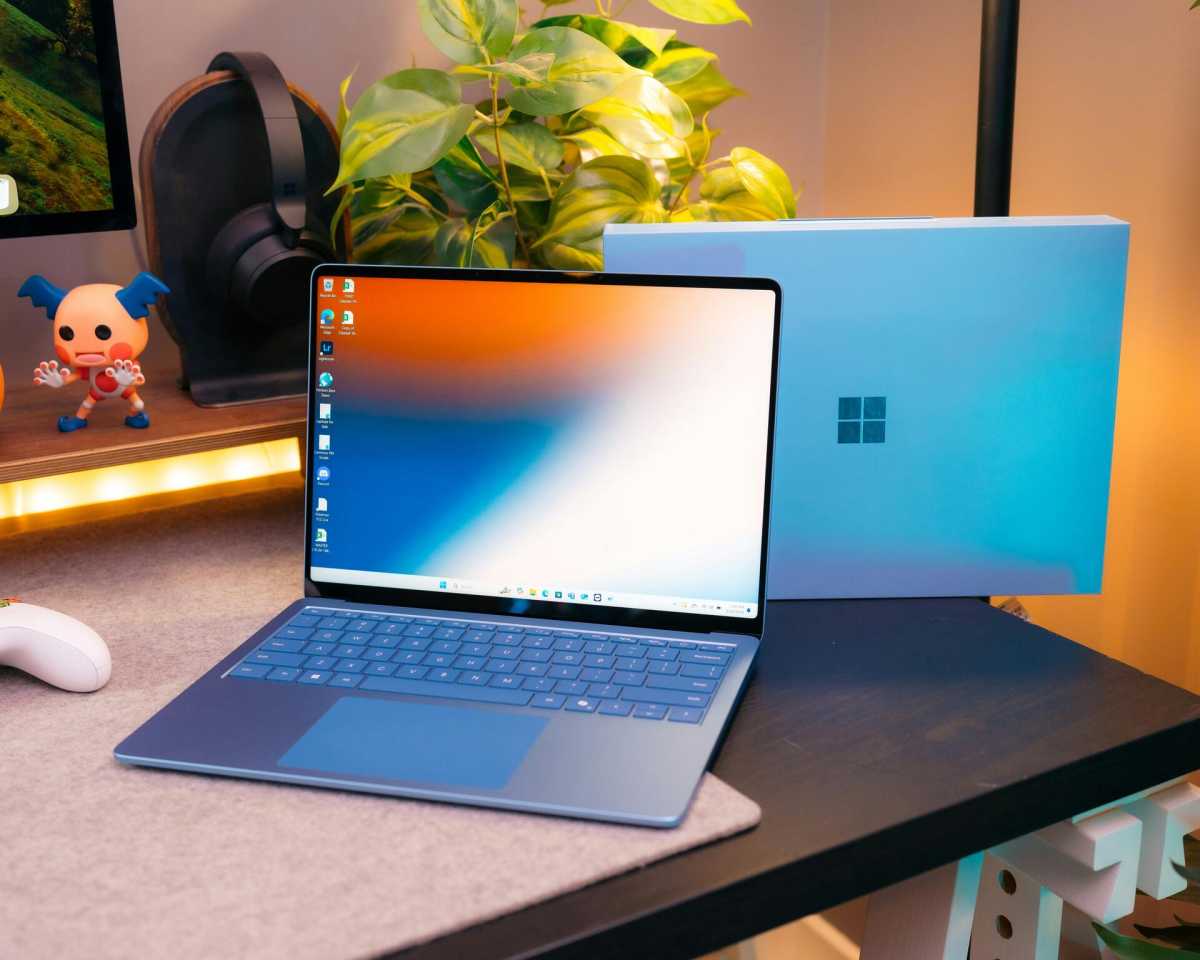
The technology used to manufacture the screen has a major impact on the computing experience. An OLED screen is vibrant and has infinitely high contrast, making it ideal for watching films and playing games. However, it does not display text as sharply as an IPS screen, nor is it as bright. The latter means it can be more difficult to work on a computer with an OLED screen in bright daylight.
However, the very latest OLED panels have become brighter, and with a sufficiently high pixel density, text sharpness is not an issue. My suggestion is that you visit shops and look at different screens to form your own opinion.
Resolution is another important consideration. High resolution delivers sharp text and graphics, but is more expensive and results in shorter battery life if all other specifications are identical. For those who want to play games, it’s also important to bear in mind that a laptop may struggle to run a modern game at, say, 4K resolution.
Refresh rate is the final major consideration. In the past, almost all screens had a refresh rate of 60Hz, and that was all there was to it, but today it has become common to find significantly faster screens. 120Hz or higher makes all on-screen movements feel smoother — for example, when text scrolls past — and this is particularly beneficial in fast-paced games.
However, a higher refresh rate comes at a cost, both in terms of money and battery life. Some models use a variable refresh rate, which conserves battery life by significantly reducing the refresh rate when the image is static, for example when you’re sitting reading something.
Hybrid tablets
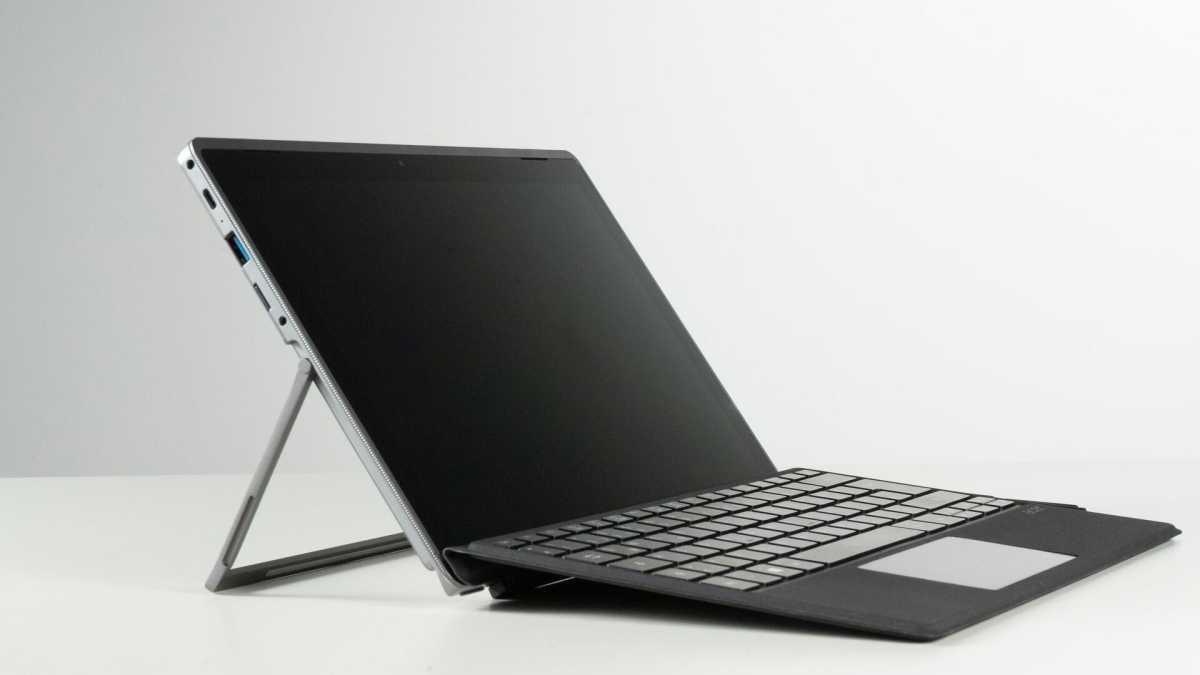
Another aspect to consider regarding the screen is whether you want a laptop that can also be used as a tablet — a so-called hybrid tablet, or 2-in-1 computer. On these devices, the screen is a touchscreen and can either be rotated round and folded over the keyboard or detached completely from the base.
The latter is less common, but makes using the device as a tablet even more practical. Examples include the Lenovo ThinkPad X12 Detachable and the Asus ROG Flow Z13.
Generally speaking, you can expect poorer performance and shorter battery life compared to a standard laptop at the same price. My recommendation is therefore to stick with the latter unless you know you need both a laptop and a tablet and believe that the advantages of combining them outweigh the disadvantages.
Keyboard and touchpad
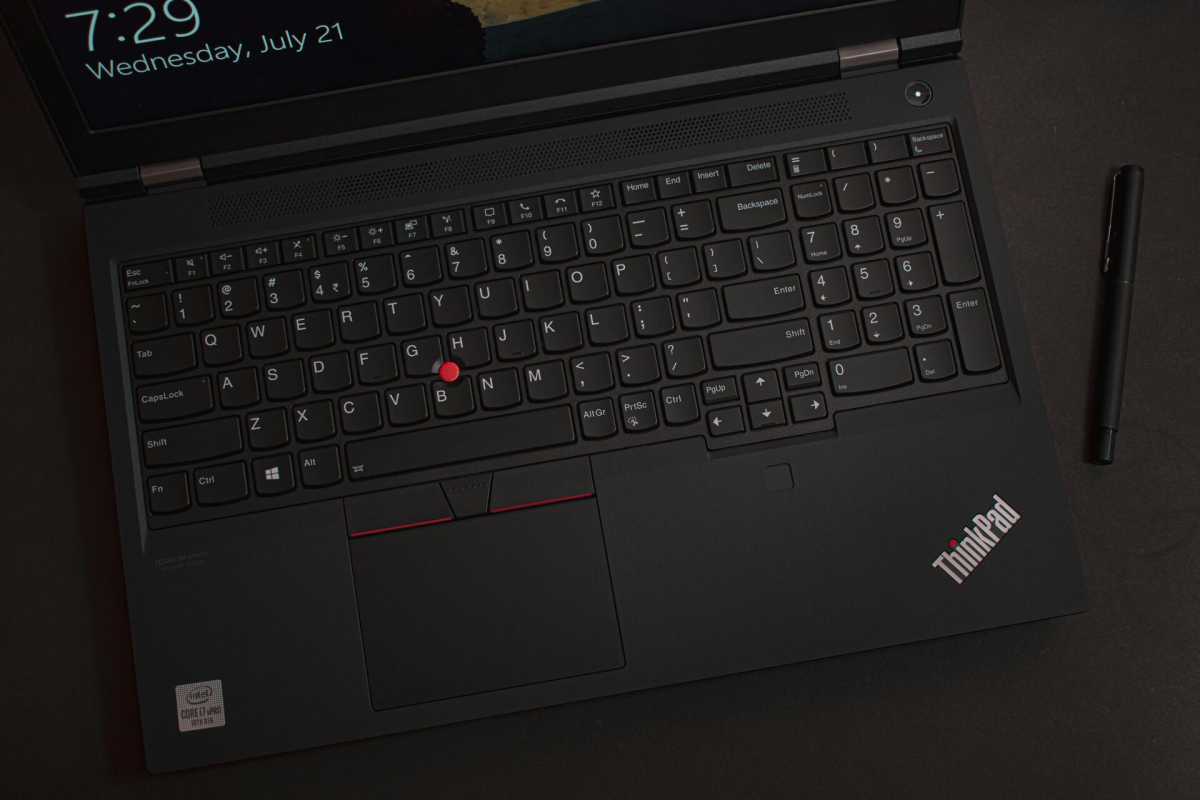
If you know you’re going to use the built-in keyboard and touchpad, it’s very important that they feel comfortable to use. It’s best if you can try out a few different models, ideally while sitting at a desk rather than leaning over the computer on a shop shelf. If you’re mainly going to use an external keyboard and mouse, it’s not quite as important.
Many people who have been using computers for a long time are more used to a mouse than a touchpad, and may prefer to carry a wireless mouse with them even when they’re on the go. I personally get a cramp after just a few minutes of using a touchpad, so I always have a mouse in my bag.
Processor, memory, and storage
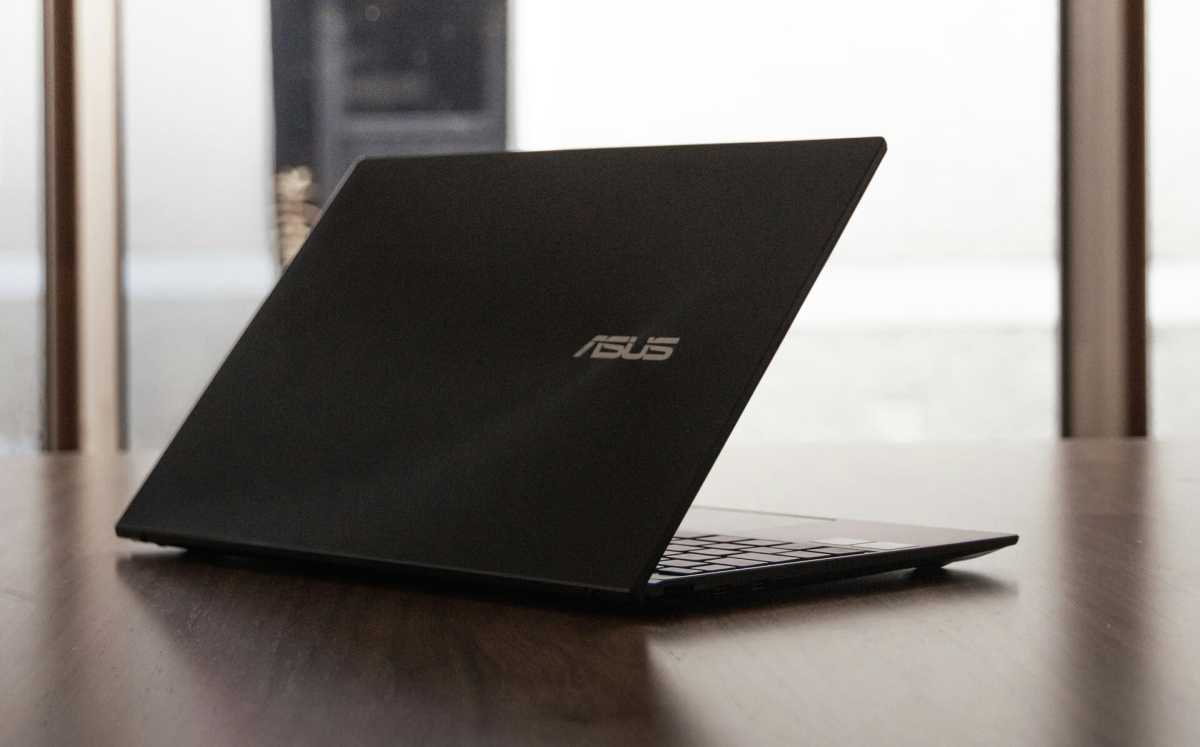
Intel or AMD is an age-old debate in the PC world, and this also applies to laptops. At the time of writing, Intel has the edge in laptops, as the new Panther Lake family offers both high performance and really long battery life. We’re talking about chips such as the Core Ultra 5 325, Core Ultra 7 355, and, at the top end, the Core Ultra X9 388H.
But the processors in AMD’s Ryzen AI 300 series are no slouch either — take the Ryzen AI 9 HX 370, for example.
Normally, you should avoid older processor generations from both Intel and AMD, but if you come across a bargain at a really great price, it can of course still be worth it — especially if it means you get a top-of-the-range model from the previous generation at a lower price than an entry-level model in the current one.
Over the past year, RAM has gone from being one of the cheaper parts to one of the most expensive components in a computer. However, it’s also essential that you have enough RAM to run the programs you want without the computer becoming sluggish.
Until recently, Microsoft recommended 32GB for Windows 11, but withdrew this recommendation as many people can no longer afford it. I recommend at least 16GB for a smooth experience in Windows. On a Mac, 8GB can still work. Microsoft has admittedly promised optimizations that should allow Windows to cope with that amount too, but for now, the computer tends to slow down with so little.
When it comes to storage, things are a bit more flexible. Of course, it can be handy to have plenty of internal storage so that everything you’ll ever need fits directly on the computer, but that can get very expensive at current prices. If the computer you’re interested in has removable storage on an M.2 slot, you can opt for a bit less storage now and upgrade in a few years’ time when prices have come down. You can also choose to use external storage for larger files, such as a large photo library or games.
The downside of external storage is that the computer becomes less portable unless you leave it at home, so it’s best suited to things you don’t usually need while on the move.
One thing to watch out for is making sure you don’t end up buying a computer with eMMC storage rather than NVMe. It will still be called an SSD, but eMMC technology makes it significantly slower. This is common in budget models, and if you’re looking for something really cheap, you might have to put up with it, but you should at least be aware of what you’re getting.
Integrated or discrete graphics
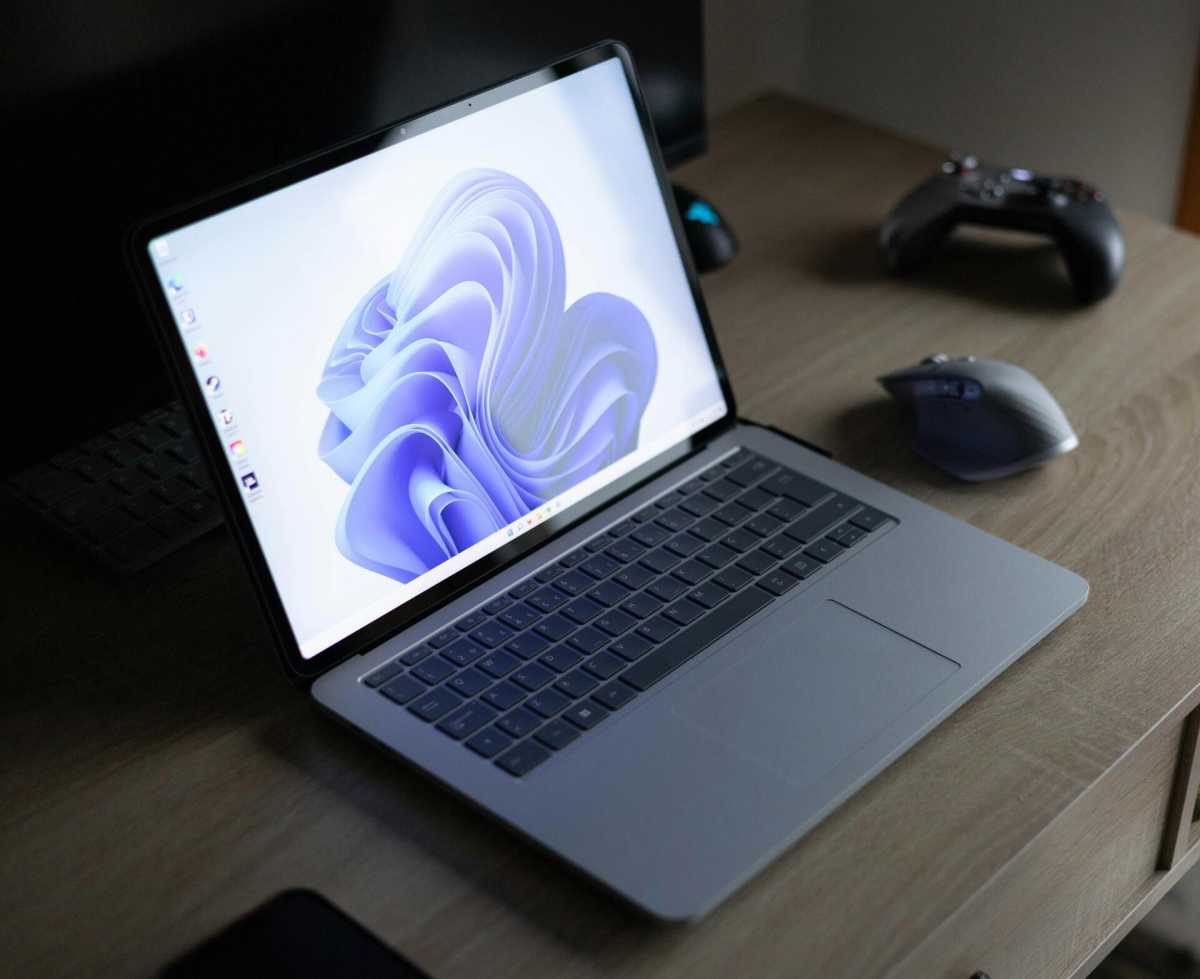
A rather important question is whether you need a powerful discrete graphics card from AMD or Nvidia, or whether you can make do with the processor’s integrated graphics. A few years ago, the answer for anyone thinking of playing a reasonably modern game was that it was definitely needed, but today the fastest integrated graphics have become considerably more capable.
If you’re not looking for really high gaming performance or planning to work with AI, video editing, or 3D graphics, you’ll be fine with Intel’s integrated Arc graphics or AMD’s Radeon 890M, found in the Panther Lake and Ryzen AI 300 series respectively.
However, if you want higher graphics performance, a discrete graphics card is still the way to go, and Nvidia’s RTX 50 series is currently both the most common and usually the best choice. Bear in mind that the laptop variants aren’t directly comparable with their desktop counterparts — the RTX 5080 Laptop is roughly on a par with the RTX 5070 in terms of speed, but has 16GB of memory compared to 12GB and may therefore perform better in applications such as on-device AI.
Webcam and audio
Depending on how you use your computer, this can range from being completely irrelevant to an important detail. If you frequently take part in video conferences or make video calls from your computer, a good built-in webcam can make a big difference, and the microphones are important for the people you’re talking to. Good speakers mean you can watch films or TV series on your computer without needing external speakers or headphones.
External connectivity
The ports a laptop has are particularly important, as you cannot add new hardware inside the laptop in the same way as you can with a typical tower-style desktop computer. Having at least one Thunderbolt/USB 4 port makes the computer more versatile, as you can then connect, for example, a docking station with a range of other high-speed ports. Thunderbolt 5 is best, but unfortunately it isn’t particularly common yet and is mainly found in more expensive models.
Other ports to look out for include various types of USB and HDMI. These days, it’s not very common to have a long row of ports, so if you frequently connect external accessories, you may need some sort of adapter. For simpler needs, a USB-C dock or hub is considerably cheaper than a Thunderbolt dock and doesn’t require an external power supply either.
Bear in mind that many laptops cannot be upgraded
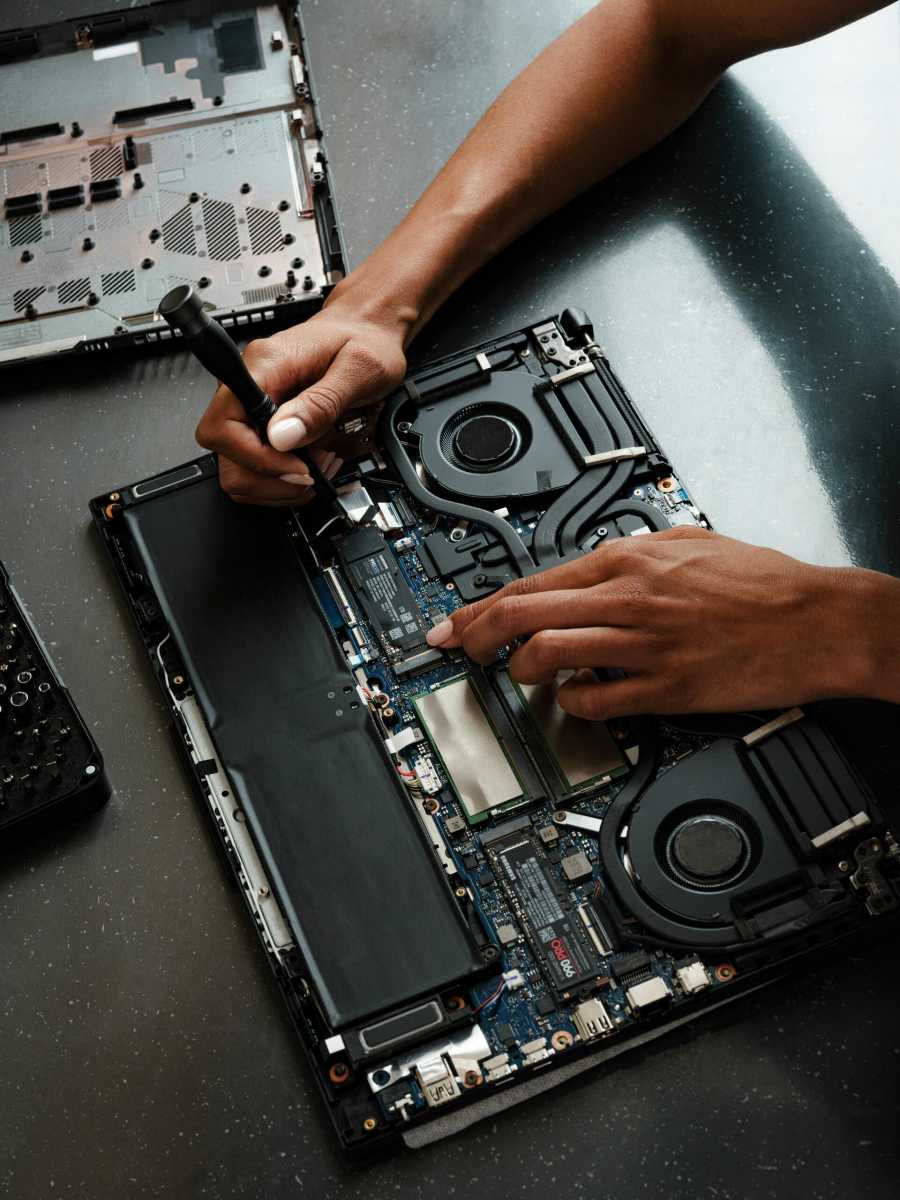
With a desktop computer, it’s almost always possible to replace components such as memory and storage, or to buy additional ones and install them alongside what’s already in place. In laptops, upgrade options are considerably more limited, and these days it is not uncommon to be unable to upgrade anything other than the storage (and sometimes not even that).
Some laptops still have replaceable memory, usually in the form of SO-DIMM modules but sometimes also in the more modern LPCAMM2 format. On more powerful models, however, the memory is often soldered in place, as this both saves space on the motherboard and enables the use of fast, energy-efficient LPDDR5X memory. A few years ago, it was essentially only Apple that did this, but today it is common practice among many manufacturers.
This means that, with laptops, it’s even more important to make the right choice from the outset. But given the current prices of memory and storage, most people can’t afford to splash out just for the sake of it. Upgrading from 32GB to 64GB of memory can cost over $1,000.
‘Dock’ your laptop on your desk at home
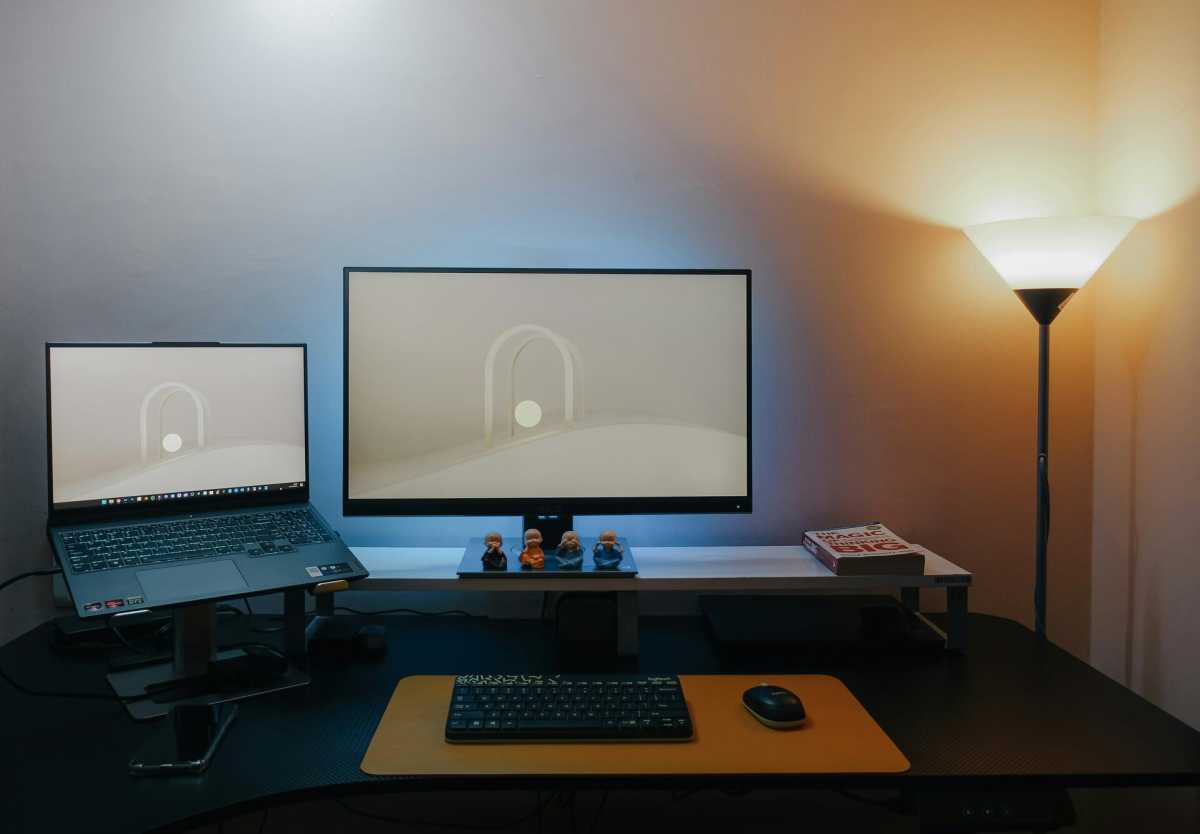
If you mainly use your computer at home on your desk but choose a laptop because you occasionally take it to other places, I can highly recommend getting an external monitor, mouse, and keyboard, and placing the computer on a stand.
With a larger screen on your desk and the mouse and keyboard close at hand, you’ll have a much better ergonomic working posture than when you’re hunched over a laptop. The computer will also be a bit better protected — for example, against spilt drinks – especially if you use it with the lid closed. You can also choose an ergonomic or mechanical keyboard that’s more comfortable to type on, and as a bonus, you’ll put less strain on the built-in one.
To use Windows with the lid closed, you’ll need to change the setting for what happens when the lid is closed in Settings > Hardware and Sound > Power Options, so that it doesn’t go to sleep automatically.
One accessory that can make things much easier if you choose to do this is a Thunderbolt docking station. You can connect a monitor (or monitors), external storage, an Ethernet connection for faster networking, and any other accessories you use to such a docking station, and all you need to connect to the computer is a Thunderbolt cable, which provides both power and data transfer. The result is a tidier desk and a simpler process when you need to disconnect and take your computer with you.
Related content
This articles is written by : Nermeen Nabil Khear Abdelmalak
All rights reserved to : USAGOLDMIES . www.usagoldmines.com
You can Enjoy surfing our website categories and read more content in many fields you may like .
Why USAGoldMines ?
USAGoldMines is a comprehensive website offering the latest in financial, crypto, and technical news. With specialized sections for each category, it provides readers with up-to-date market insights, investment trends, and technological advancements, making it a valuable resource for investors and enthusiasts in the fast-paced financial world.