ViewX Liber: 30-second review
Resolution: 3840 x 2160
Brightness: 350cd/m²
viewing angle: 2D 178 degrees, 3D optimal viewing angle 40 degrees
optimal 3D viewing distance: 40–70cm
3D technology: liquid crystal gradient refractive lens
refresh rate: 60Hz
colour gamut: 72% NTSC, 100% sRGB
response time: 25ms
colour display: 8-bit, 16.7 million colours
static contrast ratio: 1000:1
interfaces: 1x mini HDMI 2.0, 2x USB-C ports (video transmission & power supply), 1x micro USB, 1x 3.5mm headphone jack
product dimensions: 356.7 x 216.8 x 16.3mm
Product weight: 1,274g
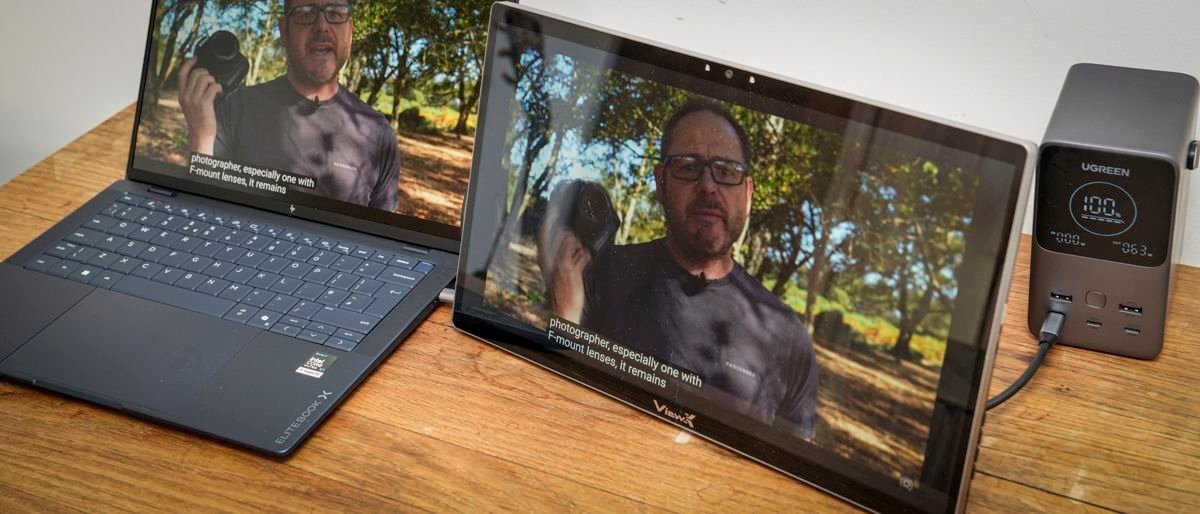
Out of the box, the ViewX Liber 15.6-inch monitor looks like a well-made standard portable monitor, with a decent-sized 16:9 screen, a metal stand, a built-in camera, and a range of ports hidden at the back.
The monitor also has physical buttons on the right-hand side to switch between 2D and 3D, open the menu, adjust the volume, and change the brightness.
The on-screen display is pretty standard, and as you flick through the brightness, black level, contrast and other options, it’s all very nicely laid out, although as ever it takes a while to get the correct button combination as each button has a dual function. To use the monitor, you do need to install the software, but the process is straightforward, and the instructions are clear.
Once the software is installed, you don’t really need to do anything more. Games can be launched through the dedicated 3D Playground Lite game launcher or downloaded video through the 3D Spatial Gateway, but while video that had been downloaded to the host computer looked great, at present the games all seemed to be connected to a Chinese system despite looking like they should connect through Steam. Launching games directly, however, seemed to work fine and with great effect; Indiana Jones and the Great Circle looked pretty decent.
The only issue is that not all the settings are translated into English, so you’ll need to hover your phone over the screen using Translate to work out what some of the app settings mean and do, which is annoying for a product that’s now on sale.
In terms of use, this 3D monitor is one of those interesting new products that shows what technology can do and how it has adapted. We’ve seen 3D TVs like this before, and this is essentially the same thing, just smaller and highly portable. It’s an interesting proof of concept, and if you’re an early adopter, this will certainly appeal.
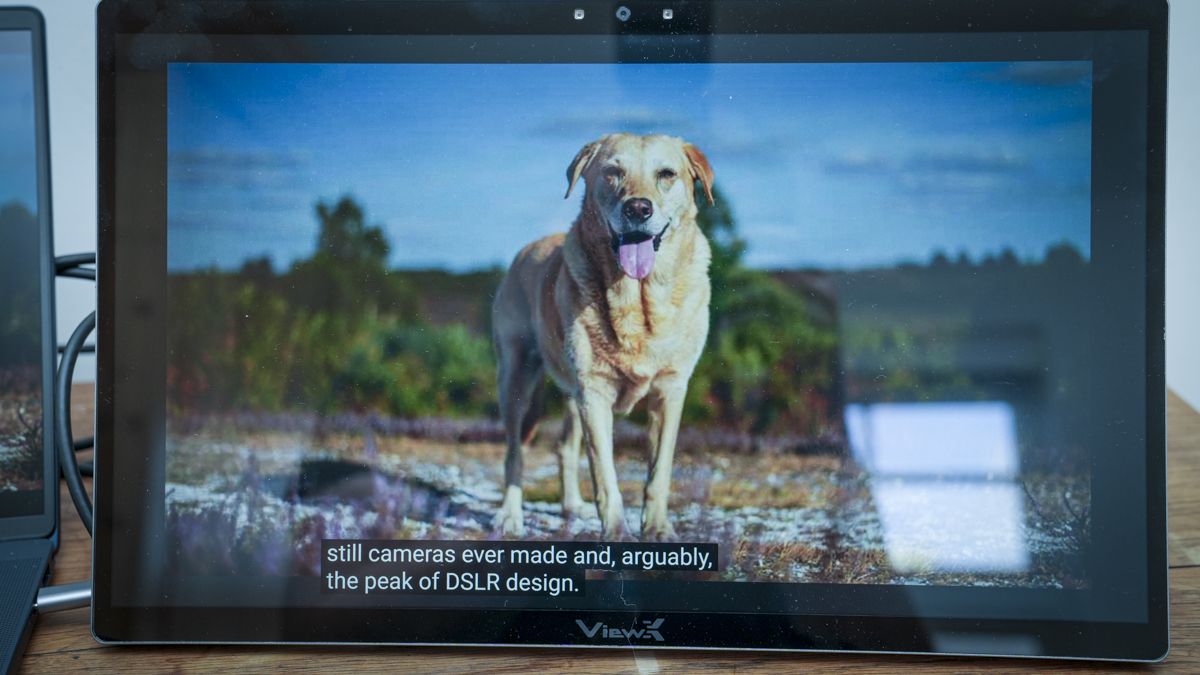
I really did like the AI-enhanced video, which took standard 2D video and made it 3D. It looked pretty good, and once you got used to it- and the fact that you have to stay still in front of the monitor- it was really quite engaging.
To my mind, this doesn’t quite meet the needs for most people looking for the best portable monitors. It’s a hyper-niche device for a very specific workflow. Even if you’re looking for a true three-dimensional effect, it’s not quite there. There are quite a few glitches along the way, including screen flicker when you move your head, and some background apps and games still aren’t 100% compatible.
However, these are early days and, considering the quality of what’s on offer already, it’s still all pretty decent.
ViewX Liber: Price & availability
The ViewX Liber monitor can be purchased directly from ViewX’s Kickstarter page here, with prices starting from $1099. That’s pretty pricey for a 4K portable monitor, although you’re paying for those 3D extras.
There’s more information about the monitor over at the official website, too.
- Score: 3.5/5
ViewX Liber: Design & build
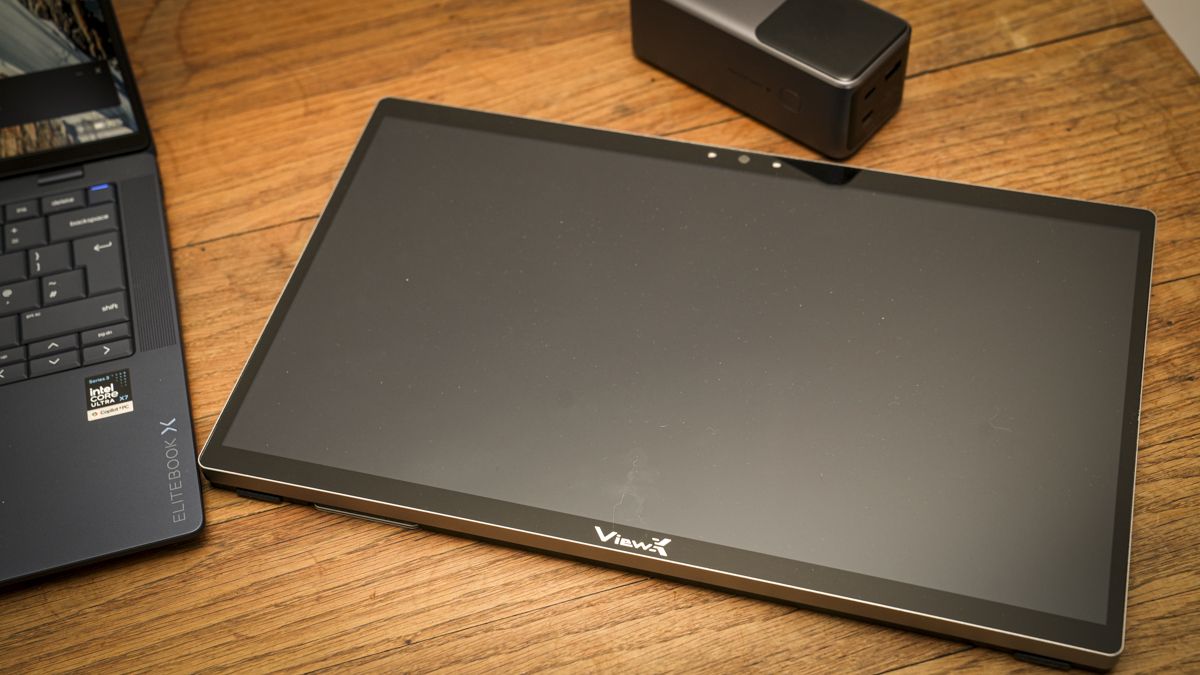
Lifting the monitor from the box, the quality is instantly apparent; the build feels good and solid, and it has all the design and tactile feel of a high-quality portable monitor. The screen has a relatively thin bezel surrounding it, with the ViewX logo at the bottom and a small camera at the top alongside two sensors that help the 3D positioning work in 3D mode.
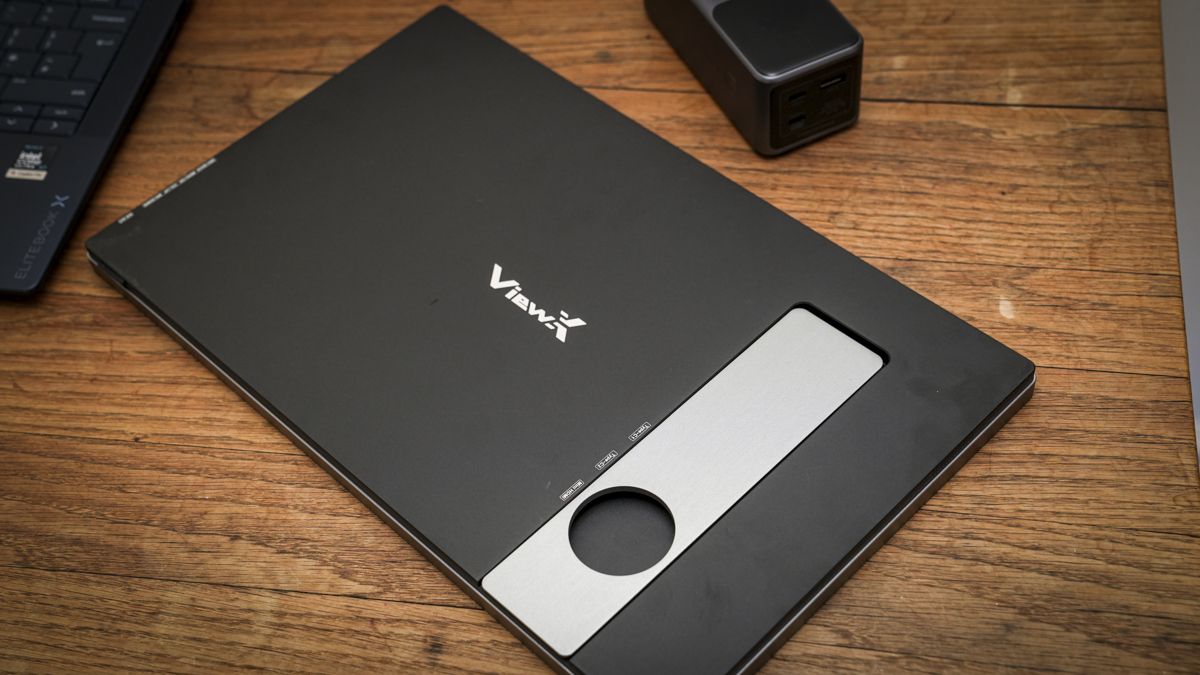
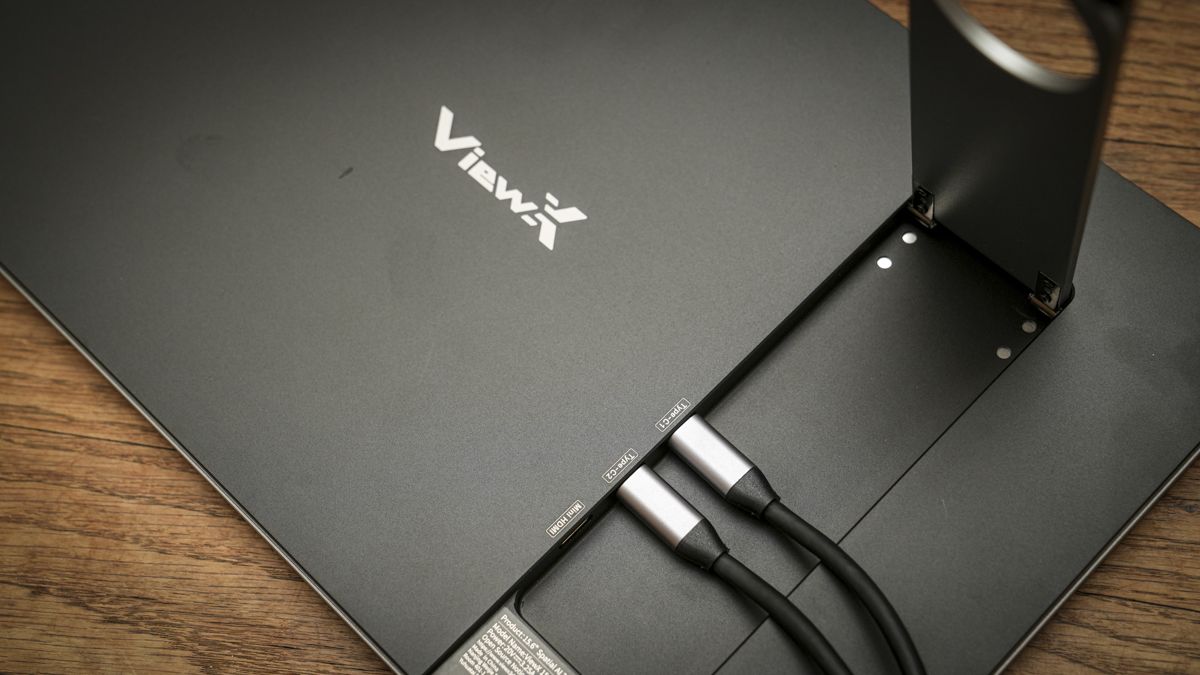
On the back, there is a good, sturdy metal stand that’s offset from the centre but still provides good support and adjustment of the angle. Once you open the stand, it reveals three ports: two USB-C and one mini HDMI. The two USB-C ports enable both video and power delivery.
On the right-hand side of the monitor is a selection of buttons. The top one is the 3D-to-2D button, and a long press switches between the two modes. This is one of the areas where I initially thought there was something of a glitch with the design, only to discover you need to be sitting in front of the monitor so it can gauge your position; if you move, then it’ll revert to 2D mode.
On the side, along with those buttons, there’s a micro USB port, which is the factory mode port and will inevitably be for updating firmware. Alongside it are the remaining controls. You have the source and back buttons, which let you switch between HDMI and USB-C or go back depending on where you are in the menu, followed by the menu and OK button, volume and up button, and brightness and down button.
Below that, you also have an auxiliary output for headphones, and aside from that, there’s nothing else on the monitor itself. In terms of size and dimensions, this is designed as a portable monitor option and in width it’s slightly wider than an average 15” laptop, measuring 356.7 x 216.8 x 16.3mm, and when it comes to weight, it tips the scales at 1,274g, so it’s a little heavier than most portable monitors.
- Design: 4.5/5
ViewX Liber: Features
The 3D functionality of this monitor out of the box without the need for additional hardware is the headline feature, and this sits alongside the more standard list of 4K resolution, 15.6-inch screen size, built-in camera and speakers and a design that makes it a perfect option as a portable monitor that can be used at home or on the go for business.
The 3D spatial AI display is extremely clever and essentially enables the conversion of 2D to 3D without glasses or other specialist equipment. Essentially, all that’s needed is for you to plug in your HDMI or USB-C cable for video, and the monitor handles everything else. The monitor does come with some software that further enhances video and gameplay, but otherwise it’s pretty much just plug and play.
The monitor connects to your computer by either USB-C, in which case it supports video and power delivery, or HDMI, in which case power can be delivered via USB, a power bank, or AC with the mains plug in the box.
During my testing, I found you need a USB-C port capable of outputting over 18W and, surprisingly, two or three of my high-end laptops couldn’t meet the monitor’s demands. In the end, I found running it from a small Ugreen power bank was a good secondary option on the move, though I did note that the power draw means it drains the battery relatively quickly.
The brightness is also decent at 350cd/m², meaning that in most slightly shaded conditions the monitor is very easy to see. While it has a glossy finish, it also has good anti-reflection coatings, so even in a bright-ish environment in a café, it was still easy to make out the detail.
In 2D, the monitor is pretty much in line with most other portable monitors and all applications from productivity to creative are well resolved with decent colour and tone. When you switch to 3D mode, it takes the monitor a few seconds to adjust and then your eyes. I found that after a short time, once you make the switch to 3D, you need to stay within 40–70cm of the monitor, and you also need to sit as still as possible.
The colour gamut and other specifications, such as colour depth, are mid-range, with refresh rates limited to 60Hz and NTSC and sRGB coming in at 72% and 100%, respectively are all mid-range, but what you’d expect for a small portable monitor of this type.
So if you’re looking to use this monitor for critical creative work, then these mid-range specs on colour and tonal quality won’t hit the mark. However, the focus here really is on that specialist 3D display, which is quite unique at this scale.
As part of that 3D feature set are the two front sensors that can detect where you are, so they adjust the monitor accordingly. This means that when you do move around, the display adapts, and as you move out of the 40º viewing angle, the monitor switches back to a more static 2D look.
When you’re facing the monitor directly, you’ll get the 3D visuals, but if you move to the side or stand up, it switches back to a 2D display. It’s very clever, but that switch does take some getting used to and quite often causes a bit of flicker on the screen.
- Features: 4/5
ViewX Liber: Performance
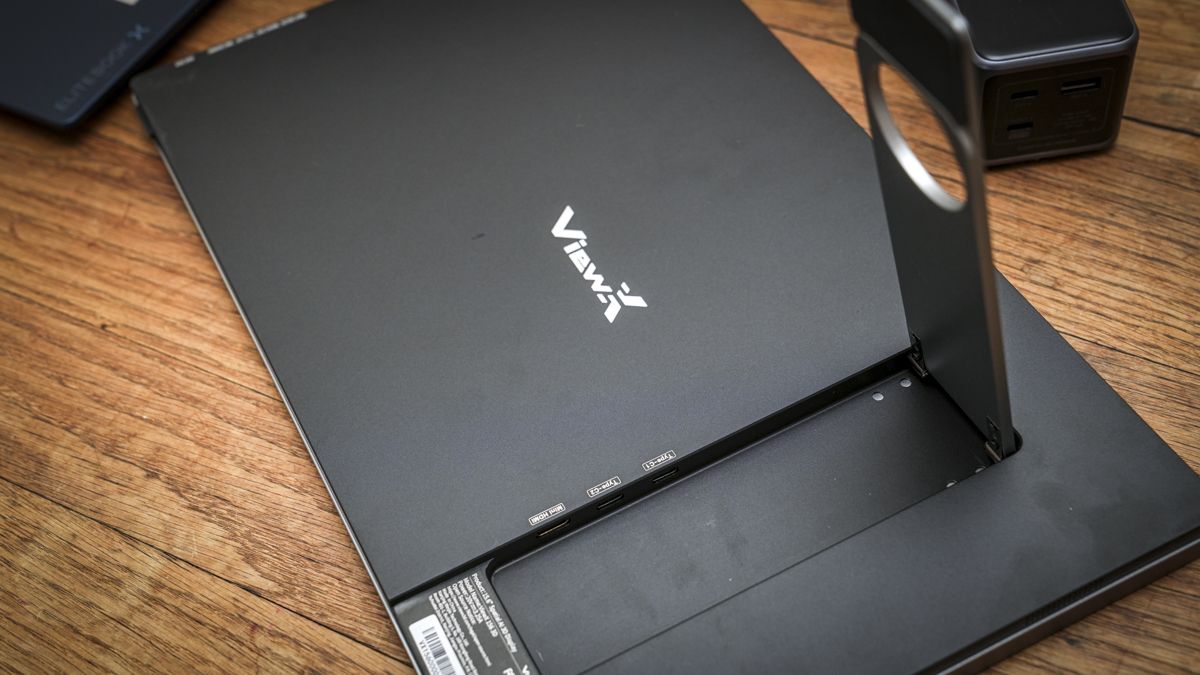
Setting up the monitor is easy. In fact, I was quite surprised by how quickly and straightforward it was to get the monitor up and running and doing exactly what I needed, including switching to 3D.
The Quick Start Guide directs you to the website to download the software you need for your PC to recognise the 3D screen. Through this test, I used the monitor with an HP EliteBook X and tried it with a Mac, but with no success; this is a PC only monitor.
Once you get to the monitor’s software page, it’s a little confusing. There are several options, including the game launcher, AI Depth Transformer and the ViewX Liber 15.6-inch 3D monitor user manual. The slightly confusing thing is that there isn’t just a straightforward software download. However, the PDF software manual does have clearer instructions and talks you through setup.
To get the monitor working, all you really need to do is plug it directly into your computer via USB-C. Through this test, I used it with a PC, and it was pretty much plug-and-play once the software was installed.
You can also connect the supplied HDMI cable directly into the back of the monitor. This comes with a 90-degree connector, and the full-sized HDMI connector can then plug straight into your PC.
You’ll also need power. You can power it either through the mains (with the supplied AC plug) or via USB-C. Although it can be powered through USB-C, I initially had no luck. From the HP machine I was using, I soon realised it didn’t output enough power through the USB-C port to run the monitor. Checking the monitor power draw, it showed 17.8 W, which should have been fine; however, the monitor just wouldn’t initially start up.
I ended up plugging in the AC power to provide enough power to run it for the initial testing and later switched to a UGREEN Power bank, although that only provided enough power for a two-hour session despite the 20000mAh capacity. Once I plugged in the USB-C cable and external power supply, downloaded the software, and installed all the packages, the monitor flickered to life and was ready to use.
The power consumption is well worth noting, as most laptops limit the USB-C output to 15w; that’s 3W below what this monitor needs. So you will need an external power source to run the monitor, and you absolutely won’t be able to power and connect the monitor to a laptop with a single cable.
Once everything is connected and you’ve installed the video and gaming applications, it’s easy to open and view different types of content.
The initial look of the monitor in 3D is very peculiar, and don’t expect to be using the 3D mode for the most part as just a standard monitor. It does have two modes, though.
In the standard 2D mode, the 4K resolution actually looks very clean and clear. I set the resolution to 3840 x 2160 at 60Hz. It ran in 8-bit RGB, and the quality of the visuals looks good.
For general work as an expansion to the laptop’s 15.6-inch screen, the colour and tone were well balanced, and it’s a shame that it’s limited in the colour gamut, being really focused on media playback rather than creation.
As I worked with Word documents, browsed the internet, and used the usual functions and features all in the 2D mode, the display’s resolution and quality looked great.
While the refresh rate tops out at 60Hz, that’s more than enough for most productivity uses, especially for business, and the only time you really need those greater refresh rates is when you start gaming.
What surprised me was what happened when I held down the 2D-to-3D button on the right-hand side of the screen. After a few seconds, the monitor adjusted and switched to 3D mode.
I found that setting the monitor to a simple screen extension worked well, having the main laptop screen for content and the monitor for the 3D content. Looking at the screen as it switched to 3D was a particular experience, and at first the 3D effect looked a bit off, and it took my eyes a while to adjust.
Then, as my eyes and mind adjusted, I did get the true 3D visualisation. Simply opening YouTube and watching a couple of videos meant standard 2D video became 3D. I didn’t need to do anything else: no glasses, no additional hardware, just the monitor.
As I progressed through various applications, opening Steam and installing Indiana Jones and the Great Circle, the monitor’s 3D feature was really dramatic in gaming.
If you’re just using the 3D feature with standard applications, the resolution and clarity don’t look great. Still, once you’re immersed in gaming or watching a video, the effect is exceptional as long as you don’t move too much.
Moving is one of a few issues with how it works. As I quickly discovered, you have to sit relatively still in front of the monitor. Any significant movement to the left or right, and the screen starts to flicker.
Even then, if you stay still, I found that while I was watching video or gameplay, there was always the occasional slight flicker or brightness change as the screen adapted to the content. But overall, the effect is exceptionally good and well beyond anything that I’ve seen before.
As I settled into using the monitor and the way that it works, I had the screen set to use the laptop screen as my main display and the 3D display as an extension, essentially to play games on and to watch movies and media.
It looked incredibly good. You can see a reduction in detail, but the clarity and tone look exceptionally good. Because I deal with 3D printers and 3D printing, I was also really interested to see how it would work with 3D applications. To test this out, I downloaded Bambu Studio.
Opening Bambu Studio on the monitor, it was difficult to see some of the palettes, but it was nice to see what would usually be represented in 2D in the application with that 3D look. It’s a little peculiar, and the resolution once again doesn’t look as clean as I thought it would be, but it is really interesting.
I also went through a few options in the system display. I was able to turn HDR on, which helped to kill a few of the highlights that were there before. The scale is set to 300%, and the resolution at 4K looked great.
I also wanted to adjust the refresh rate to see whether some of that flickering would reduce, so I dropped it to 29.97Hz. To be honest, the change was minimal, and you could see a slight effect on motion smoothness, especially when gaming.
This monitor really works best when you’re watching back 2D video, and it doesn’t even need to be specialist 3D video. It converts the 2D content to 3D straight out of the box.
Likewise, games look superb and, while you do see some flicker, it certainly gives the pictures a far more interesting look. I wouldn’t say the technology is 100%, and the flickering is annoying, but if you stay relatively steady, it does give a more immersive viewing experience than a standard 2D monitor.
If you have videos you want to watch in 3D, you can simply go to YouTube, Netflix, or whatever other streaming service you use, and the screen will display the video in 3D. It’s impressive and, despite those few flickers, it does add a lot more interest. However, there is still that drop in detail, but once you start watching back footage, you start to forget that drop in detail.
I then looked at the two applications that had downloaded: 3D Spatial Gateway, which you can use to view videos stored on your machine; essentially, you open them within that application and then, using AI, it converts them to be ready for viewing in 3D. The quality is just a little better, although there is still some stuttering.
It takes some time to process the video before you’re able to watch it back in 3D and, again, you need to stay pretty static when you’re watching it. But the result is still quite spectacular.
The frame rate does look a little stilted, and it doesn’t quite have the smoothness of motion you see when you’re watching the video back in 2D. Still, it’s not far off, and after you’ve been watching for a short time, persistence of vision does take over.
You can also route the audio through the monitor to use its internal speakers. However, these are relatively cheap compared with the rest of the build quality, and they sound a bit tinny, like most small portable monitors. There’s really nothing to write home about when it comes to audio quality, but at least they’re there if you need them.
If you’re thinking about using it directly as a monitor in a 3D environment, that’s not really what this monitor is for. The resolution and how it renders detail make it extremely difficult to read text.
But if you’re watching visual content such as video or a video presentation, playing games, or viewing 3D models, as I was when using this for a museum demonstration, then it’s actually exceptionally good. However, it does take some getting used to.
One other note is that if you’re trying to show a variety of people the 3D effect, the monitor can get a little confused, and people really need to come up and look at it one by one.
Switching over to gaming is really where things start to come into their own. You get real depth in whatever game you’re playing, far more than you do with just playing it on a 2D monitor.
What I really like is that you can get this 3D experience anywhere without having to wear glasses, which means if you’re sitting on a train, you’re away for work, and you just want that 3D visual experience, this monitor gives it to you without fuss.
The other thing that I’ll say is that when you first sit down and start to use the three-dimensional effect, it looks impressive. But only after you’ve sat and watched several videos or played games for a while does it really become truly immersive.
The monitor’s 3D depth perception actually seems to improve over time. Whether that’s a visual trick or something within the AI that’s improving the depth over time, I’m not 100% sure.
Still, as I progressively looked at more images and video, the quality of that 3D depth definitely improved. While you can still see some layering, I could also see a little more gradation in the 3D depth perception by the end of the test.
- Performance: 4/5
Should you buy the ViewX Liber?
At the end of this test, I have to say that while this monitor is far from perfect, it’s also strangely addictive.
When you look at images, watch back video, and, obviously, play games, that 3D depth in so much content really adds interest and intrigue.
The video frame rate is a bit of an issue. You can really tell there’s a little jitter between frames, and you often see ghosting or a small wave as the AI processes the 2D image into a 3D map or perception. But ultimately, the effect is impressive.
If you like the idea of a 3D monitor, especially for playing games or watching back video, and you’re also taking into account that it’s not quite 100% perfect. There is going to be some flickering, adjustment of objects and a small amount of ghosting, especially with text; then this is a great option.
If you’re thinking that this is going to give you the full immersive 3D experience, then wait a little longer, as I’m sure, now seeing how good this is, that will be on the way.
Also, if you’re on a Mac, I couldn’t get this to work with the M1 MacBook Pro, so during this test it was purely a PC-enabled 3D monitor.
|
Value |
Good value for such unusual 3D technology. |
3.5 |
|
Design |
Solid, portable build with practical connectivity options. |
4 |
|
Features |
Strong 3D features, though software needs refinement. |
4 |
|
Performance |
Impressive depth, but flickering affects overall smoothness. |
4 |
|
Overall |
Engaging 3D experience with a few compromises. |
4 |
Buy it if…
You want a 3D experience without glasses.
The main feature here is that you can use this monitor without requiring 3D glasses. If you like the idea of a 3D monitor, especially for playing games or watching back video, then the effect is impressive.
You want a portable 3D display.
The ViewX Liber is compact and highly portable. If you’re sitting on a train, you’re away for work, and you want that 3D visual experience, then this monitor gives it to you without the need for specialist glasses or other equipment.
Don’t buy it if…
You want a perfect 3D experience.
The technology isn’t 100% perfect. There is some flickering, especially if you move around, along with occasional ghosting and a reduction in detail and clarity. If you’re expecting a fully immersive 3D experience, then you may want to wait a little longer.
You need to move around while viewing the screen.
You need to stay relatively still and directly in front of the monitor for the best 3D effect. Moving significantly to the left or right can cause the screen to flicker or affect the 3D image.
This articles is written by : Nermeen Nabil Khear Abdelmalak
All rights reserved to : USAGOLDMIES . www.usagoldmines.com
You can Enjoy surfing our website categories and read more content in many fields you may like .
Why USAGoldMines ?
USAGoldMines is a comprehensive website offering the latest in financial, crypto, and technical news. With specialized sections for each category, it provides readers with up-to-date market insights, investment trends, and technological advancements, making it a valuable resource for investors and enthusiasts in the fast-paced financial world.