
At a glance
Expert’s Rating
Pros
- Genuinely free, with no account, subscription, or watermark
- Strong everyday editing, annotation, and page-management tools
- Useful OCR, conversion, batch processing, and password protection
- Clean, intuitive desktop interface
Cons
- OCR and conversion can stumble on more complex documents
- No dedicated redaction, PDF/A, certificate signing, Bates numbering, or advanced accessibility tools
- Image placement is limited; no inline positioning or text wrapping
Our Verdict
JOPDF delivers an impressive range of PDF editing and utility tools for a program that costs nothing. It lacks some advanced professional features, but for routine PDF work it’s one of the more capable free options available.
Price When Reviewed
This value will show the geolocated pricing text for product undefined
Best Pricing Today
Best Prices Today: JOPDF
JOPDF makes a strong first impression for one simple reason: It’s actually free. There’s no account to create, no subscription-tier gatekeeping access to the useful tools, and none of the usual freemium nagging that makes some “free” PDF editors feel more like demos.
For a free app, JOPDF is surprisingly full-featured. It handles the work you’d expect from a desktop PDF editor—editing and annotating documents, managing pages, and filling forms—along with extras such as OCR, file conversion, compression, password protection, and batch processing.
The tradeoff is depth. JOPDF lacks some of the advanced tools aimed at professional workflows, including higher-end document production, accessibility, and security features. It’s better thought of as a capable general-purpose editor than a full Acrobat Pro replacement.
Read on to learn more, then see our roundup of the best PDF editors for comparison.
Editing and everyday PDF tools
JOPDF has a straightforward interface. The home screen puts its primary tools front and center, with large tiles for common tasks such as editing, OCR, batch processing, compression, page organization, encryption, and form filling. Open a document and it appears in a tab, allowing you to move among multiple PDFs without opening separate windows. There’s surprisingly little clutter. I didn’t encounter ads, upgrade banners, or account prompts, and the interface is easy to get around even if you haven’t used a full PDF editor before.
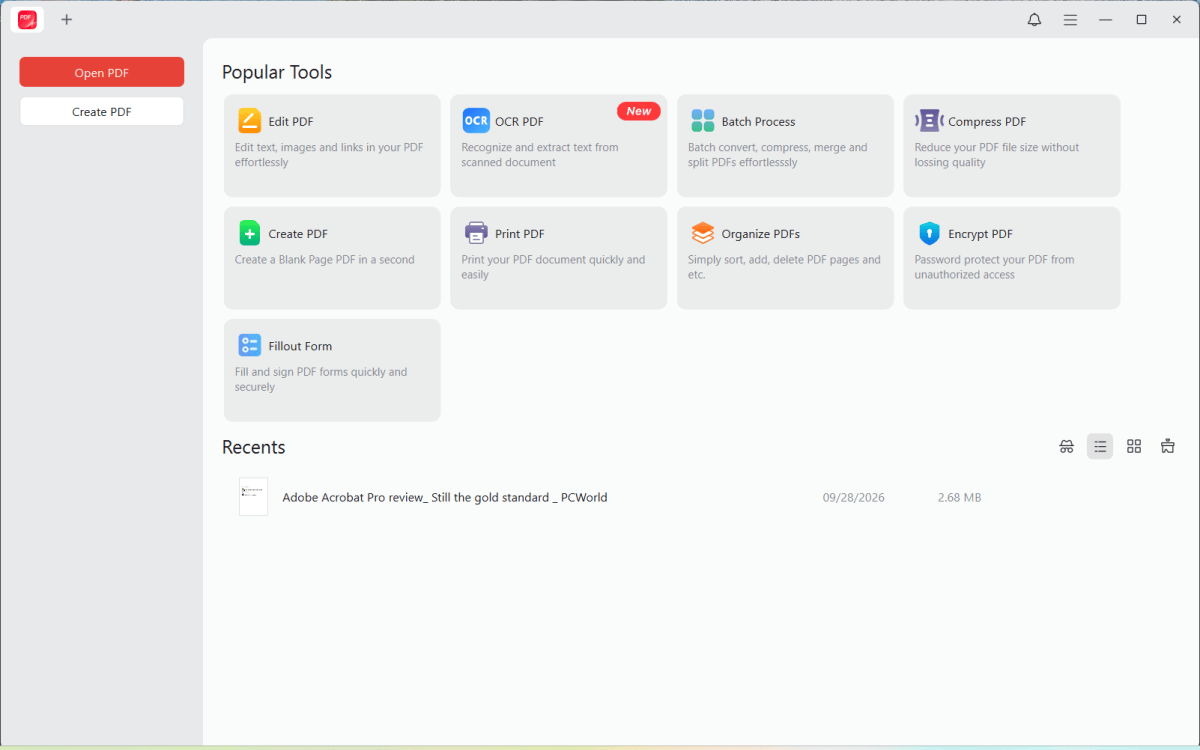
JOPDF’s home screen puts its core tools front and center/
Michael Ansaldo/Foundry
JOPDF uses a familiar desktop PDF-editor layout. Open documents appear in tabs, with the main tools organized across the top into View, Edit, Convert, Annotate, Page, and Protect categories. A collapsible sidebar provides page thumbnails and other document-navigation tools, while viewing controls sit directly above the document.
JOPDF gives you two ways to work with text. When you click an empty area of the page, you can add a new text box; selecting a block of existing text allows you to edit it inline. In the latter case, text reflows within the existing block as you add or remove words, which makes editing feel much more natural.
Images are handled as independent objects. Once you insert one, a floating toolbar displays controls to crop, rotate, flip, and adjust its opacity. You can also move or resize it directly on the page. But JOPDF doesn’t reflow surrounding text to accommodate the image, so they have to be positioned in available blank space.
The annotation tools are well-stocked. You can highlight text or an area of the page, underline or strike through text, add squiggly marks, insert sticky notes, draw freehand, add shapes, and apply stamps. JOPDF can also embed file attachments inside a PDF, a useful feature if you need to package supporting documents with the main file. Annotations remained editable after saving rather than being flattened into the page.
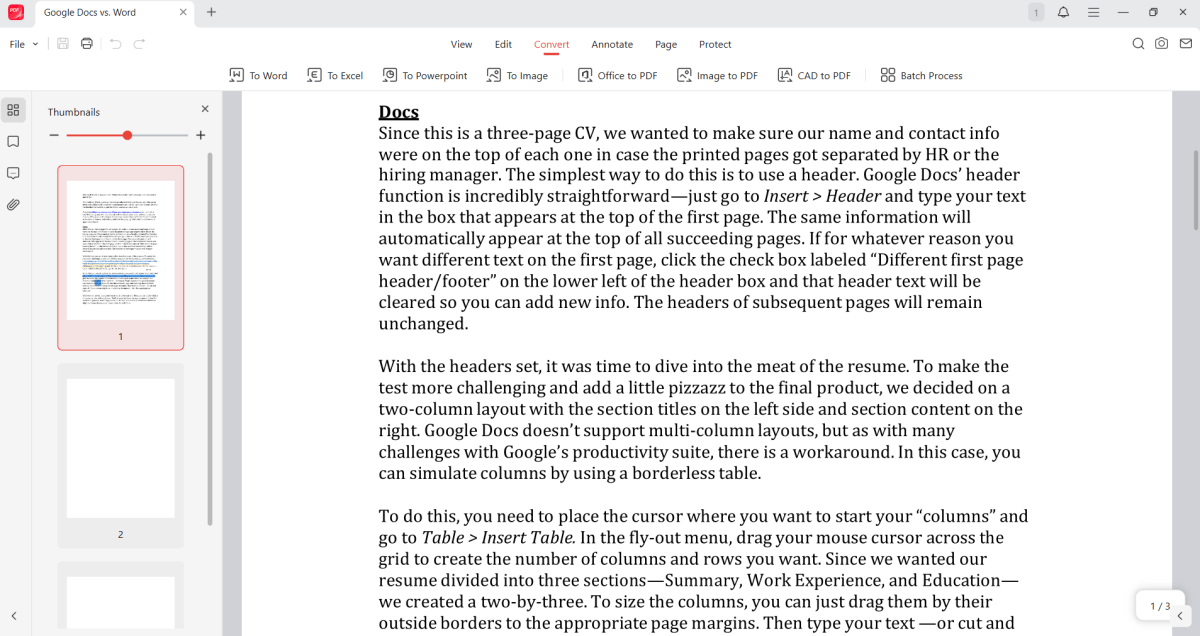
JOPDF organizes its document tools into clearly labeled tabs, with conversion options for Word, Excel, PowerPoint, images, and more available directly from the main editing window.
Michael Ansaldo
JOPDF also gives you substantial control over a document’s page structure. Pages can be reordered, rotated, deleted, inserted, extracted, copied and pasted, and resized, and blank pages can be added.
Its splitting tools go beyond simply saving selected pages as a new PDF. You can divide a document by pages per file, by a specified number of output files, or with custom page ranges. There’s also an unusual option for dividing individual pages with horizontal or vertical cut lines, which could come in handy for scanned spreads or documents in which multiple pages were captured on a single sheet.
Merging is supported as well, and several of these operations can be run in batches. If you routinely combine, divide, or reorganize groups of PDFs, JOPDF can handle much of that work without requiring you to process each file individually.
Forms are handled in much the same practical way. JOPDF recognizes standard interactive fields such as text boxes and checkboxes, allowing you to complete a form without manually positioning text over the page.
For signatures, you can draw one, type one, or import an image and position it on the document. That’s enough for routine electronic signing, but it shouldn’t be confused with certificate-based digital signing, which uses a digital ID to authenticate the signer and detect later document changes. I found no indication in JOPDF that it supports that type of certificate signing.
Conversion, OCR, and batch tools
JOPDF handles the usual conversion jobs, including exporting PDFs to Word, Excel, PowerPoint, and image formats, as well as creating PDFs from Office documents and images.
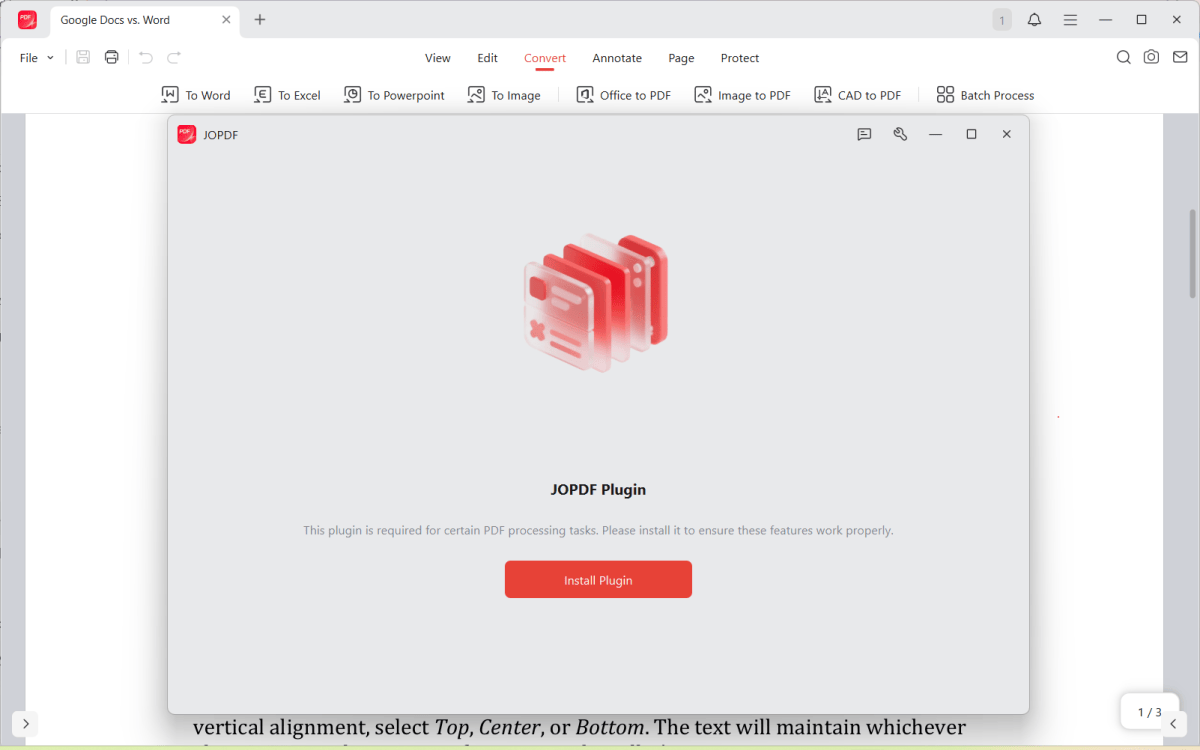
JOPDF requires a separate plugin for certain processing tasks, including file conversion; the app prompts you to install it the first time you use one of those features.
Michael Ansaldo/Foundry
Conversion requires a separate plugin the first time you use it. Once that component is installed, JOPDF says conversion can take place locally rather than requiring documents to be uploaded to a web service.
JOPDF’s PDF-to-Word conversion did an impressive job preserving the original document’s appearance, including page breaks, formatting, links, and text styling. But it wasn’t flawless. A few lines were dropped or mangled during conversion, and the resulting Word file reproduced the PDF more faithfully as a visual layout than as a cleanly reconstructed document.
OCR gives you a choice between processing the file locally on your computer or using an online engine. The local option has the obvious privacy advantage because sensitive documents don’t leave your machine. JOPDF positions the online option as better suited to more complex scans.
You can also choose the type of output. Searchable PDF retains the original page image and adds a text layer, while Editable PDF attempts to reconstruct the document so the recognized text can be changed.
JOPDF’s OCR handled a clean single-column scan well, reproducing most of the text with only a few errors. A harder two-column page exposed more weaknesses. It preserved the page visually and recognized most of the content, but the extracted text mixed column order, mangled some bullets and character pairs, and introduced minor spacing and table errors.
Security
JOPDF provides two types of password protection. An Open Password encrypts the file so it can’t be opened without the password. A Permissions Password controls what someone can do after the document is opened, such as editing, printing, or copying its contents.
JOPDF also includes a Decrypt tool for removing password restrictions from PDFs. According to JOPDF, it can remove permission restrictions even when you don’t know the permissions password. That doesn’t bypass an Open Password, though; a PDF protected by one still has to be unlocked before the document can be accessed.
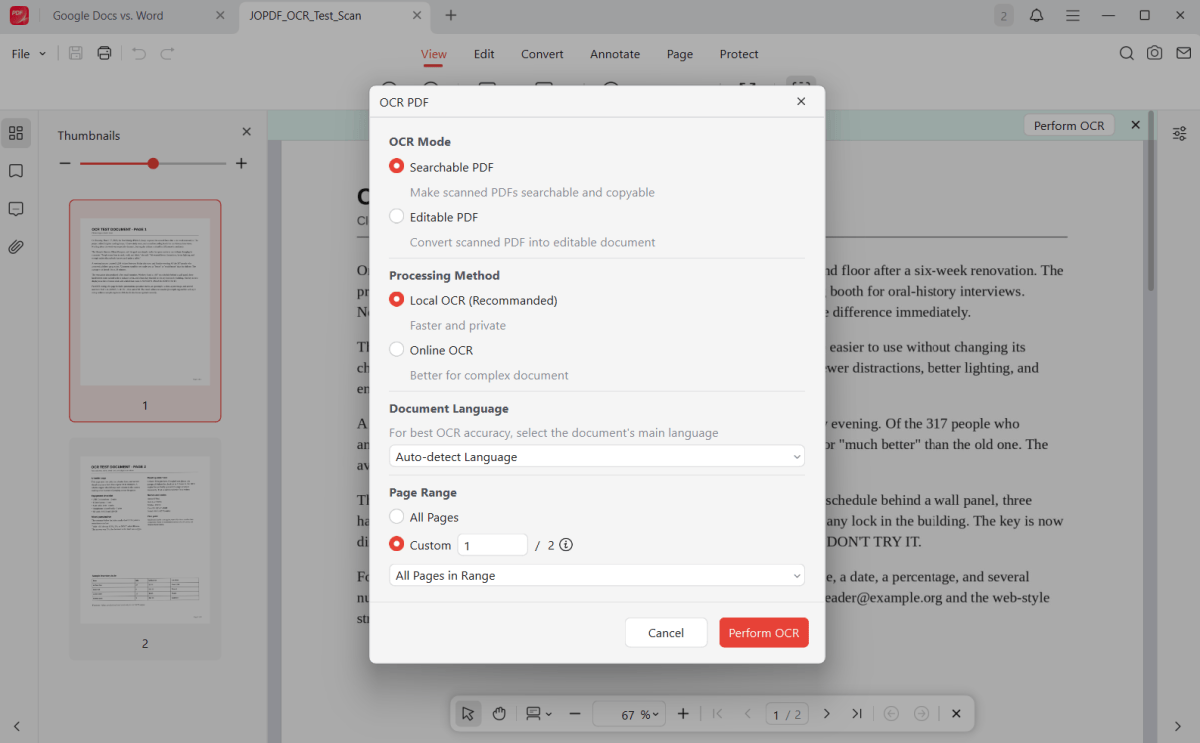
JOPDF’s OCR tool lets you create either a searchable or editable PDF, with a choice between faster local processing and an online mode intended for more complex documents.
Michael Ansaldo/Foundry
In my test, Acrobat recognized a JOPDF-protected file as using password security and reported that all document contents, including metadata, were encrypted. The restrictions I applied to printing, editing, copying, commenting, and other actions were also enforced.
Should you use JOPDF?
JOPDF is a good fit for anyone who has outgrown browser-based tools and wants a desktop PDF editor that can handle light editing, document cleanup, conversion, and other routine PDF jobs without paying for Acrobat.
Its limits become clearer once you move into more specialized PDF work. I couldn’t find a dedicated redaction tool, PDF/A conversion, certificate-based digital signing, document comparison, Bates numbering, or the accessibility-repair tools needed to work directly with tags and reading order.
For most everyday PDF work, though, JOPDF covers a remarkable amount of ground for a program that costs nothing.
This articles is written by : Nermeen Nabil Khear Abdelmalak
All rights reserved to : USAGOLDMIES . www.usagoldmines.com
You can Enjoy surfing our website categories and read more content in many fields you may like .
Why USAGoldMines ?
USAGoldMines is a comprehensive website offering the latest in financial, crypto, and technical news. With specialized sections for each category, it provides readers with up-to-date market insights, investment trends, and technological advancements, making it a valuable resource for investors and enthusiasts in the fast-paced financial world.