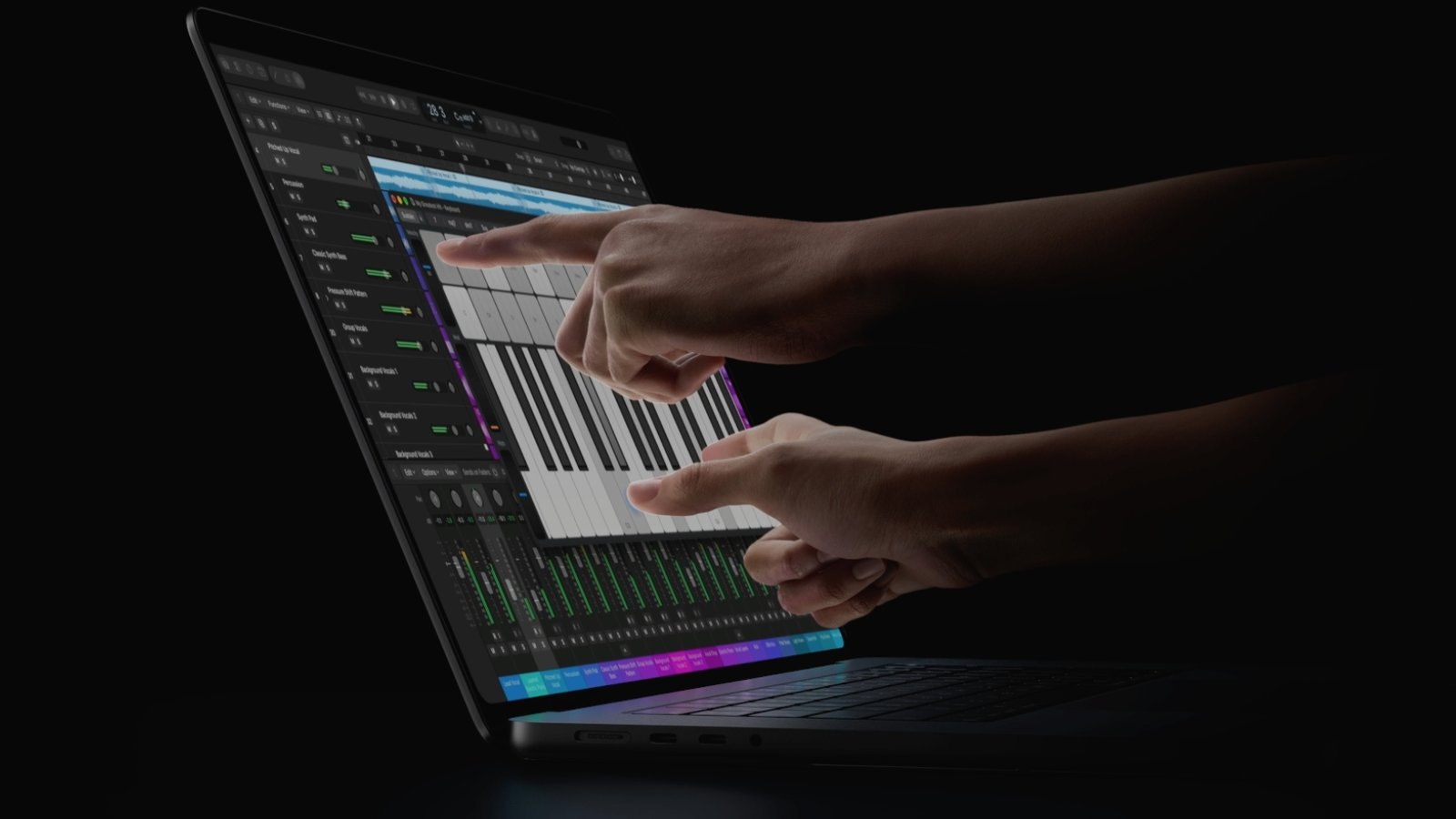
Apple has long rejected the idea of a touchscreen Mac, so moving ahead with one was always going to be a major shift in the company’s thinking. In 2010, Steve Jobs argued that “touch surfaces don’t want to be vertical,” citing the arm fatigue that comes from repeatedly reaching up to a screen.
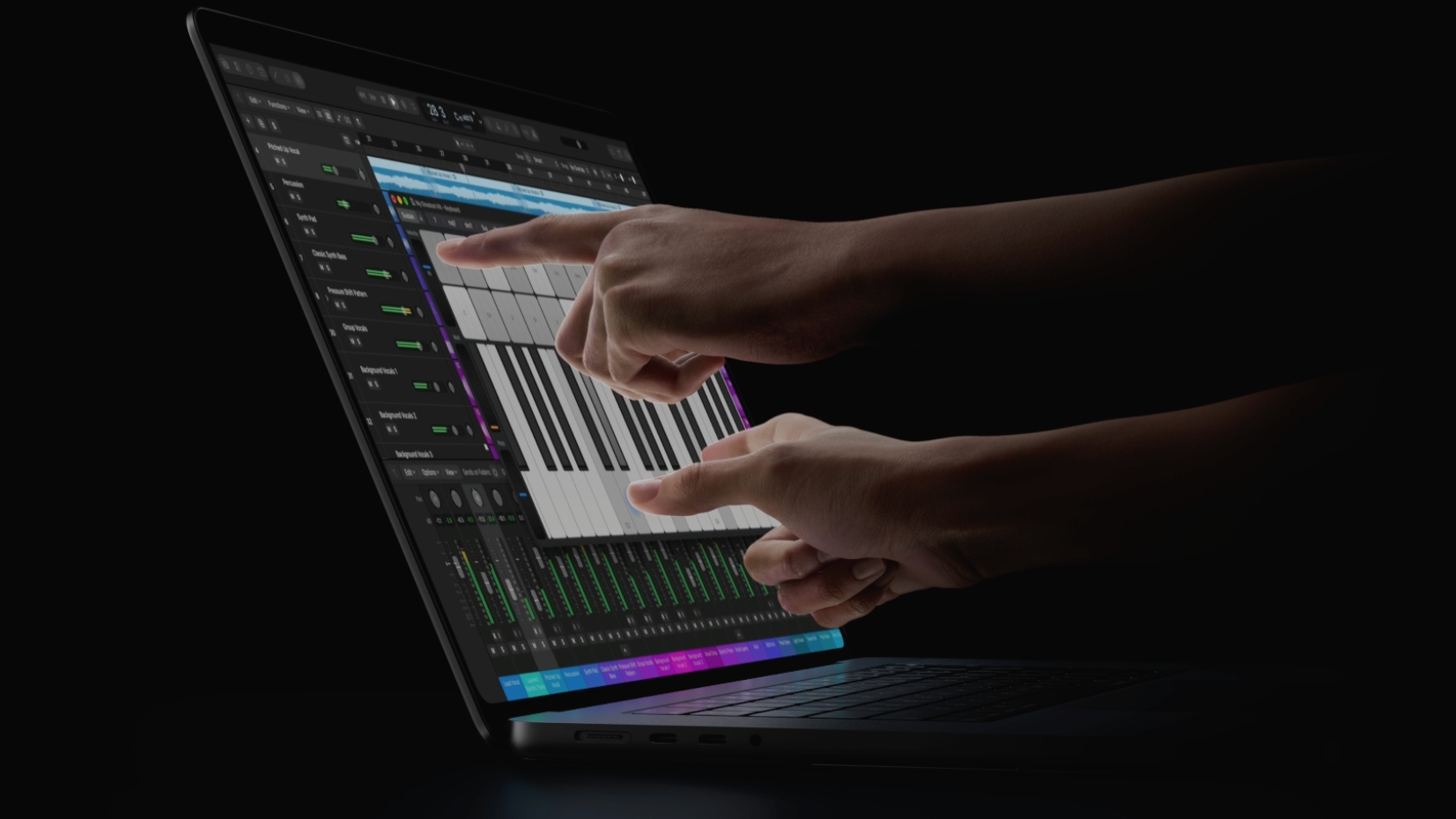
More than a decade later, in 2021, Apple’s then-hardware engineering chief John Ternus remarked that the Mac was made exclusively for indirect input and that Apple saw no compelling reason to change its approach.
“We make the world’s best touch computer on an iPad. It’s totally optimized for that. And the Mac is totally optimized for indirect input. We haven’t really felt a reason to change that,” Ternus said in an interview with Joanna Stern.
Touch Comes to the Mac
Fast forward to 2026, and Apple has had a change of heart. The new MacBook Pro with PROLED XDR is the first Mac to adopt touchscreen technology. Many younger people who grew up with smartphones and tablets expect to interact with their computers the same way they do with their mobile devices, and that expectation appears to have twisted Apple’s arm (no pun intended).
Of course, just because the new MacBook Pro models have a touchscreen doesn’t mean you have to use it. If you forget it’s even there, you can turn off the function and pretend it doesn’t exist. If you use Sidecar with an iPad on another Mac, you can turn off touch in the same way.
Turn Off Touch on MacBook Pro and Sidecar
The steps are the same whether you want to disable the MacBook Pro’s touchscreen or touch input in Sidecar:
- Click the Apple logo in the top-left corner of the menu bar and choose System Settings….
- Select Accessibility in the sidebar.
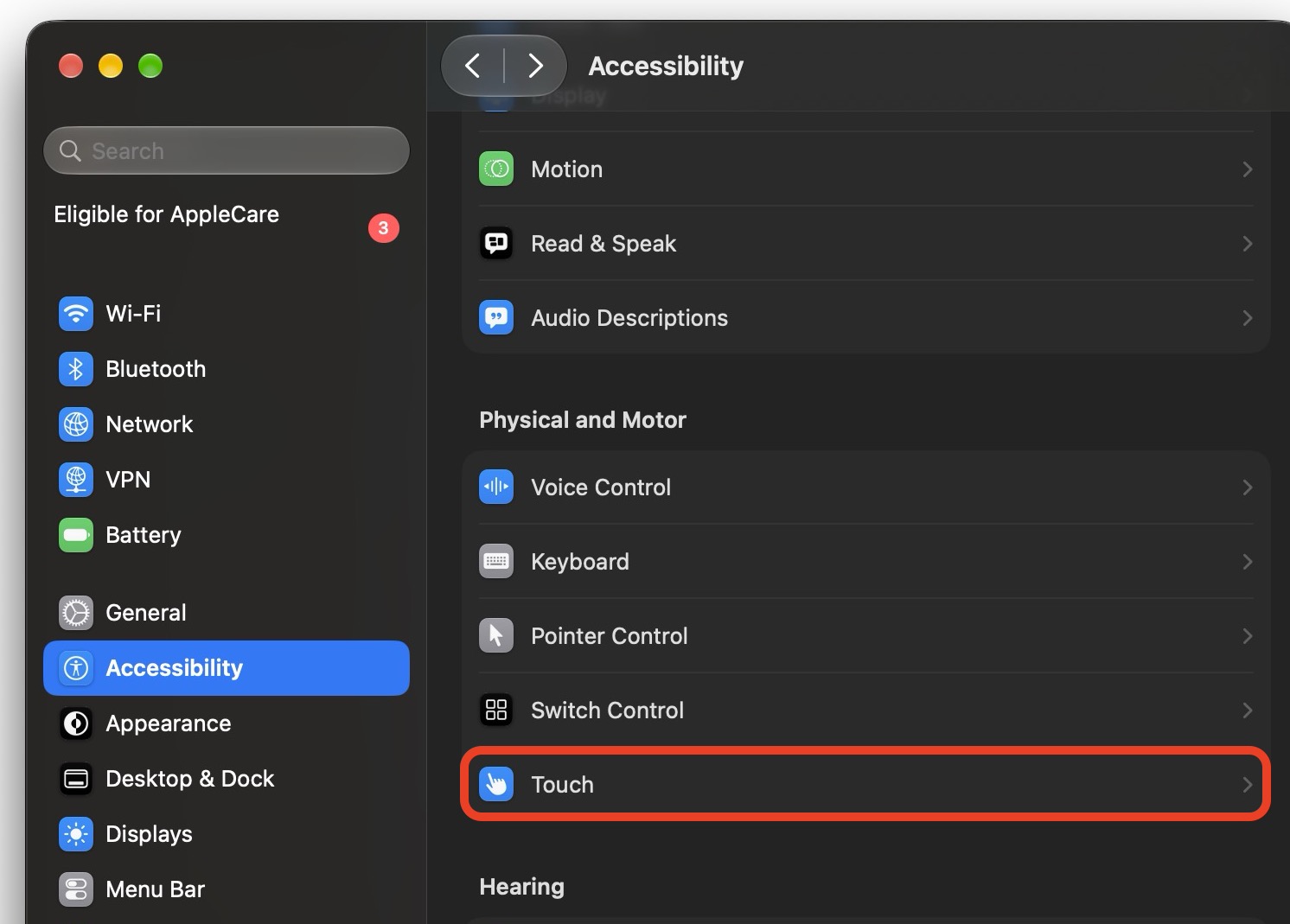
- Under “Physical and Motor,” click Touch.
- Toggle on the switch next to Ignore Touch Gestures.
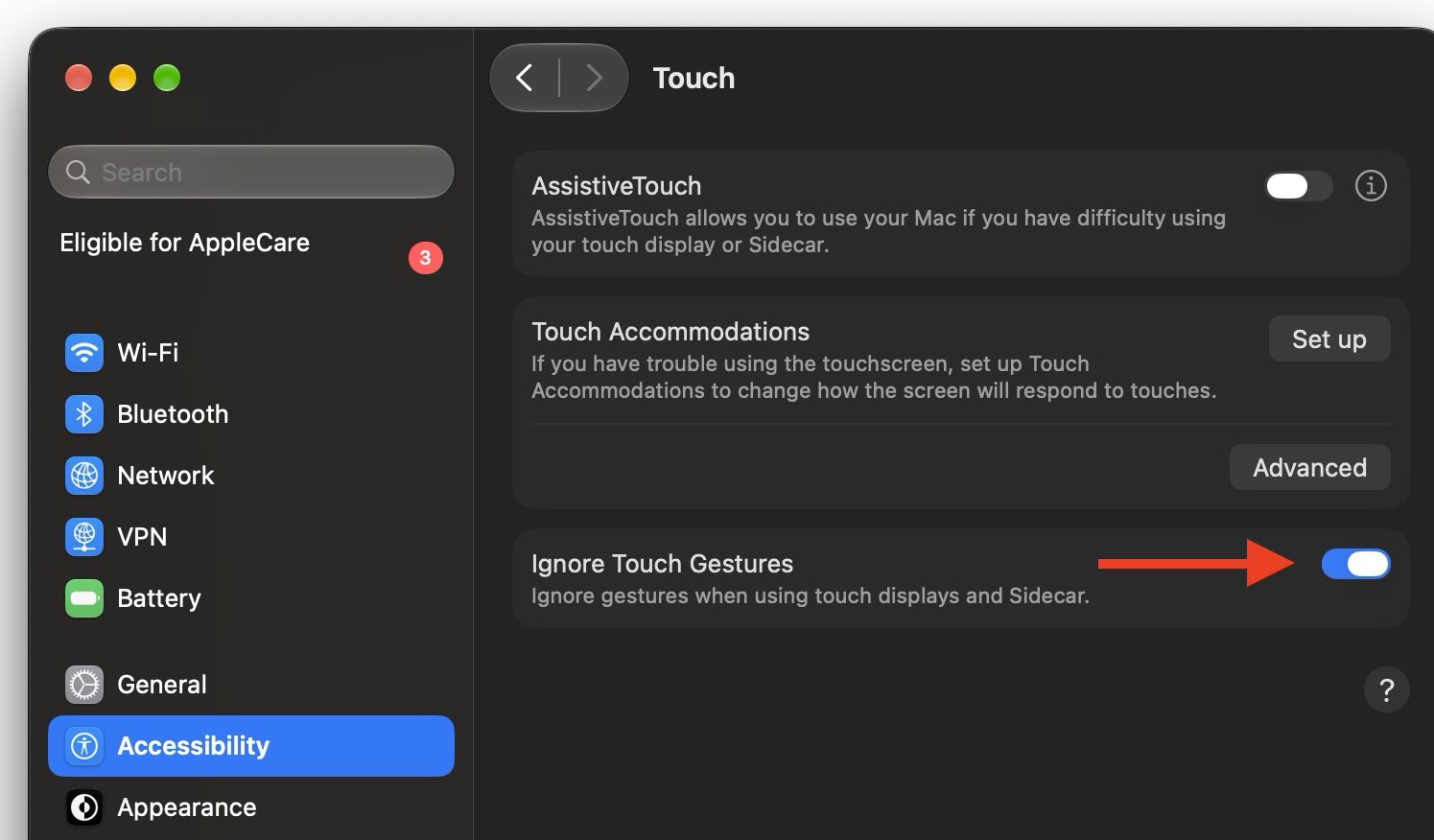
That’s all there is to it. Your Mac will now ignore touch input, and since the setting covers Sidecar too, an iPad you use as a second display will ignore touches as well. If you ever want touch back, return to the same screen and toggle off Ignore Touch Gestures.
Touch Friendly, Not Touch First
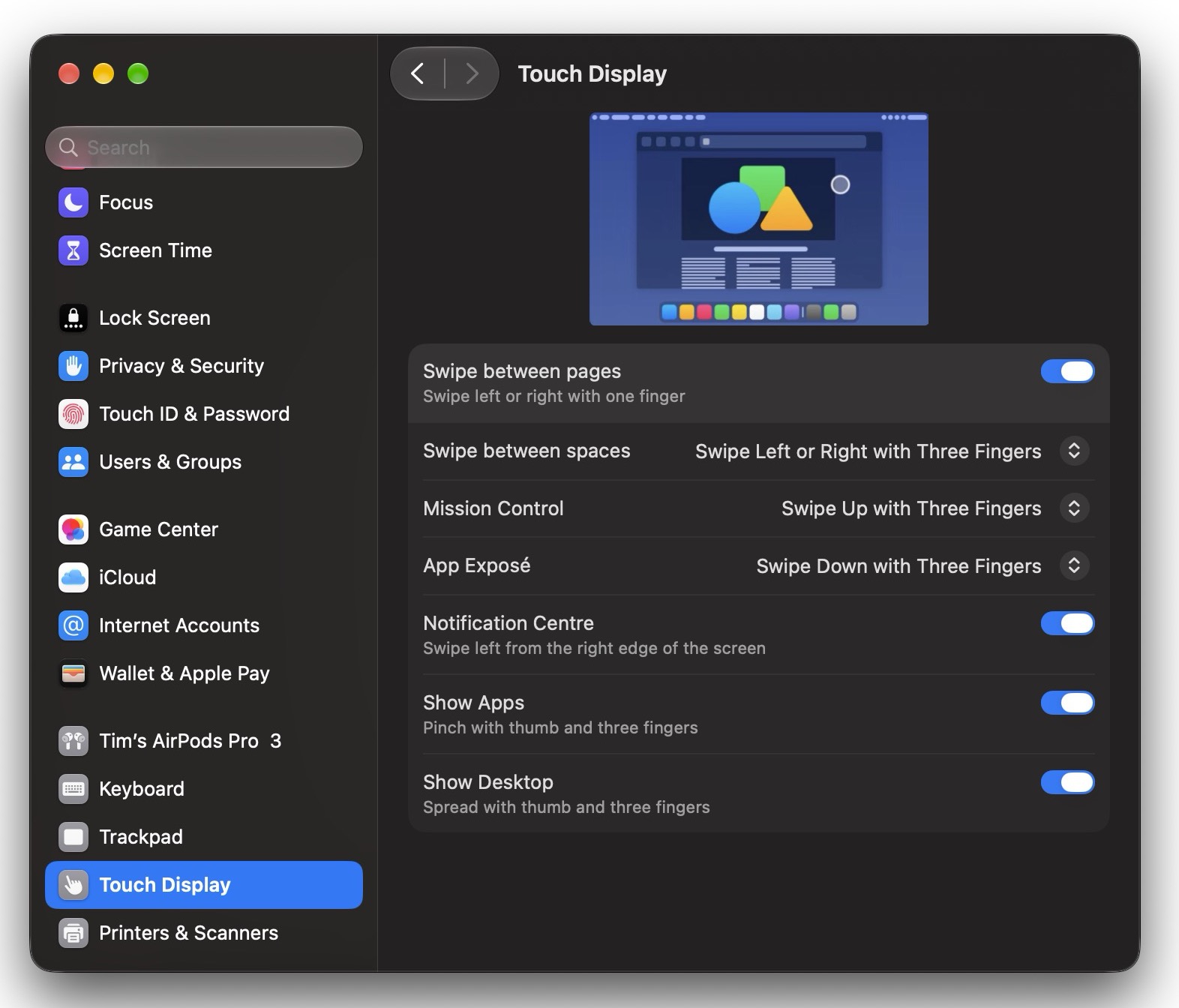
If some gestures prove useful but others keep being triggered by accident, you can adjust them individually instead of disabling touch altogether. In System Settings, select Touch Display in the sidebar, where each gesture can be switched off, and Swipe between spaces, Mission Control, and App Exposé also have pop-up menus for changing how the gesture is performed.
Don’t overlook the fact that the Accessibility ➝ Touch screen (where “Ignore Touch Gestures” lives) offers further customization options. Touch Accommodations changes how the screen responds to taps, swipes, and touch-and-hold input. AssistiveTouch can also be found on this settings menu if you want alternative ways to control the screen, and the Accessibility ➝ Zoom menu includes an option to zoom using the touch display or Sidecar.
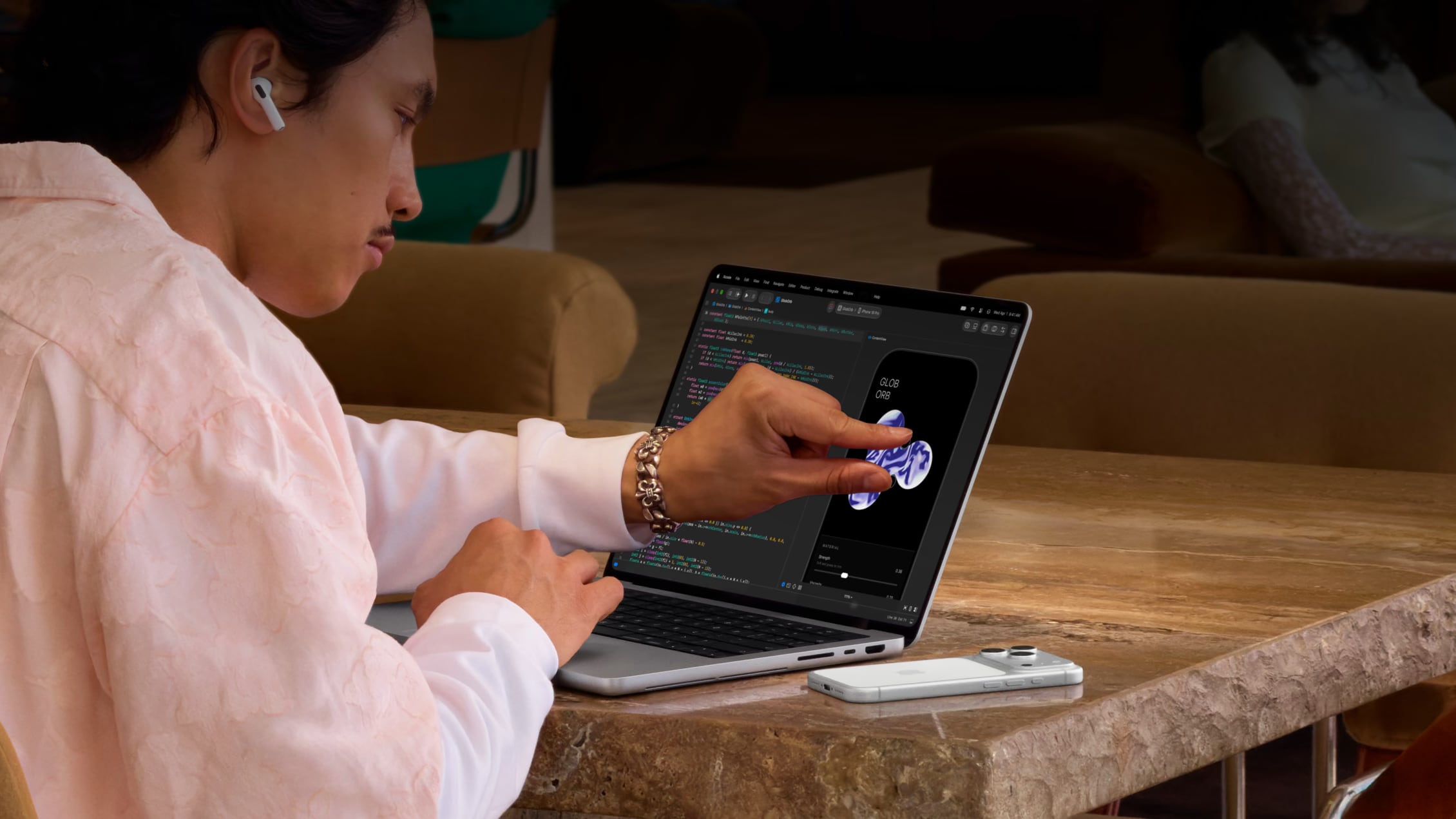
Whatever you think about touch on a Mac, one group with a genuine reason to leave it on is app developers. Xcode’s iOS Simulator responds to direct touch, so you can test your app’s taps, swipes, and pinches right on the screen instead of approximating them with a trackpad and keyboard modifiers.
This article, “Disable Touch on MacBook Pro PROLED XDR and When Using Sidecar” first appeared on MacRumors.com
Discuss this article in our forums
This articles is written by : Nermeen Nabil Khear Abdelmalak
All rights reserved to : USAGOLDMIES . www.usagoldmines.com
You can Enjoy surfing our website categories and read more content in many fields you may like .
Why USAGoldMines ?
USAGoldMines is a comprehensive website offering the latest in financial, crypto, and technical news. With specialized sections for each category, it provides readers with up-to-date market insights, investment trends, and technological advancements, making it a valuable resource for investors and enthusiasts in the fast-paced financial world.