
It’s never a good sign when a major productivity publisher ends support for a key application without notifying users of what will happen to their data. But that’s exactly the scenario that Microsoft To Do users face.
If you’re a To Do user, you’ll need to find a new task-management application soon. Fortunately, this week’s Smart Mode has some suggestions!
Last week was busy, but not for me. I was relaxing with a beverage when Microsoft CEO Satya Nadella proclaimed (PDF) that “Copilot is the new operating system for work” and that “apps are just plugins to Copilot.” But we’ve heard that before. I was more concerned when Microsoft decided to sunset its To Do application, which Microsoft will retire on June 30, 2027.
Welcome to PCWorld’s newsletter, Smart Mode! The focus of this newsletter is productivity: from software to hardware to peripherals, all with the idea to get what you need to get done, efficiently.
I’m your host, Mark Hachman, covering the productivity tips, tools, and trends that you need to know about, both from within PCWorld and beyond. If you want the latest issue in your inbox each week, just sign up right here.
To Do is both a separate app but also connected to the new Outlook app. It basically assists you with three things: tasks that you want to accomplish today, tasks that you need to accomplish by a certain due date, and tasks that have been assigned to or shared with you. Those are all rather simple distinctions, and To-Do’s replacements don’t need to be unnecessarily complicated. You certainly don’t need an enterprise solution like Monday.com!
But there’s a big problem. According to its transition document, there is no current replacement for Microsoft 365 Personal and Family accounts which use To Do; Microsoft says that its Planner app will step in for business and educational accounts.
“Microsoft will provide a way to export your To Do data before the apps retire,” the document says, but there’s no other assurances as to what will happen. Will your data be exportable in a format that can be accessed by other planning apps? Or just some massive text file? Even if your work accounts will end up migrating over to Planner, Microsoft warns that list groups, for example, don’t have a direct To Do counterpart, and email lists and even printing (!) won’t be supported, either.
Here’s what Microsoft advises if you use a personal account with To Do:
- Review the tasks, lists, and shared workflows you want to keep.
- Choose another task-management application that meets your needs.
- Identify data you want to preserve.
- Review the export instructions when published to understand the supported data, requirements, and limitations.
Note that Microsoft advises you to “choose another task management application” before the end of To Do. That’s why we’re here. Start thinking about these alternatives!
Google Tasks (Keep): Free
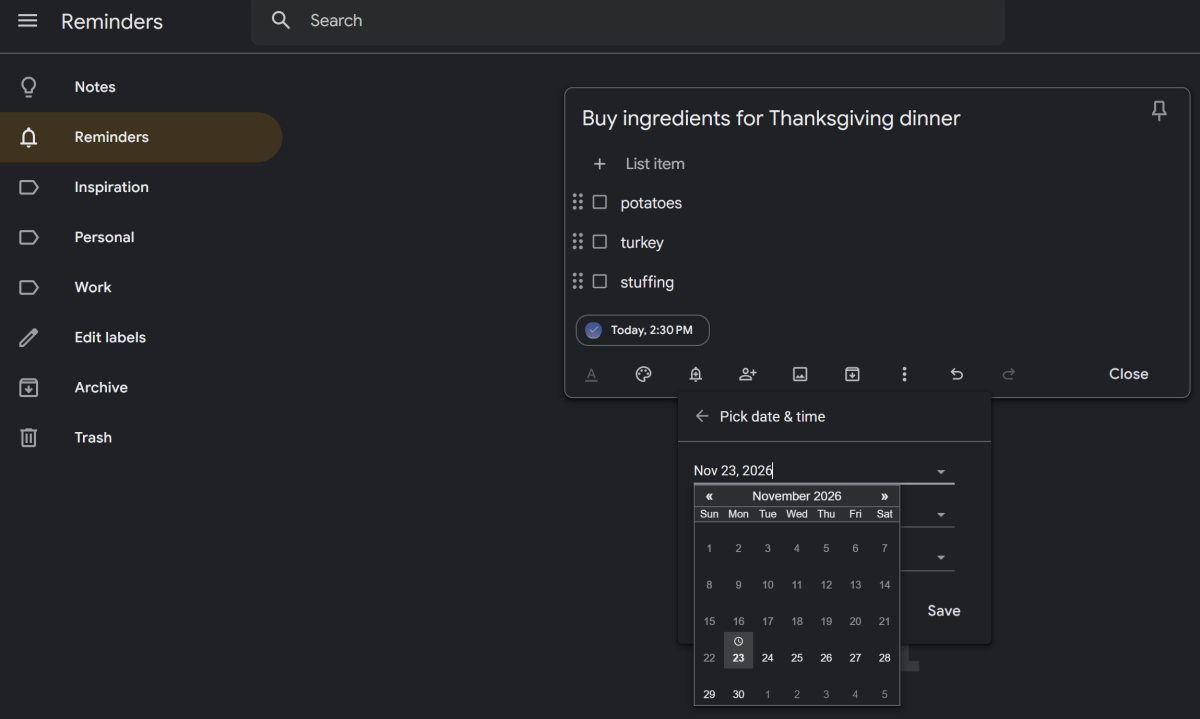
You can find Google Tasks in its “nine-dot” menu to the top right of the Google interface, but I find it easier to just use Google Keep’s “Reminders” feature instead. The Keep interface is pretty simple, with the ability to add items and then reorganize them.
The one thing that To Do offers is a very simple layout of your day; for me, I’ve always used my Outlook calendar as a proxy for what I need to accomplish that day. Google Keep/Tasks/Reminders is more useful for simple, longer-term projects with extended deadlines.
Todoist: Free, or $5-$10 monthly
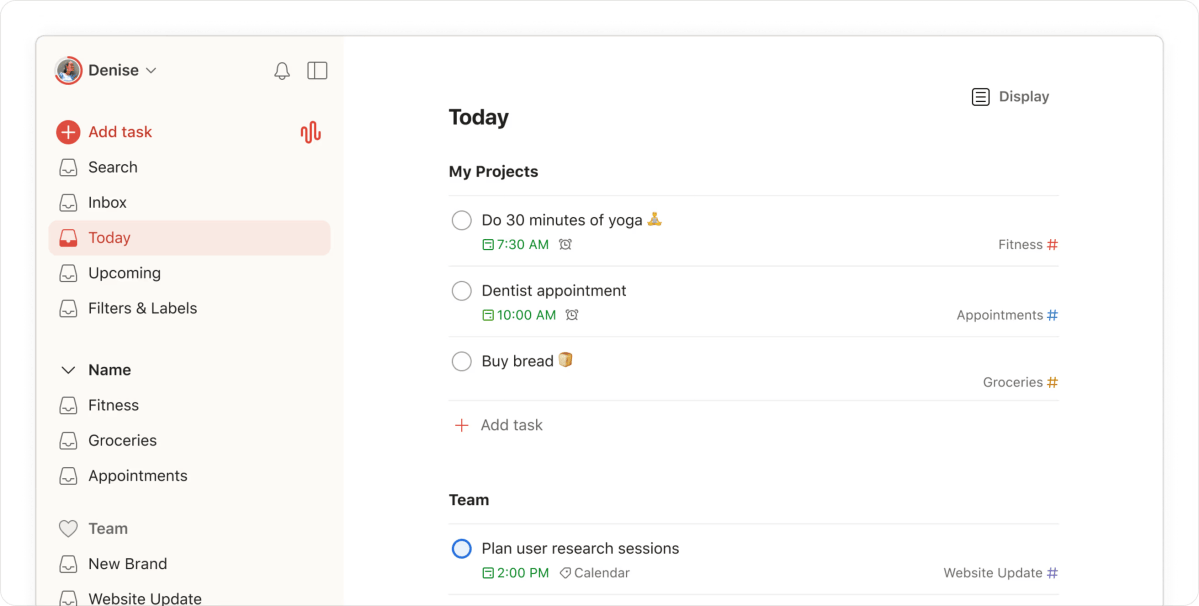
The smart thing about Todoist is that it knows what you’re there for: To find a replacement for To Do, and the ability to import your data from To Do is splashed on to its home page with a big, bright button.
While the basic, free plan is substantive (recurring tasks, reminders, even ChatGPT integration), the $7/mo Pro plan adds a calendar view, 150 filters, and up to 300 personal projects, the latter of which is the core of the application. Being able to “capture” the task via email is a particular strength, as it just saves an additional step.
Any.do: Free, up to $9.99 monthly
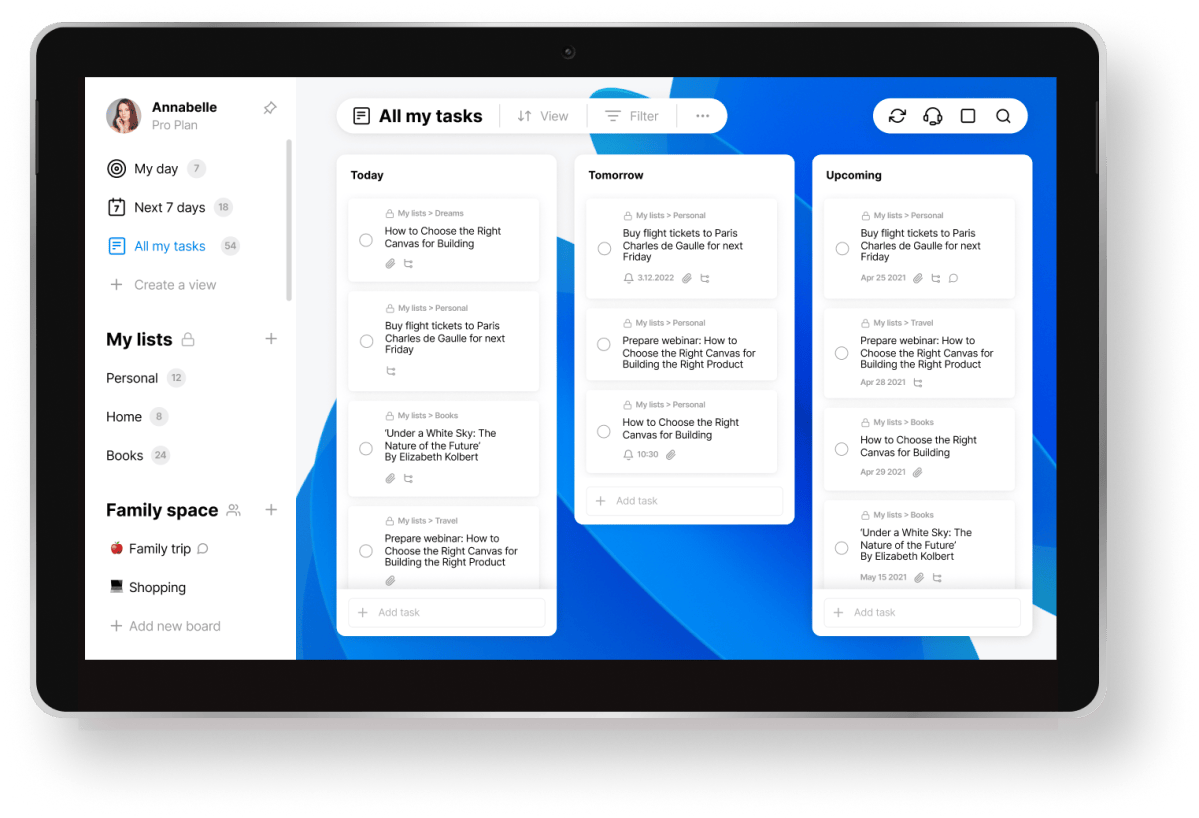
Any.do offers a robust free plan that the company claims will be free forever, with all of the basics: uncapped numbers of tasks and lists, calendar entries, and a daily planner. While something like a grocery list is free on the basic tier, the upsell to the $7.99/mo Premium tier involves location-based reminders, so you know to pick up that special bottle of wine while you’re passing by the boutique store.
You can also pay for a Family subscription ($9.99/mo, though just up to four participants), which basically adds shared features including shared grocery lists. That’s a replacement for “I’m headed to the store, does anyone need anything?”
TickTick: Free, or $49.99/year
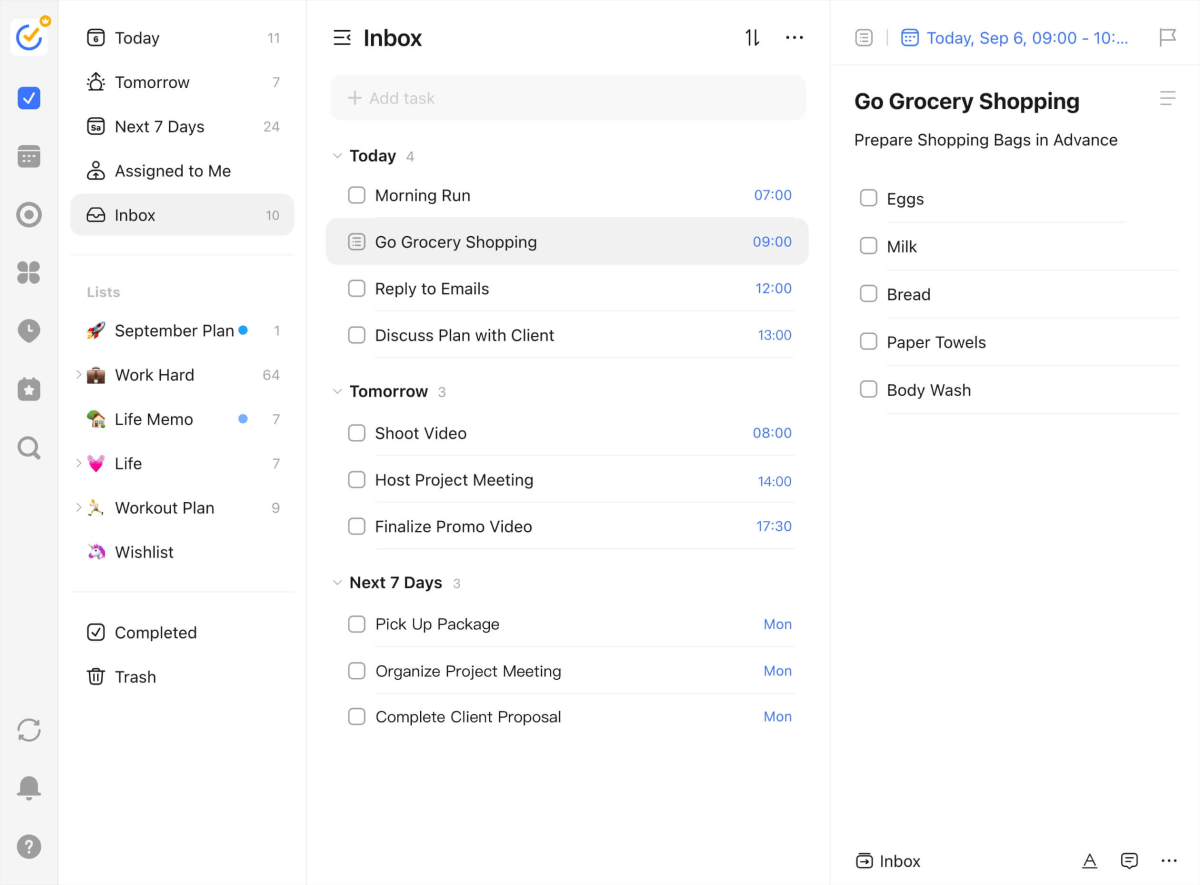
TickTick is another productivity app promoting imports of To Do data (as well as its competition). There’s a jump from the free tier (9 lists, 99 tasks per list) to the Premium tier (299 lists, 999 tasks per list) which also includes calendar views, task duration, email reminders and the like.
TickTick seems to emphasize simplicity above all else, with a straightforward interface. The paid version includes features you might not find on all apps, including AI voice capture, assistance, and a recording summary. But features like a timeline view are also reserved for the premium interface, too.
I prefer web-based or local productivity apps, with mobile app options, which these fall into. There are task-management apps that reside exclusively on smartphones, however. One example is Things 3, which is only for iPhones; Android users can use an Android competitor, Organized 3, instead.
Remember, small, focused apps can be vibe-coded, too, and To Do replacement is no exception. Just be careful not to deliberately copy an existing application. Otherwise, you might be able to design your own app with the features you specifically want to add. Try it and see!
Productivity in the news
As mentioned above, Microsoft now believes that Copilot is going to be the entry point for productivity work. As people become familiar with working within a Command Line Interface (CLI) workflow, they might order up a spreadsheet like eggs over easy in a diner. On the other hand, overcoming years of habitual work within a spreadsheet or PowerPoint document challenges muscle memory not easily forgotten. I’m definitely watching this space, but I’m not buying the hype, either.
As we head into Black Friday, it’s worth noting that my colleague Ben Patterson gave AI a chance to come up with its own Black Friday deals. (I’m digging out Black Friday Chromebook deals as well as deals on Thunderbolt docks and hubs.) Could AI replace a human?
No, somewhat surprisingly. Google Gemini was the absolute worst, returning bad, erroneous links. ChatGPT was a lot better, but it was foiled in places by blocked AI agents (though I think it worked out a way past them). My local AI efforts were average. In all, I still found my own eyes and judgement were about as good as an AI.
Otherwise, I’ve been busy reviewing the Lenovo Pro 9n RTX Spark laptop, which I really liked, unlike its first efforts in the Googlebook space.
Here’s an interesting take from my German colleagues: Many Windows errors are self-created. Find them and fix them.
Hey, can you help?
I’ve been reaching out to users and vendors about an upcoming feature on “bossware”: productivity monitoring software for the workplace. If you’re a user and would like to talk about your experiences being monitored at work, reach out via email (mhachman@pcworld.com) or via Signal at 602-909-4693.
Productivity tip of the week: Turning Gmail into tasks
I mentioned up above that Google Tasks (or Keep) can be used as a task-management application, and that Todoist advertises the ability to turn an email into a task. You can do that with Gmail, too!
1.) At the very bottom of your Gmail is a pull-out caret for the side panel. Click it to expose the side panel.
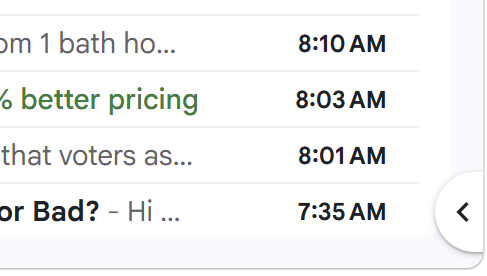
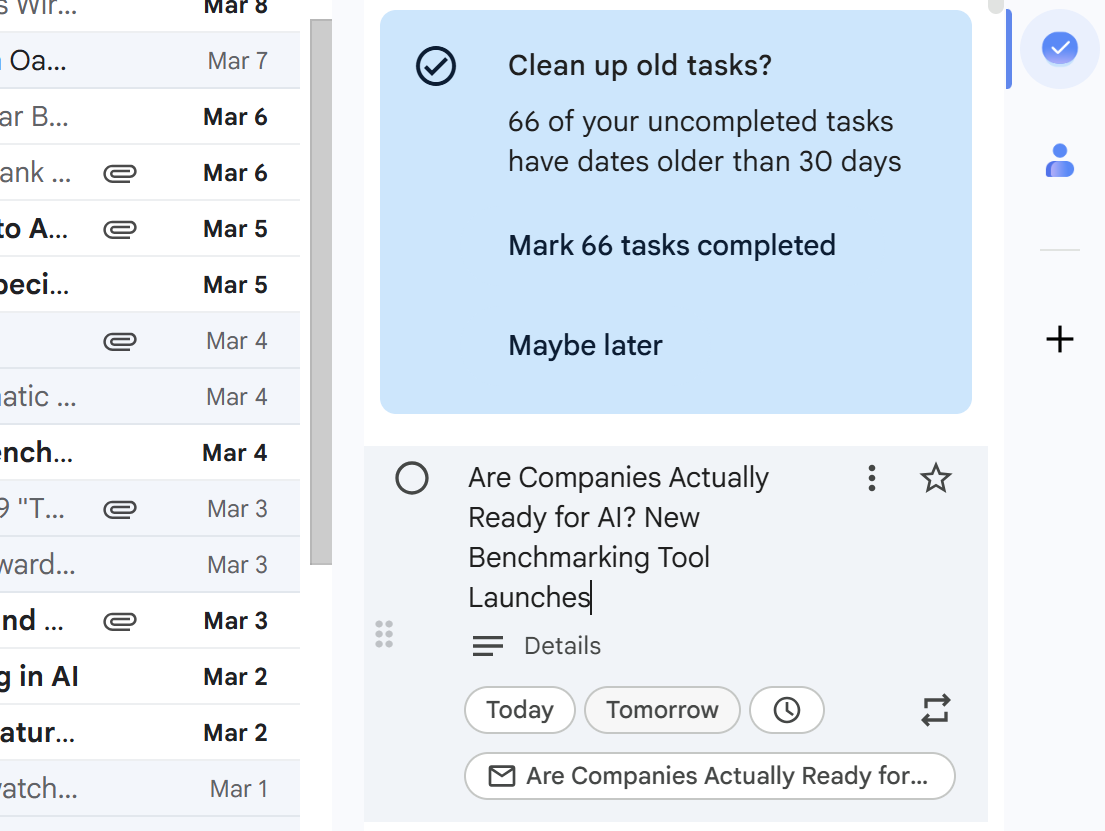
2.) You’ll then need to click on the little “checkbox” icon to expose the Tasks application. If you’ve used Tasks before, you’ll see a list of tasks in the sidebar next to your Gmail email.
3.) Drag your email into the Tasks pane, and you’ll see a “landing area” to add a new task. Drop the email, and a new task will be created that you can schedule and act upon. Make sure you add a date and time, or just let Google do it for you.
Thanks for reading!
Thanks for tuning in to this edition of Smart Mode, PCWorld’s newsletter devoted to helping you make the most of your life, smartly. Sign up and have it sent to your inbox every Thursday!
This articles is written by : Nermeen Nabil Khear Abdelmalak
All rights reserved to : USAGOLDMIES . www.usagoldmines.com
You can Enjoy surfing our website categories and read more content in many fields you may like .
Why USAGoldMines ?
USAGoldMines is a comprehensive website offering the latest in financial, crypto, and technical news. With specialized sections for each category, it provides readers with up-to-date market insights, investment trends, and technological advancements, making it a valuable resource for investors and enthusiasts in the fast-paced financial world.