One of the most frustrating aspects of an aging laptop is how the battery life diminishes. Even super-long-lasting laptops eventually decay, and what once lasted a full day starts needing a charge before the work day ends. Before long, you’re using it plugged in all the time.
But it doesn’t have to be this way! Modern laptops are designed to be efficient, long-lasting machines. If you treat them right and take good care of them, you can make sure the battery maintains its longevity for much longer—at least a few extra years.
And if you don’t take good care of it? Well, expect the battery to lose capacity much sooner than you’d like.
Here are some of the best habits you should practice if you want your laptop battery to truly last several years. (Not sure if your laptop battery is still good? Use this free tool to check it right now!)
Limit your battery’s max charge to 80%
It might sound counterintuitive to reduce your overall battery capacity in order to get more out of it, but it’s true: keeping your battery at 100% for extended periods can accelerate wear and tear.
That’s why you shouldn’t leave your laptop plugged in. Maxing out at around 80% reduces stress on the battery and slows its capacity loss over time. You’ll get less runtime per charge, but you’ll be able to enjoy that 80% capacity for much longer this way. (And if you won’t be using it for a long time, make sure it’s at 50% before storing it away.)
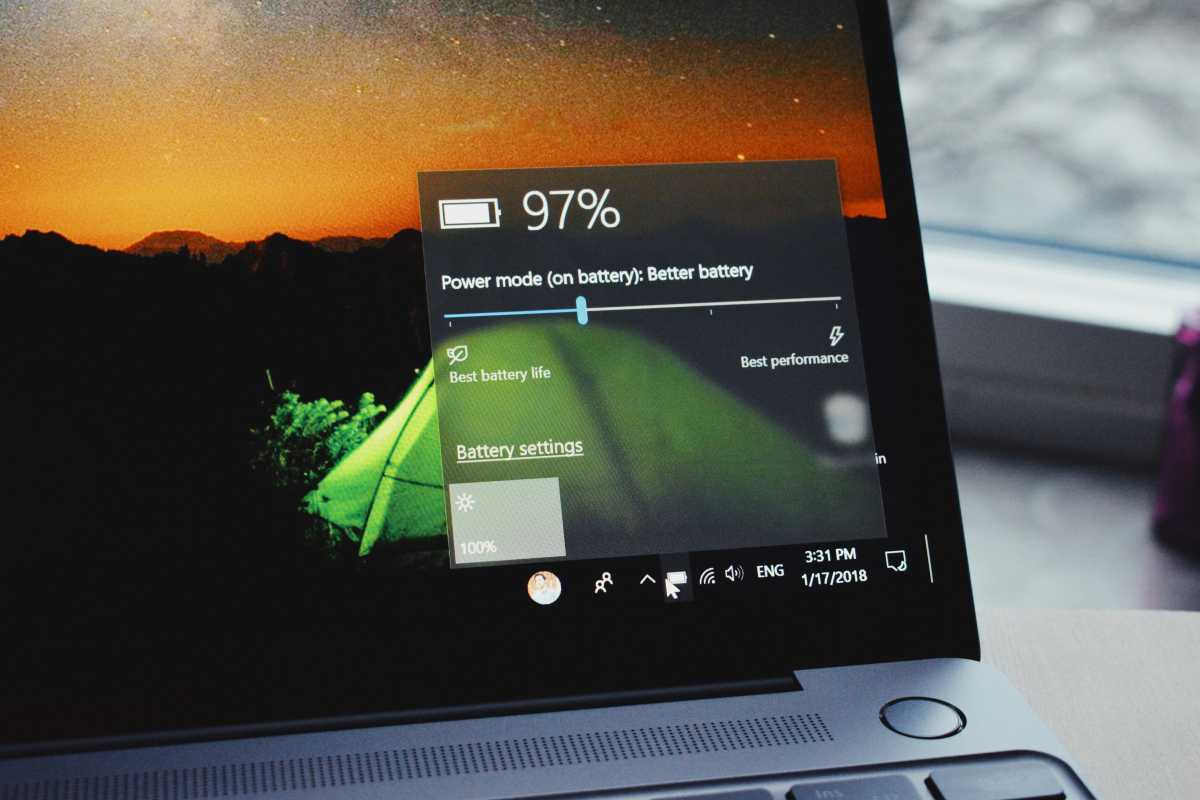
While Apple has a built-in feature on MacBooks for restricting max battery percentage, there’s no OS-specific solution for Windows 11. However, you might find such a setting in your laptop’s BIOS or your manufacturer’s specific utility app. The big-name brands—including Dell, Lenovo, HP, and Asus—usually offer a battery limiting feature.
For older laptops, or ones that lack this feature for whatever reason, you’ll have to manually unplug your laptop from its charger whenever it reaches the desired charge capacity.
Don’t let your battery hit 0%
When a lithium-ion battery runs completely empty—and pretty much all laptops use lithium-ion batteries—the internal chemistry of the battery can become unstable.
Long story short, draining a laptop battery to 0% can cause permanent wear and tear on the battery itself, impacting its ability to hold a charge and reducing its overall charge capacity.
Make sure to recharge your laptop once it hits around 20% if you want to keep the battery healthy. At worst, don’t let it drop below 10%.
Watch your laptop’s temperature
Batteries have safe operating temperatures and you should do your best to keep them within that range. If you leave your laptop in the sun or in a hot car, you risk temperatures rising above that, which can accelerate wear and tear on the battery cells. In the worst extreme, it can even cause the battery to swell and risk catching fire. (At that point, you should immediately dispose of it because it’s a real hazard.)

Don’t leave your laptop in your car or outside over night, either. Cold temperatures slow down the chemical reactions in lithium-ion batteries, potentially leading to reduced charge capacity. If you try to use the laptop while it’s super cold, that can also cause permanent damage to the battery cells. If your laptop ever gets particularly cold, let it warm up to room temperature before turning it on.
Keeping the laptop at comfortable operating temperatures is a good idea in general, as an overheating laptop will reduce performance and system stability. Learn more about what to do if your laptop is overheating all the time.
Keep it plugged in while gaming
Modern laptops are designed to draw power from the outlet when plugged in, so if you’re going to be sitting at a desk for an extended time doing something intense—like gaming—then it makes sense to plug in.
Thiago Trevisan / IDG
By plugging in, you’ll get the full power of the laptop’s gaming ability (since they usually throttle, even if only partially, when running off battery power) and you’ll help preserve your battery’s lifespan by not putting it through constant drain-recharge cycles.
In fact, if you’re gaming a lot, there’s a lot more you can do to keep your battery going strong for years. See our collection of tips for extending your gaming laptop’s battery life.
Keep it clean and clear

If your laptop’s vents are dusty or dirty, its cooling can be affected. A hot laptop works harder to achieve the same performance, and the battery life will suffer in turn. Make sure to clean your laptop every few months to keep it in peak condition and prevent undue battery wear.
Make sure you aren’t using it somewhere that’s blocking the vents, too. Soft blankets, sofas, cushions, and pillows are terrible surfaces for laptop use because they’re soft and comfort to the laptop, blocking vents and causing heat buildup. Hard surfaces allow for clear airflow and can make a big difference to laptop cooling, thus extending battery life.
Optimize your power settings
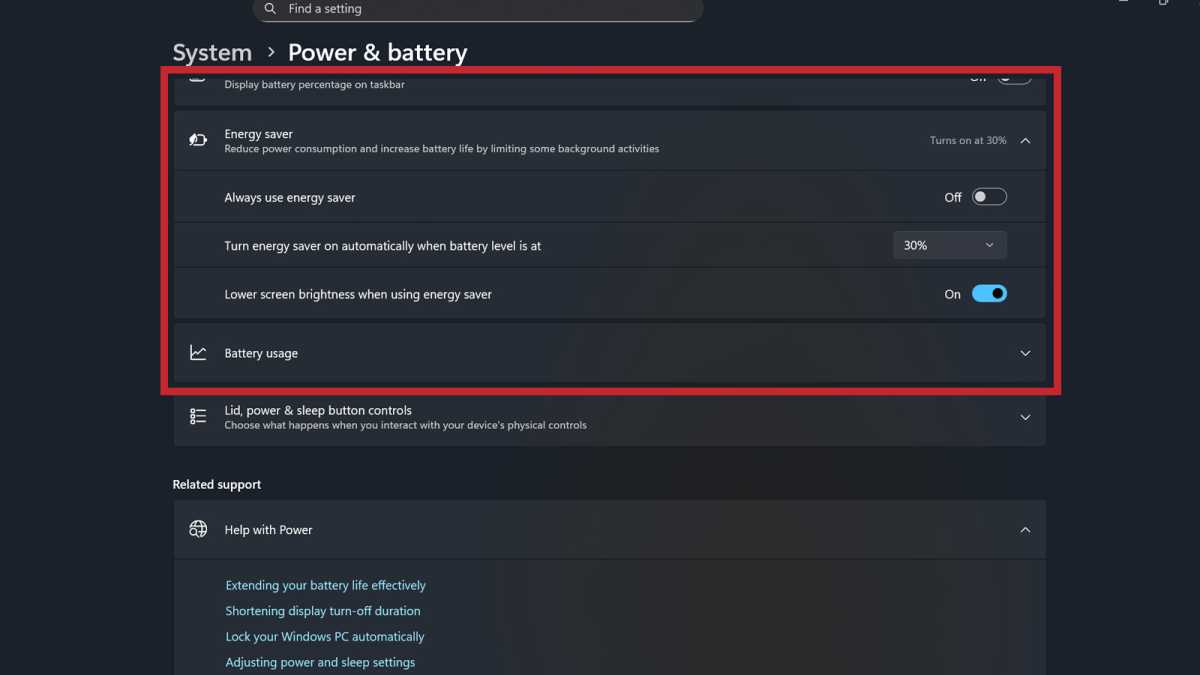
Windows 11 has a number of useful settings you can manage to improve battery life and help it last longer over the lifespan of your device. If you can get the battery to last longer on an individual charge, you’ll recharge it less often—and that’ll reduce wear on the battery over time.
Jon Martindale / Foundry
Navigate to Start > Settings > System > Power and battery > Screen and sleep to adjust how quickly your laptop goes into sleep mode and turns off its screen when on battery. If you leave your laptop idling a lot, cutting this down to just a few minutes can really help.
If you want to extend your battery life temporarily, or once you pass a certain battery threshold, switch on Energy Saving Mode. Navigate to Start > Settings > System > Power and battery to turn it on or modify its settings. This’ll reduce performance, though, so only toggle this on if you really need it and don’t mind the sacrifice.
You can also set it to “Balanced” or “Power Saver” power modes if you don’t need high-end gaming performance all the time. Navigate to Control Panel > System and Security > Power options and select the power plan that’s right for your needs.
Tweak your screen
Your laptop screen draws a lot of power, so adjusting its settings can impact your battery life. If you aren’t in a bright environment, lowering the screen brightness can go a long way to improving battery life. Your laptop should have keyboard shortcuts for this.
Jon Martindale / Foundry
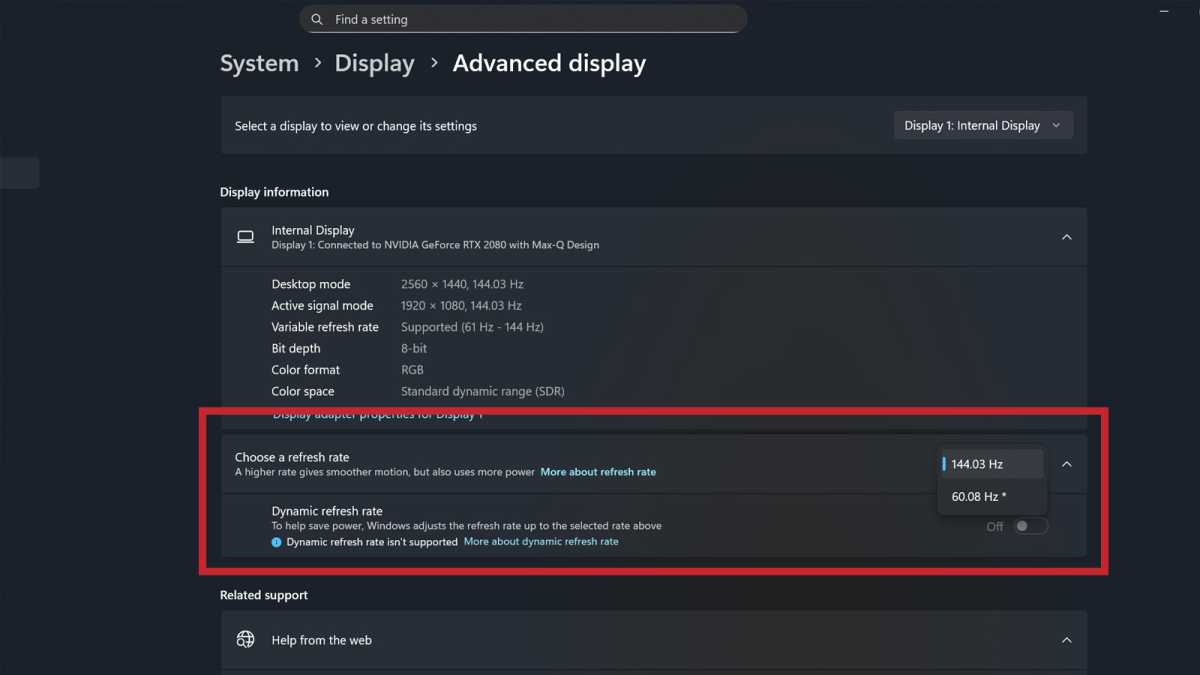
You can also tweak the refresh rate. If you aren’t gaming, you don’t really need a 240Hz refresh rate (even if it does make your mouse pointer move more smoothly over the desktop and windows).
Navigate to Settings > Display > Advanced Display to manually change your refresh rate to something lower. Alternatively, set it to Dynamic and your laptop will change the refresh rate as needed.
Shut down background apps
Unnecessary background apps will drain your battery life, and often you don’t need them running in the first place.
Navigate to Start > Settings > System > Power and battery > Battery usage. Under Battery usage per app, you’ll be able to see which of your apps use the most power in the background.
You can close them down, or stop them starting up with Windows entirely, to help extend your battery life and therefore boost your laptop’s overall battery longevity.
Don’t forget to stay up-to-date
Operating system and firmware updates aren’t going to magically make your laptop battery life longer, but Microsoft and laptop manufacturers do release efficiency and performance improvements sometimes.
Making sure you’re fully up-to-date means your laptop is running as well as it can, and that’ll help your battery last longer.
Further reading: Common mistakes that are killing your laptop
This articles is written by : Nermeen Nabil Khear Abdelmalak
All rights reserved to : USAGOLDMIES . www.usagoldmines.com
You can Enjoy surfing our website categories and read more content in many fields you may like .
Why USAGoldMines ?
USAGoldMines is a comprehensive website offering the latest in financial, crypto, and technical news. With specialized sections for each category, it provides readers with up-to-date market insights, investment trends, and technological advancements, making it a valuable resource for investors and enthusiasts in the fast-paced financial world.