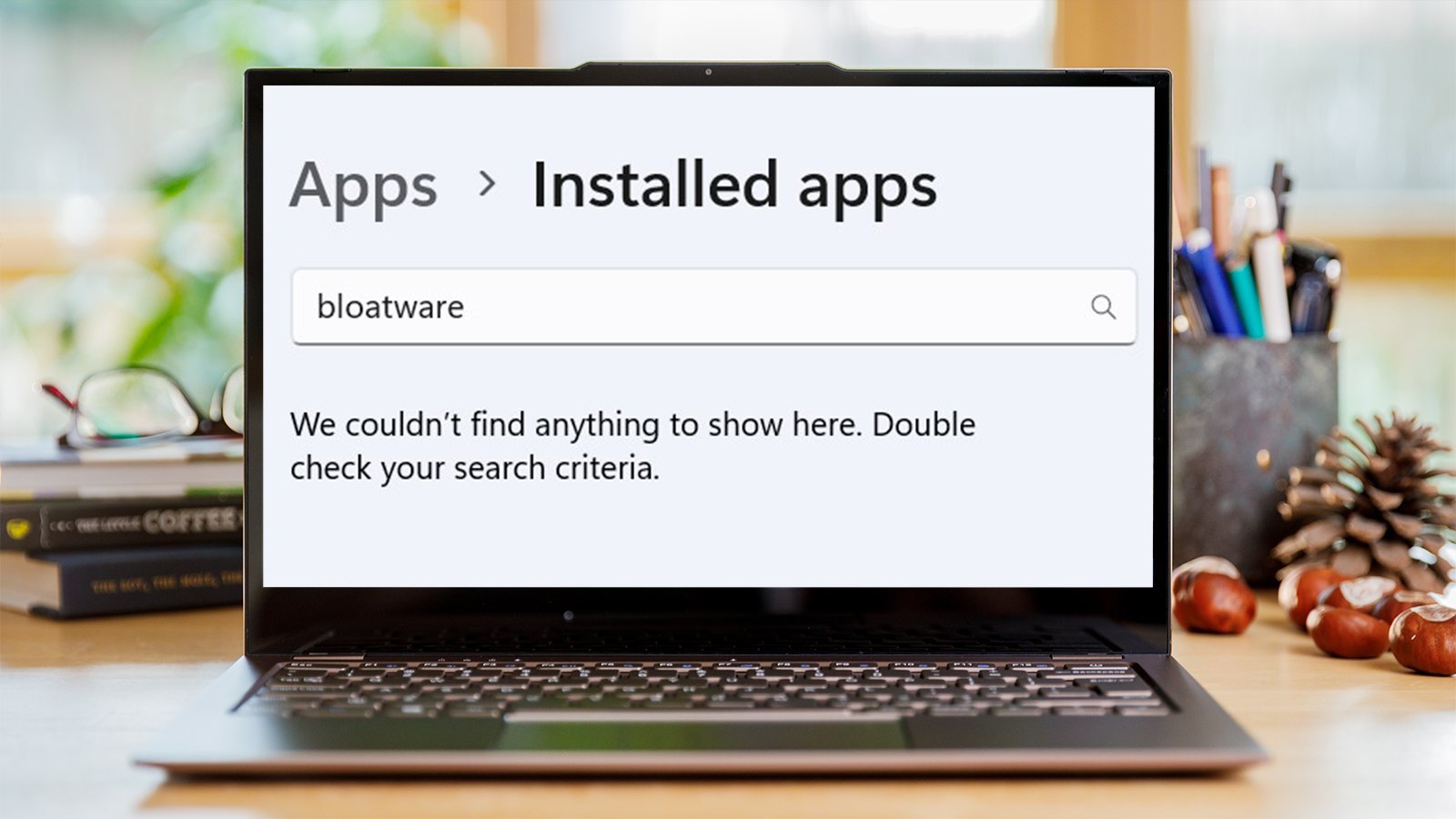
Setting up a new PC with Windows can be a little complicated. Read comments on forums and you’ll see that some people have found it so complicated that they’ve switched to Linux. That’s a bit ironic but those folks do make a good point. There must be a simpler way to reduce the bloatware in your PC after a new installation of Windows. Well, there is.
You can easily uninstall bloatware with Winhance. Winhance is an open-source app available free of charge on websites like Git Hub that makes debloating and configuring Windows almost as easy as Linux. Here I show you how to use it.
How to debloat Windows using Winhance
Download and install Winhance. It takes a bit of time to load up when you open it for the first time because the program needs to test if system restore is enabled.
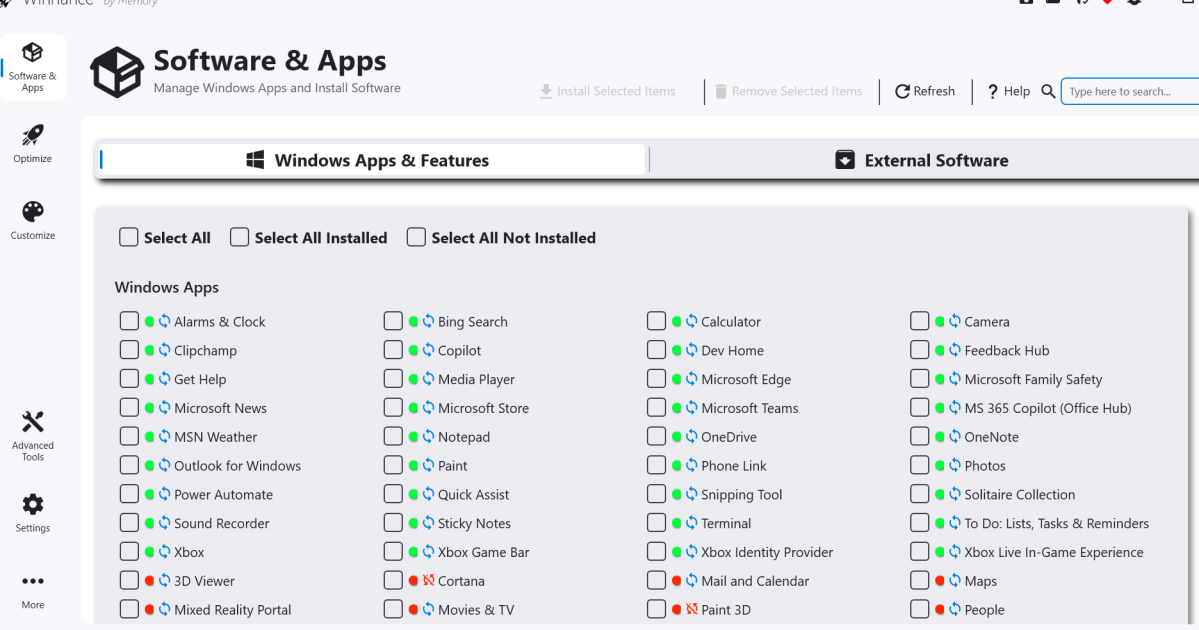
The first screen you’re faced with on load up is all the applications that come pre-installed with Windows. You can go ahead and uninstall the apps that you don’t want. To uninstall apps you simply check them and select Remove Selected Items in the top bar. It really is as simple as scrolling through a list and finding the apps you don’t need.
Dominic Bayley / Foundry
After you uninstall an app, the app’s name changes from having a green dot to having a red dot next to it. If the red dots have a cross next to them it means you can’t install the app again, but a little blue recycling symbol means you can install the app again after it has been uninstalled if you wish.
That’s debloating the Windows apps. But what about external apps? Well, if you click on the External Software tab on the right side of the Window you will see all the external software loaded on your PC. Once again you can choose to uninstall or install apps simply by checking the boxes and selecting either Uninstall Selected Items or Install Selected Items.
Optimize and customize
Above we showed you how to debloat Windows using Winhance but the app can also do a number of other neat things.
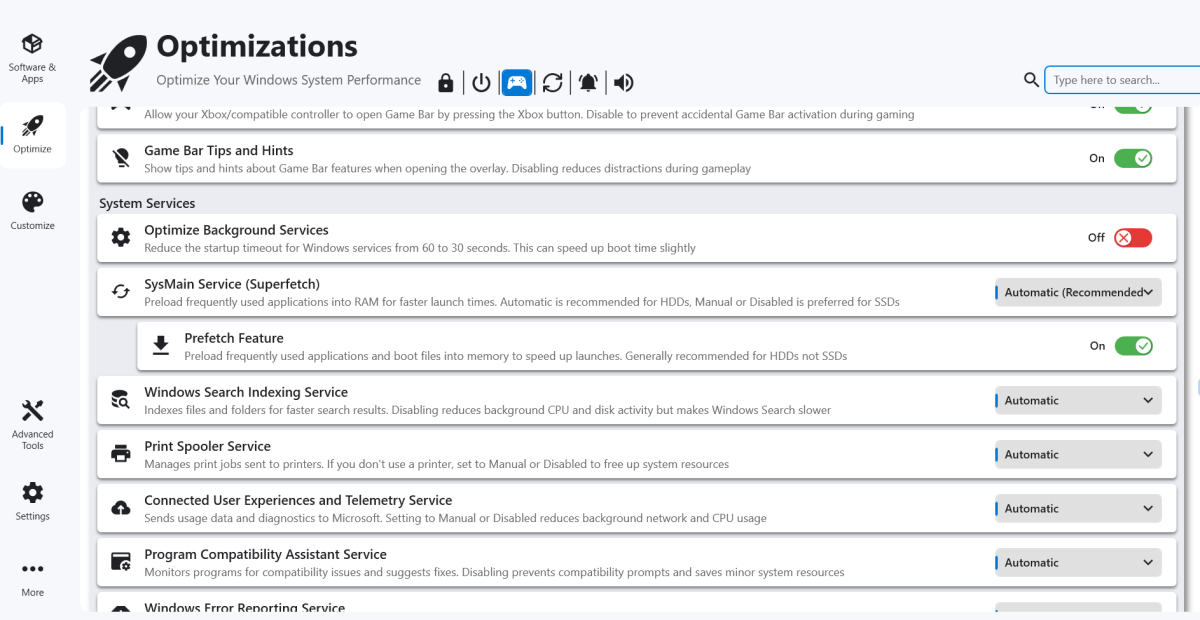
If you click on the Optimize tab on the left-hand side, you’ll get a list of settings from all over Windows. There you’ll find everything from security settings to ads, suggestions, and promotional content settings.
Dominic Bayley / Foundry
All the settings are things you can access through normal Windows Settings menus but it’s nice to have it all in one place in a simple scrollable list.
Under the System Services section you even get descriptions of what happens when you turn off a service, which takes a lot of the guess work out of changing those settings.
You can also disable Windows Updates through the app, although it’s not recommended. But you might like to specify which updates to run. For example, you can choose to only run security updates if you wish.
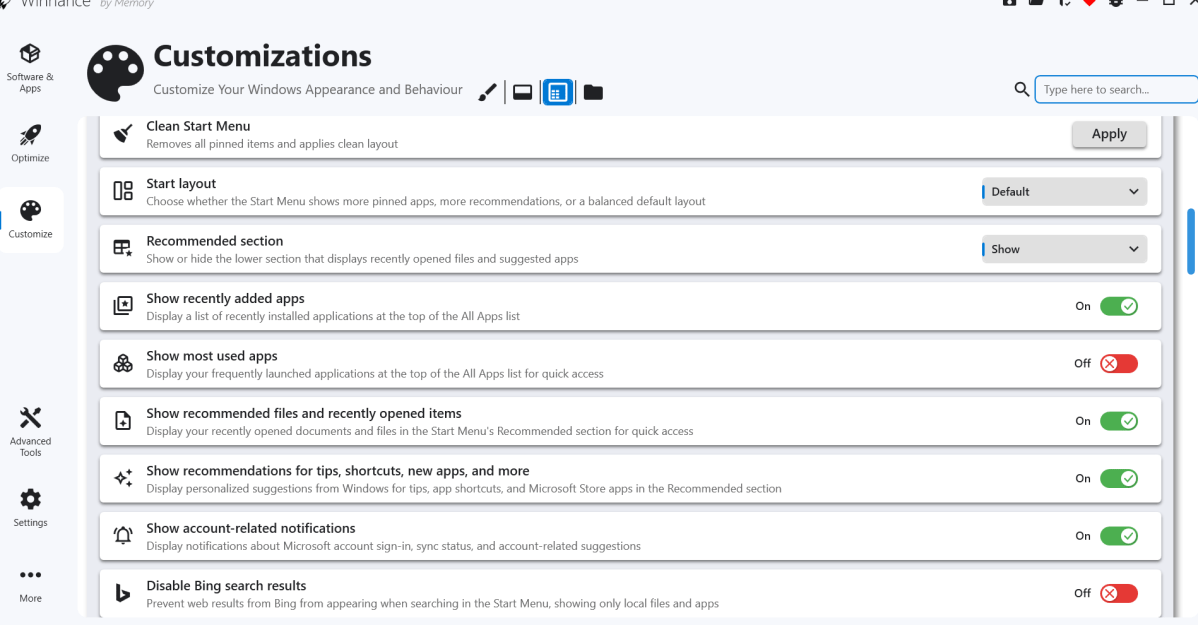
The final tab on the left of the app window is the Customizations tab. Clicking on this tab brings up a whole lot of customization settings that you can access. For example, you can change from Windows Light mode to Dark mode with a simple click. There are also a bunch of taskbar customizations to keep you busy personalizing your PC’s look.
Dominic Bayley / Foundry
I hope that’s helped you debloat and configure Windows. It’s much easier having all these apps and settings in one place. Because you can install or uninstall all the apps in one go, Winhance is a really convenient way to set up a Windows system, so have fun experimenting with what it can do.
Related content
This articles is written by : Nermeen Nabil Khear Abdelmalak
All rights reserved to : USAGOLDMIES . www.usagoldmines.com
You can Enjoy surfing our website categories and read more content in many fields you may like .
Why USAGoldMines ?
USAGoldMines is a comprehensive website offering the latest in financial, crypto, and technical news. With specialized sections for each category, it provides readers with up-to-date market insights, investment trends, and technological advancements, making it a valuable resource for investors and enthusiasts in the fast-paced financial world.