We may earn a commission from links on this page.
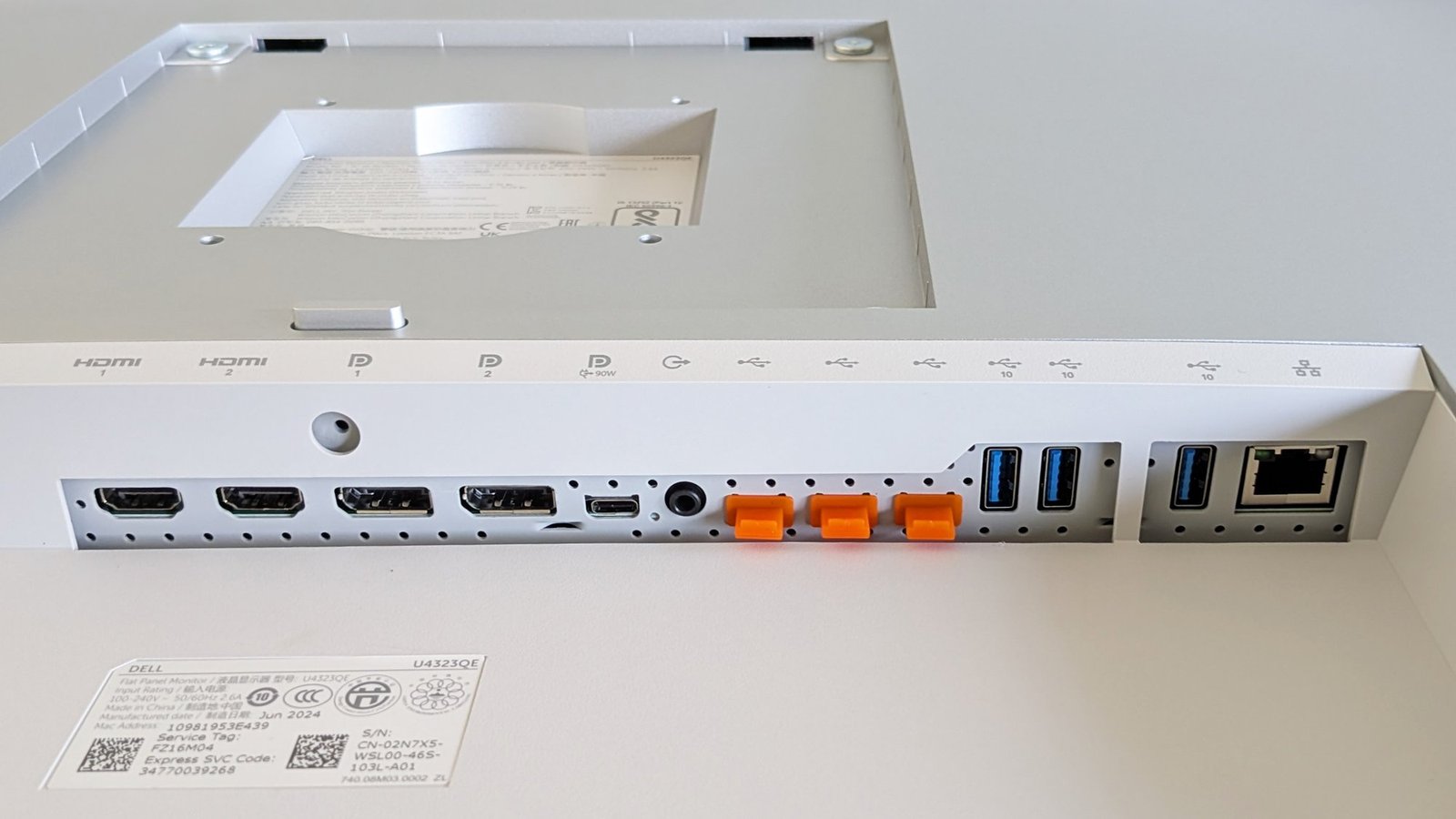
If you’ve taken a look at the back of your computer monitor or TV lately, you may have noticed there’s a USB port or two alongside the more familiar HDMI—and that in turn might have left you wondering what exactly a USB port is doing on the back of a big screen. Well, these USB ports have more uses than you might think.
Their precise function is going to depend on the make and model of your TV and monitor—and the primary uses tend to differ between the two. However, we can talk generally about how to make use of these ports and some of the options available to you, so you can check on your own specific device to see what’s supported.
The extra ports can charge your devices
This is a big one, because it applies to just about every USB port on every TV and monitor: You can plug in small gadgets like phones and charge them up, though charging rates and supported devices may vary, especially on televisions. It saves you having to hunt around for a spare wall outlet, at least.
On higher-end monitors with support for USB Power Delivery (USB-PD), you can sometimes charge up larger devices like laptops, while also providing a video connection through the same USB-C cable. It’s something to look out for if you’re shopping around, as it helps reduce desk clutter and adds convenience—the $620 4K Dell U2725QE is one example of a monitor that will do this for you.
With Android smartphones and monitors, you might get the added bonus of support for a desktop environment on the big screen as well as device charging. Both Samsung DeX and the recently launched Pixel Desktop Mode can be used like this, so you might be able to attach a desktop or laptop via HDMI, and a phone via USB-C.
Set up a USB hub for cleaner cable maintenance
As well as device charging, some monitors also add USB hub functionality, especially at the higher end of the market—if you’ve got several USB-A ports on the back of your monitor, this is likely what they’re for.
Rather than plugging all your peripherals into your laptop or desktop computer, you can add them to your monitor instead. It’s a solution that’s often neater and removes the need for a separate USB hub on your desk — with a separate upstream USB cable handling the connection to your computer, if it’s not attached via a single data and video cable.
You might even see an Ethernet port on some models, giving you a high-speed wired connection to the internet for your laptop. The $260 1080p ViewSonic VG2456 is one such model, and they often offer great value for office use.
Connect external storage to display photos and videos
This is a primary one for TVs, including certain Samsung models: You can plug an external USB drive into the back of your television, and access the photos, videos, or audio on it, provided the drive and file formats are supported. You can also do this via the USB ports on monitors, via the USB hub functionality mentioned above.
If you’ve got a large local media library saved somewhere, then this is a simple and quick way of getting those media files up on the big screen (rather than using something like Plex). You’re most likely not going to get the most advanced user interface you’ve ever seen, but it’ll work.
With the rise of streaming and faster wifi connections, the functionality is now becoming less common, but it’s still around—consult your TV documentation for details (Sony’s instructions are here). A portable drive such as the $90 WD Elements should be suitable, but be careful to check the requirements listed by your TV manufacturer.
Set up a KVM switch for multiple devices
A variation on the USB hub idea is a KVM (Keyboard, Video, Mouse) switch, which can be incredibly useful if you have more than one computer connected up to your monitor (maybe a laptop and a desktop). You can plug your keyboard and mouse into the USB ports on the display, and then use them to control each computer in turn.
You can buy these KVM switches separately, but having one built into your monitor cuts down on the number of trailing cables you have to deal with. Once your peripherals are connected, you can typically switch via the monitor’s on-screen menu, or through a dedicated hardware button.
Perhaps you’ve had this functionality on your monitor and never realized. A good example of this type of display is the $800 4K Gigabyte M32U aimed at gamers, which does have an integrated button specifically for switching between computers (plus a load of other high-end features, as you would expect at that price).

Credit: Gigabyte
Those extra ports support a bunch of other devices, too
Just about anything that can be powered by USB can be plugged into one of the spare ports on your TV or monitor (if the power demands and supply match). Maybe you could add a desk fan for keeping you cool through the summer months, or maybe you want to get creative with a smart light setup.
For monitors with USB hub functionality, you can think about options like microphones, webcams, and gaming controllers—which can all be easier to plug into a big display rather than a laptop (if your laptop even has any spare USB ports left).
It’s well worth having a look around the back of your TVs and monitors to see what’s available—you might not be using these devices to their full potential. It’s also something to look out for the next time you’re upgrading.
This articles is written by : Nermeen Nabil Khear Abdelmalak
All rights reserved to : USAGOLDMIES . www.usagoldmines.com
You can Enjoy surfing our website categories and read more content in many fields you may like .
Why USAGoldMines ?
USAGoldMines is a comprehensive website offering the latest in financial, crypto, and technical news. With specialized sections for each category, it provides readers with up-to-date market insights, investment trends, and technological advancements, making it a valuable resource for investors and enthusiasts in the fast-paced financial world.