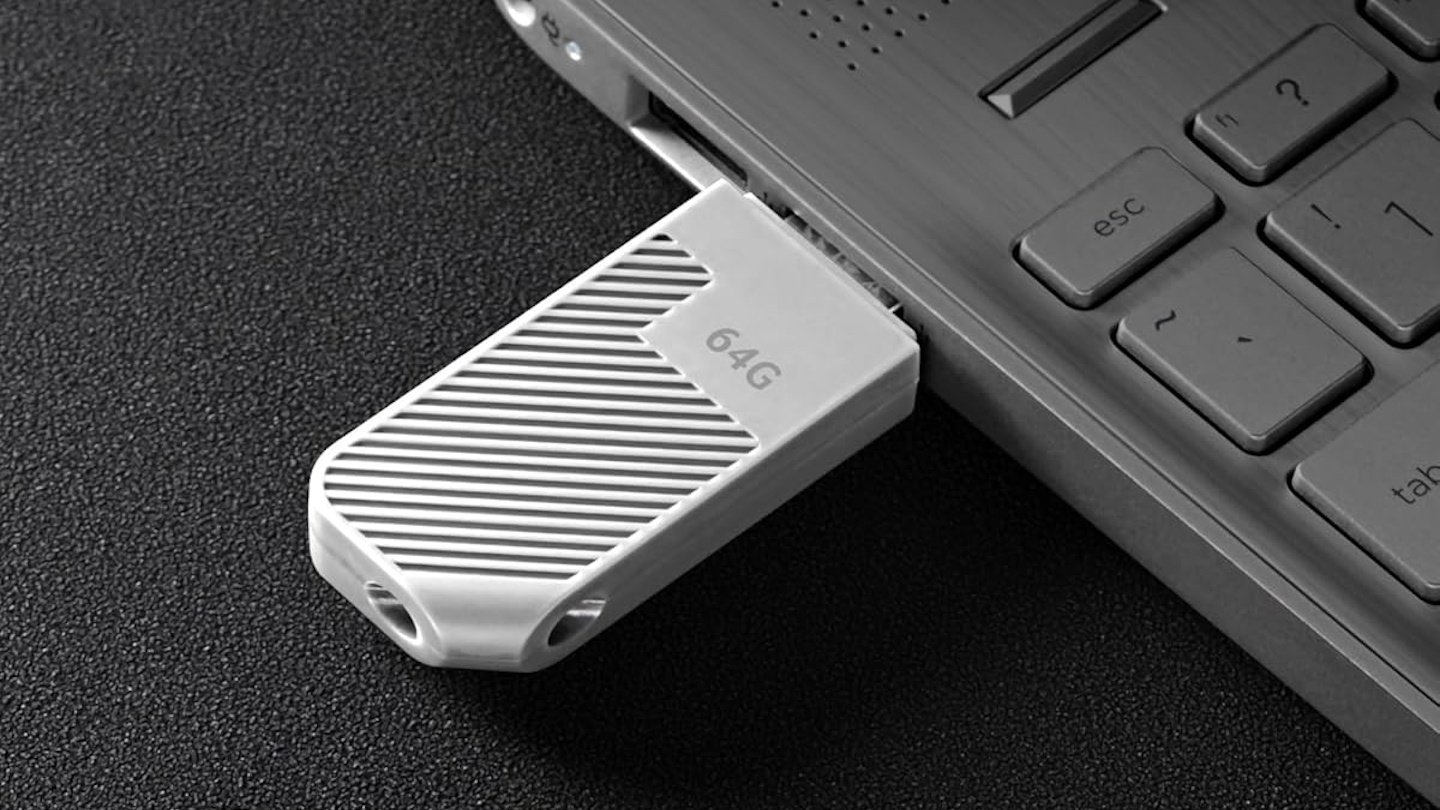
USB sticks are a convenient way to store and transfer data, but sometimes they’re not recognized by the system after being plugged in. This can be frustrating, especially when important files are stored on the device. Fortunately, this issue can be resolved with a few simple steps.
If the USB stick is not recognized, the problem is often not caused by the hardware itself but by faulty drivers, incorrect drive assignments, or system conflicts. Windows 11 offers various ways to make the data carrier visible again. In many cases, a small adjustment is all it takes to get the stick working again.
First, check whether the stick is connected correctly. Changing the USB port often helps, as the stick may be recognized immediately when connected to a different port. If that doesn’t work, try a different computer. If the stick works there, the issue is clearly with the original system.
In this case, the Device Manager is the first place you should check.
Right-click the Start menu and select Device Manager to view all connected drives. Under the Drives entry, select the affected USB stick and reconnect it via the Update Driver. If this doesn’t help, uninstall the device and restart the system. Windows will automatically reconfigure the stick during startup.
If the stick still does not appear in Windows Explorer, it may not have been assigned a drive letter. You can check this in Disk Management by right-clicking the Start menu and selecting Disk Management.
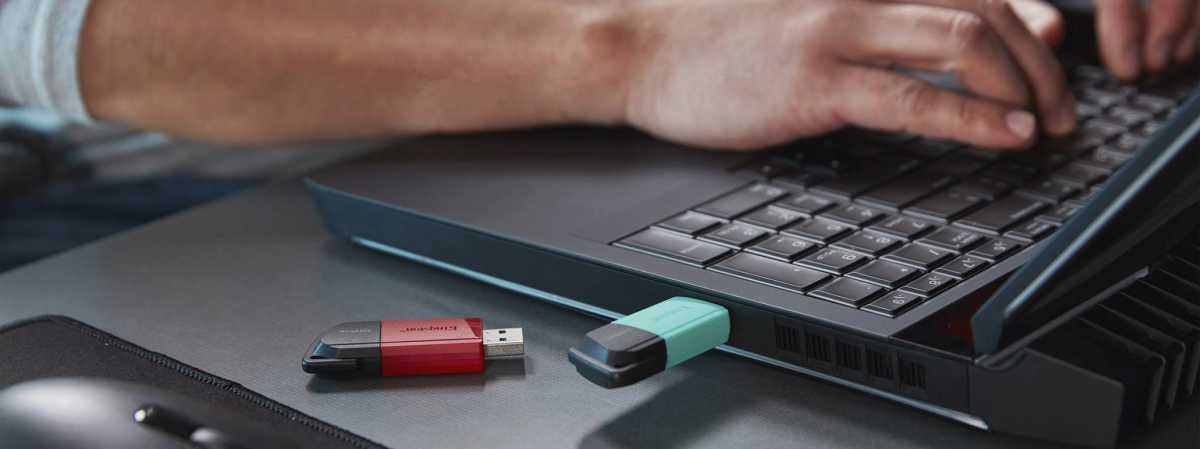
If the USB stick is not recognised under Windows 11, driver problems, incorrect drive assignments or defective ports may be the cause. With a few specific steps, the problem can usually be quickly resolved.
Kingston
In the list of drives, right-click the USB stick and select Change Drive Letter and Paths to assign a letter. After confirmation, the USB stick will usually appear immediately in Explorer.
If the USB stick does not appear in Disk Management either, the device may be disabled or incorrectly initialized. In this case, it’s worth taking a look at the command prompt, which you can access via the Start menu by typing the term and launching it as an administrator.
The command “diskpart,” followed by “list disk,” displays all connected drives. If the USB stick appears in the list, you can make it writable again with the command “select disk X” (where X represents the number of the drive) and “attributes disk clear readonly.”
You can then reformat the stick using Disk Management and, if necessary, assign it a drive letter. Another common cause of errors is a faulty driver for the USB controller. All controller entries can be viewed in Device Manager under “USB controllers.”
After uninstalling the corresponding controller drivers, Windows will automatically reinstall them during the next startup. This often resolves conflicts that prevent USB devices from being recognized.
Sometimes the problem isn’t with Windows, but with the USB stick itself, often due to a defective file system. In such cases, the command prompt command “chkdsk X: /f” (where X is the drive letter) can help repair errors on the device.
For more serious problems, the last resort is to reformat the stick using Disk Management. This will delete all data, but afterward, the stick should function normally again.
Overall, if a USB stick isn’t recognized, it’s usually not a hardware defect but a minor software conflict. With the integrated tools built into Windows 11, the cause can typically be identified and resolved quickly.
This articles is written by : Nermeen Nabil Khear Abdelmalak
All rights reserved to : USAGOLDMIES . www.usagoldmines.com
You can Enjoy surfing our website categories and read more content in many fields you may like .
Why USAGoldMines ?
USAGoldMines is a comprehensive website offering the latest in financial, crypto, and technical news. With specialized sections for each category, it provides readers with up-to-date market insights, investment trends, and technological advancements, making it a valuable resource for investors and enthusiasts in the fast-paced financial world.