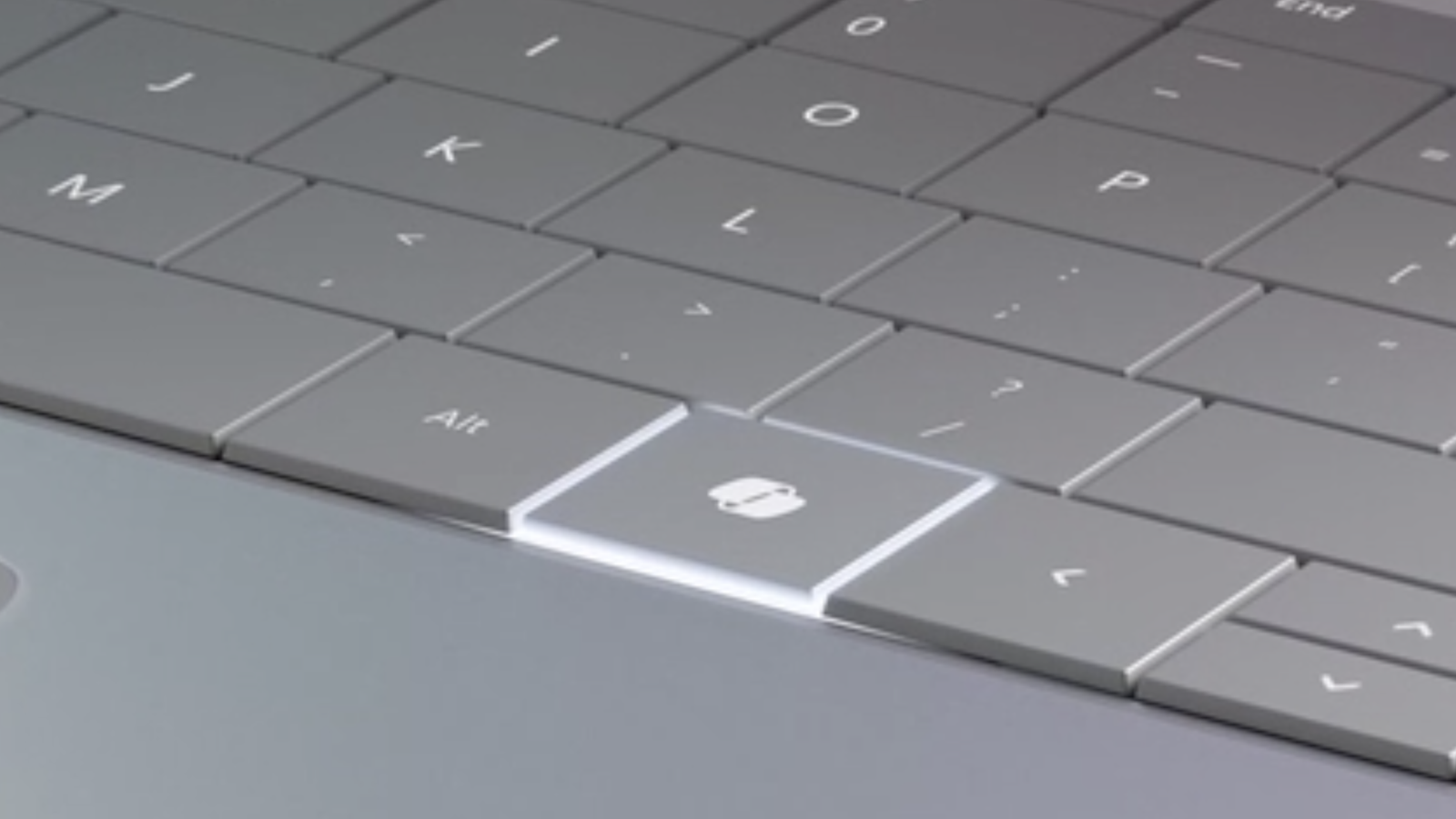
If you bought a Windows computer in the past couple years, there’s a good chance that it a “Copilot” key where the right ctrl key used to be. But what if you actually used the right ctrl key? Or what if you prefer Claude or ChatGPT to Copilot? Whatever your reason for not loving the Copilot key, don’t worry—you can change it. Here’s how to do so in the Windows settings or, if necessary, using Microsoft Powertoys.
How to change the Copilot key in settings
Open the Settings application and head to the Personalization section. You should find a Customize Copilot key option here, assuming you’re using a recent-ish version of Windows 11. Click the drop-down menu and you’ll have three options: Copilot, Search, and Custom. You can change the button to Search if you’d rather use the key to bring up the Windows search tool instead of Copilot.
Alternatively, you can use the Custom option to launch any application on your computer instead of Copilot. This could be a useful way to open the Claude or ChatGPT desktop apps instead of Copilot. Or, if you’re not a big AI fan, you could just have it open your browser.
This is a limited number of options, granted, but it’s easy and doesn’t require any sort of tools. It’s your simplest option.
How to change the Copilot key using Microsoft Powertoys
You may have noticed that the options in Settings don’t let you remap the Copilot key to the ctrl key, or any other key—all you can do is launch an application. For that, you’re going to need to install Powertoys, the secret Microsoft app that improves Windows.
After installing, go to the Keyboard Manager section. The simplest thing to do, which may or may not work on your computer, is to click Remap keys. You should be able to press your Copilot key to remap it (it will show up as F23, which we’ll get to). Now you can choose what you want the key to serve as. This could be ctrl, if you like, or it could be any other key. Click OK, and you should be done.

Credit: Justin Pot
There’s a chance this won’t work for you. Why? Because the Copilot key works a little differently depending on what kind of laptop you have. Buckle up: This gets complicated in a very Microsoft-y way.
On many computers, the Copilot key functions as an F23 key. This is a workaround, of sorts, allowing Microsoft to add a key without changing the operating system very much. Most modern keyboards only have one row of function keys—around 12 in total. Keyboards in the 80’s and 90’s sometimes had two rows of keys—around 24 in total. Windows, to this day, still supports all 24 keys, even though basically no one has that many function keys. Microsoft took advantage of this—on many laptops the Copilot key functions as an F23 key.
But this is Windows, so of course it’s more complicated than that. On some laptops, pressing the Copilot key triggers a keyboard shortcut: Windows-Shift-F23. This means you can’t use the Remap keys function in Powertoys to remap the Copilot key, because the Copilot key already triggers a keyboard shortcut.
What you can do is use the Remap a shortcut option. Use this, then press the Copilot key as your selection. You should see the keyboard shortcut Windows-Shift-F23 show up. Now choose what you want to remap your Copilot key to.
This works, with a caveat: You really can’t use it to bring back your ctrl key, as users have noted on Github. The issue is that you can’t remap a keyboard shortcut to a modifier key, just to a single keypress. It’s not clear what could fix this, and I suspect users of such laptops are just stuck. Which is all to say that you might not be able to get your control key back, but least you can remap the key to do something else.
This articles is written by : Nermeen Nabil Khear Abdelmalak
All rights reserved to : USAGOLDMIES . www.usagoldmines.com
You can Enjoy surfing our website categories and read more content in many fields you may like .
Why USAGoldMines ?
USAGoldMines is a comprehensive website offering the latest in financial, crypto, and technical news. With specialized sections for each category, it provides readers with up-to-date market insights, investment trends, and technological advancements, making it a valuable resource for investors and enthusiasts in the fast-paced financial world.