We may earn a commission from links on this page.
Google’s Find Hub app isn’t just for tracking your lost smartphone. Over the past year, Google has consistently added features to manage your belongings, share your location with loved ones, and locate lost devices. Find Hub can now notify you when you’ve left your device or your tracker behind. Plus, you can use Gemini to remember where you left items, even without a tracker attached. Behind the scenes, there are even more hidden settings and features to help track your devices and make it easier to retrieve them in case they are stolen or misplaced. If you use Find Hub, you need to know about these 10 hacks.
Enable this feature to get AirTag-style “Left Behind” notifications
This month, Google finally added Left Behind notifications to Android trackers—but you have to enable the feature manually. AirTags users should be familiar with this feature already. When you leave your tracker or device behind, and exit the location range, you’ll receive a notification that you left without your item. You need to enable this feature on a per-device basis. Go to Find Hub and select a device. Tap the settings gear icon next to the device’s name, and enable Notify when left behind. While you’re here, go to Add location to add familiar locations where you don’t want to get a notification (like your home or workspace). Otherwise, Find Hub may spam you with left behind alerts.
Use “Remembered Items” to remember where you put things
There’s a hidden feature in the Find Hub app that helps you keep track of things without actually using a Bluetooth tracker. You can simply ask Gemini to remember where you put things, and it will show up in the Find Hub app. To use it, pull up Gemini and say something like, “Remember in Find Hub that the passport is in the downstairs wardrobe,” or “I’ve kept the spare car keys behind the garage door.”
You can then ask Gemini, “Where did I keep my passport?” and it will tell you. If you change the location of an item, just ask Gemini to update it for you. When you go to the Remembered tab, you’ll see the location of all remembered items. You can also add items manually here using the Add button.
Make sure your Android smartphone is trackable even after it’s turned off
Some Android smartphones can remain findable for several hours after they’ve been switched off or their batteries have run out. If you’re using a supported device (like the latest Pixel series smartphone), you can use a hardware feature to track the location using Google’s mesh network, relying on nearby devices (similar to how Android tags work).
To make sure this feature is enabled, go to Find Hub, and tap Find your offline devices. Here, make sure that either With network in busy places only or With network everywhere is selected.
Use the Share Ownership feature to safely share the location of Android trackers and devices
If you’re using a tracker in your car, luggage, or on your keys, you might want to share location access with your spouse or family members. Find Hub has a feature called “Share Ownership” that lets you share the tracker details with up to 10 people. Only the location of your tracker is shared, not your personal device.
To set it up, go to Find Hub, and choose the tracker or accessory that you want to share. Tap the Share Ownership button and follow the on-screen instructions to share the invite link via a messaging app or using Quick Share. Once the recipient taps Accept, you’ll get a notification. Go to the device settings in Find Hub and tap the Confirm button to enable location sharing.
Share your live location directly from Google Messages, or temporarily with anyone using Find Hub
You can quickly share your live location with your friends or loved ones using Google Messages. Open a conversation, tap the Attachment icon, and choose Real-time location. Set the duration and tap Send.
If you don’t like using the Messages app, you can do so directly from Find Hub. Go to the People tab at the bottom of the screen, and tap the Plus icon. Choose the duration and select a contact to share the location with, then tap the Get Link button to copy the link. You can then share it via any messaging app of your choice.
Use link sharing to help airlines locate your lost luggage
You might have a Find Hub tracker in your luggage to help keep tabs on your bags. But you don’t have to be the only one privy to its location. If your airline loses that luggage, you can temporarily share its location with your airline to help you retrieve it. This is an official feature, too: Google partnered with multiple airlines to make this data sharing easier. From the Find Hub, choose your tracker. Tap the Share Item Location button, and then tap Share Item Location again. Copy the generated web link and share it with your airline using the app or support page. The link will automatically expire in seven days, so you don’t have to worry about your airline continuing to monitor your luggage’s location long after your flight.
Use this hidden setting to increase your chances of recovering lost tags in less crowded areas
Find Hub uses a mesh network of supported Android devices to securely locate your lost device or tag. But by default, it waits until multiple Android devices detect the location of the lost device. This works well if you’ve lost the device in crowded areas, but it can increase your wait time if you lose it somewhere remote. Luckily, there is a hidden setting that triggers location sharing even if a single device reports its location. Go to Settings > Google > All services > Find Hub > Find your offline devices and select With network everywhere instead of With network in busy places only.
Use someone else’s Android smartphone to locate your devices
If you’ve lost your smartphone, you don’t need to rush to a computer or a website to track it. Borrow someone’s Android smartphone and head into their Find Hub. Tap Sign in as guest and sign in with your Google account associated with your device, then find and select your device in the account. If requested, enter the PIN that you’ve previously set up. You can now track the device’s location, get directions to the device, or play a sound to help track the device if it’s nearby. If the device is truly lost, you can use the Mark as Lost feature to remotely lock your device.
Use precision tracking to find nearby items and devices
Map-based tracking is helpful in getting to the general vicinity of your lost device. But your smartphone or tracker is hidden; finding it may require precision tracking. Many newer trackers like the Pixel Tag come with an ultra-wideband chip that helps you find the exact location of the tracker, given you are nearby. This also works on Pixel smartphones (Pixel 8 Pro series and above) and Samsung Galaxy devices (S21 and above, Plus and Ultra models only).
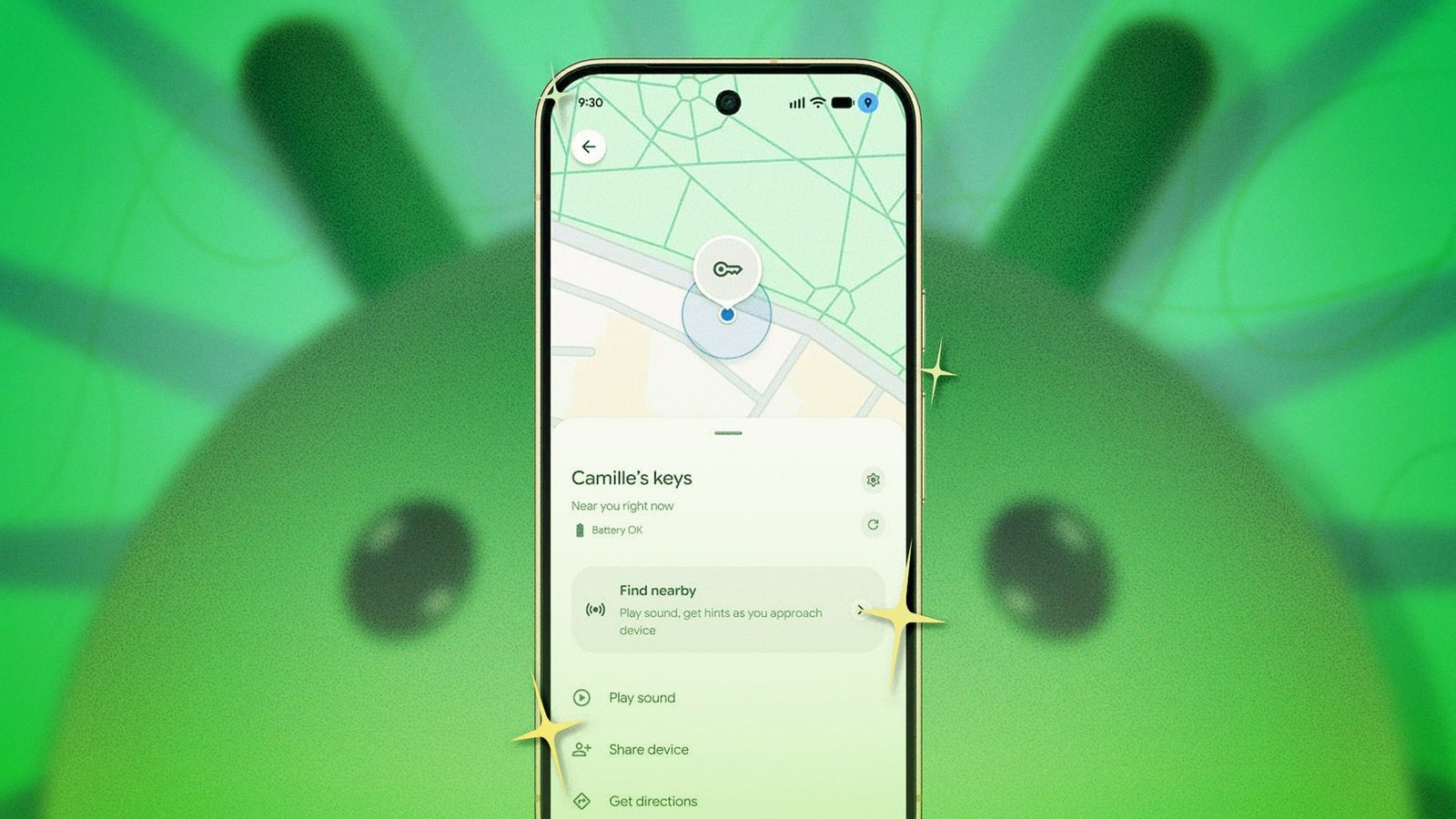
When using this feature, make sure you have Bluetooth enabled on your smartphone, then open Find Hub. Choose your tracker, and tap Find Nearby. Follow the on-screen instructions to locate the nearby device. You can also tap Play Sound to make the location process easier.
Set a recovery message on a lost device to increase the chances of getting it back
If you think your Android smartphone is lost or stolen, don’t rush to erase all data. While a remote factory reset is great for protecting your data, it also removes the device from your account. It’s best to try to get the device back. Two-factor authentication (or a passkey) on your Google account, along with a biometric lock on your smartphone, will protect the data itself.
Go to the Find Hub website, or use Find Hub on someone else’s phone in guest mode. Choose your device, and instead of Factory Reset, choose Mark as Lost. Here, you’ll see an option to enter a message. Type an alternative contact number, and a message to help recover the device.
This articles is written by : Nermeen Nabil Khear Abdelmalak
All rights reserved to : USAGOLDMIES . www.usagoldmines.com
You can Enjoy surfing our website categories and read more content in many fields you may like .
Why USAGoldMines ?
USAGoldMines is a comprehensive website offering the latest in financial, crypto, and technical news. With specialized sections for each category, it provides readers with up-to-date market insights, investment trends, and technological advancements, making it a valuable resource for investors and enthusiasts in the fast-paced financial world.