We may earn a commission from links on this page.
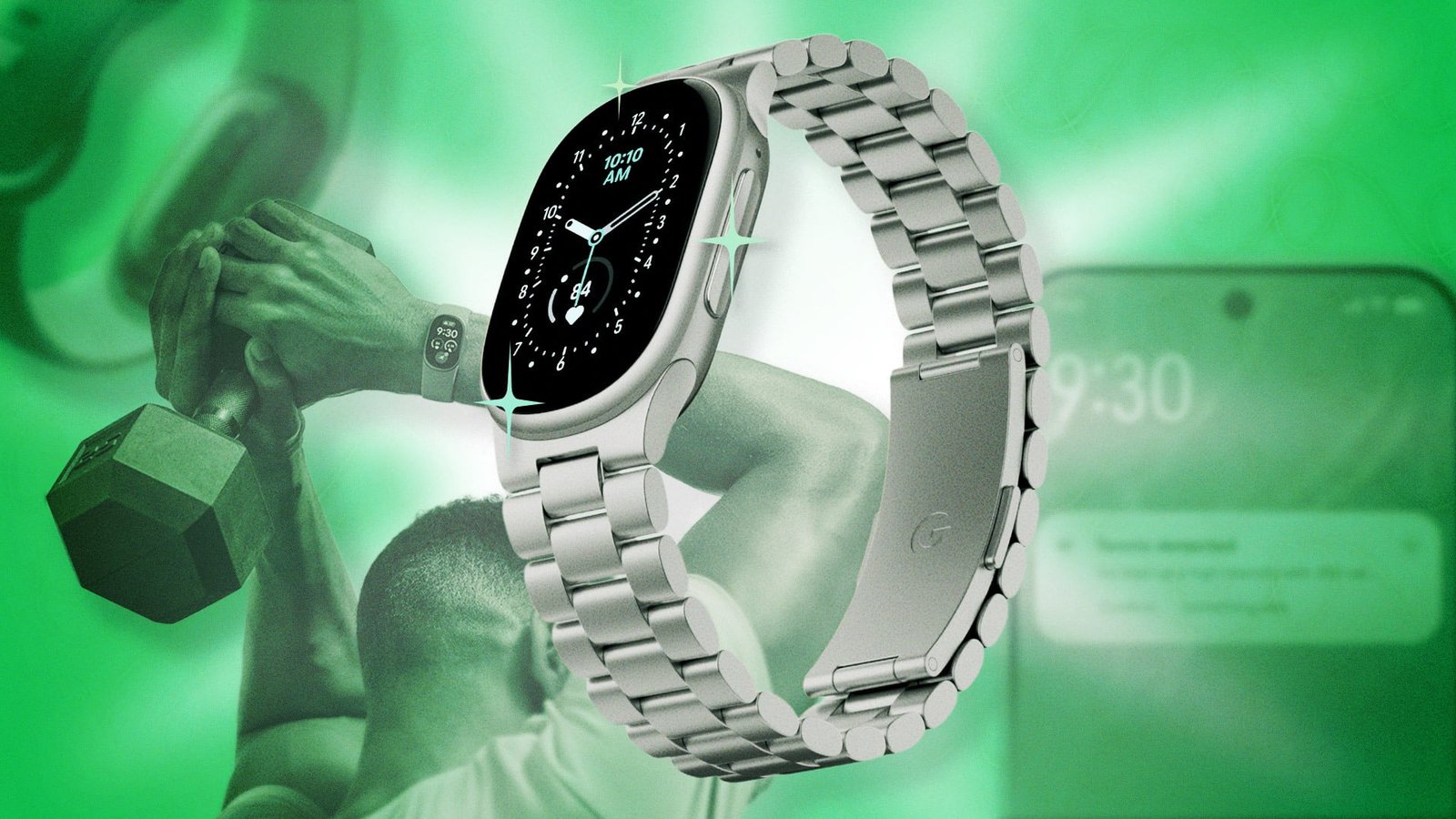
The Fitbit Edge really hits a sweet spot for anyone who wants a minimalist fitness tracker but still wants a screen to tell the time and display workout data. Here are my tips on how to get the most out of it, including hidden features and surprising ways to use the device.

Set up a watch face wardrobe from your phone
It’s not very obvious from the watch or the app, but you can switch watch faces—and if you use the app on your phone, you can change color schemes and sometimes even complications.
On the watch, long-press the middle of the watch face. This brings up a carousel of the faces you’ve selected in the app. The last screen in the carousel gives you a button to bring up the watch face library on your phone. This is the quickest way to open it, but you can also go to your device settings in the app.
From here, tap All Clocks and browse the available faces. Once you’ve installed a face you like, tap Customize to choose a color scheme and select which complications appear (like your steps for the day, or the weather). Sadly, the share button doesn’t seem to work—it sends a broken link to the old Fitbit website—but it’s a nice idea.
Flip it around so you don’t press the button accidentally
The Fitbit Edge is built with the assumption that you’ll want the side button on the right. But if you wear other jewelry or watches with it, or if you wear it low on your wrist and find that flexing your hand pushes the button, you can change this.
Just go into your device settings in the Google Health app, tap Device preferences, and then change Tracker orientation to put the button on the left instead of the right. This turns the display upside down, so take off your watch and turn it around so you can see it properly again.
Turn off the AI insights
The AI-powered Health Coach is both the best and the worst thing about the Google Health app. Fortunately, you can turn it off. What’s better, Google added a feature that lets you turn off the unprompted insights while still having the AI available when you need it.
Tap your profile picture in the app, then Google Health Settings, then Coaching, and select No Coach Insights. The chatty summaries (and notifications) will stop popping up throughout the day, but you can always hit the Ask Coach button if you have a question or if you want to use AI-powered food logging or workout logging.
Broadcast your heart rate to Strava for laps and maps
The workout app on the Fitbit Edge is pretty minimal and can’t be customized, but it is possible to get more information during your workouts. Swipe down from the top of your Fitbit Edge screen, and tap the icon that looks like a wifi heart. This turns on heart-rate broadcasting.
Then go into the Strava app, hit Record to start a workout, and swipe up from the bottom of the screen to see workout options. Select the Fitbit Edge as your heart rate sensor, and now your phone can track your workout using heart rate data from the Fitbit. The Strava app gives you a lap button and can show you the time for your previous laps; it also shows you a map of where you are and where you’ve been.
Make it stop overcounting your steps
Fitbit devices have always been a little over-enthusiastic about counting steps compared to other wearables, and they know it. Hand and arm movements can mistakenly contribute to your step count, but there’s a way to adjust the device’s sensitivity. If you wear the device on your dominant hand (say, on your right hand if you’re right-handed), go into Device preferences on the phone app and set your Wrist preference to dominant.
If you already wear the device on your non-dominant hand, you may still want to use this hack. Wear it on your left hand (if you’re right-handed) and still change your preference to dominant. This will tell the Fitbit to slightly undercount your steps.
Save battery by changing your GPS settings
The Fitbit Edge can use its own built-in GPS, or it can use the GPS that is built into your phone. By default, it will switch sources automatically based on what it thinks the best option will be.
But you can change this. Go into Device preferences again, and choose GPS settings. If you always carry your phone with you, and you’d prefer to save battery on your Fitbit, tell the device to always use your phone’s GPS. On the other hand, if you want the Fitbit to handle its own GPS without piggybacking on your phone all the time, tell it to use the built-in GPS instead.
If your phone is an older one, switching to the built-in GPS will probably give you more accurate distance and pace than using the default switching. If your phone is newer, choose based on which device you want to preserve battery.
Swap with the Fitbit Air
At the same time as the Fitbit Edge came out, Google made it so that the app can work with multiple Fitbits. If you sometimes like to have a screen on your wrist, but sometimes you don’t, you can swap seamlessly back and forth between the Edge and the Air (and a Pixel watch, should you happen to have one of those as well). No extra steps are necessary—just set up both of them, and wear whichever you feel like at any given moment.
Set up magnification so you can see what’s on that tiny screen
Small screens can mean less visibility, but there is a setting that helps. In Device preferences, select Magnification and toggle it on. Now, triple-tapping the screen (three quick taps with one finger) enlarges what you’re looking at. You can use your finger to move the image around the screen to see different parts—for example, to get a better look at the number under the step count complication on some watch faces.
In this part of the app, you can also choose whether the magnification gesture gives you a 2x or a 3x zoom. To zoom out, just triple-tap the screen again.
Charge it for five minutes a day
The charger for the Fitbit Edge (like that for the Pixel Watch) is incredibly fast. If your watch is running low on charge and you don’t have time to wait for it to charge, just put it on the charger for five minutes. Google says this gives it enough juice for a full day, and that matches my experience. Just now, three minutes of charging brought the device from 31% up to 41%.
If your Fitbit Edge tends to last about a week, you’ll need about 15% to get through a full day. I like to use the always-on display (AOD), so I only get about three days per charge. If you’re using the five-minute trick because you’re low on battery, turn off the AOD if you have it enabled, and you’ll get through the rest of the day. But if you always have the AOD enabled, you may be able to get into the habit of charging your Fitbit for about five minutes every day—maybe 10 every now and then—and never have to walk away from it for an hour like you would with most wearables.
Show offline workouts to your “Coach”
I don’t follow the workouts the AI coach gives me, but it can be nice to have a record of what I did. So I’ll take a screenshot of my workout in Hevy, or a photo of my training journal, and show it to the Coach.
You can do this from the Ask Coach button in the bottom right corner of the app. Tell it which workout it should attach the exercises to (for example, “log this for my strength training session from last night”), and it will fill in the exercises in that workout summary. You can view past workouts in the Fitness tab.
This articles is written by : Nermeen Nabil Khear Abdelmalak
All rights reserved to : USAGOLDMIES . www.usagoldmines.com
You can Enjoy surfing our website categories and read more content in many fields you may like .
Why USAGoldMines ?
USAGoldMines is a comprehensive website offering the latest in financial, crypto, and technical news. With specialized sections for each category, it provides readers with up-to-date market insights, investment trends, and technological advancements, making it a valuable resource for investors and enthusiasts in the fast-paced financial world.