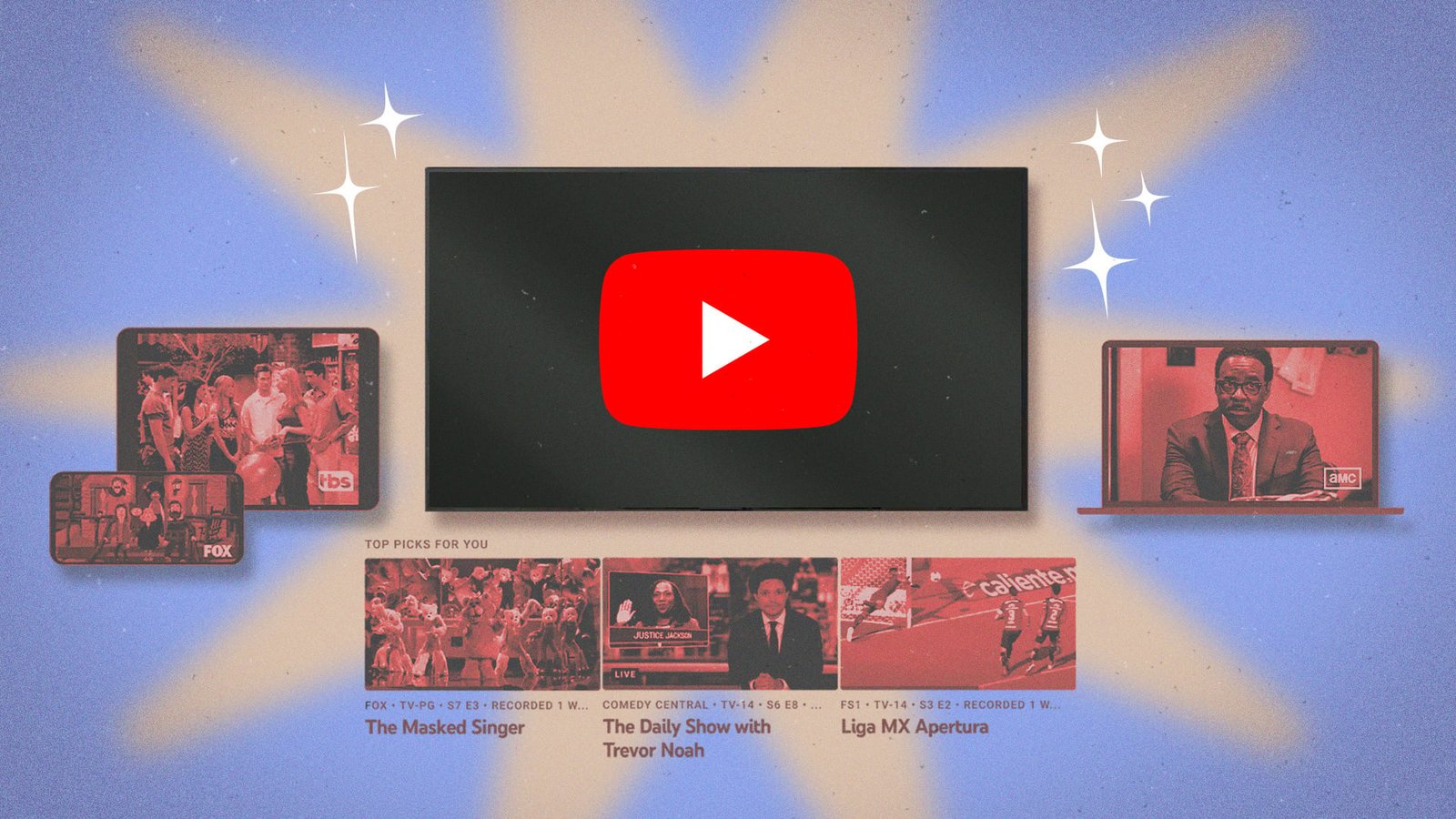
YouTube TV is one of several streaming services for live TV—and a particularly good pick for sports fans who want to be able to watch and record every matchup from their favorite leagues. If YouTube TV is your platform of choice, here are the tips and tricks to optimize your experience.
Set up family sharing to separate recommendations and storage limits
If you and members of your household have wildly different streaming tastes, you can create unique profiles for each person to prevent recommendations from one from influencing another and to separate DVR libraries. A single subscription can be shared with five additional family members, who technically must reside in the same household, and those who are outside of the home need to check in once every three months (more on that below) to maintain access. You’re also limited to three active streams at a time, so six people can’t be watching on six separate devices at once.
Regularly reset your YouTube TV 90-day home area allowance
If you travel frequently or are part of family sharing based anywhere besides your home, make sure you launch YouTube TV whenever you are in the account’s home area. YouTube TV requires all users to check in every 90 days to avoid losing access when away from your home area. (For baseball fans, MLB imposes viewing restrictions after just 30 days.) If you get in the habit of resetting your 90-day window, you’re less likely to find yourself locked out when you’re on the road.
Create custom multiviews to monitor multiple games or content types at once
YouTube TV has pre-built multiviews that show you three or four channels at once—these are often either several games across a single sport or a combination of sports channels. Earlier this year, the platform launched customizable multiview, which allows you to select up to four channels across content categories. This means you can choose the specific games you want or mix and match sports with news, TV shows, and movies so that everyone in your household can be entertained. From any livestream, press the down button and select Multiview > Your multiview to choose up to four channels.
Use “catch up through key plays” to get curated highlights before syncing with live action
YouTube TV is heavy on features benefiting sports fans. If you can’t begin a broadcast when a game starts, the platform offers you several options when you launch the stream: Start from the beginning, join live, or catch up to live through key plays. The latter shows you only the highlights of the action then drops you into the live stream, so you don’t miss anything important but don’t have to watch or fast-forward through the entire game to see what’s happening now. You can also find the key plays view via Scores & stats at the bottom of the screen. This feature is supported for events from the NFL, NBA, MLB, NHL, college football, and college basketball.
Hide sports scores to avoid spoilers until you can watch a recorded game
Another way to avoid spoilers for live sports is to hide scores, which prevents final scores or live previews from launching before you start watching. For NFL, NBA, and MLB games, you can hide scores on a team-by-team or league-wide basis. If a league doesn’t have pages for individual teams, you can hide scores for the whole league. On the team or league page, go to More and turn on Hide all scores for this team/league.
Customize your YouTube TV Live Guide to minimize scrolling
If you aren’t sure what you want to watch on YouTube TV and none of the recommendations do it for you, you can use the platform’s Live Guide just like the channel guide from traditional cable. However, this version is customizable, so you don’t have to scroll through dozens of channels you never watch to reach the ones you do. On the web browser or app, go to Settings > Live Guide to reorder, favorite, or hide channels from your list. This can’t be done directly from a streaming box, but when you open the live guide on your TV, select the Custom filter view to see your updates.
Pause your YouTube TV watch history when you don’t want content informing your algorithm
Your watch history informs recommendations on YouTube and YouTube TV, which is useful for discovering new content but also means that your algorithm can be influenced by anything and everything you watch. If you don’t want certain content affecting what you’re served—let’s say you’re binge-watching a show you wouldn’t normally or you have someone staying at your house and using your account—you can pause your watch history temporarily. Tap your profile photo, go to Settings > Privacy, and toggle on Pause watch history.
Select specific teams or franchises for recording to keep your library under control
YouTube TV has unlimited DVR, but that doesn’t mean you need to fill your storage with content you don’t plan to watch. You can record everything from an entire sport or league, or you can select only the specific teams or franchises you care about. This depends on how you set up recording: You can search for the league and tap Add + or the “+” icon to get every game, or search for your favorite team or individual matchup. DVR playback has similar options to live events you start on delay, including resuming where you left off and watching key plays.
Switch from VOD to DVR versions on playback to skip ad breaks
Some content you record from the live feed may also be available as video on demand (VOD). With the former, you can fast-forward through ads; with the latter, ads can’t be skipped. However, you may be able to choose your version if you used DVR. Click down on the stream to see whether you’re on VOD or DVR, then go back to the show page and select Choose a Version > DVR (if available).
Check Stats for Nerds to diagnose streaming issues
If you have technical issues with YouTube TV, the built-in Stats for Nerds feature can help you diagnose the problem (and whether it’s coming from your network or YouTube TV itself). For example, if your resolution drops significantly, connection speed, buffer health, and dropped frames can give you a clue as to whether your wifi is the culprit. Access Stats for Nerds on your TV via player controls > More > Bug icon. On your computer, right-click on the video player; on mobile, tap More > Stats from the video player.
This articles is written by : Nermeen Nabil Khear Abdelmalak
All rights reserved to : USAGOLDMIES . www.usagoldmines.com
You can Enjoy surfing our website categories and read more content in many fields you may like .
Why USAGoldMines ?
USAGoldMines is a comprehensive website offering the latest in financial, crypto, and technical news. With specialized sections for each category, it provides readers with up-to-date market insights, investment trends, and technological advancements, making it a valuable resource for investors and enthusiasts in the fast-paced financial world.