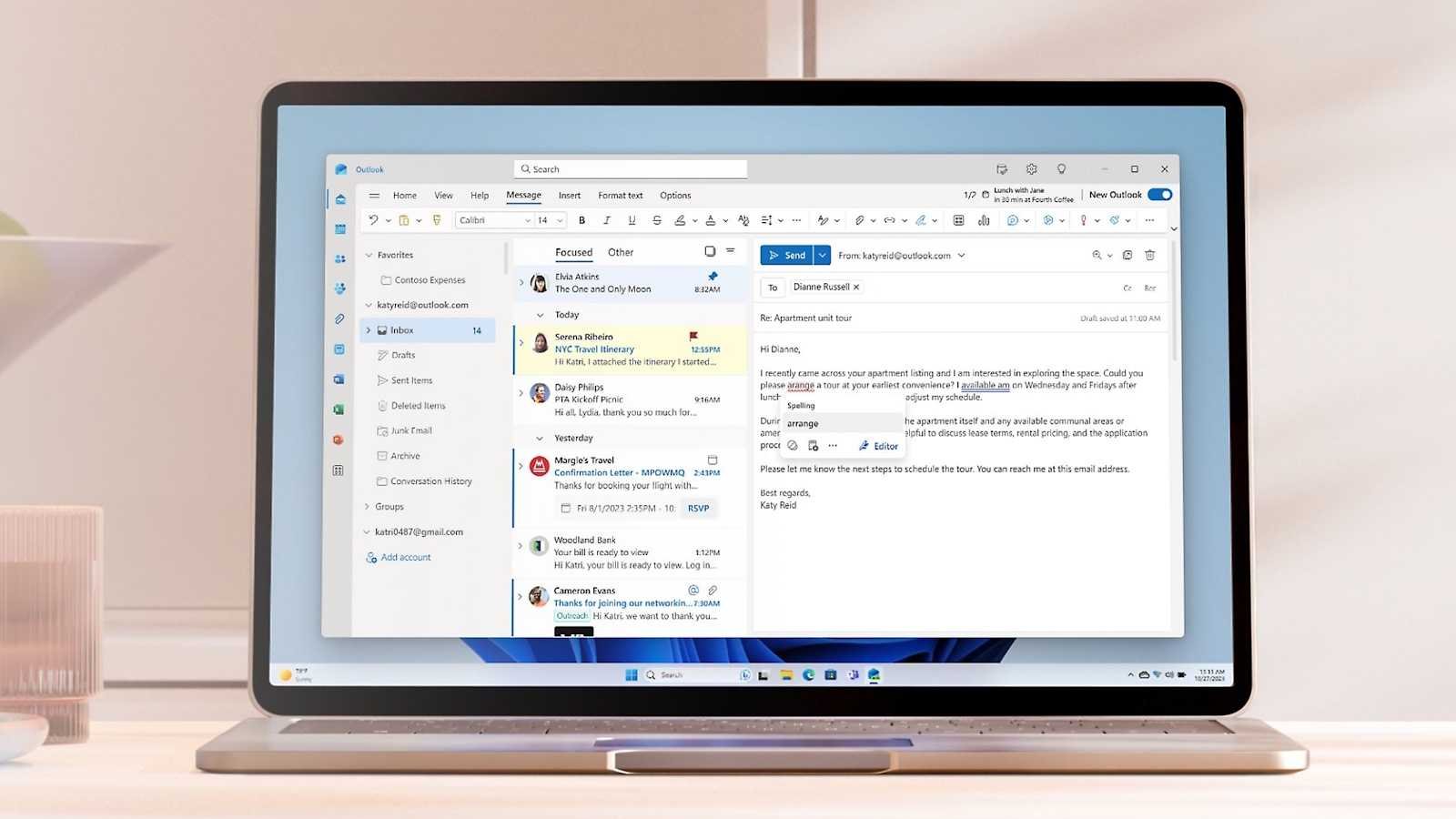
Need to send the same email over and over? Good news! Microsoft Outlook lets you save messages as reusable templates, but the setup depends on which version you’ve got. Classic Outlook (the older version) saves templates as OFT files. The new Outlook uses cloud-based Mail Templates by default. We’ll show you how to create and use email templates in both versions.
How to create and use email templates in classic Outlook
If you frequently send the same email to multiple recipients (like a quote or a reminder about a recurring event), you can save the messages as a template in the classic version of Outlook. To create an OFT template, click New Email and compose your message with a subject line and body text.
Next, click File > Save As, select Outlook Template (.oft) as the file type, and give the file a name. Outlook will suggest the Templates folder in your user folder in Windows. However, for a clearer overview, it’s advisable to group your own templates together in a separate folder.
Select a different folder or create one and save the OFT file there. To use the template later, click New Items > More Items > Choose Form in the Home ribbon. In the menu next to Search In, select the option Templates in File System, click Browse, and select the folder containing your OFT template.
Click OK, select the template file, and click Open. Alternatively, you can double-click the OFT file in File Explorer to load it directly into Outlook.
How to create and use email templates in the new Outlook
The new Outlook also supports OFT templates, but the template feature works slightly differently. To create a template, click New Email and fill in the Add Subject field and the text box.
From the Message ribbon, select Mail Template > Save Email as Template. Give the template a name and select Save. Your saved templates are stored with the account you’re using to compose the email and can also be accessed from that account in Outlook on the web. If you need to work with OFT files, the new Outlook can still open them. For creating and managing reusable messages, Microsoft recommends using Mail Templates or My Templates.
You can also create templates using the My Templates add-in. From the Message ribbon, select My Templates, choose +Template, add a title and message, and select Save.
This articles is written by : Nermeen Nabil Khear Abdelmalak
All rights reserved to : USAGOLDMIES . www.usagoldmines.com
You can Enjoy surfing our website categories and read more content in many fields you may like .
Why USAGoldMines ?
USAGoldMines is a comprehensive website offering the latest in financial, crypto, and technical news. With specialized sections for each category, it provides readers with up-to-date market insights, investment trends, and technological advancements, making it a valuable resource for investors and enthusiasts in the fast-paced financial world.