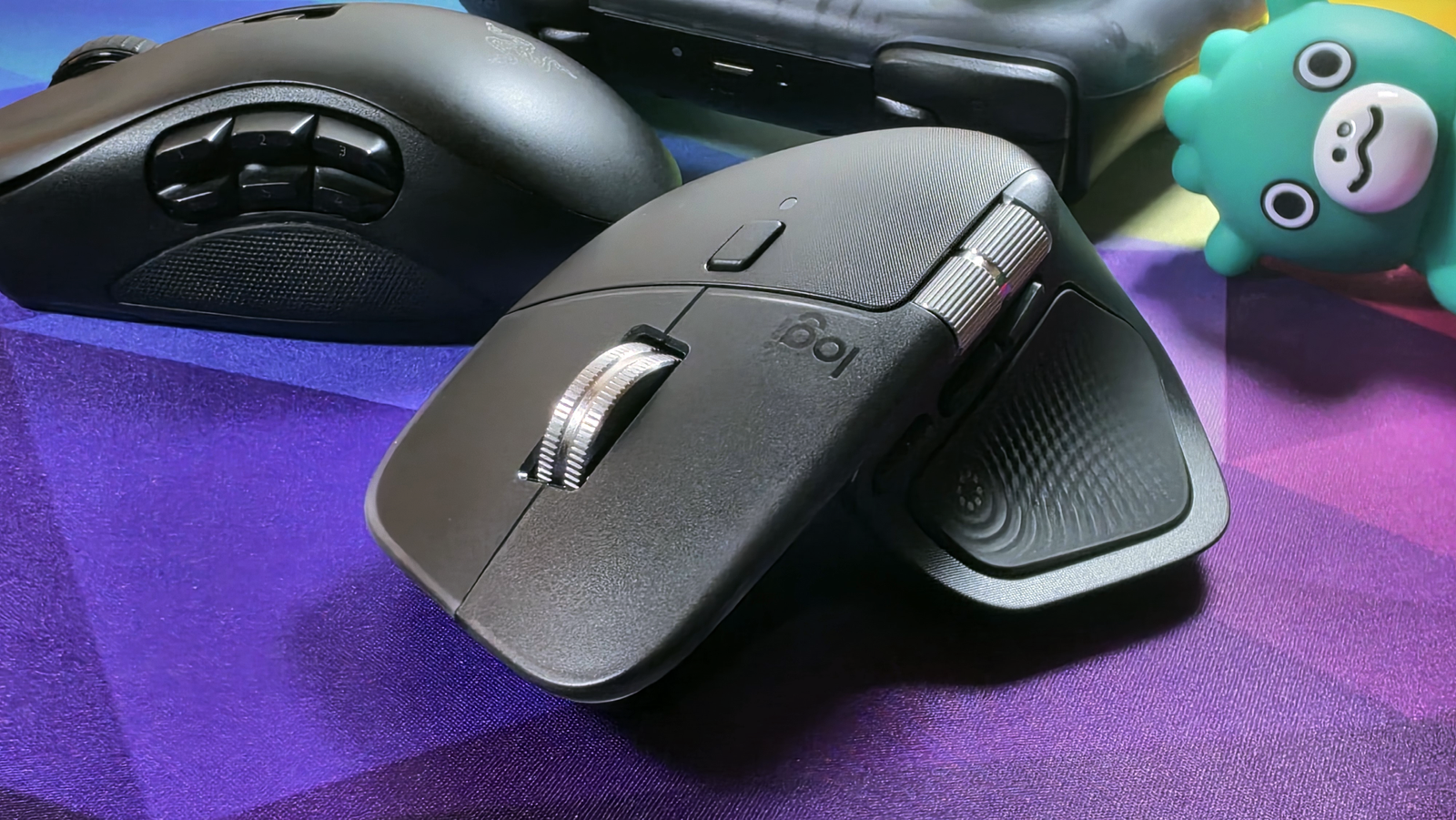
Can you play PC games with the Logitech MX Master 4 mouse? Yes. Yes, you can. Alrighty, thanks for reading this week’s Boost Mode newsletter, see y’all next Tuesday.
Okay, I realize that’s a bit facetious. You know you can play PC games with any old mouse, and I promise that I’m not wasting your time here. A better question might be, should you play PC games with the Logitech MX Master 4, the current version of the ultimate productivity mouse? And it’s more relevant than you might think. A lot of people build an elaborate desktop PC for both work and gaming. And if they’re anything like me, they prefer to keep their inputs consistent — that is, use the same stuff for work and play. To say nothing of the fact that this thing doesn’t come cheap at $120.
Welcome to the Boost Mode newsletter. Every week I share my insights on PC gaming, desktop setups, and hardware optimization. I also track down some of the most interesting PC and nerd news from around the web, plus a PC game pick you might not have seen elsewhere. Want this newsletter to come directly to your inbox? Sign up on our website!
Logitech’s MX Master is the pinnacle of productivity mice
That’s easy enough for keyboards and headsets and monitors, but finding the perfect mouse for multiple applications remains frustratingly hard to come by. If anything, I’d say that gaming mice like the newly unveiled Razer Naga Pro V3 are better suited to this. Gaming mice are better at work than work mice are at games. They’re more flexible and versatile, and have higher performance. The only real downside is that if you’re using a wireless mouse for hours of gaming a week, you’ll need to recharge it more often.
Eugen Wegmann
But if there’s any “regular” square peg mouse that someone might be tempted to shove into a round multi-function hole, it’s the MX Master. Logitech’s flagship is generally agreed to be the king of standard PC mice, and has remained so since its initial model succeeded the MX Revolution over a decade ago. This mouse is so beloved that it’s often spotted on high-end Mac setups. And if Apple fans are willing to ditch first-party hardware, you know it’s good.
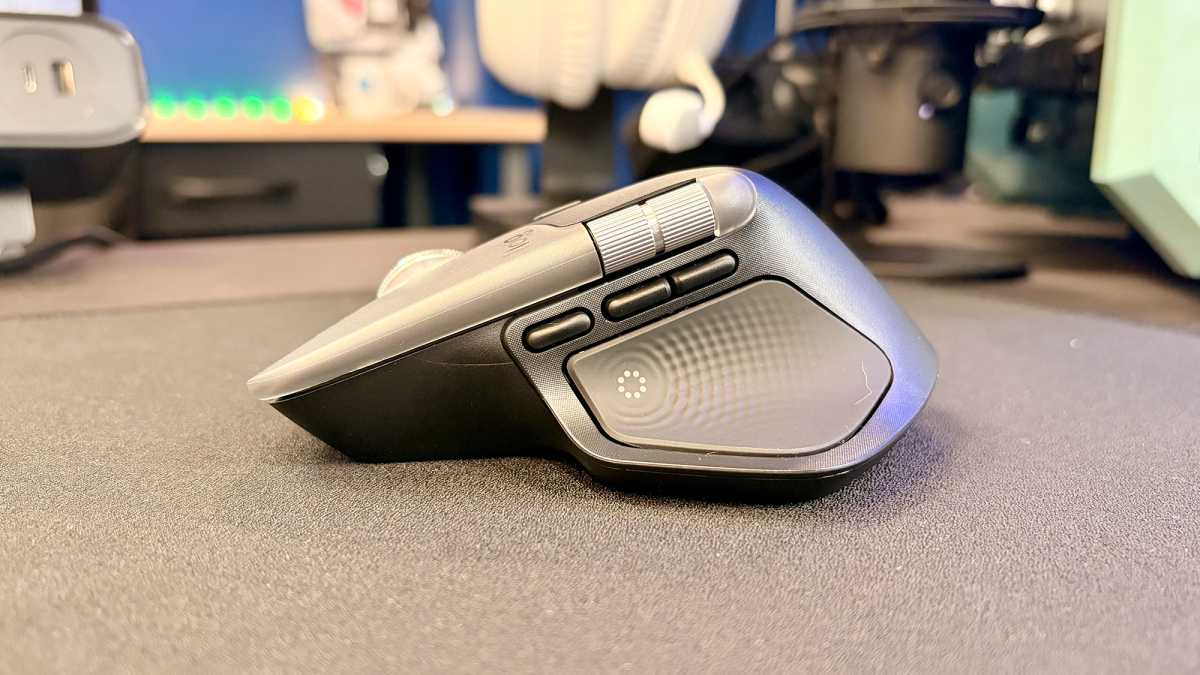
I’ve used MX mice before, but for various reasons tend to go off them, for the aforesaid Razer Naga or a cheaper alternative. The MX Master 4 caught my attention, because it adds one more button…which, combined with that distinctive side wheel, brings it up to my required seven extra buttons in addition to the primary left, right, and scroll wheel.
Why do you need seven extra buttons, you weirdo?
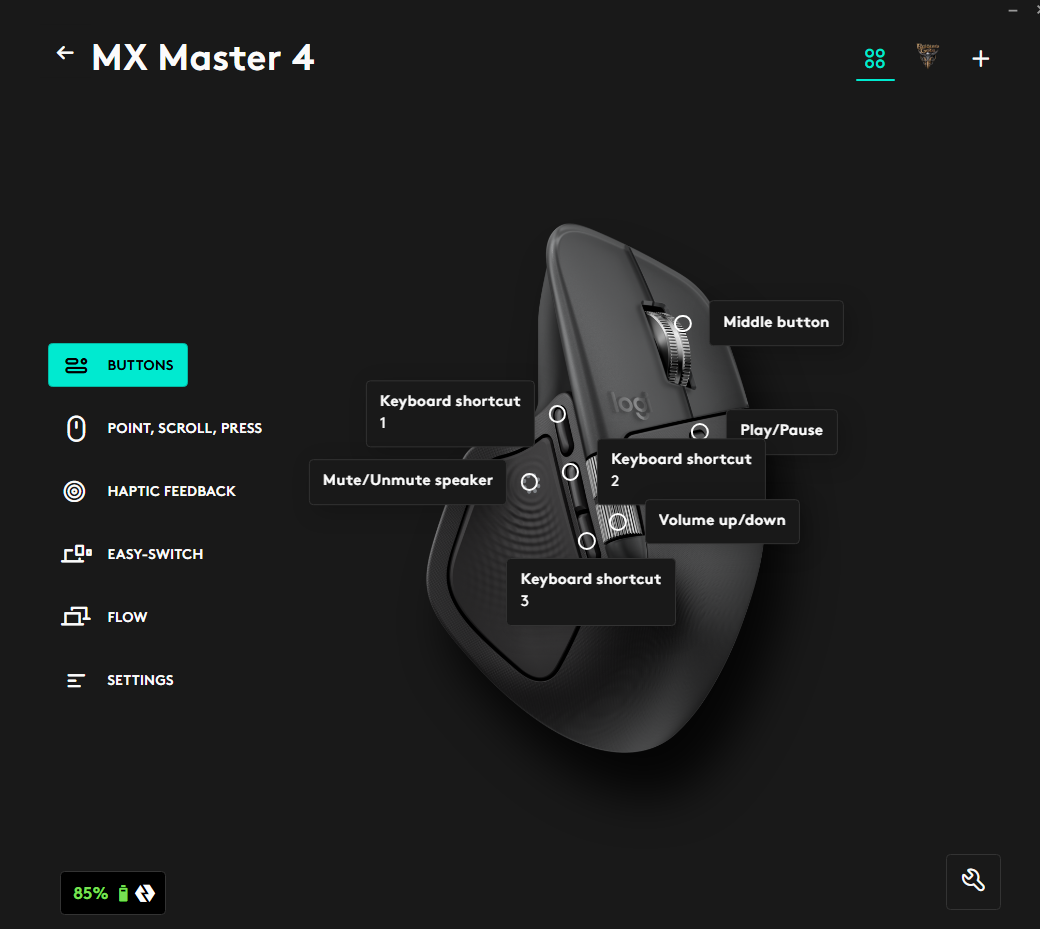
Wait, what? I need seven extra buttons on a mouse? Yes. Here’s how it goes. I use my mouse as my primary media management tool, plus extra buttons for gaming. So I like to have buttons for volume up and down, play/pause, and mute. That’s in addition to gaming buttons, and I prefer three of them. In a typical action game that’s melee, throwable or special attack, and one more — I often bind that one to a map, for example.
So that one extra button on the MX Master 4 is a big deal for me, specifically. It allows me to set those three long buttons for game functions, the haptic button on the base for mute, the button above the primary wheel as play/pause, and the side wheel as volume adjustment.
Logitech
This is weird, yes. It’s also kind of ignoring the action wheel, Logitech’s big push to expand the MX Mouse’s functionality more or less indefinitely. Anyway, that’s how I use mice — I use equivalent layouts on the Razer Naga (six buttons on the side) and Solakaka (three on the side, plus four more on top).
I spotted a refurbished deal for the MX Master 4 bringing it under $90, direct from Logitech, and snatched it up. I wanted to see if I could well and truly have one mouse to rule them all.
The Logitech MX Master 4’s hardware
So how does the MX Master 4 measure up? In gaming terms, it’s a little weak, to be honest. Its “Darkfield” sensor is more interested in tracking on any surface you might throw at it, with a maximum DPI of 8000. That would have been mind-blowing a decade or two ago, and it’s eight times the sensitivity of the original MX Master. But compared to the $100 Razer Viper V3 Pro SE, it has less than one-quarter the sensitivity.
Logitech doesn’t say what the polling rate is for the MX Master 4, because most people who buy one don’t care about it. It does have an option for 2.4GHz wireless or Bluetooth (and you absolutely don’t want to use Bluetooth), which won’t show any noticeable lag for most mere mortals. It doesn’t work over a wired USB connection.
For those of you who really like to dig into the minutiae, it is 128.15mm long, 88.35 mm wide (at its widest point, that long spur for your thumb), and 50.8 mm high. The weight is 5.29oz, 150 grams.
And if that last one made you wince, yeah, imma get to it.
The Logitech MX Master 4’s software
Software is crucial for gamers…at least the gamers that demand customization. One of the things that makes a keyboard a “gaming” keyboard, by my definition, is the option to create a new binding and setting preset that automatically launches with a game. Logitech’s G series mice offer this.
The MX Master 4, managed by the Options+ program, does this too…technically. You can add a separate program right there in the menu, but it doesn’t seem particularly good at auto-detecting games. I was able to add them manually by digging into game files, and successfully bound Q and E to the thumb buttons in Baldur’s Gate 3 to move the camera around. There’s one hurdle passed.
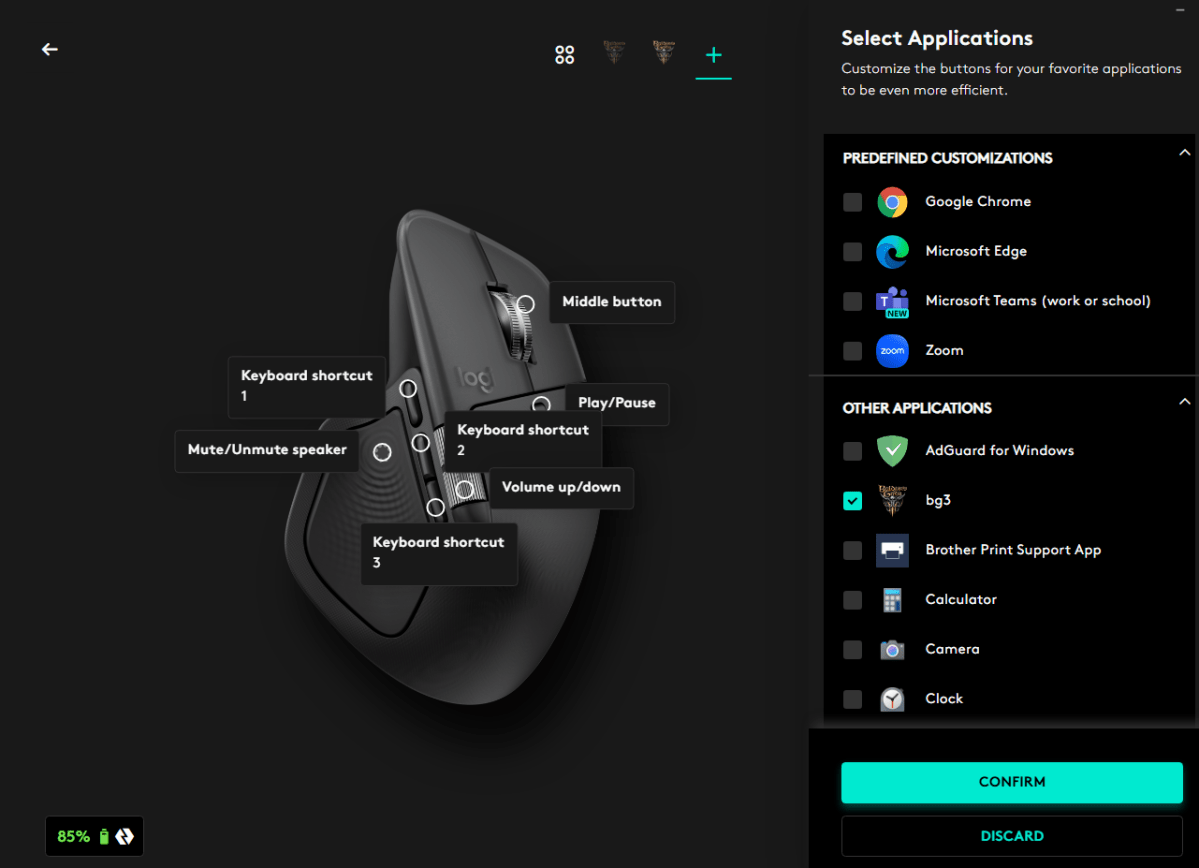
Unfortunately another core element of gaming mouse software is macros, combinations of key presses for complex inputs. Options+ does let you do this, but with some big limitations. You can do pretty much any combination of Ctrl, Alt, Shift, and Win buttons with alphanumeric keys and…that’s it. More complex combos and custom timings are out.
But frankly all of these features are things I rarely use. For those three dedicated gaming buttons, I generally set them to the numerals 1, 2, and 3, and then set up singular binds in the game as needed. And Logi Options+ handles that okay. With the program bindings, it’s better than I was expecting.
Here’s the annoying part: Unlike many gaming mice, the MX Master 4 does not retain bindings in its own internal memory. So the 1, 2, 3 preset didn’t stick when I brought it over to other PCs. Which is generally something you can work around… on Windows. Plugging this thing into my Steam Machine and having it default to forward and back messed up the bindings across games.
There are probably ways to fix this — for example, there’s an app called Solaar that purports to manage Logitech devices on Linux. But for most users, this is a lot of hassle to deal with. And to be fair, if my goal is a single mouse for a single computer across multiple uses, moving to other devices shouldn’t factor that much in my evaluation anyway. Options+ is a passible way to create custom bindings for games, so long as you don’t need complex macros.
I also wasn’t able to incorporate the MX Master 4’s haptic vibration into games. I suspect this is possible, but as haptic gaming mice have been tried before and abandoned as a concept, the juice probably isn’t worth the squeeze. Logitech is looking into it, for whatever it’s worth, just not on the MX series.
But how does it actually play?
Here we come to probably the most important aspect: How does it feel to play games with the Logitech MX Master 4? I tested it out in a series of games that needed fast, twitchy movement, some of which I’d played before and some of which I was trying for the first time, to evaluate how it functions as a mouse upon which a user might rely for all aspects in which they don’t switch over to a controller.
The verdict: It’s fine. I was able to accommodate for the mouse’s larger size and weight without too much difficulty. The side buttons I was relying upon for special actions in games like Space Marine 2 and Far Cry 3 performed pretty much exactly as you’d expect. The 8000 DPI is far more than I usually use — 2500, if you’re wondering — and I never experienced any game-breaking input lag with the USB wireless receiver.

Saber Interactive
I was expecting to have the most trouble when trying out new games. Nope! When playing Anger Foot, which is essentially a 3D, first-person version of Hotline Miami, I was able to move around the frantic small spaces and pinpoint shots without problems.
I can see two possible exceptions here, and both of them are for gamers who are a long way away from my general style. If you really do need over 20,000 DPI, and if you need an insanely light mouse like, say, the G Pro X Superlight, you’re going to hate trying to use the MX Master or anything else like it.
Michael Crider/Foundry
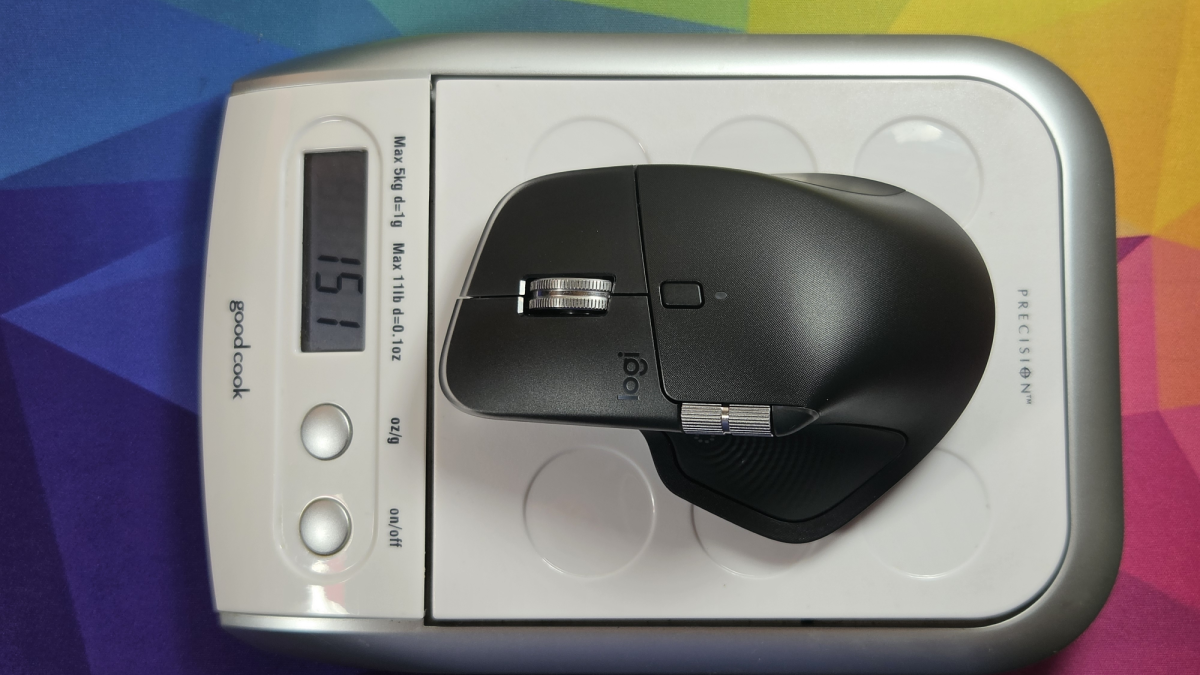
I generally like a heavy mouse. The Naga V2 Pro I use is 131 grams according to my kitchen scale, for example. But even so, the MX Master 4 (150 grams) feels big and sluggish in my hand. Don’t get me wrong, it’s comfy, and it’s not as if it’s unmanageable. But it is two to three times as heavy as today’s high-end gaming mice, even the wireless ones.
Fine for most, but competitive gamers look elsewhere
So there ya go. I feel like most gamers would be fine with Logitech’s $120 MX Master 4, with the exception of those who get competitive for shooters or games like Marvel Rivals. You’re going to feel that weight. And for other games that need complex macros, or who want to keep the same settings across multiple devices, the software limitations might get you down.
If you fit into either of those camps, you’ll have an easier time going with a dedicated gaming mouse and adapting it to non-gaming uses. But otherwise, the Logitech MX Master 4 pulls off some surprisingly impressive gaming chops.
Cool stuff from around the web
- CyberPowerPC is making LEGO-compatible PC cases: So far they’ve only shown up in one anime expo, at least as far as I can tell. So who knows if these neat designs will actually be sold.
- Microsoft blames latest Windows 11 crash on RGB lights: Yet another strike against turning your PC into a disco ball, the company says that games including Arc Raiders, Marvel Tokon, and The Finals are crashing because of RGB drivers.
- On the other hand, Noctua says it’s not interested in RGB. It looks like the iconic brown for the cooling component supplier isn’t going anywhere.
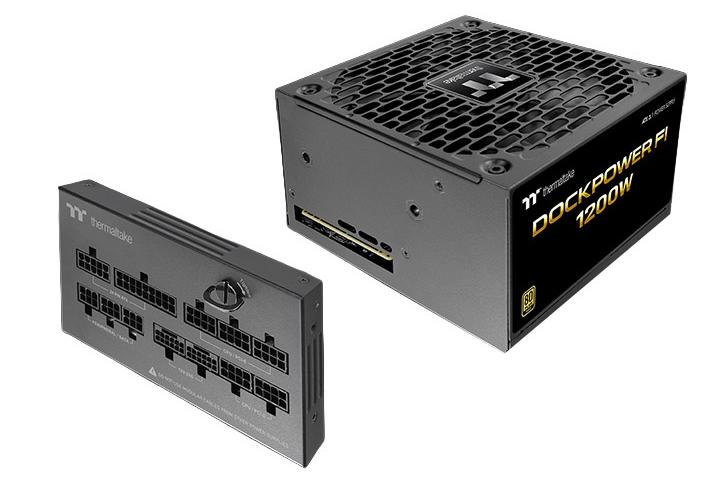
- Power supplies with removable, modular ports: I freakin’ love this idea. Thermaltake’s new PSU designs let you remove the entire connection plate, plug everything in, and then you have just one thing to connect inside the case. Genius.
Thermaltake
- Hey, maybe don’t download a pirated copy of GTA VI. I’m sure a lot of you are looking forward to the biggest game evah (even if it won’t be on PC for a year or two), and know there’s a build floating around out there. Don’t try to download it, of course it’s full of malware.
Game pick of the week: Terror of Hemasaurus

It’s been a while since we had a good Rampage game, hasn’t it? Actually it’s only been about four years, because this game is the spiritual successor to the classic monster bash-em-up. And also South Park, because it has a story too, which is even more cynical, jaded, and self-aware than Rampage was when it was gracing consoles in the 90s and 2000s.
Terror of Hemasaurus is all about smashing cities, fighting the military, and crunching down on tasty humans. The Rampage formula still works great, and with more speed and creative movement options it’s even better. If you’ve never kicked a mouse-sized human into a helicopter, you simply must try it.
The game is short and sweet, but you can play it with up to four friends in local co-op. And you should. Just make sure everyone’s over the age of 13 or so.
Terror of Hemasaurus is $15 on Steam. It’s also available on all consoles.
That’s all for this week. To get my editorials, news picks, and game recommendations delivered straight to your inbox, you can sign up for Boost Mode on the PCWorld Newsletter hub. Also check out The Full Nerd, Prompt Mode for “AI” tips, Safe Mode to keep your PC and gadgets secure, and Smart Mode to boost your productivity.
This articles is written by : Nermeen Nabil Khear Abdelmalak
All rights reserved to : USAGOLDMIES . www.usagoldmines.com
You can Enjoy surfing our website categories and read more content in many fields you may like .
Why USAGoldMines ?
USAGoldMines is a comprehensive website offering the latest in financial, crypto, and technical news. With specialized sections for each category, it provides readers with up-to-date market insights, investment trends, and technological advancements, making it a valuable resource for investors and enthusiasts in the fast-paced financial world.