
It’s not often that I come across a productivity tip so good that it amazes even me. And that’s what happened when I started testing Windows’ hidden “energy recommendations” to extend laptop battery life.
Before external USB-C battery packs were a thing, I’d carry a backup laptop to conferences. I know, pen and paper work just fine. But to me, no power meant no productivity; what would happen if I needed to file a story as soon as possible? It’s part of the reason I began testing laptops with streaming and office work for a better sense of how long they’ll last.
Today, there’s a simple one-click way to extend your battery life within Windows, which brings together ten different methods of saving power. Oddly, Microsoft identifies them as “energy recommendations” to lower your carbon footprint, rather than power-saving techniques. But that’s exactly what they are. And they work! (The results of my testing are at the end.)
These energy recommendations hide within the Windows Settings menu (System > Power & battery). And right up top, Microsoft includes a nice big “Apply all” button to turn them on all at once. Let’s take a quick tour.
Welcome to PCWorld’s newsletter, Smart Mode! The focus of this newsletter is productivity: from software to hardware to peripherals, all with the idea to get what you need to get done, efficiently.
I’m your host, Mark Hachman, covering the productivity tips, tools, and trends that you need to know about, both from within PCWorld and beyond. If you want the latest issue in your inbox each week, just sign up right here.
What’s in Microsoft’s “Energy recommendations”
Set the power mode for best energy efficiency. This is the famous Windows power slider, which can be adjusted for maximum performance or minimal power consumption. Really, you can make the argument that you might as well turn this on 24-7; most productivity apps don’t require a ton of horsepower, and dialing down the performance minimizes fan noise and maximizes battery life.
Turn on Dark Mode. This is more than an aesthetic decision. On modern displays like OLEDs, a “black” portion of your screen is literally off, saving power. On the other hand, sometimes I prefer smaller laptop screens to be lit brightly to make them easier to see.
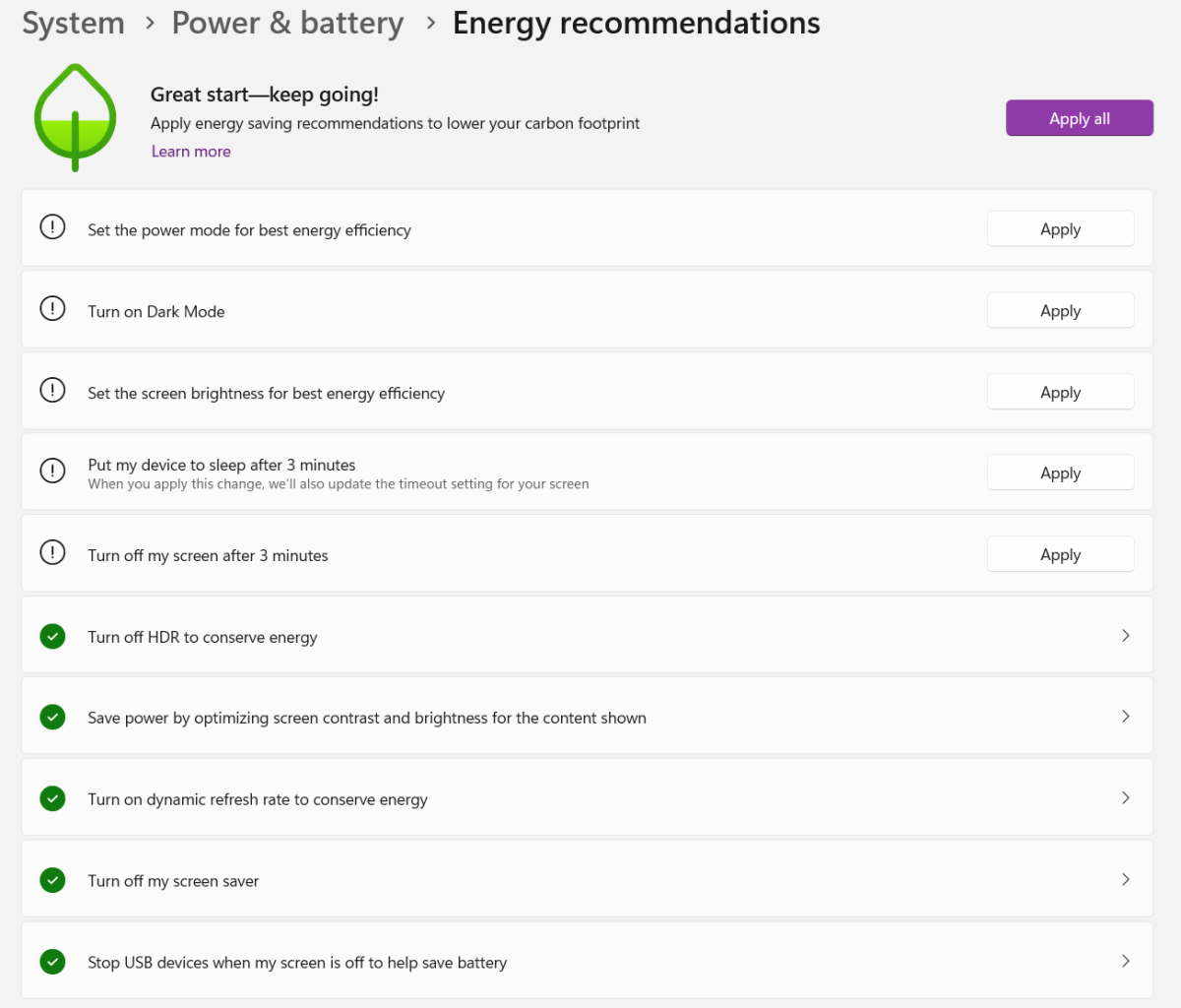
Set the screen brightness for best energy efficiency. In Windows, this sets the screen brightness at 75 percent by default. Historically, this has been a simple, significant way to improve battery life, but as screen display types and backlight brightness varies between laptops, the improvements won’t be consistent.
Put my device to sleep after three minutes, and turn off my screen after three minutes. Two easy wins, but these are only useful if you’re staring off into space or leave your desk to get a coffee. Otherwise, these settings may never actually engage.
Turn on dynamic refresh rate. Modern laptop displays just don’t “paint” the screen at a fixed 60Hz. Many can now go up to 120Hz for smooth scrolling and mousing…but that takes more power. Many can now drop down to 30Hz to save power…but with potential display stuttering. Windows has a dynamic refresh rate option to intelligently go back and forth, but it’s typically off by default.
Turn off HDR to conserve energy. I’d leave it off all the time, period. High-dynamic range content isn’t designed for productivity applications, and exists mainly in premium streaming content and games.
Save power by optimizing screen contrast and brightness for the content shown. This is a little like the earlier entry, except that Windows will adjust the brightness for a Web page versus a movie. I usually leave this enabled by default, as it affects visual quality as well as the battery life.
The last two, turn off my screen saver and stop USB devices when my screen is off to help save battery are legacy controls, sort of. Although there is some debate on whether screensavers are necessary for OLED displays (or not), you can be certain that an attached USB device like a webcam or mouse will drain the laptop’s battery, whether the screen is off or on.
What’s the difference between these “energy recommendations” and the more conventional “energy saver” that usually turns on when your laptop battery hits 30 percent or so? The “recommendations” don’t really affect your laptop’s functionality (and productivity), while the energy saver can. Energy saver can halt some background tasks and sync requests, which can mean that crucial email might be held or file backups might be paused. That flies in the face of always-on productivity, though it does keep your laptop up and running.
You may see these, too
Microsoft also has some additional “recommendations” options for specialized devices, too. (Not these specialized devices, just ones with unique hardware.)
I usually turn off adaptive brightness, or Change brightness automatically when lighting around me changes, for testing a laptop, but it’s a significantly useful setting that can lower or dim the brightness of a laptop’s display. We’ve traditionally considered 250 nits of brightness or so to be the appropriate brightness for a laptop indoors, but OLED screens change the game. In testing for this article, I reduced a laptop with an OLED display down to 40 percent, which equated to just 65 nits. The high contrast ratio from the OLED display surprised me with its legibility.
Two options are only available to those laptops with a presence sensor, Automatically dim my screen when I look away and Automatically put my device to sleep when I leave. I find the first annoying, as the dimming distracts me. The latter, however, is a useful power-savings tool provided that you can trust your surroundings; walking away from a laptop in a public place is just asking for it to be stolen, power savings or not! That’s even more catastrophic than your battery gauge hitting zero.
Testing Microsoft’s energy recommendations. Do they work?
Do they! But as they say, your mileage may vary.
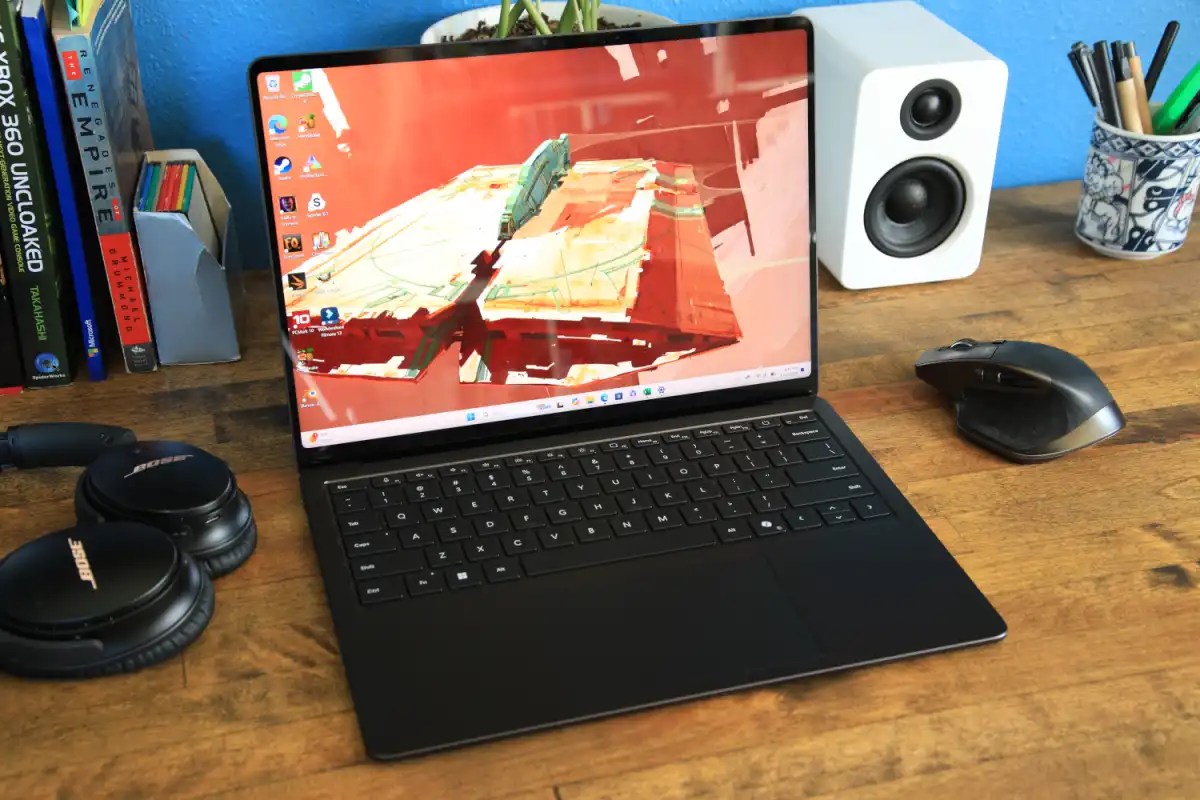
I tried both an Asus ZenBook A16 laptop as well as the Microsoft Surface Laptop 7th Edition. My thought was that both share a common processor architecture (Qualcomm Snapdragon ARM) but the former has an OLED display, and the latter an older IPS display. If the display is typically what gobbles up battery life, would there be a difference?
Matthew Smith / Foundry
I didn’t perform full rundown tests; instead, I used Procyon’s specialized one-hour office productivity benchmark to track how much battery was chewed up in an hour’s worth of tests, leaving Wi-Fi on.
I wasn’t expecting much, and the Asus laptop didn’t deliver much: battery life dropped 17 percent in a single hour with my default settings (performance dialed down to a minimum but screen brightness up, and with virtually none of the recommendations in place), which equated to about 5.9 hours of battery life. With the recommendations on, the drain dropped to 14 percent per hour, or a projected 7.7 hours of battery life. Still, that’s close to a full work day, and 1.8 hours of difference.
On a second run (because I was kind of shocked that this worked so well), the battery draw dropped from 18 percent to 10 percent, though I turned the brightness up to maximum on my “normal” settings.
But the Surface Laptop — oh, man. Again, I used the same procedure (brightness turned up, performance down to “recommended” levels, with the other recommendations largely off) and Procyon measured a 16 percent drain per hour, projecting to 6.25 hours of battery life. But with the energy recommendations all enabled, battery dropped by just 8 percent, projecting to 12.5 hours of continuous work. I even double-checked it, with an even better score: a 17 percent hourly drop on my normal settings, and a 7 percent drop with Microsoft’s energy recommendations turned on.
Put simply, a single click doubled my battery life. What can it do for you?
Productivity in the news:
- Microsoft Copilot is getting a major update with an eye towards productivity. Here’s the breakdown.
- Ooh, a nerdy story combining ergonomics and monitor placement! You can do more if you’re not dealing with neck strain.
- Hate those Windows ads? Try adjusting these settings to minimize them.
- One followup to the recent Googlebook launch: Google confirms that some Chromebooks (the Plus devices are the default guess) will be upgradable to the new Aluminium OS.
- Applying Windows patches is fine — when it’s done right, there’s no interruption to your workday. When it goes wrong — catastrophe! And that still happens way too much to Windows 11.
- Meanwhile, colleague Alex Wawro gets right to the point: Is Windows 11 finally good?
Productivity on camera:
Sandra Andrews, head of Microsoft’s go-to-market for Surface, believes that the untold story of Surface is that it’s a touchscreen. (Source: analyst Carolina Milanesi.) I hope there’s more to it than that!
The Windows Clock app might be the most “blah” app on your PC. But it hides a “focus mode” feature that’s perfect for staying on task.
Productivity tip of the week: Shut down your desk as well as your PC
Implement a “shutdown ritual” at the end of every workday. Block out the final 10-15 minutes to clear your physical workspace, review completed tasks, and write down your top three non-negotiable priorities for tomorrow.
Clearing the deck before you step away creates a clean boundary between work and personal life, preventing off-hours mental rumination. When you return the next morning, you eliminate decision fatigue and start immediately on what actually matters instead of spending your first hour figuring out what to do. I personally don’t physically write these things down, but I do leave with a clear sense of how I’m going to start my next workday. Now that I think about it, however, this might be an even better way to end the week and set the stage for Monday.
Thanks for reading!
Thanks for tuning in to this edition of Smart Mode, PCWorld’s newsletter devoted to helping you make the most of your life, smartly. Sign up and have it sent to your inbox every Thursday!
This articles is written by : Nermeen Nabil Khear Abdelmalak
All rights reserved to : USAGOLDMIES . www.usagoldmines.com
You can Enjoy surfing our website categories and read more content in many fields you may like .
Why USAGoldMines ?
USAGoldMines is a comprehensive website offering the latest in financial, crypto, and technical news. With specialized sections for each category, it provides readers with up-to-date market insights, investment trends, and technological advancements, making it a valuable resource for investors and enthusiasts in the fast-paced financial world.