
This was supposed to be the year Microsoft fixed Windows 11.
Back in March, Microsoft made an unusually blunt promise: Windows would become faster, more reliable, more consistent, and less eager to shove Copilot into every corner of the operating system. Six months later, Windows 11 26H2 is rolling out, and it’s time to grade the results.
The early report card? Search earns an A-, Microsoft has done a decent job putting Copilot back in its lane, and Windows feels noticeably quieter. But the Start menu still gets a C, and performance on 8GB PCs remains a work in progress.
That makes 26H2 less of a dramatic new beginning than a progress report on Microsoft’s Windows reset. And in several important ways, the company really has listened.
Microsoft’s Windows 11 26H2 Update is here, and you should already have it
First things first: chances are that you’ve already had a chance to experience Microsoft’s changes for yourself. Though Microsoft now issues a single, major “feature release” each fall, the changes are actually delivered incrementally. Each month, Microsoft delivers some incremental pieces of code as part of its Patch Tuesday updates, which deliver some of these feature improvements on a regular cadence. The fall update rolling out this week simply “rolls up” those changes within a single update, if a user or organization has optionally delayed those changes for whatever reason.
And the changes to Windows aren’t necessarily additions, either. In general, they’re a look back to what Windows was, in an era before AI was rampant and the world ran on Windows 10.
Let’s get to the grades.
Taskbar and Start menu: C
In September, Microsoft’s update finally allowed you to move your Windows taskbar to any part of the screen you wish, adjust the size, and tweak items such as badging options for individual icons.
Likewise, the Start menu now allows you to resize the individual icons, with separate buttons for Pinned, Recently Used, and All.
I hate to say it, but neither change made a profound difference to me. I absolutely give credit to Microsoft for making these changes, if only because it acknowledged that the company was listening to its customers. I briefly noodled with moving the Start menu around within Windows 10; some of the early browser experiments in rearranging tabs made readjusting the Start menu a fun experiment.
What Windows 11 ultimately “taught” me was that I didn’t strongly care where my taskbar ended up, and forcing it to the bottom center was something I learned to live with.
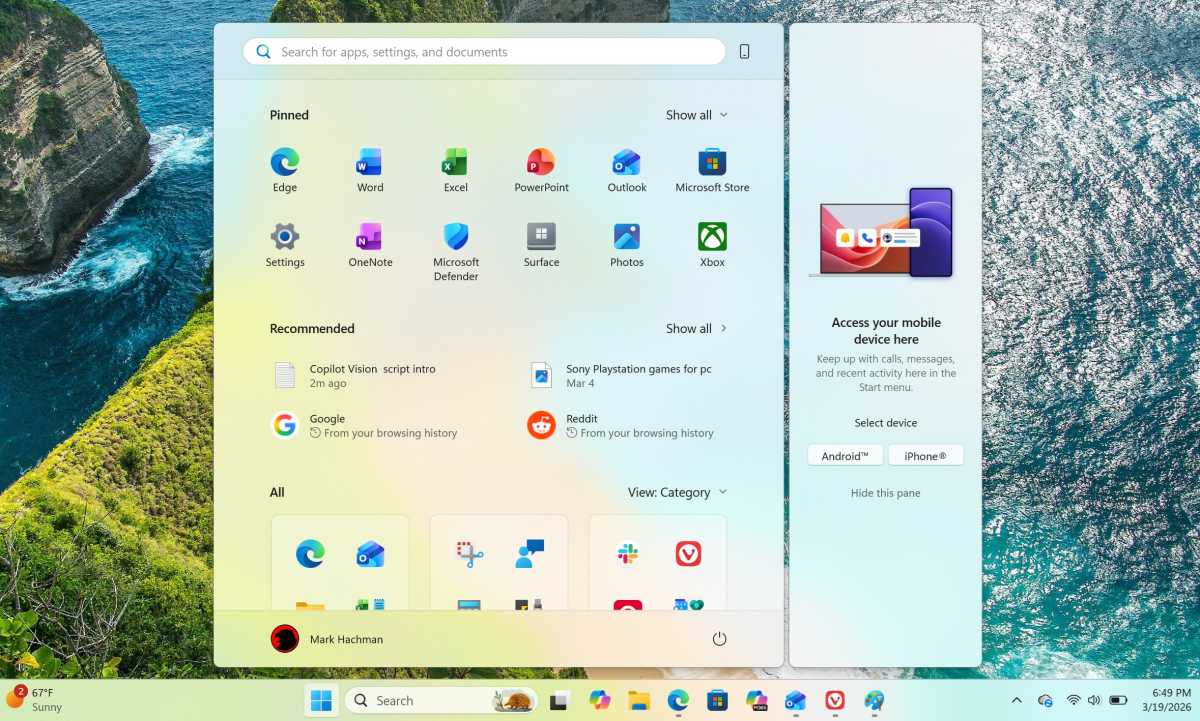
The Windows 11 Start menu, though, I still truly despise. I really enjoyed how Windows 10’s Start menu combined dynamic live tiles/widgets, which used the large, bright icons to full effect. I would actually use my mouse to navigate either through my array of Live Tiles, or scroll through the alphabetical listing of additional apps. Windows 11’s Start menu used to have that, too! Microsoft pledged to make Start feel faster by moving to WinUI3, and I guess it does. But that’s not really the issue here.
Mark Hachman / Foundry
Today, I simply launch new applications by “searching” for them (Win+[app name]) and use the app to bring up recent documents. For me, the “Start” menu is now the icons I have pinned to the Taskbar. But if you do happen to use it yourself, it does feel faster now.
Teaching Copilot to chill: B
I think Microsoft has made progress here. For many, any AI is too much AI, but for a while there, Copilot was everywhere, with its injection into Notepad as its most egregious offense.
Now, you don’t see Copilot icons in Notepad, Photos, and the Windows Snipping Tool anymore (thankfully). You still see it within the Copilot application, obviously (where Microsoft has eliminated its goofy avatar) and within the Microsoft 365 applications, where I think it truly belongs. (Copilot destroyed its human competition in the Excel World Championship when I recently tested it.)
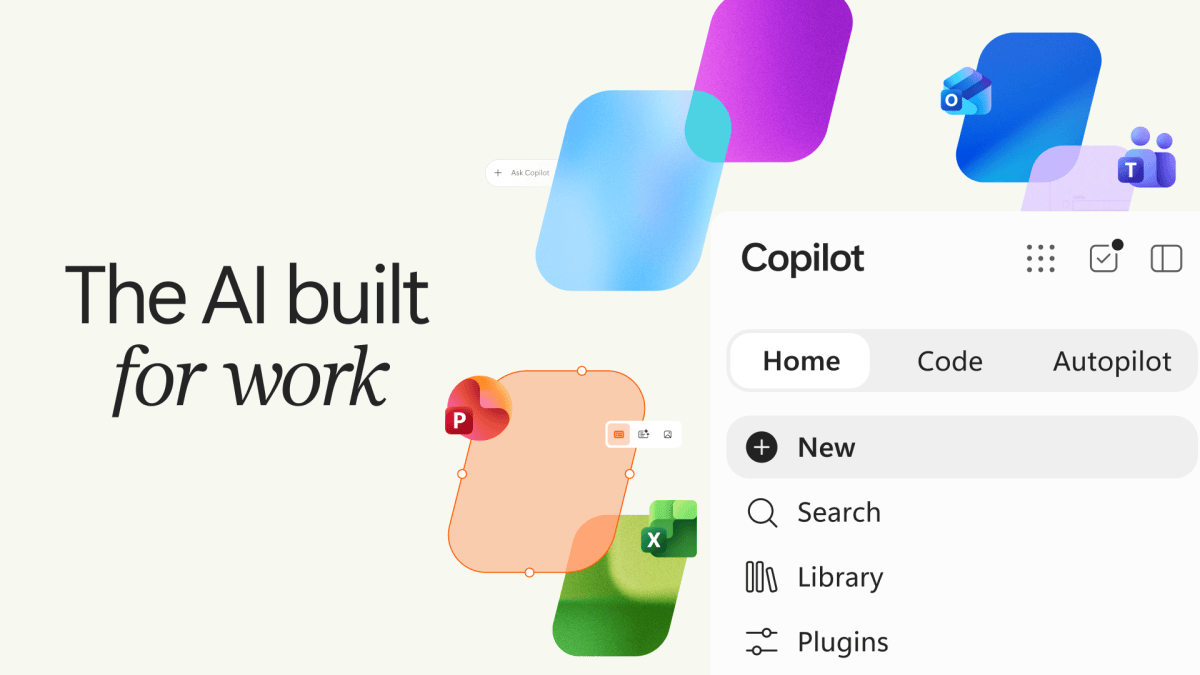
Microsoft has fussed over its application UI, with one change in May and another, more visionary update just a few days ago, with an eye towards using Windows and Microsoft 365 as a home for vibe-coding and autonomous agents.
Microsoft
The latter effort could lead to trouble, as Microsoft will undoubtedly feel encouraged to show off what those agents can do for you. But for now, Copilot has been corralled into a few specialized applications where it fits naturally.
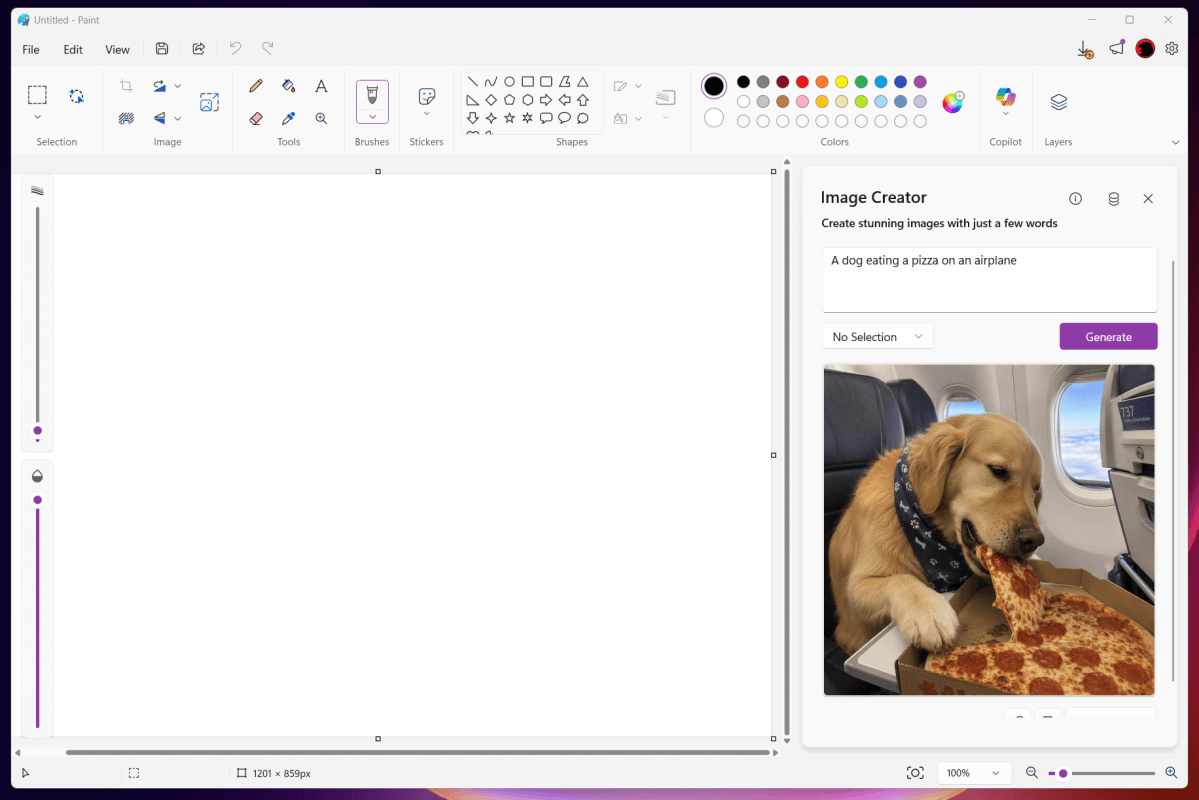
AI also still exists within Paint, where Copilot can be explicitly asked to design stickers or an AI-generated piece of art. And yeah, that still feels a little weird. What I do like are the image-processing tools within Photos, with everything from generative erasing to super resolution. They’re just Copilot without the Copilot brand, and that’s probably the model going forward: just give us useful AI utilities without throwing Copilot in our face — and use the PC’s local resources where possible.
Improved Search: A-
Microsoft promised “a more consistent search experience across the Taskbar, Start, File Explorer and Settings,” as well as “clearer and more trustworthy results.” I think it’s delivered.
Typing a search term — “Copilot,” say — into the Taskbar’s search box produces clear differences between apps, settings, and documents. Searching within File Explorer, at least on my SSD-equipped PC, can be as quick as lighting, and rarely takes longer than a second or two across my entire laptop.
Again, habit has taught me to open the application, and then the file. However, Windows’ search speed now tempts me to do the opposite. It’s seen a big improvement this year.
Windows Update and the Out of the Box (OOBE) experience: B
Microsoft basically acknowledged that Windows updates were out of control, pledging to move back to a single monthly update.
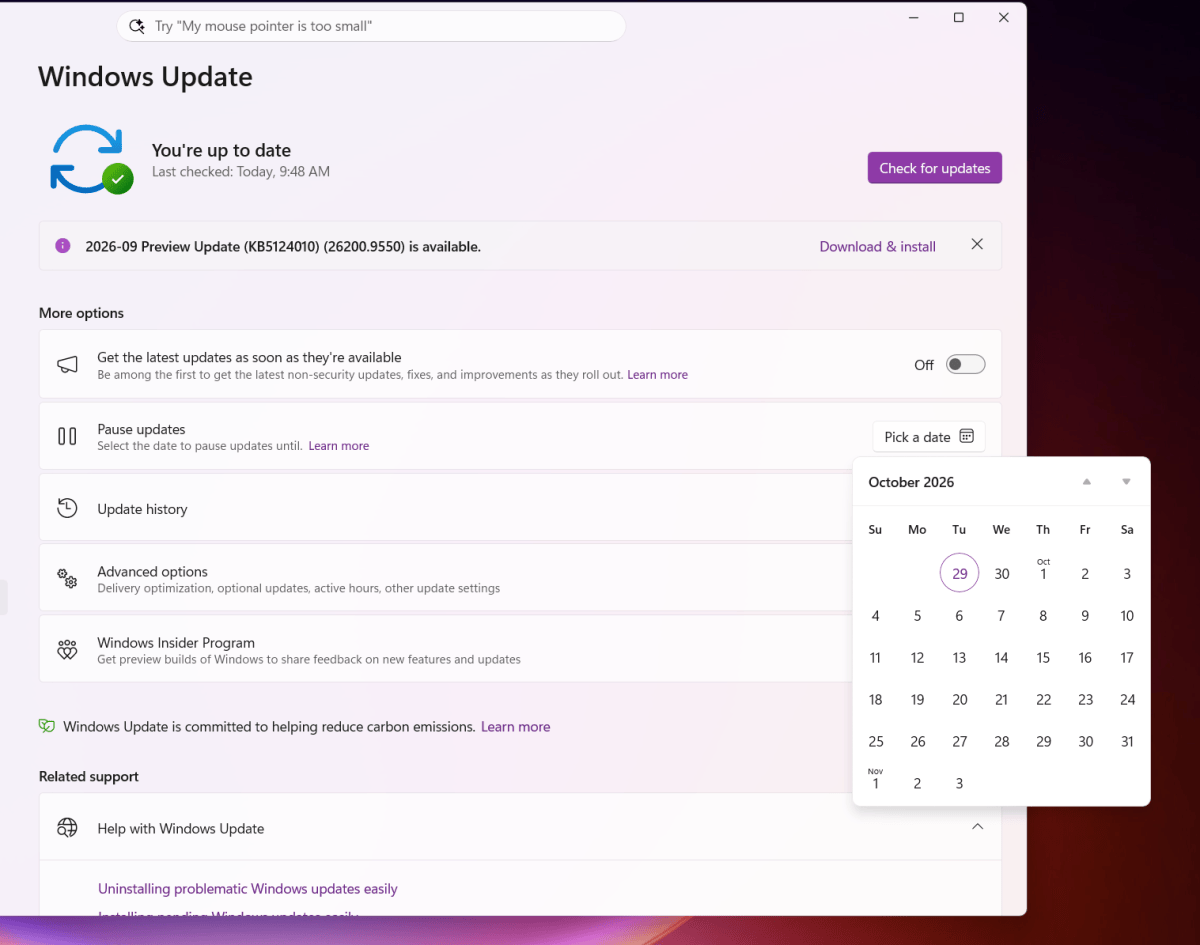
I appreciate that, but the Windows update process now achieves something Microsoft traditionally struggles with: simplicity on the surface, with more complexity hidden underneath. Do I want the latest updates ASAP? A simple toggle enables this. Do I want to delay the update? I can, and select a specific date as well.
That’s exactly what many people want. Me too. I appreciate even nerdier options such as selecting optional preview and driver updates, as well as the numerous options to reset your PC when something goes wrong or an update fails. There’s even “quick machine recovery,” an automated process I’ve never been forced to experiment with, thankfully. My only complaint at the moment is that the “delivery optimization” feature that’s existed within Windows for years — designed to share updates locally, without needing to download from an Internet server — has never seemed to work, ever.
Resetting or setting up a new PC is also supposed to be faster, and it generally is. One of Windows’ new features is its ability to defer updates, delivering you to the desktop faster. I’ve never taken advantage of this, but anything that smooths the process is a step forward.
I still don’t entirely like the Windows Insider hierarchy for preview builds, however. While I like the easier way to migrate a PC in and out of Insider builds, the process of selecting “beta” and “experimental” builds, then opting in to a “release preview” update, then picking which of the code bases to use… It’s too convoluted. On the other hand, I don’t really think the corps of Insiders wants yet another change to the program.
Windows performance, especially on 8GB PCs: B
This is a tough one. I simply couldn’t say for certain whether Windows feels faster without doing a head-to-head comparison with the same hardware.
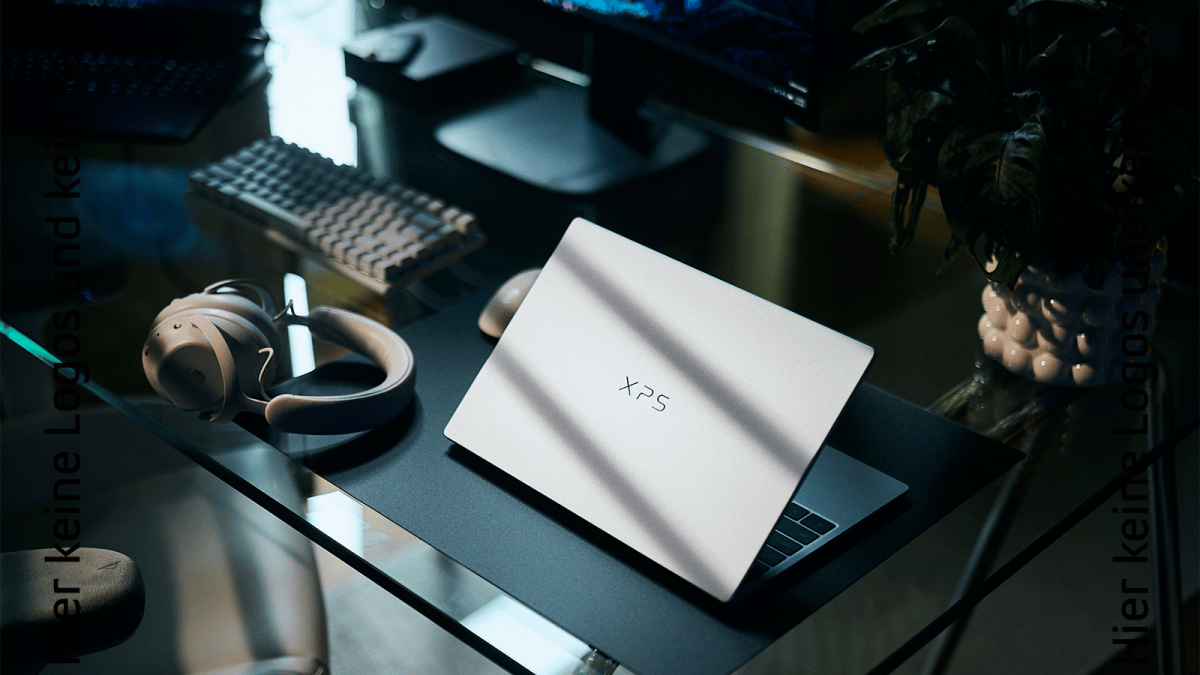
What I will say is that PCWorld has tested a few laptops with 8GB of memory installed, such as the Dell XPS 13 this past August. In my own experience, these affordable PCs — based on Intel’s Wildcat Lake processor and its Project Firefly initiative — feel akin to Chromebooks, capable of performing many basic tasks.
Dell
For me, the dividing line between what these PCs can or can’t do falls somewhere between the “required” and “recommended” specifications that software vendors include. Will the application run, and will it run well? I never had any problem with basic Web browsing or the Microsoft Office applications on the 8GB laptops I tried. However, simply opening Microsoft Edge with ten browser tabs sucked up virtually every bit of memory that Windows provided, and even an idle background app affected performance.
I think Microsoft has more work to do here, and it may never match Apple in how effectively it aligns its silicon with its operating system and applications. The question is, will it need to? If the memory crunch continues, Microsoft developers will be forced to keep busy. If it evaporates, Windows can begin gobbling up memory once again.
A “quieter” Windows: A-
I’m sure many readers will disagree with me here, but Windows does feel less intrusive. Microsoft’s pledge to make Windows “quieter” essentially targeted Widgets, the crazy-quilt app that lives in the right-hand corner of your PC. Widgets began as a simple notification of the current forecast, a change in a stock price, or a notable news event, but quickly became a repository for every random bit of information Microsoft’s Bing search engine could dredge up.
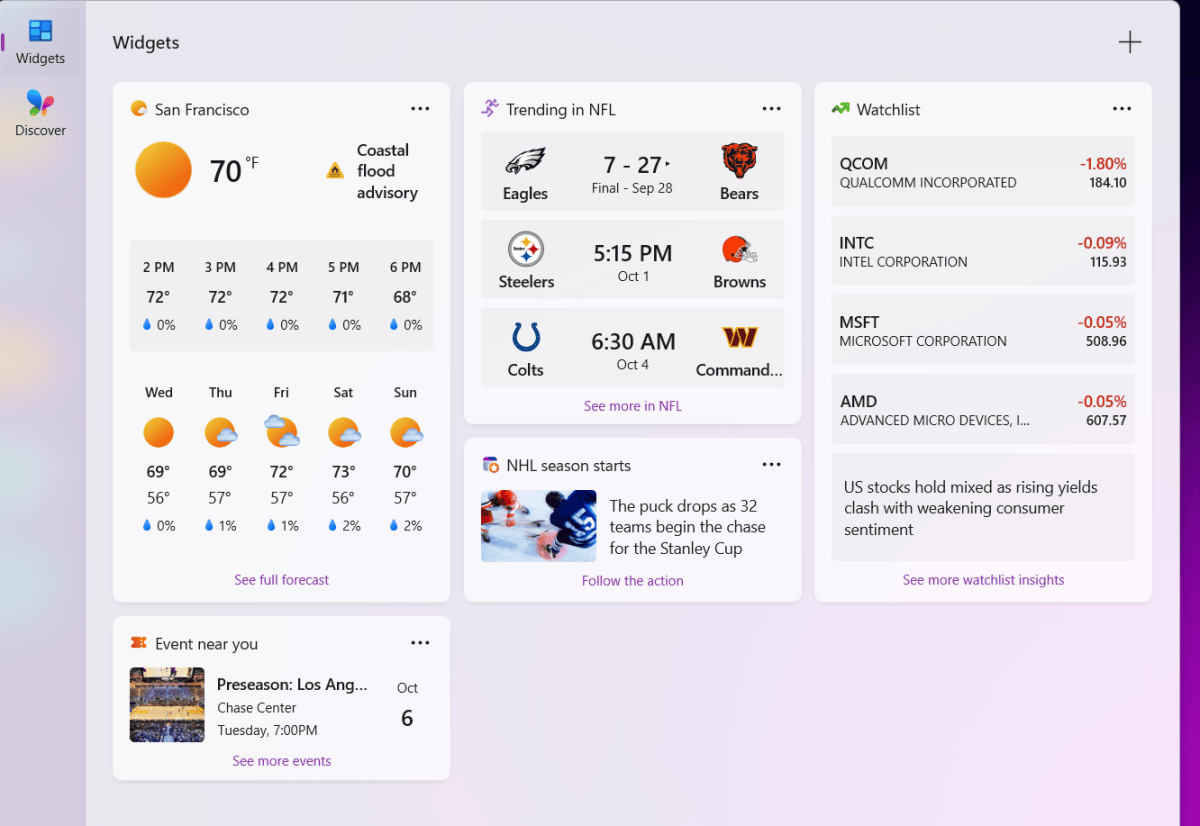
Fortunately, Microsoft has reined it in once again. I’m sure many readers see no use for Widgets at all (and if I weren’t in media, I’d agree) but Widgets sits quietly to one side. I also haven’t seen many “ads” for Windows features pop up, either. Then again, I kill off pretty much every Windows notification I can, and I think you should, too.
That’s my evaluation. What do you think? You can find PCWorld on Facebook, Bluesky, X, and more. Give us your grades.
This articles is written by : Nermeen Nabil Khear Abdelmalak
All rights reserved to : USAGOLDMIES . www.usagoldmines.com
You can Enjoy surfing our website categories and read more content in many fields you may like .
Why USAGoldMines ?
USAGoldMines is a comprehensive website offering the latest in financial, crypto, and technical news. With specialized sections for each category, it provides readers with up-to-date market insights, investment trends, and technological advancements, making it a valuable resource for investors and enthusiasts in the fast-paced financial world.