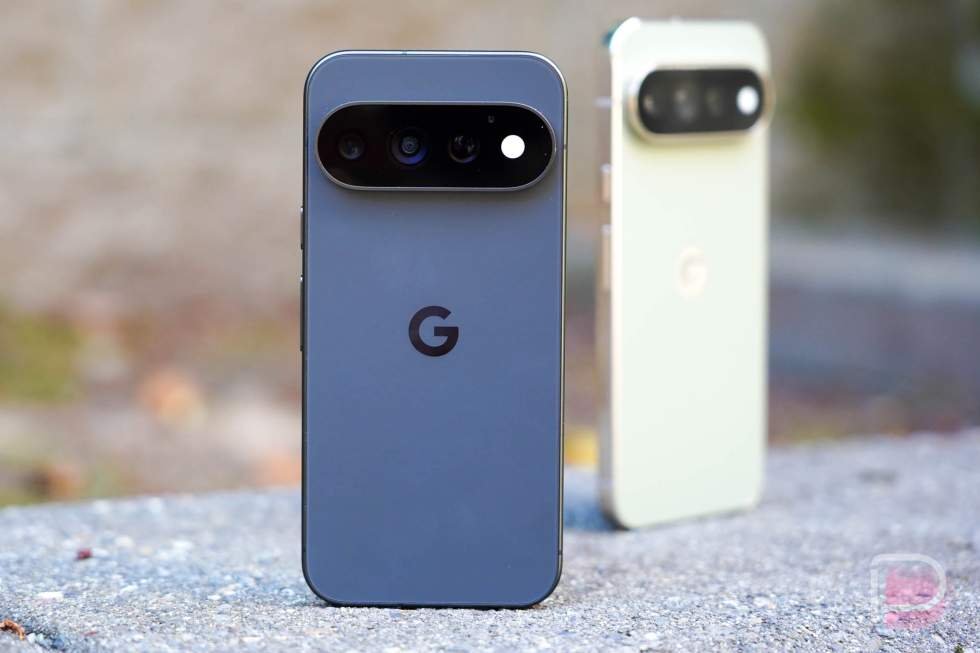
Google’s Pixel phones are mostly known for their cameras. While someone like me might choose one for the software first, I think it’s safe to say that the industry knows Google’s phones as having top tier cameras, maybe even the best.
But since the world can’t stop infusing everything with AI, the Google Pixel camera experience continues to adopt new AI-powered features that Google has cooked up. Unfortunately, those AI features can do some odd sh*t and you may not always like the results they come up with.
Just within the past week, I’ve seen a couple of really awful creations from the AI that happened through the Pixel Camera and Google Photos. One showed a group of young kids on a couch and the AI took one of their heads and placed it inside of an iPad. Another one completely invented new tattoos on a person.
Thankfully, you can turn most of them off and get (sort of) back to the basics.
How to turn off Pixel AI camera features
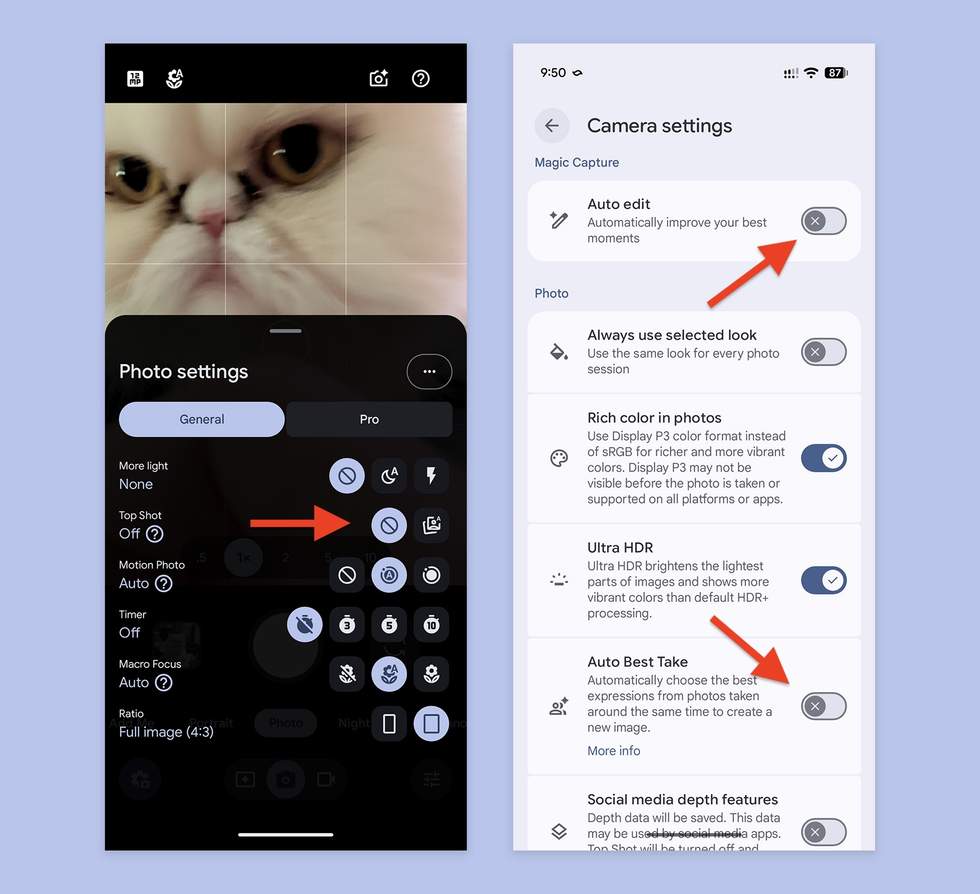
There’s enough processing going on with your Pixel phone’s camera that you likely wont’ be able to eliminate all of the unwanted auto-editing that is done, but there are a couple of options that should wipe most of it out.
The first is Auto Best Take, which is available to the Pixel 10 and newer phones. Auto Best Take uses Google AI to automatically combine multiple photos into one image. The idea here is that you may take a group photo where not everyone is smiling or with their eyes open at the same time, but if there are multiple images available, AI can find enough that have everyone just right and then combine them.
The Pixel 9 has a similar feature just called Best Take.
To turn this off, you’ll do the following:
- Open the Pixel Camera app
- Tap Settings in the bottom left corner
- Tap the 3-dot button
- Scroll to the “Photos” section to find “Auto Best Take” – toggle it OFF
The next option to consider turning off would be Top Shot. Top Shop, when activated, takes a burst of photos and then automatically chooses what it believes is the best shot. This has to be on in order for Auto Best Take to work, so to end both, you could just turn Top Shot off.
To do so, do the following:
- Open the Pixel Camera app
- Tap Settings in the bottom left corner
- On the pop-up menu, look for Top Shot and turn off by selecting the circle icon with the slash through it
Finally, if you have a Pixel 11 series phone, there is a setting within Magic Capture settings called Auto Edit. This feature is described as being able to “Automatically improve your best moments.” I’m not sure we should ever have AI do whatever it thinks is an automatic improvement to our moments.
To turn it off, do the following:
- Open the Pixel Camera app
- Tap Settings in the bottom left corner
- Tap the 3-dot button
- Scroll to the “Magic Capture” section to find “Auto Edit” – toggle it OFF
All of these features can be seen in the image above, with arrows pointing to each.
Read the original post: Google Pixel Cameras: How to Turn Off the AI Features
This articles is written by : Nermeen Nabil Khear Abdelmalak
All rights reserved to : USAGOLDMIES . www.usagoldmines.com
You can Enjoy surfing our website categories and read more content in many fields you may like .
Why USAGoldMines ?
USAGoldMines is a comprehensive website offering the latest in financial, crypto, and technical news. With specialized sections for each category, it provides readers with up-to-date market insights, investment trends, and technological advancements, making it a valuable resource for investors and enthusiasts in the fast-paced financial world.