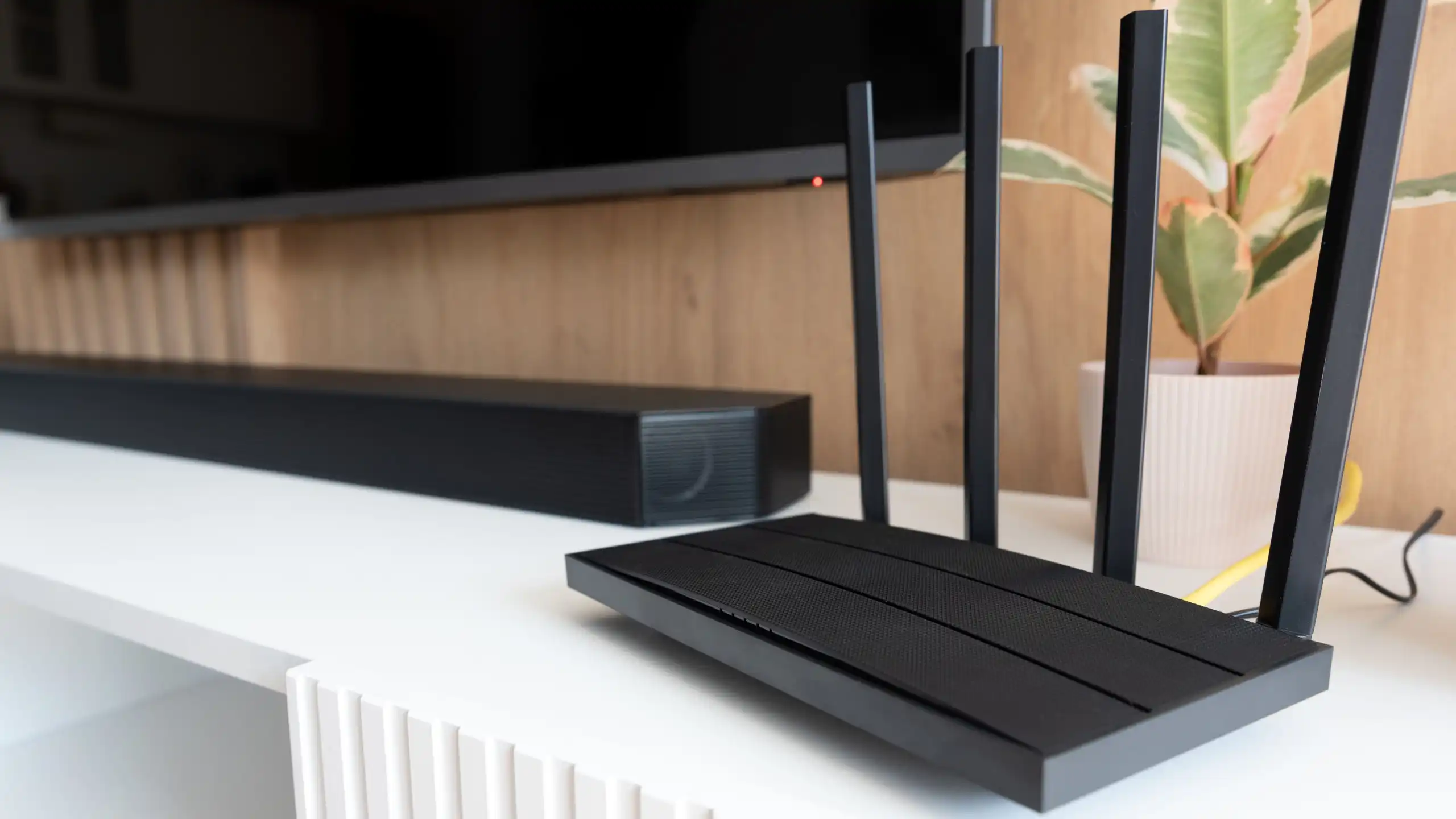
I live in a 950 sq. ft. apartment, so you’d think I wouldn’t have to worry about spotty Wi-Fi quality. But my unit is “long” rather than “square,” and my cable connection comes into the unit at one of the far ends, so distance is an issue. I also have dense walls that prevent Wi-Fi penetration, so even the rooms near my router don’t get good signal. It’s a headache.
Sometimes the answer to crappy Wi-Fi is a better router, especially if yours is older than five years and hanging by a thread. But in situations like mine, a super router wouldn’t do much except drain me of my cash. Here are the solutions that have worked for me, all without needing a new router.
Wi-Fi extender or access point
Extending your router’s Wi-Fi coverage into dead spots
TP-Link
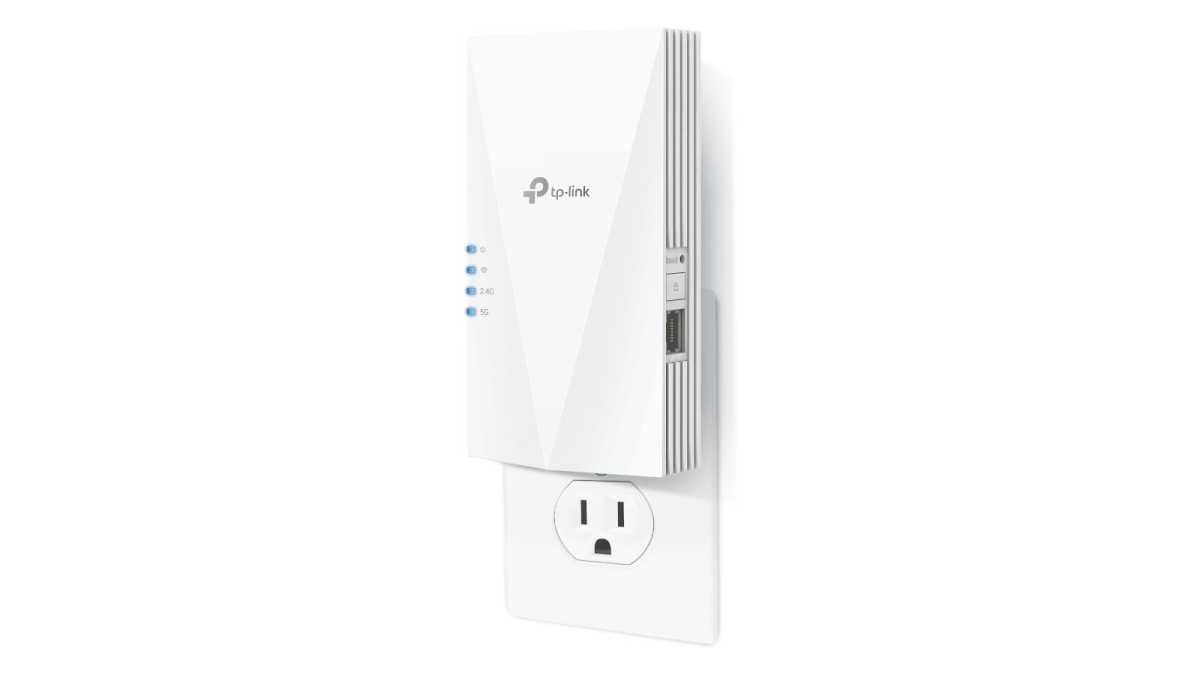
A Wi-Fi extender (like this TP-Link RE500X) is a device that wirelessly connects to your router then re-broadcasts that signal, thus “extending” the reach of your router. Your phone or laptop can connect to the extender, which acts as a bridge between you and your router. A Wi-Fi access point (like this TP-Link TL-WA1801) is nearly identical in purpose, except it connects to your router via Ethernet cable instead of wirelessly.
This is how I solve my spotty Wi-Fi issues in secluded rooms. But each option has its own drawback. Because a Wi-Fi extender has to talk to the router and connected devices, its bandwidth is effectively cut in half—you’ll notice slower max speeds. Wi-Fi access points don’t have that issue, but you need to connect it to your router with an Ethernet cable—not easy when it’s across the entire house or tucked away in a room.
But not to worry. There are ways of getting a wired internet connection into far-away rooms without having to run an immensely long cable up and down walls and through hallways. See powerline adapters below.
Powerline adapters
Conveniently getting Ethernet connections into other rooms
TP-Link
My biggest hurdle—not just in my current apartment but in every other residence I’ve occupied—has always been getting wired connections to places that sat beyond reach. I hate the look of pinned Ethernet cables routed along baseboards and door jambs, not to mention the added cost of buying extra-long Ethernet cables.
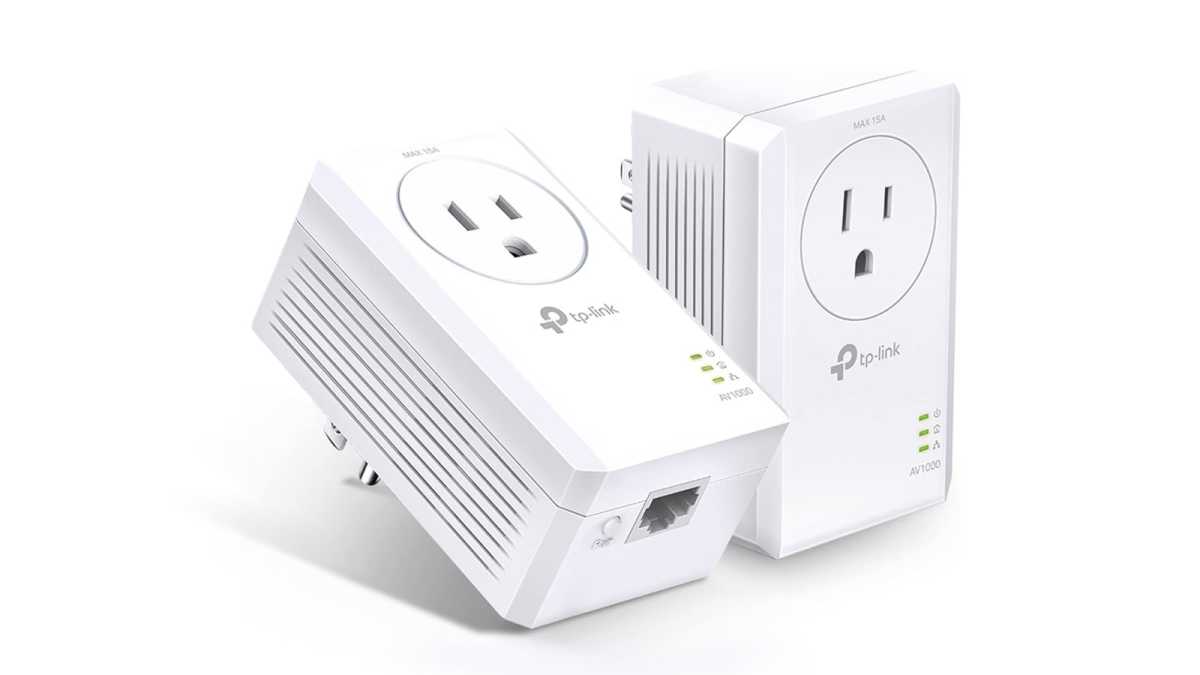
The day I discovered powerline adapters is the day everything clicked into place. These come in sets of two and you just plug them straight into power outlets. They send the Ethernet signal across the electrical circuit, allowing you to bring wired internet into rooms without drilling any holes. Used in tandem with a Wi-Fi access point, it’s easy to boost Wi-Fi coverage. I use the TP-Link TL-PA7017P, which has a convenient passthrough outlet.
There are two caveats here. Both powerline adapters should sit on the same electrical circuit for best performance, else you may get degraded signal quality. And powerline adapters should be plugged directly into wall outlets, not power strips or surge protectors, as that will also impact performance.
Ethernet switch
Turning one Ethernet cable into multiple connections
Netgear
Let’s say you use a set of powerline adapters to run an Ethernet connection to your media center. Now you have a single Ethernet cable but multiple devices you want to connect: a TV, a Nintendo Switch, a PlayStation 5, maybe some other stuff like a NAS or a streaming box.
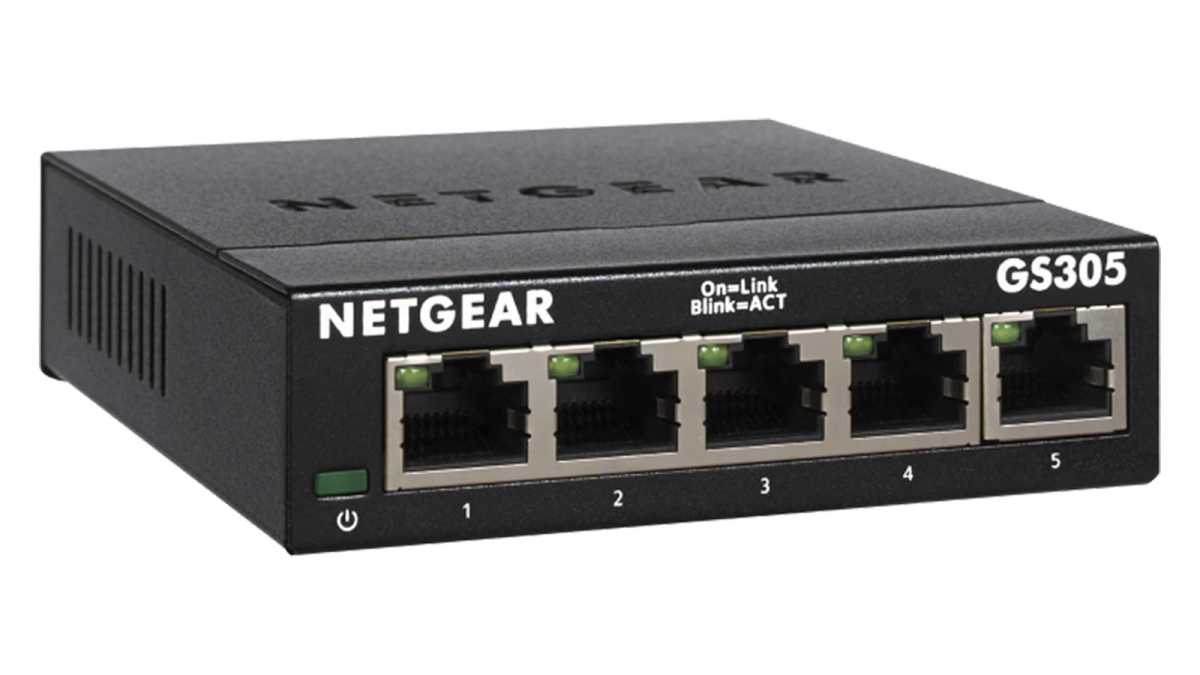
The solution here is really cheap: an Ethernet switch. In short, a switch takes one Ethernet cable as input and splits it across multiple ports, eliminating the need to run multiple super-long cables. The Netgear GS305 comes in multiple sizes ranging from five ports all the way up to 48 ports. It’s a great way to move devices off Wi-Fi, strengthening their connections while reducing Wi-Fi congestion for other Wi-Fi devices.
PCIe Wi-Fi card with antenna cable
For desktop PCs with weak Wi-Fi chips
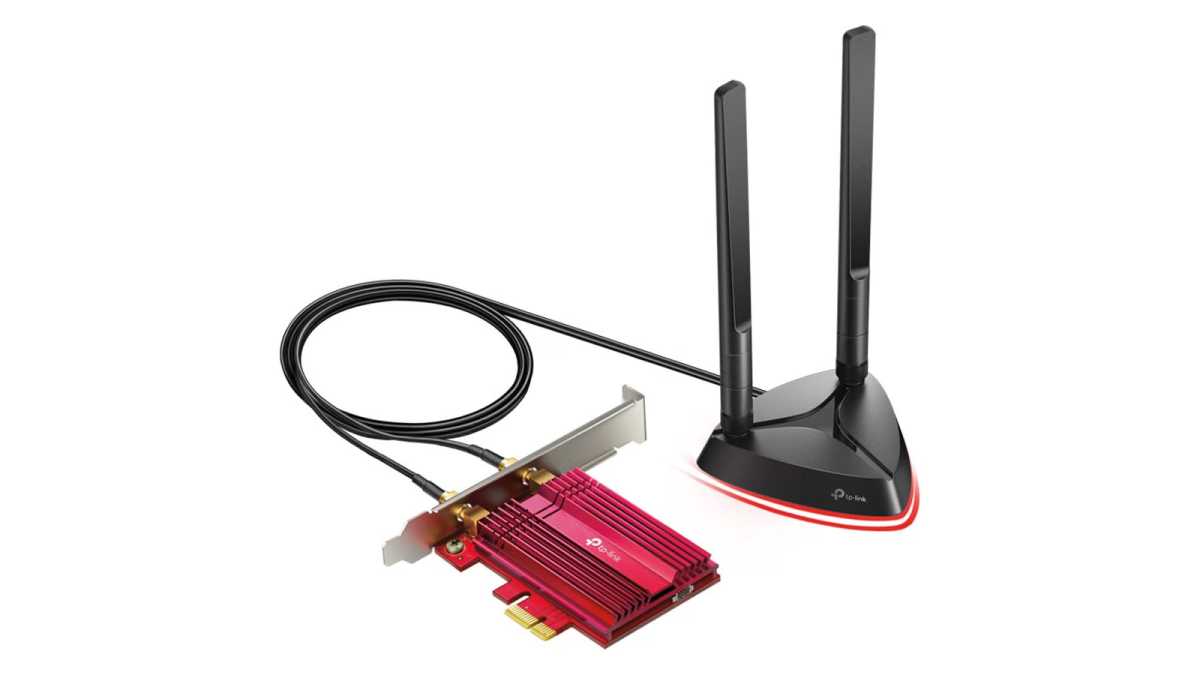
TP-Link
Your desktop PC’s motherboard likely has built-in Wi-Fi capability, but the antennas that came with it are probably budget screw-in sticks that can swivel but not much else. If your PC is located in a dead spot or there’s a lot of Wi-Fi congestion in its immediate area, its Wi-Fi won’t perform well.
The best option is, of course, to hook it up via Ethernet. (Maybe use the powerline adapter solution above.) But if that just isn’t doable, your next best move is a PCIe Wi-Fi card upgrade like this TP-Link Archer TX3000E. It supports Wi-Fi 6 and the antenna comes with a cable about 3 feet long, so you can position it away from interference. It even has a magnetic base, so you can easily mount it high up on something magnetic.
USB Wi-Fi adapter
For PCs and laptops with weak Wi-Fi chips
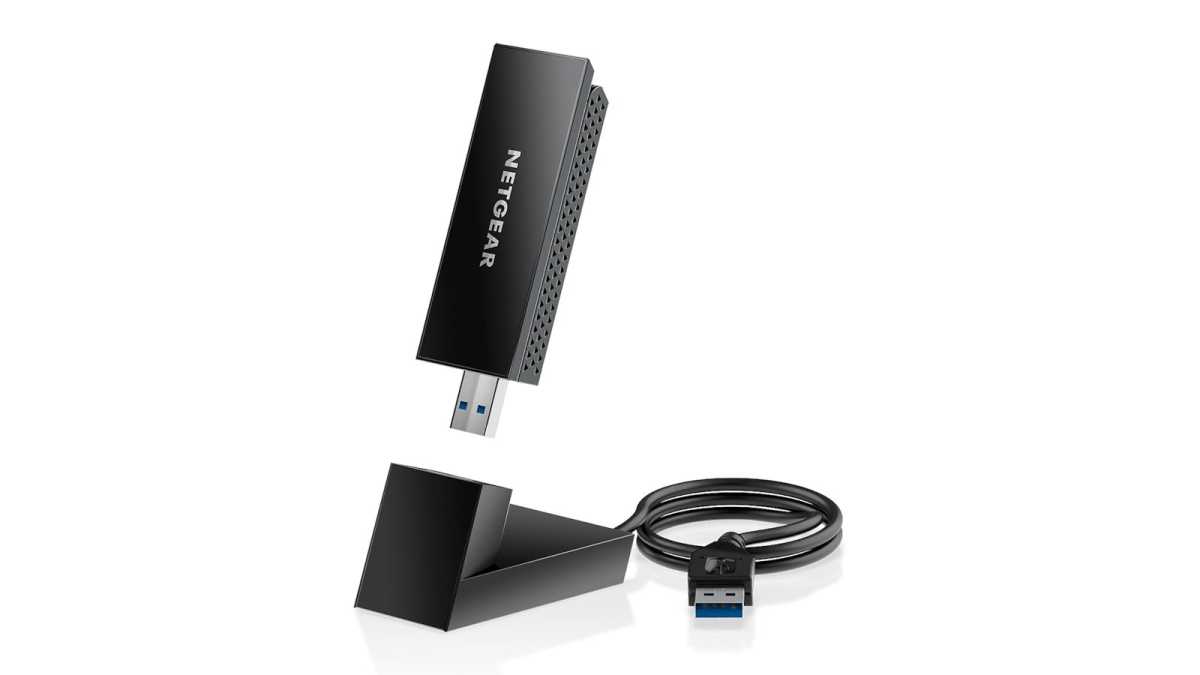
Netgear
If your PC or laptop has an old or weak built-in Wi-Fi chip—and in the case of a PC, if you can’t use the PCIe card above—then you may get improved performance with a USB Wi-Fi adapter like this Netgear A8000. It’s a Wi-Fi 6E dongle that unlocks faster standards and better range, and it comes with a cradle on a 2-foot cable so you can position it away from your laptop, bypassing interference caused by other USB ports.
Most users should be fine with the Wi-Fi 6E model, but note that it also comes in a Wi-Fi 7 variant for a few bucks more. Only consider this if you have a Wi-Fi 7 router and a multi-gigabit internet plan.
USB-C hub with Ethernet adapter
For laptops without Ethernet ports
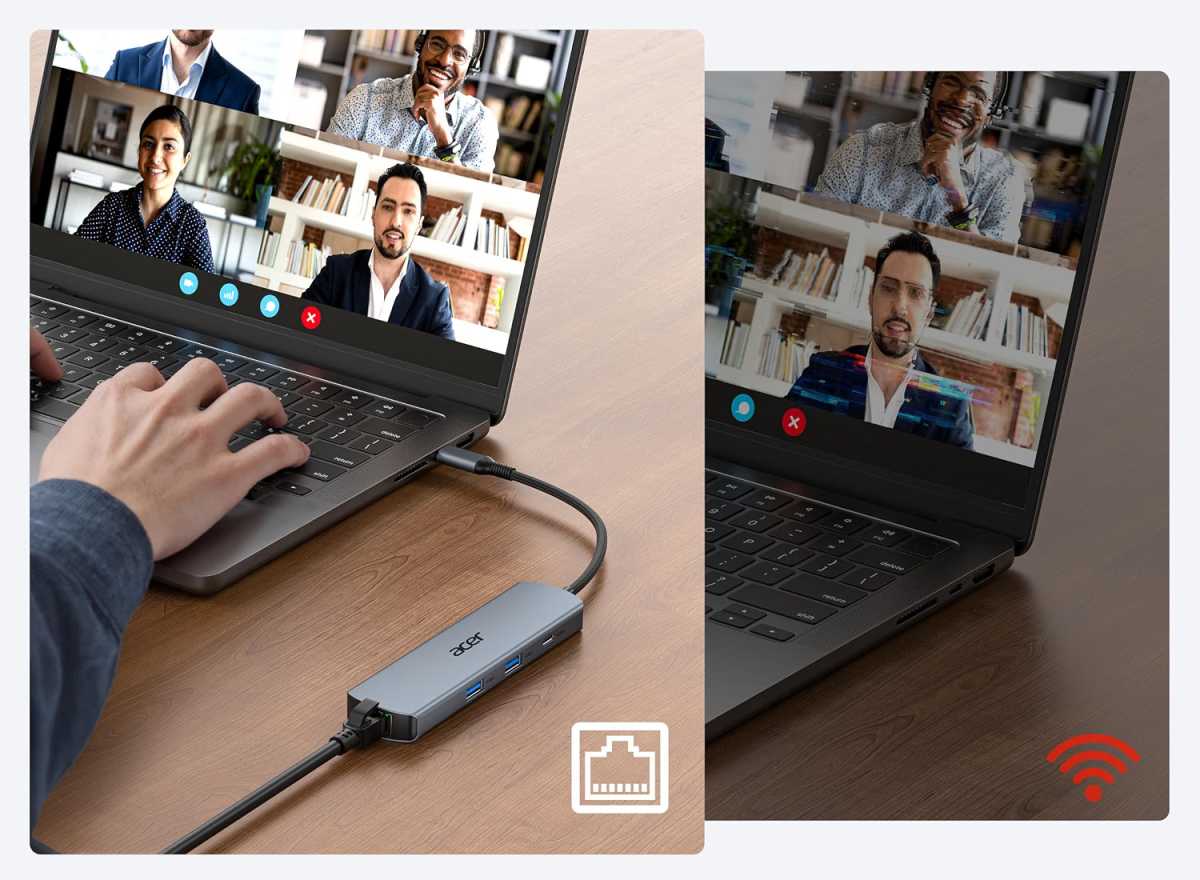
Acer
Okay, you have a laptop and you’ve decided you need the reliability of wired internet over Wi-Fi… but your laptop doesn’t have an Ethernet port. No worries. Just grab a USB-C hub with an Ethernet port like this affordable 6-in-1 USB-C hub by Acer.
All you do is plug this hub into your laptop’s USB-C port, then plug your Ethernet cable into the hub. You now have wired internet. And not just that, but also a 4K/60Hz HDMI port, a USB-C data port, two USB-A data ports, and a USB-C charging port so you can keep your laptop charged even while this hub takes up your precious USB-C port. The Ethernet here supports gigabit speeds, by the way.
Quick Wi-Fi tips before buying anything
If you got this far, hopefully you’ve spotted a solution that works for you. But before you drop cash on hardware, there are a few quick things you can try right now to see if you can improve your Wi-Fi network quality (barring fundamental issues like impenetrable walls and excessive distances).
First, fix your router placement. Never put it inside a cabinet or drawer, which can dampen signals. Keep it away from metal, microwaves, and thick walls, which can all cause wireless interference. Elevating the router can noticeably improve coverage, so if you’re permitted to screw into your walls, consider using a cheap wall mount for routers to get it up higher.
Second, try switching from 2.4GHz to 5GHz or 6GHz. The 2.4GHz band can get congested easily because it’s the oldest type and too many devices use it. Switching to 5GHz or the newest 6GHz band can be much faster. The downside is that 5GHz and 6GHz bands are shorter, so you lose signal quality with distance much faster. As long as your router isn’t too old or cheap, it should support both 2.4GHz and 5GHz.
Third, try changing Wi-Fi channels. Even within the 2.4GHz and 5GHz bands, there are multiple channels, which you can think of as “lanes” within each band. If you live in an area with a high density of Wi-Fi routers (like an apartment complex), too many on the same channel can interfere. If your router is set to automatically pick a channel, you might see gains by manually setting it to a less congested channel. Use free apps like NetSpot WiFi Analyzer or Olgor WiFi Analyzer to see which channels are congested.
This articles is written by : Nermeen Nabil Khear Abdelmalak
All rights reserved to : USAGOLDMIES . www.usagoldmines.com
You can Enjoy surfing our website categories and read more content in many fields you may like .
Why USAGoldMines ?
USAGoldMines is a comprehensive website offering the latest in financial, crypto, and technical news. With specialized sections for each category, it provides readers with up-to-date market insights, investment trends, and technological advancements, making it a valuable resource for investors and enthusiasts in the fast-paced financial world.