
Although Microsoft’s Copilot reportedly remains far behind competing AI Large Language Models (LLMs) in terms of usage, the Copilot built into its Microsoft 365 applications remains a potent assistant. It’s now marginally better, with agentic abilities that finally act on the documents you’re working on.
In my early tests, however, it still falls short in a few key ways — and, of course, it’s certainly not perfect on the first try.
“When we first shipped Copilot, foundation models were not powerful enough to use Copilot to command the applications,” Sumit Chauhan, president of Microsoft’s Office group, wrote recently. “This meant Copilot was a passive partner in documents: it could answer questions but missed the mark when it was asked to take action on the canvas directly.”
And that’s true. From that standpoint, the early versions of Copilot weren’t of much use, simply offering suggestions on what actions to take. Now, it can make changes on the “live” document that you’re working on in Excel, PowerPoint, and Word. It’s the default experience for customers with Microsoft 365 Copilot and Microsoft 365 Premium subscriptions, according to Microsoft, and they’re also available to users with Microsoft 365 Personal and Family plans. It’s likely that more users use the version of Copilot that’s embedded in Microsoft’s productivity apps (with over 300 million users) than the Windows 11 Copilot app itself, which has a tiny fraction of the market.
Tested: Steps ahead, but with a way to go
The new capabilities are only available within the version of Copilot built into the three Microsoft 365 apps themselves, rather than the Copilot application that lives within Windows.
In my tests, I’ve found the Copilot application will create a document for you, but the quality is utter crap. The prompt was “Draft a Word document that details five ways in which water can be saved in California. Include relevant art and graphics.”
Absolutely horrible!
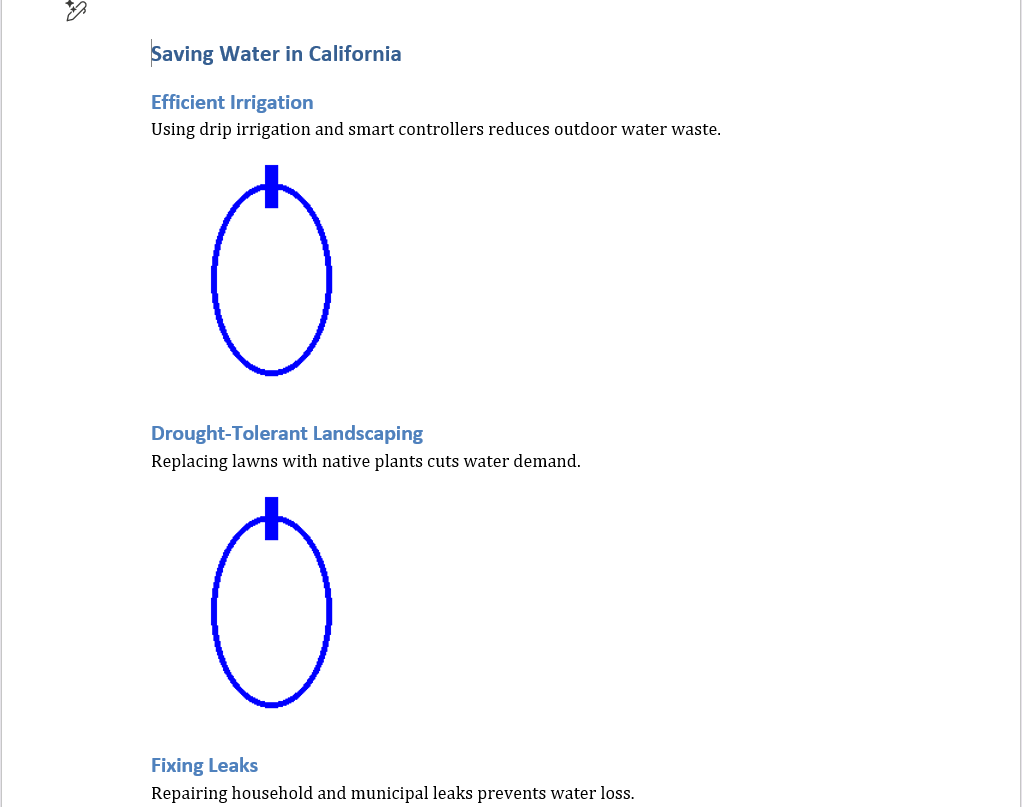
Yes, Copilot subsequently offered to include attributions, more detail, and to turn the placeholder graphics into actual useful information, but I had given up by then. That version of Copilot acts like a teenager who’s being forced to do household chores when they could be hanging out with their friends.
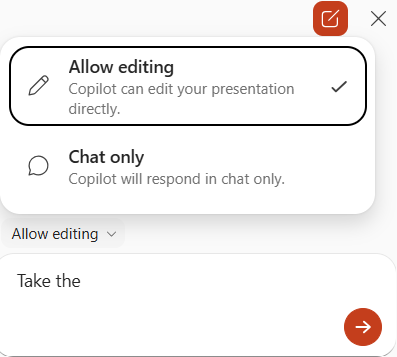
Copilot for Word, however, generates far more sophisticated results. Note that there’s a new menu option, allowing you to chat about a document or prompt, and then a second option to let Copilot actually take action. The second choice supersedes the first by a large margin, I think.
Mark Hachman / Foundry
Both the Copilot app and the Word document below were keyed to my personal account, which has a Microsoft 365 account tied to it. The prompt here was slightly different: “Draft a Word document that details five ways in which water can be saved in California. Include relevant art and graphics.”
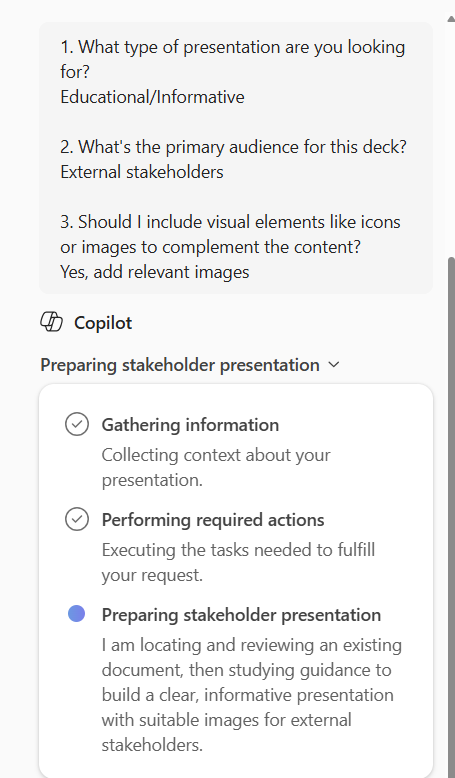
Before generating the document, Copilot asked a few followup questions, trying to determine additional details on style and formatting. My first instinct was to ask for a quick-and-dirty first draft, but Copilot’s insistence on nailing down certain stylistic elements was quick and convenient, relying on choices made via clicking buttons rather than writing an elaborate followup prompt. That felt rather thoughtful and well-designed.
Mark Hachman / Foundry
The actual creation process took a very short time, just a minute or two. Copilot’s workflow was the same as within the app: It told me what it was doing as it was doing it. The difference here was that I could see the results immediately and start considering followup edits.
There’s still a huge omission, however, which points to more necessary work from Microsoft’s perspective.
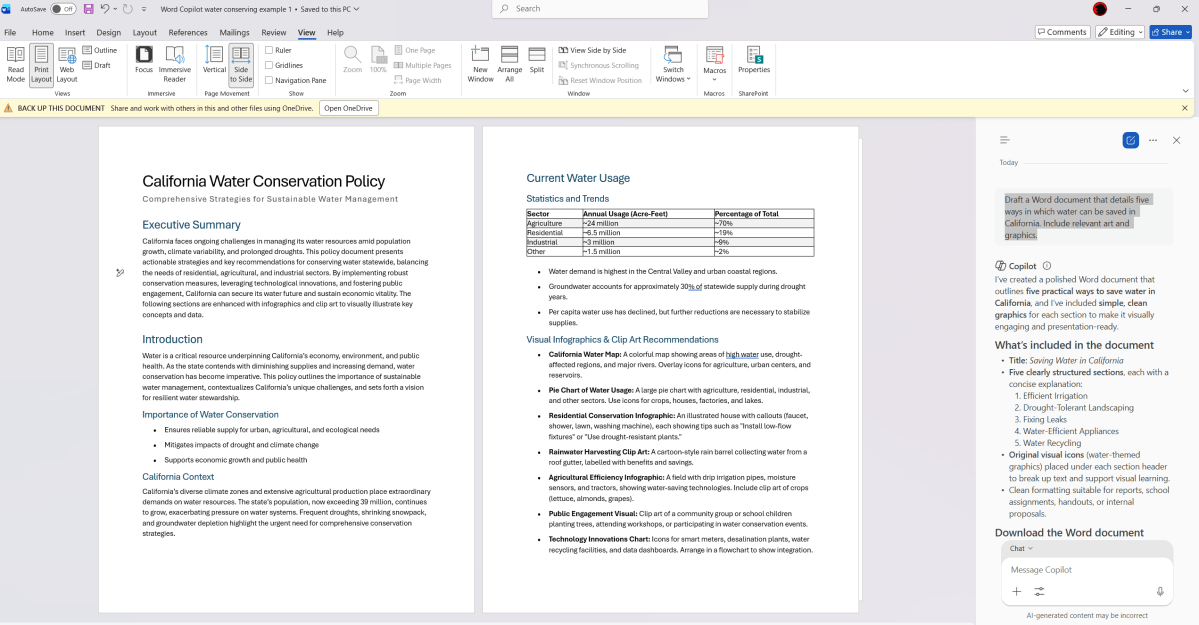
Yes, “recommendations.” I asked for visuals (“relevant art”) and Word failed to deliver. The document it delivered included a couple of (unsourced) tables, but Copilot’s inability to include relevant art is a big miss. Those are the suggestions that characterized the early version of Copilot. I don’t want to have find or create art, import it, and then risk screwing up any formatting! Half the job isn’t done.
Content aside (I’m certainly not a water policy expert) Word got me off the ground, at least. So I saved and downloaded the document and then turned to PowerPoint. Could it turn this document into a series of slides?
As it turned out, no — and there was a key omission right from the beginning, too.
I think those of us who have a nodding familiarity with Copilot, Google Gemini, and other LLMs are now familiar with the “+” symbol being used to upload a document. Word’s Copilot prompt box includes this — but PowerPoint does not. It would have been so easy to simply upload the document and have PowerPoint “translate” it into a series of slides…but no. Trying to manually point PowerPoint at the file (“Take the [filename] from from my Documents folder and create a 10-slide deck from it,” didn’t seem to work.
Interestingly, PowerPoint took the filename (Word_Copilot_water_conserving_example_1.doc) and ran with it, creating a ten-slide presentation on water conservation in general, with sourcing from the Environmental Protection Agency, utility providers, and other groups. The process took a really long time — ten minutes or so, by my unofficial clock — but the results were fairly impressive.
“I created a 10-slide water conservation presentation grounded in research from the EPA, utility providers, and conservation organizations,” PowerPoint’s Copilot reported. “The deck covers the full spectrum — from why conservation matters and how water is used at home, through room-by-room saving strategies, appliance upgrade ROI, and outdoor tips — all backed by real statistics and practical advice.”
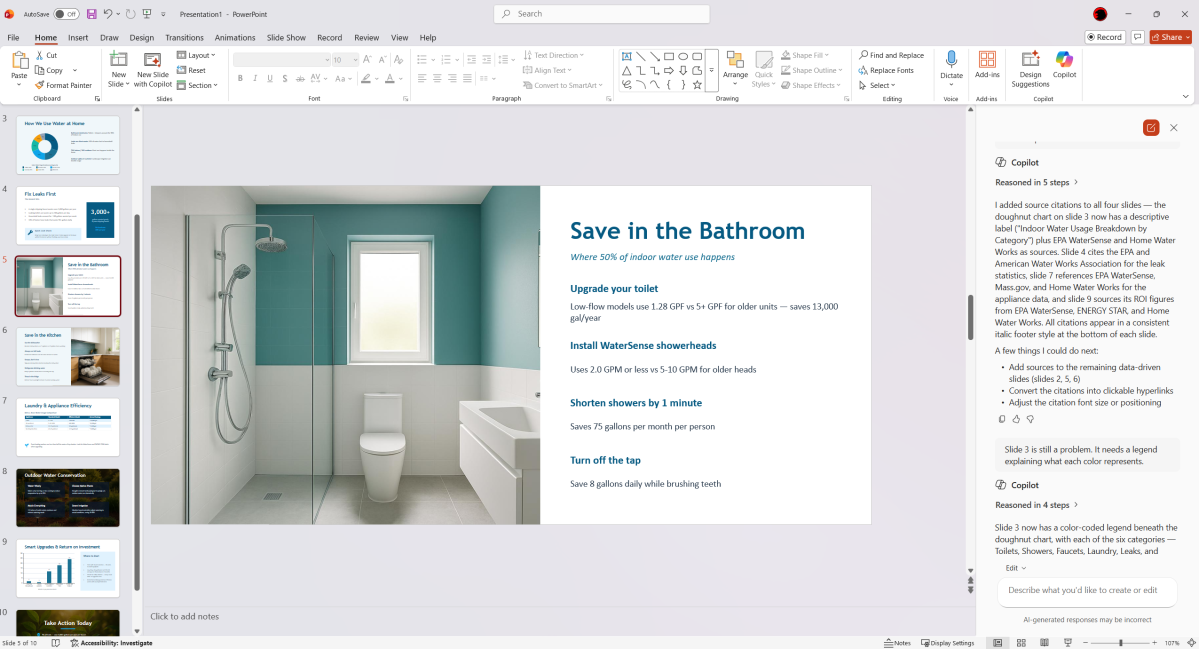
“The slides use a deep blue and teal water-themed palette with custom AI-generated images on the title, bathroom, kitchen, outdoor, and closing slides, plus a doughnut chart, a comparison table, and a bar chart to make the data more engaging for your external stakeholders,” it continued.
Again, Copilot wasn’t perfect: the presentation avoided sourcing, for some reason, and delivered a “doughnut chart” without a legend, meaning that its findings were incomprehensible. In each case, however, I could talk through the edits in the chat window and iterate improvements. And, of course, I could negotiate those edits either via the chatbox or manipulate various elements within PowerPoint as I normally would, with my mouse.
Was it quicker than I could have researched and formatted a presentation? Most definitely. Was it the one I had requested? Most definitely not. And if I intended it to be used for anything related to my job, I would have liked PowerPoint to start with the requested document, and then work from there.
It’s a step forward for Copilot, and Office, certainly. But Microsoft certainly has room for improvement.
This articles is written by : Nermeen Nabil Khear Abdelmalak
All rights reserved to : USAGOLDMIES . www.usagoldmines.com
You can Enjoy surfing our website categories and read more content in many fields you may like .
Why USAGoldMines ?
USAGoldMines is a comprehensive website offering the latest in financial, crypto, and technical news. With specialized sections for each category, it provides readers with up-to-date market insights, investment trends, and technological advancements, making it a valuable resource for investors and enthusiasts in the fast-paced financial world.