Is ChatGPT still bugging you with too many emojis? Ever wonder what ChatGPT knows — or thinks it knows — about you? And how secure is your ChatGPT account, anyway?
It’s easy to overlook ChatGPT’s various settings, especially given that they’re constantly changing. Yet it pays to give your ChatGPT preferences a once-over every so often, and tweaking just a few key settings can help iron out ChatGPT’s weird personality traits while keeping your account safe from hackers.
Yes, diving into account settings can be a royal pain, but if you do nothing else, check these five ChatGPT settings first.
Turn off model training
By default, all your inputs to ChatGPT are used as fodder for training future ChatGPT models, including any personal and/or sensitive details you share with it. If that sounds icky and intrusive, well, it is, and ChatGPT isn’t the only AI chatbot that slurps up your prompts for training data.
The good news is that you can stop ChatGPT from training off your inputs by tweaking a single setting. Go to Settings > Privacy Controls, then turn off the “Improve model for everyone” setting. Toggingling off that setting will also keep ChatGPT from using any audio or video recordings for model training.
Dial down the emoji
ChatGPT is a lot less emoji-happy than it was only a year ago, but the latest GPT models will still sneak in emoji here and there, especially when it comes to lists and comparisons.
While you can try prompting the emoji away, a better method is to head straight for ChatGPT’s Personalization settings, where you can adjust the levels on a variety of ChatGPT personality quirks.
Go to Settings > Personalization, and look for the Emoji setting, where you can choose from three levels: More, Default, and Less.
You’ll also find settings for ChatGPT’s overall tone (ranging from “Professional” and “Friendly” to “Quirky” and “Cynical,”), more granular settings for its warmth and enthusiasm (“More,” “Default,” and “Less” for each), and tweak its proclivity for headers and lists.
Finally, a “Custom instructions” field lets you enter your own prompt for guiding ChatGPT’s personality; this is a good place for my various weekly AI prompts.
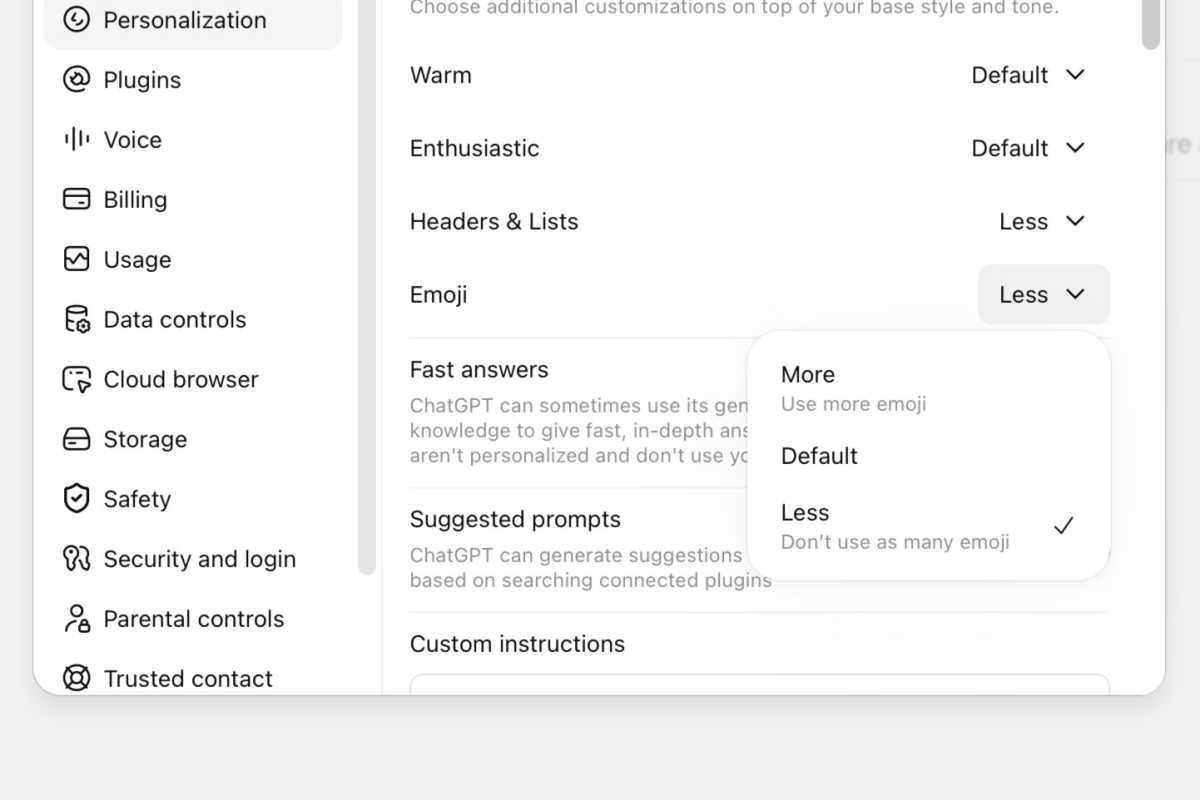
Too many ChatGPT emojis? You can dial them down by tweaking the “Emoji” setting.
Ben Patterson/Foundry
Check your memory summary
ChatGPT keeps a running log of what it knows about you — everything from your name and where you live (assuming you told it) to your favorite foods and any other tidbits it’s gleaned from your previous chats.
You can check a summary of ChatGPT’s stored “memories,” which persist across all your ChatGPT conversations, from the Settings menu; just go to Settings > Personalization, scroll down to the Memory section, then click the Manage button next to “Memory summary.”
From there, you can chat with ChatGPT about its memories of you, telling it new facts or correcting anything that’s changed or flat-out wrong. You can also highlight a passage from the summary to paste it directly into the chatbox below.
There’s also a toggle that turns off ChatGPT’s “memory” feature completely, although it will still remember things you told it within an individual chat thread.
Managed shared ChatGPT links
Remember the brouhaha over Claude chats that were popping up in Google search results? It all happened because those chats had been shared using public URLs, and those shared links can wind up anywhere on the internet, even in social posts.
It’s possible to share ChatGPT conversations in just the same way, and it’s all too easy to lose track of the ChatGPT threads you’ve distributed to others over the years.
Luckily, it’s easy to get a list of all your share ChatGPT convos — and even better, you can quickly unshare any links you’d rather stay private.
Go to Settings > Data controls, browse to the Shared Links setting, click Manage, then click the trash icon to unshare a specific chat. You can also click the three-dot icon in the top-right corner to unshare all your shared conversations at once.
Turn on multi-factor authentication
Your ChatGPT account is likely brimming with reams of personal information, so you should be as scrupulous about your ChatGPT account credentials as you would be for a Facebook or Google account.
If you haven’t already, head right over to Settings > Security and Login, then enable Multi-factor authentication (MFA). At the very least, opt for getting your two-factor authentication codes via text messages, although getting one-time codes from an authenticator app like Google Authenticator is a more secure method.
This articles is written by : Nermeen Nabil Khear Abdelmalak
All rights reserved to : USAGOLDMIES . www.usagoldmines.com
You can Enjoy surfing our website categories and read more content in many fields you may like .
Why USAGoldMines ?
USAGoldMines is a comprehensive website offering the latest in financial, crypto, and technical news. With specialized sections for each category, it provides readers with up-to-date market insights, investment trends, and technological advancements, making it a valuable resource for investors and enthusiasts in the fast-paced financial world.