
In the Pro editions of Windows, the BitLocker hard drive encryption feature has been included since Windows Vista. Under the name Device Encryption, it also became part of the Home editions with Windows 10, and since Windows 11 24H2 it has even been enabled by default.
This is problematic because not all users are aware of this, and the system may suddenly demand the recovery key — for example, following a UEFI update. However, without this 48-digit code, you will no longer have any access to your data on the hard drive!
You will then be locked out, regardless of whether you try to boot the computer from the hard drive or via an alternative system from an external storage device. To ensure that this worst-case scenario does not happen to you under any circumstances, you should make sure to back up the recovery key in good time.
This is particularly important if you’re using device encryption on a computer with a local user account! If you’re signed in with a Microsoft account, you can still retrieve the code via that account at a later date. Here’s how: In the Home editions of Windows 10 and 11, the hard drive may be encrypted even if you haven’t enabled the feature yourself.
Foundry
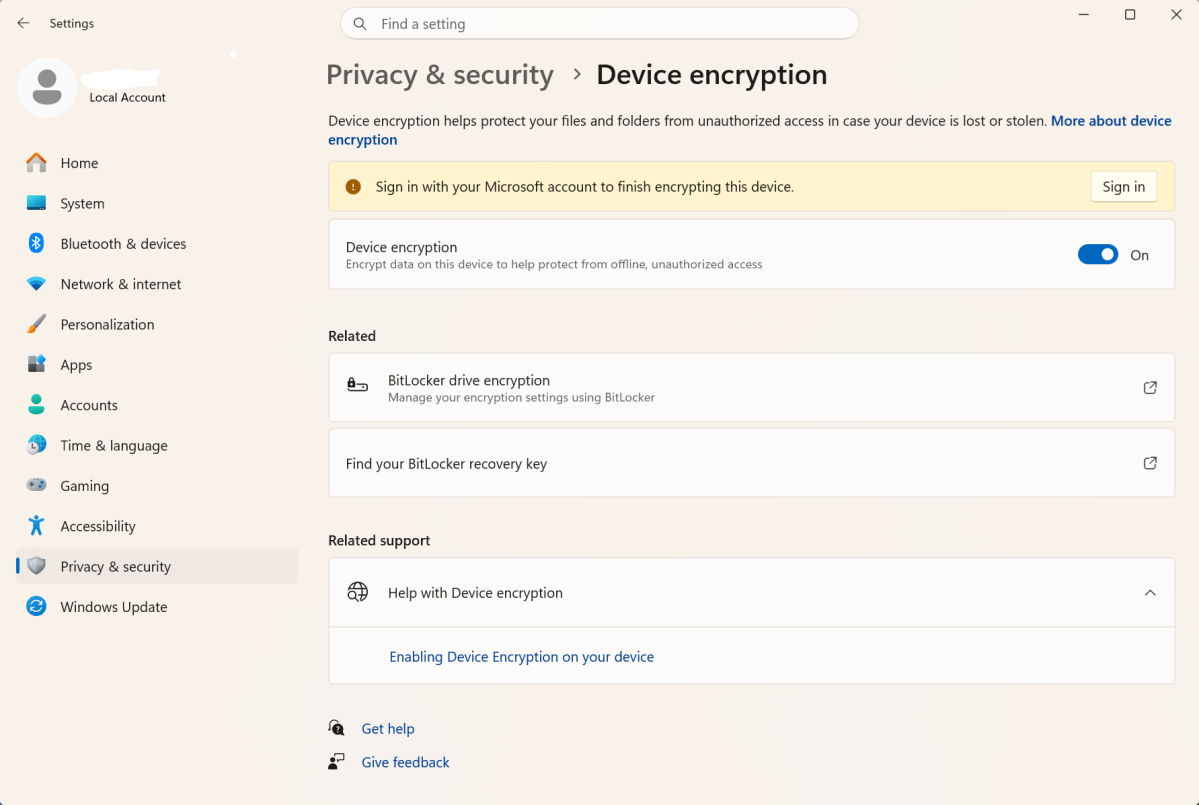
Specifically, this happens whenever you use a Microsoft account as intended during the initial setup. You can check this by clicking on ‘Privacy and security > Device encryption’ in the Settings app. If the ‘Device encryption’ option is enabled, open the address https://aka.ms/myrecoverykey in your browser and sign in with your Microsoft account.
Now make a note of the key ID and the recovery key. This will allow you to access the code later on another computer. Tip: If you use different computers with the same Microsoft account, or have done so in the past, all of these devices will appear in the online list.
This makes it more difficult to find the correct key; in some cases, the only solution is to try them out one by one! Please note that the individual partitions are encrypted separately and therefore require different recovery keys to decrypt them. The abbreviation OSV (Operating System Volume) refers to the system drive, while FDV (Fixed Data Volume) refers to other data drives.
It becomes risky if you are suddenly asked for the recovery key without a Microsoft account. First, without an online account, there is no automatic backup. Second, the Home Edition of Windows offers no obvious option for saving the key: The ability to print it out or transfer it to a USB stick, as is possible with BitLocker in the Pro version, is missing here.
Furthermore, users of local accounts are effectively misled when enabling device encryption. This is because the system then suggests, in a message highlighted in yellow, that an online account is required to encrypt the hard drive. But that’s not true; in fact, encryption starts automatically in the background as soon as the device is switched on!
You can see this by launching the Command Prompt (cmd) with administrator rights, typing the command manage-bde.exe -status C: and pressing the Enter key. Do not be lulled into a false sense of security by the entry under ‘Protection status’, which suggests that (hard drive) protection is disabled — this is definitely incorrect.
It is therefore absolutely vital to back up the key you are using in case you ever need it to decrypt the volume and regain access to your stored data. To save it, type the command manage-bde.exe -protectors -get C: into the open Command Prompt and press the Enter key again.
The 48-character key — referred to here as the ‘password’ — will then appear below the ID mentioned earlier. Select this with the mouse, copy it to the clipboard, and then print it out and/or save it to a USB stick. Please keep the printout and the USB stick in a secure yet easy-to-remember place.
This articles is written by : Nermeen Nabil Khear Abdelmalak
All rights reserved to : USAGOLDMIES . www.usagoldmines.com
You can Enjoy surfing our website categories and read more content in many fields you may like .
Why USAGoldMines ?
USAGoldMines is a comprehensive website offering the latest in financial, crypto, and technical news. With specialized sections for each category, it provides readers with up-to-date market insights, investment trends, and technological advancements, making it a valuable resource for investors and enthusiasts in the fast-paced financial world.