
Your Windows desktop can get out of hand fast. You’ve got a dozen browser tabs open, three Word documents, a spreadsheet you swear was right there a minute ago, and an Outlook window buried underneath it all. Before long, you’re spending more time hunting down the window you need than actually working in it.
You don’t need another productivity app to straighten things out. Windows 11 already includes powerful tools for organizing your work, and Microsoft finally brought back some sorely missed taskbar customization options, too.
Here are three ways to tame the chaos in about five minutes — no finicky downloads required.
Welcome to PCWorld’s newsletter, Smart Mode! The focus of this newsletter is productivity: from software to hardware to peripherals, all with the idea to get what you need to get done, efficiently.
I’m PCWorld executive editor Brad Chacos, filling in for your usual host Mark Hachman, who covers the productivity tips, tools, and trends that you need to know about, both from within PCWorld and beyond. If you want the latest issue in your inbox each week, just sign up right here.
1. Put your windows where they belong
Stop dragging windows around your screen and painstakingly resizing them every time you want to work with two apps side by side.
Press Windows + Z with an app open, and Windows 11’s Snap layouts appear. Pick the arrangement you want, then select which other open apps should fill the remaining spaces. Boom! You’ve got a neatly organized workspace without fiddling with window borders.
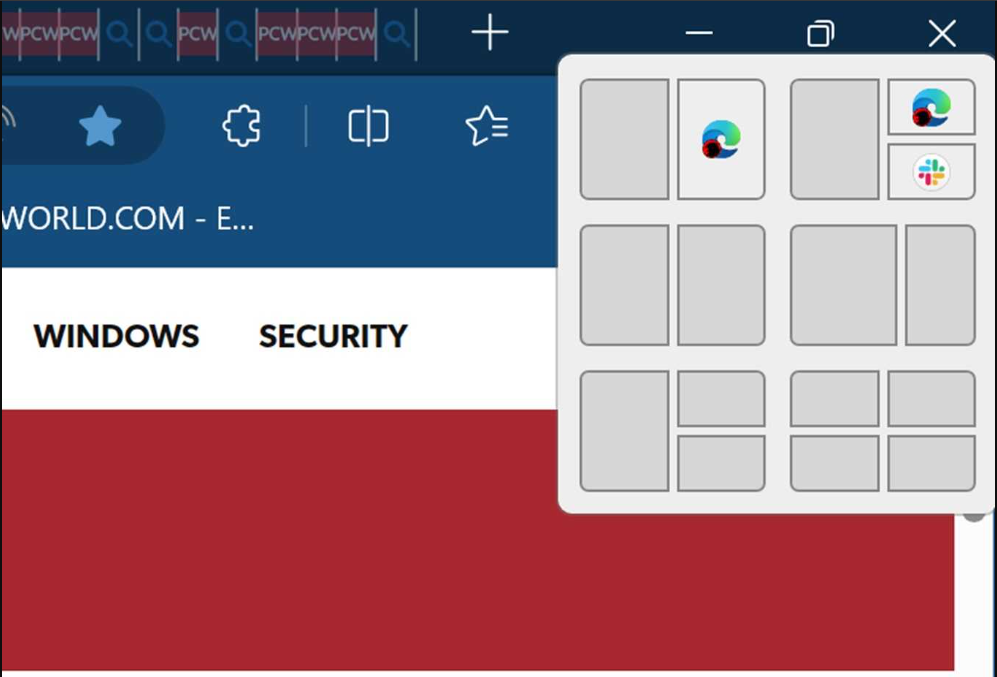
The layout that gives one app roughly two-thirds of the screen and another the remaining third is especially handy. It’s perfect for writing in Word while keeping reference material visible in a browser, or working in Excel with a PDF open alongside it.
You can also drag a window to the top of your screen to summon Snap layouts. Windows even groups snapped apps together in the taskbar and Alt + Tab, making it easier to return to an arrangement after switching to something else.
My colleague Sam Singleton has a deeper guide to making the most of Windows 11’s Snap layouts if you want to dig in further.
2. Give your different jobs their own desktops
Snap layouts organize windows on a single screen. Virtual desktops take that idea further, letting you separate completely different projects without closing everything else.
Press Windows + Ctrl + D to create a new desktop. Keep your email, calendar, and chat apps on one desktop, for example, then use another desktop for the documents and research you need to actually get some work done. You can see an example of several virtual desktops running below.
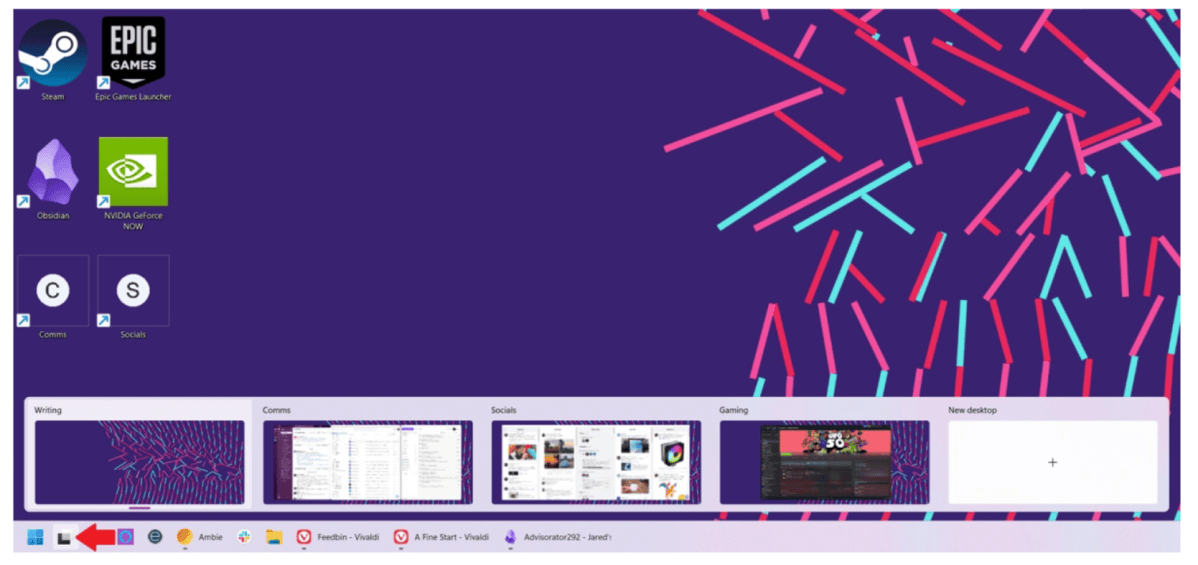
You can hop between them instantly with Windows + Ctrl + Left Arrow or Right Arrow. Press Windows + Tab to see all your desktops, rename them, and move open windows from one desktop to another. You can even give each desktop a different wallpaper to make them easier to recognize.
Here’s an especially useful tweak: Head to Settings > System > Multitasking > Desktops and tell Windows to show only the open windows from your current desktop on the taskbar. You can do the same for Alt + Tab. That way, your carefully separated workspaces won’t keep dumping every open window into the same crowded app switcher.
Virtual desktops won’t magically remember and relaunch your projects after a reboot, but they’re utterly fantastic for keeping unrelated work from piling up on top of itself. I use virtual desktops each and every day, and my work life is so much better for it.
3. Fix that cluttered taskbar
Microsoft finally did something Windows 11 users have been begging for since the operating system launched: It brought back the ability to move the taskbar.
Yes, really. Five years after Windows 11 took away the option, you can once again put the taskbar at the top, bottom, left, or right edge of your screen. Better late than never, I guess. The movable taskbar is rolling out through Windows 11 updates, so the option might not appear on every PC yet however.
Right-click an empty part of the taskbar, select Taskbar settings, then expand Taskbar behaviors. Look for the taskbar position setting to move it where you want. You can also make the taskbar smaller, which is especially handy on laptops where every bit of screen space counts.
Moving the taskbar to the side is particularly useful on a widescreen monitor. Most websites and documents scroll vertically, while modern monitors have plenty of horizontal room to spare. Shifting the taskbar to the side gives your actual work more breathing room without sacrificing quick access to your apps.
While you’re here, look for Combine taskbar buttons and hide labels and change it to Never. Instead of lumping multiple Word documents or File Explorer windows behind a single anonymous icon, Windows can display separate labeled buttons so you know what’s what.
That can get crowded if you have a ton of windows open, duh. But combined with virtual desktops, it’s a great way to keep the apps you’re actually using visible and easy to reach.
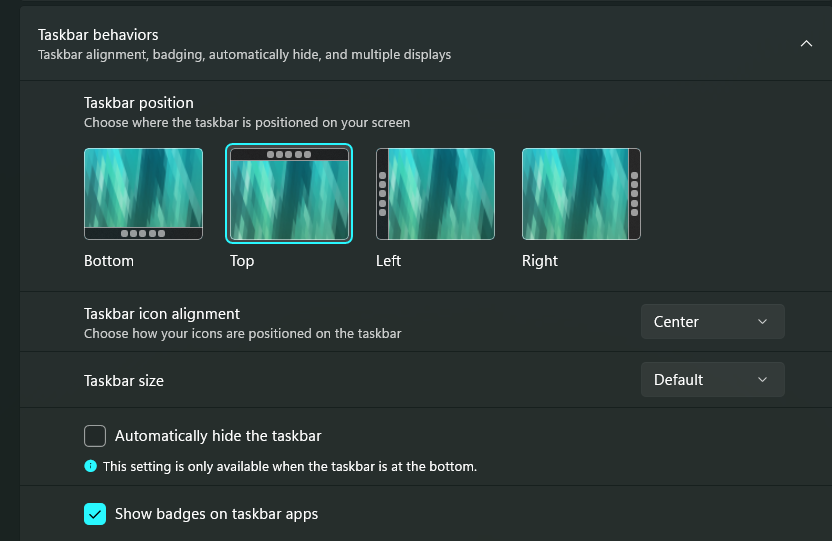
This took five years to do, for some reason.
Microsoft
Finally, unpin any taskbar apps you never use, and pin the ones you rely on every day. There’s no reason to give valuable taskbar space to apps you haven’t opened in six months.
Microsoft’s newfound willingness to let you customize the taskbar is a welcome change, even if it’s mostly restoring functionality Windows used to have. PCWorld covered the return of the movable taskbar when the feature started rolling out.
You probably won’t stop opening too many windows. I certainly won’t. But at least Windows gives you some decent ways to keep the resulting mess under control.
Thanks for reading!
Thanks for tuning in to this edition of Smart Mode, PCWorld’s newsletter devoted to helping you make the most of your life, smartly. Sign up and have it sent to your inbox every Thursday — regular host Mark Hachman also makes sure you see the latest productivity tips, news, and videos from around the web when he isn’t busy being on vacation. You’ll find all that next week. Even productivity gurus need rest sometimes!
This articles is written by : Nermeen Nabil Khear Abdelmalak
All rights reserved to : USAGOLDMIES . www.usagoldmines.com
You can Enjoy surfing our website categories and read more content in many fields you may like .
Why USAGoldMines ?
USAGoldMines is a comprehensive website offering the latest in financial, crypto, and technical news. With specialized sections for each category, it provides readers with up-to-date market insights, investment trends, and technological advancements, making it a valuable resource for investors and enthusiasts in the fast-paced financial world.