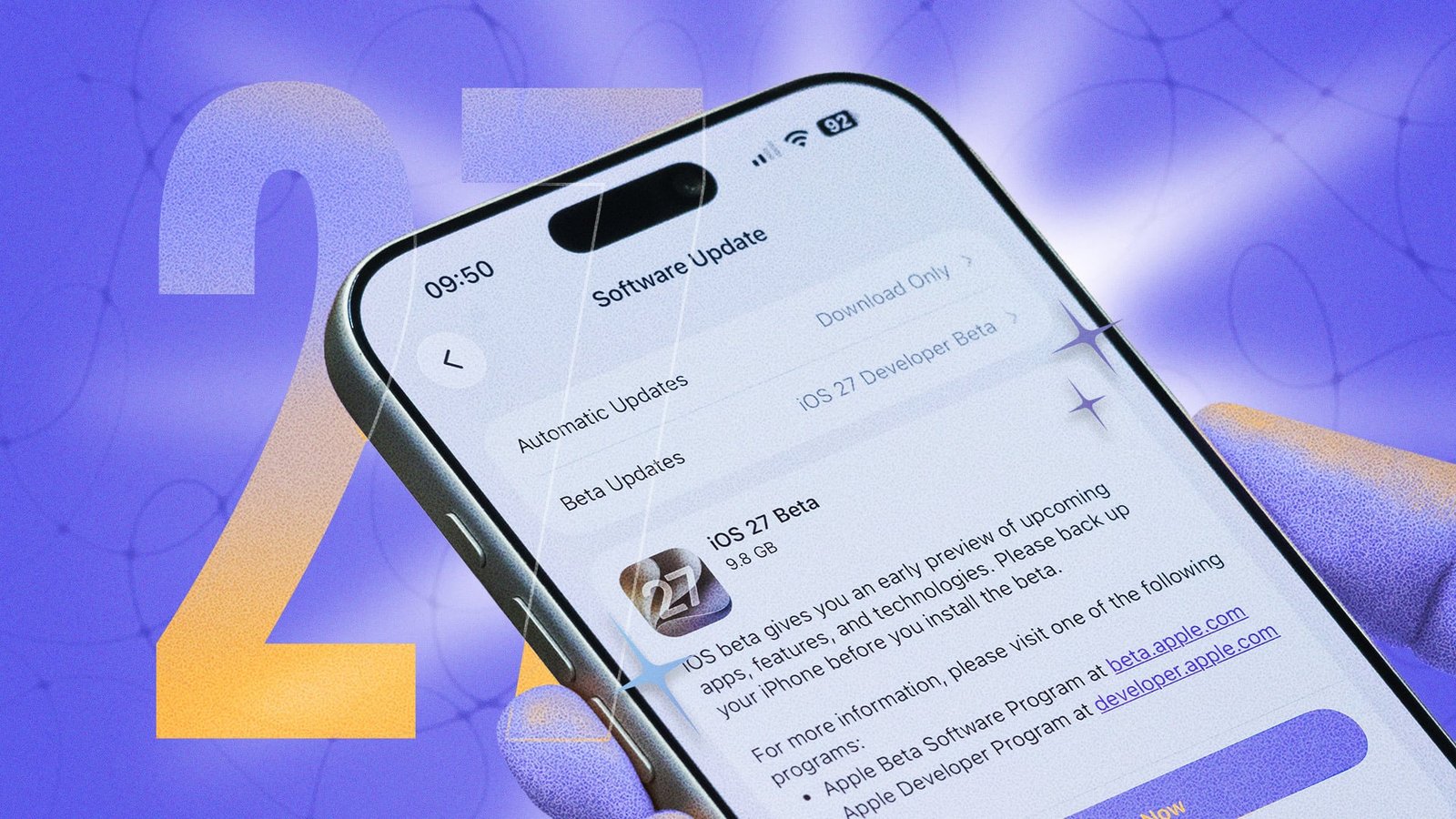
If you have an iPhone 11 or newer (including the second-gen iPhone SE), you can look forward to installing iOS 27 in the fall. Apple’s next big update is heavy on the AI and stability upgrades, and will likely drop sometime in September. However, iOS 27 has also been available in beta all summer. I’ve been running the update on my primary iPhone for nearly three months now, and during that time, I’ve discovered a bunch of hacks I think every iOS 27 user should know. Whether you’re installing the update today or next month, you should definitely try out these useful hacks for your iPhone.
Use this new feature to customize Liquid Glass
Apple introduced Liquid Glass with iOS 26, and didn’t hold back with its design choices. While some liked the changes, others have criticized Liquid Glass for focusing more on style over substance. In response, cApple introduced new ways to adjust and customize the design’s transparency effects. That only continues with iOS 27. There’s now a new slider that lets you reduce or almost eliminate the Liquid Glass effect. You can find it under Settings > Appearance > Liquid Glass in iOS 27. Move the slider towards the right to improve readability.
Remove the audio message button to prevent accidental voice notes
I’ve lost count of the number of times I’ve accidentally sent incomprehensible voice notes to people on iMessage. In my case, the culprit was the audio message button to the right of the text box in the Messages app. Luckily, in iOS 27, you can either change that button to dictation, or remove it altogether. To change it up, head over to Settings > Apps > Messages, and select Show in Text Field. You can pick one of these three choices: Record Audio, Start Dictation, and None. The last one (None) removes the audio message button from the text box. Note that you can still access the “Audio” option from the (+) menu, while dictation will appear in your keyboard.
Use this setting to silence alerts while keeping alarms loud

Credit: Pranay Parab
With iOS 27, Apple is making it possible to set different volume levels for ringtones, alerts, and alarms. If you want to silence app notifications and texts, but still hear your ringtones and alarms, this one’s for you. To set it up, go to Settings > Sounds & Haptics, and turn off Match Ringtone Volume under “Alarms and Timers.” You can now use the slider to set a different volume level for those two features. Similarly, you can turn off Match Ringtone Volume under “Alerts and System Sounds,” and move the slider according to your needs.
Use this new feature to set timers directly from the lock screen
iOS 27 introduces a convenient new slider that lets you set timers from the Dynamic Island on your iPhone. To use it directly from the Lock Screen, however, you’ll have to remove one of the two controls already present. Pick up your iPhone, and allow Face ID to unlock the device without leaving the Lock Screen. Now, tap and hold the screen, then tap Customize near the base of the display. Tap the “-” button next to the two controls near the bottom-right and bottom-left corners of the display. By default, these two controls are for the flashlight and camera, respectively. After deleting one control, press the + button that appears in its place, and select Timer from the list of controls. Tap the Done button in the top-right corner. Now, when you tap this button, you’ll see a slider appear from the Dynamic Island up top. Move the slider to set a timer, and tap Start Timer to get it going.
Use Dual Capture to start livestreams from FaceTime
With iOS 27, you can essentially start a livestream from FaceTime for the people you’re calling. A new feature called “Dual Capture” allows you to record and stream video from both the front camera and the rear camera simultaneously. This means that you can show your face and the things around you during a FaceTime call, so you don’t have to pick one or the other at any given moment.
To use this feature, start a FaceTime video call with another person, and tap the “Flip” button that appears in your selfie video frame. This will start a Dual Capture session. You can stop streaming both cameras by tapping the Flip button in the bottom-left corner of the screen, which returns you to a regular selfie video. In addition, you can turn off the front camera feed in a FaceTime call. When in Dual Capture mode, tap the button that appears in the top-left corner of your front camera feed, the icon with a crossed-out person. This turns off the front camera stream, and lets you show just the feed off the rear camera. Note that Dual Capture is limited to iPhone Air, iPhone 17 series, and newer devices.
Use GymKit to connect your iPhone directly to treadmills and other cardio machines
If you or your gym has GymKit-compatible equipment, you can connect your Apple Watch to the machines to track your workouts. I use this feature all the time, but, of course, if I forget to wear my Apple Watch, or if it runs out of charge, then my workouts don’t get logged. Apple is fixing this problem by bringing GymKit compatibility to iPhones. With iOS 27, you’ll be able to connect your iPhone directly to compatible treadmills, elliptical machines, indoor bikes, and other cardio equipment. Whether you don’t have an Apple Watch, or don’t have access to it, you can continue tracking your workouts with greater levels of accuracy.
Setup is easy: As explained by 9to5Mac, you can tap your iPhone against a GymKit-enabled machine, like a treadmill, then follow the on-screen instructions to set up and track a workout, such as “Indoor Run” or “Indoor Walk.” All data is removed from the machine at the end of the session, and stored directly on your iPhone. Note that this feature won’t necessarily track your heart rate. However, if you have a pair of AirPods Pro 3, you can use the built-in heart rate sensor to track your workout.
Use dictation preview to reduce transcription errors
If you’re tired of typos when you’re dictating something to your iPhone, use iOS 27’s “Advanced Dictation Preview.” The new feature uses Siri AI to upgrade dictation’s accuracy, and polishes text automatically—similar to Google’s Rambler feature. Apple says Siri AI’s dictation is now capable of “automatically handling capitalization, punctuation, and formatting” as speak, though you need to enable it manually. Advanced Dictation Preview is only available to iPhones that support Siri AI’s most powerful features, including the iPhone 17 Pro series and iPhone Air. You can enable it by going to Settings > General > Keyboard > Advanced Dictation Preview.
Use the hidden recovery mode to diagnose and fix iPhone software issues

Credit: Apple
iOS 27 has a hidden macOS-like recovery mode, which allows you to diagnose and fix software problems without using a computer. Once you’re running iOS 27 on your iPhone, you can access it with the following key presses:
-
Hit Volume Up and release it.
-
Press Volume Down and release it.
-
Hold the Side Button (power button) till you see “Loading recovery options…” on the screen.
Note that recovery mode should be a last resort to fix your iPhone, and you should not try it without understanding the risks. More than one option in recovery mode directly formats your iPhone and erases all your data, so proceed with extreme caution.
Use a full-screen widget to see your entire calendar at a glance
iOS 27 introduces extra-large widgets, which take up almost all of the available screen space on your device. This allows you to view all of your calendar events in a single widget. (Finally.) To try this in iOS 27, hold an empty part of the Home Screen on your iPhone, and tap the paintbrush icon in the top-right corner. Search for “Calendar,” and swipe right till you see the biggest widgets. At the time of writing, Calendar offers two of these extra-large widgets: “Up Next,” and “List.” Hit Add Widget to drop it to your Home Screen. You can also try other extra-large widgets such as Smart Stack, Music, and other apps that support this iOS 27 feature.
Use this feature to temporarily hide your location from others in Find My
Find My allows you to share your location with your loved ones, but it can sometimes feel a bit invasive. To temporarily stop sharing your location, you could turn off your phone’s GPS, but that affects all other apps which rely on location sharing features. iOS 27 has a more elegant solution, which allows you to temporarily stop sharing your location with others. To use it, open Find My, go to the People tab, and tap the three dots next to a contact’s name. Under “My Location,” select Hide Location, which will turn off location sharing for a day.
This articles is written by : Nermeen Nabil Khear Abdelmalak
All rights reserved to : USAGOLDMIES . www.usagoldmines.com
You can Enjoy surfing our website categories and read more content in many fields you may like .
Why USAGoldMines ?
USAGoldMines is a comprehensive website offering the latest in financial, crypto, and technical news. With specialized sections for each category, it provides readers with up-to-date market insights, investment trends, and technological advancements, making it a valuable resource for investors and enthusiasts in the fast-paced financial world.